Webcam Works in the Camera App but Not in Zoom? 7 Fixes
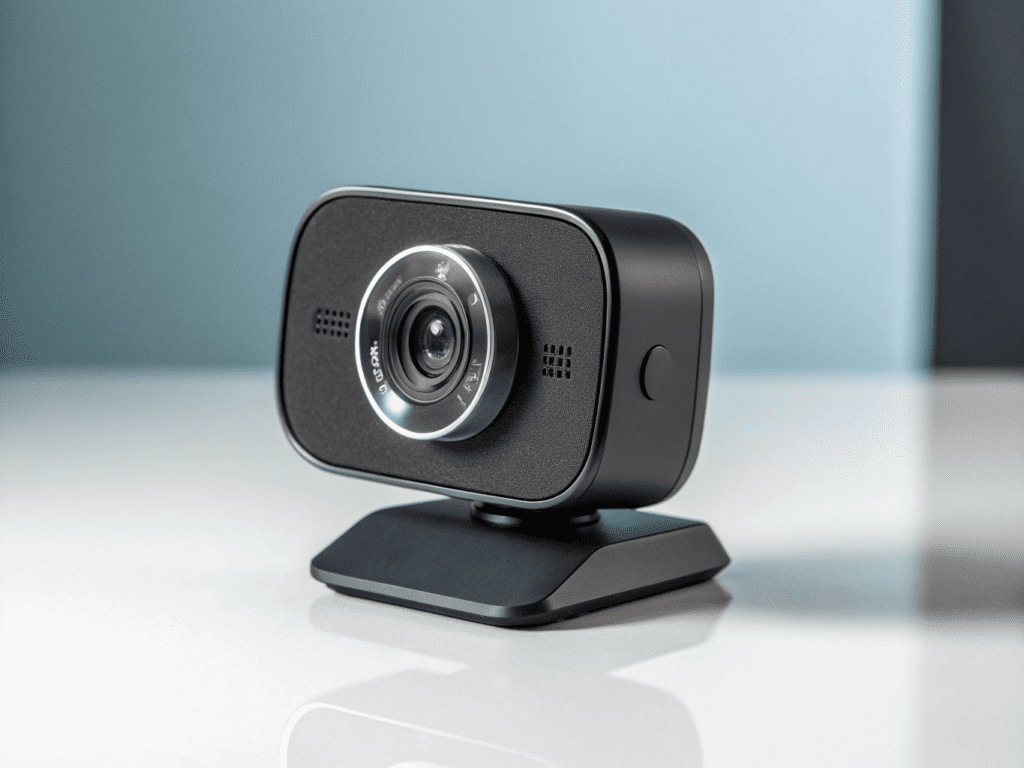
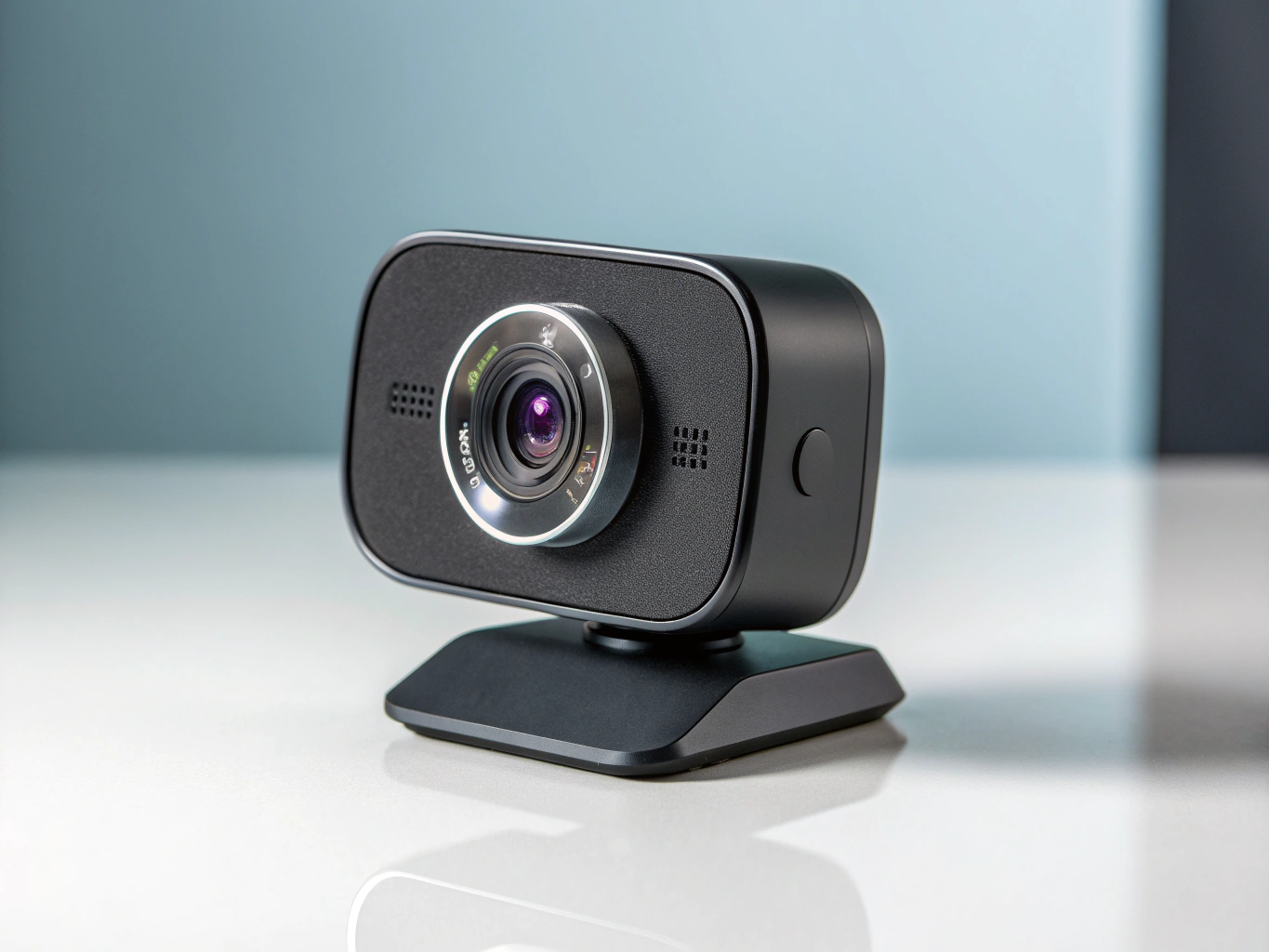
If your webcam works in the Camera app but not in Zoom, Teams, Google Meet or your browser, the camera itself is fine. Windows can see it and use it. The fault sits between the camera and the one app that fails: a permission, a wrong camera choice, another program holding the camera, or a browser setting.
This article only covers that case. If the camera also fails in the Windows Camera app, or Windows cannot find it at all, use our full guide how to fix a webcam not working in Windows 11 and 10 instead.
Check What Kind of Problem You Have
| What you see in the call app | Most likely cause | Go to |
|---|---|---|
| “No camera found” in a desktop app | Desktop apps are blocked from the camera | Fix 1 |
| The camera list has another name, or a virtual camera | The app picked the wrong camera | Fix 2 |
| A black picture and the camera light is on | Another program is using the camera | Fix 3 |
| Works in the browser on one site but not another | Site permission | Fix 4 |
| Browser shows a black or frozen picture | Browser setting, extension or old version | Fixes 5 and 6 |
| Fails only in one app after an update | App needs a restart or update | Fix 7 |
7 Fixes When the Camera Fails Only in One App
Fix 1: Let Desktop Apps Use the Camera
Windows has a switch just for programs you install, such as Zoom and the Teams desktop app. It is separate from the app list, and many people miss it.
- Open Settings > Privacy & security > Camera.
- Turn Camera access and Let apps access your camera on.
- Scroll down and turn Let desktop apps access your camera on.
- Close the call app completely (check the system tray) and open it again.
Windows lists which apps used the camera recently on this page. If your call app never appears there, it has not reached the camera yet.
Fix 2: Choose the Right Camera Inside the App
Apps remember the last camera they used. If you plugged in a second camera, or installed a program that adds a virtual camera, the app may point at the wrong one.
- Zoom: open Settings, then Video, and pick your camera under Camera.
- Microsoft Teams: open Settings, then Devices, and pick your camera.
- Google Meet and other web apps: use the video or settings icon in the call and pick the camera from the list.
If the list shows names such as a virtual camera or a background-effects camera, choose your real webcam instead. Menu names change between versions, so look for the nearest Video or Camera option.
Fix 3: Find the Program That Is Holding the Camera
Most apps cannot share a camera. If another program has it, your call app shows a black picture. This is common with a second video app that is still running in the background, or with a recording or streaming tool.
- Close other call, recording and streaming apps, and any browser tab that has a video site open.
- Press Ctrl + Shift + Esc to open Task Manager and end tasks for apps you do not need.
- Open Settings > Privacy & security > Camera and look at the app list. Windows shows when each app last used the camera, which can point to the program that still has it.
- Restart the PC if you cannot tell which app has it.
Fix 4: Allow the Camera for the Website
A browser asks for permission for each website. If you once clicked Block, it remembers.
- Click the padlock or camera icon at the left of the address bar.
- Set Camera to Allow and reload the page.
- If your camera still does not show, open the browser’s camera setting (in Chrome: Settings > Privacy and security > Site settings > Camera; in Edge: Settings > Cookies and site permissions > Camera) and pick the right camera there.
Fix 5: Turn Off Add-Ons and Test in a Private Window
Extensions that change video, block scripts or add filters can stop the camera in a web call. Open a private or incognito window (extensions are usually off there) and join a test call. If the camera works, turn your extensions off one by one in the normal window to find the cause.
Fix 6: Update the Browser and Try Another One
Update your browser to the latest version and restart it. If the camera still fails, try a second browser. If one browser works and the other does not, the fault is in the first browser’s settings, and you can reset them without touching Windows.
Fix 7: Update, Restart or Reinstall the Call App
Open the app’s update option, install any update and restart the app. If it still fails, sign out and sign back in. As a last step, uninstall the app and install it again from its official website. Your account and meetings are kept online, so you do not lose them.
If It Still Fails
- If the picture works in one app but is poor or dark, adjust the app’s video settings. That is a lighting or app issue, not a fault.
- If other people can see you but cannot hear you, see how to fix a microphone not working in Windows 11.
- If the camera fails in every app, go to the full guide linked above, which covers drivers, the Cameras page and hardware causes. If Windows does not list a USB webcam at all, see how to fix a USB device not recognized.
Frequently Asked Questions
Why does my camera work in the Camera app but not in Zoom?
Windows can use the camera, so the cause is permission or a setting in Zoom. Turn on Let desktop apps access your camera and pick the right camera in Zoom’s video settings.
Why is the camera black in my browser but fine in the Camera app?
Another app may hold the camera, or the site has no permission. Close other video apps and allow the camera for the site.
Do I need to reinstall the camera driver?
Usually not for this problem. If the Camera app works, the driver is probably working too. To check it anyway, see how to update drivers in Windows 11.
Official Reference
- Microsoft Support: Camera doesn’t work in Windows
- Microsoft Support: Manage cameras with Camera settings in Windows 11
For more fixes, browse our PC repair guides.