Computer Turns On but No Display? 9 Things to Check Before Replacing Parts
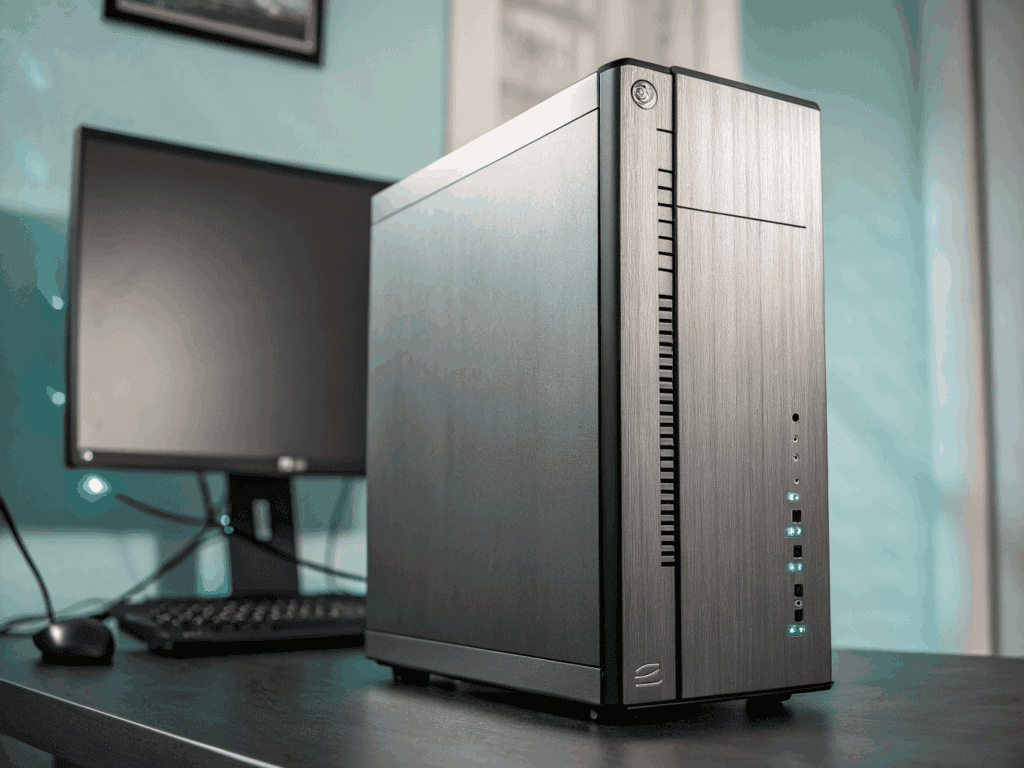
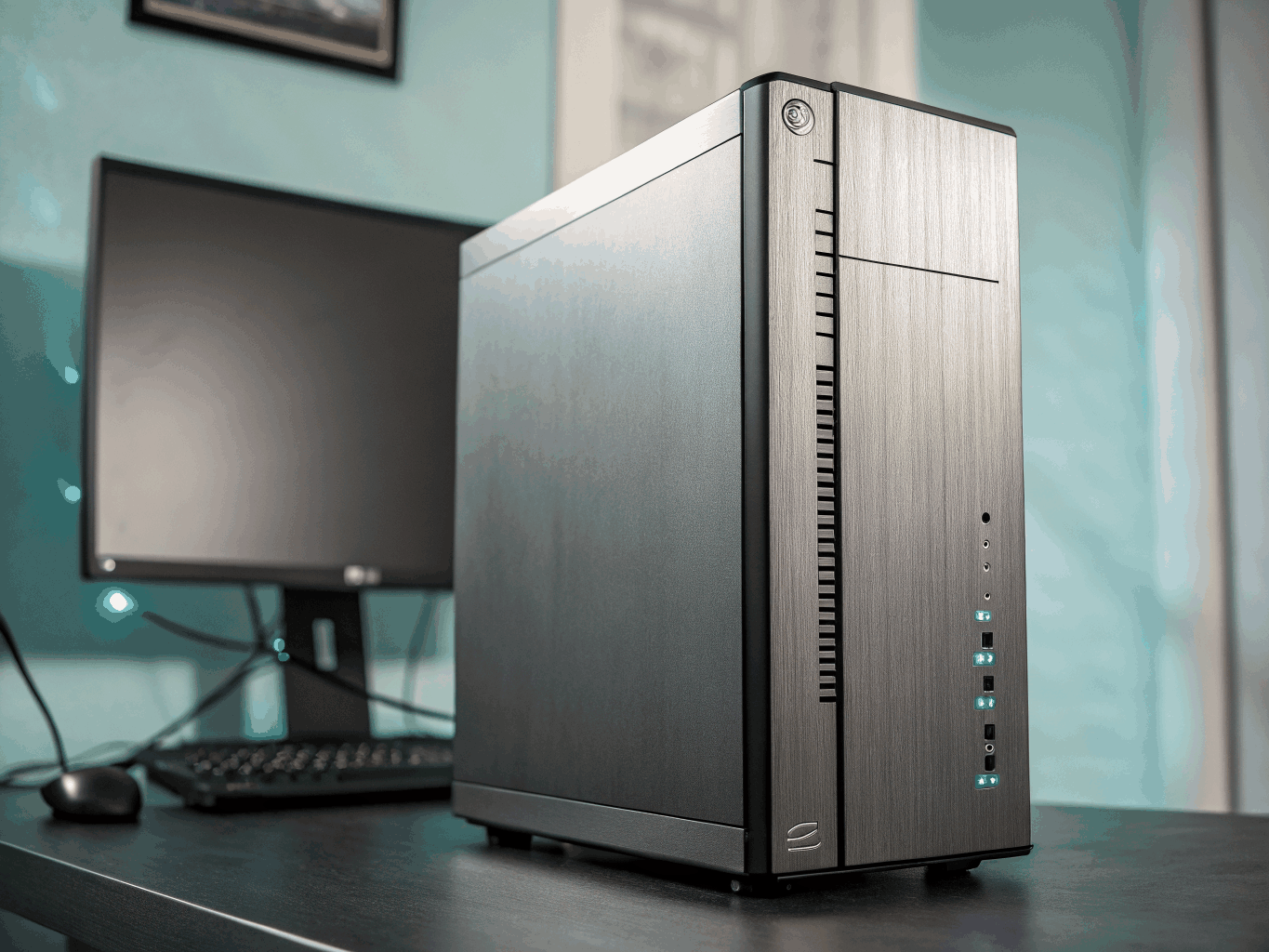
If your computer turns on but there is no display, the fans spin and the lights come on, yet the monitor stays black or says "No Signal." It can look like the whole machine has failed, even though it appears to be running.
This article is for a computer that does power on. If yours shows no sign of life at all, with no lights and no fans, start with our step-by-step guide for a PC that won’t turn on instead.
Computer Turns On but No Display: Why It Happens
A blank screen doesn’t automatically mean your motherboard, processor or graphics card has failed. The cause is often a loose cable, the wrong monitor input, or a temporary hardware problem.
Spinning fans only prove that parts are receiving power. They don’t prove that the computer finished its startup checks. Before spending money on replacement parts, work through these nine checks in order.
Two Quick Clues Before You Start
These two tests need no tools and don’t involve opening anything. They help you decide where to look first.
Is the Computer Responding? Try the Caps Lock Key
Press the Caps Lock key on the keyboard, then press it again, and watch the small light on the key or keyboard.
- The light switches on and off each time: the keyboard is working and the computer is responding to it. That suggests the computer got past the earliest part of startup, so the picture is more likely the problem than a completely dead machine.
- The light never reacts: the computer may be stuck early in startup, or the keyboard may not be getting power. Carry on with the checks below, and try a different USB port or keyboard if you can.
This is only a clue. A responding light doesn’t prove that Windows has loaded or that the display hardware is fine, and some keyboards have no Caps Lock light.
"No Signal" or Just Black?
The two look alike, but they point to different places.
- The monitor shows "No Signal" or "No Input": the monitor is awake and working, but no picture is reaching it. Look at the cable, the monitor input and the video port first (checks 2 and 3).
- The screen is completely black, even though the monitor's power light is on: the monitor may be in sleep mode, its brightness may be turned all the way down, or its backlight may have failed. Press the monitor's menu button. If the on-screen menu appears, the monitor works.
To test for a failed backlight, dim the room and shine a torch (flashlight) at an angle across the screen. If you can faintly see the desktop or the menu, the backlight is the likely cause and the computer may be fine. Test the monitor with another device before you replace anything.
Safety First Before You Touch Anything
Checks 1 to 5 need no opening. Checks 6 to 8 may involve the inside, so follow these rules.
- Shut the computer down, switch the power supply off at the back (if it has a switch) and unplug the power cable before you open a desktop case.
- Touch a bare metal part of the case, or wear an anti-static wrist strap, before you handle any part. Our guide on how to clean your PC's interior without damaging components covers anti-static handling.
- Never open the power supply. It can hold a dangerous charge even when unplugged.
- Never force a connector or a memory module. If it doesn't fit, check the orientation.
- Don't open a laptop that is sealed or under warranty. Contact the maker or a repair shop instead.
- Stop and see a technician if you smell burning, see a swollen battery or hear popping sounds.
9 Checks to Run Before Replacing Any Part
1. Make Sure the Monitor Is Actually Working
Start with the simplest possibility: the monitor.
Check whether the monitor's power light is on. If it isn't, check that the power cable is secure and that the outlet works.
Next, press the monitor's menu button. If its on-screen menu appears, the monitor has power and can show an image.
You can also test the monitor with another computer or compatible device. If it works there, the problem is probably in the original computer.
On a laptop, connect an external monitor and try the display-switch key, which is often a function key. The built-in screen may be the only thing that has failed.
2. Check Your HDMI or DisplayPort Cable and Monitor Input
A loose or damaged video cable is a common reason for a black screen or a "No Signal" message.
Turn off the computer and monitor before reconnecting the cable.
Disconnect the HDMI or DisplayPort cable from both ends and inspect it for visible damage. Reconnect it firmly without forcing it.
If possible, try a different cable or another video port.
Also check the monitor's input setting. If your computer uses HDMI 1 but the monitor is set to HDMI 2, the screen will say "No Signal."
3. Verify That You're Using the Correct Graphics Port
Some desktop computers have video ports in two places.
One group is on the motherboard, usually near the USB ports. Another group is lower on the case, on a dedicated graphics card.
If your desktop has a dedicated graphics card, plug the monitor into the card's video output.
The motherboard ports may show nothing. Some processors, such as Intel models with an "F" at the end of the name, have no built-in graphics at all. On others, the onboard output may be disabled.
This simple mistake can make a working computer look broken.
4. Perform a Complete Power Reset
Temporary hardware or firmware problems can sometimes stop a computer from showing an image.
Try this process:
- Shut down the computer.
- Switch the desktop power supply off at the back, if it has a switch, and disconnect the power cable.
- Disconnect unnecessary external devices.
- Hold the power button for about 15 seconds.
- Reconnect the power cable and switch the power supply back on.
- Start the computer again.
For laptops, follow the manufacturer's power-reset procedure. If the battery is removable, take it out first.
A power reset won't repair damaged hardware, but it can clear a temporary startup problem.
5. Disconnect Unnecessary USB Devices
A faulty accessory can sometimes interfere with startup.
Disconnect external drives, USB hubs, printers and other extras. Keep only the keyboard and the monitor.
Restart the computer and check whether the screen works.
If the display returns, reconnect devices one at a time to find the cause.
6. Reseat or Test the RAM (Memory)
Memory problems can stop a computer from completing its Power-On Self-Test, commonly called POST.
Typical signs are spinning fans, lit indicators and no image on the monitor.
Safety warning: shut down the computer, unplug it and discharge static before touching internal parts. Never open the power supply.
If you're comfortable working inside a desktop, try this:
- Press the power button once while the computer is unplugged, to drain leftover charge.
- Release the clips at both ends of a memory module and lift it out, holding it by its edges.
- Push it back firmly until both clips click.
- Start the computer with one module installed. If there is still no display, try that module in another slot, then try each module on its own.
Check your motherboard manual for the correct slots before you start. Many laptops have sealed or soldered memory. Don't open those yourself.
If you're unfamiliar with internal hardware, a qualified technician can run this test safely.
7. Look for Motherboard Diagnostic Lights
Many modern motherboards have indicators that show where startup stopped.
Depending on the model, these may be labeled:
- CPU
- DRAM
- VGA
- BOOT
A lit VGA indicator may point to a graphics problem. A lit DRAM indicator may point to memory.
Some boards show a two-digit code instead. Look the code up in your motherboard manual, or see what motherboard beep codes mean if the board beeps instead.
The exact meaning varies by manufacturer, so check the manual before you decide a part has failed.
8. Consider Graphics Card Problems
If the monitor, cables and input settings are fine, the graphics card may be involved. If the problem began right after a new card went in, see fixes for no signal after installing a graphics card.
Possible signs include repeated black screens, odd graphics artifacts before the display fails, or a lit VGA indicator.
With the computer off and unplugged, check that the card is fully seated in its slot. Also check that its power cables are fully clipped in.
These signs don't prove the card is defective. The power supply, motherboard or firmware could also be at fault.
Pay attention to when the screen goes black. If you see the manufacturer's logo, or the BIOS screen, and the display only goes black as Windows starts, a software or driver problem is more likely than failed hardware. In that case, see our guide on how to update or reinstall graphics drivers the right way. Microsoft also publishes official steps for troubleshooting blank screens in Windows.
If you think Windows is running but the screen is black, try these two keyboard shortcuts first. They change nothing permanent:
- Windows key + Ctrl + Shift + B restarts the graphics driver. The screen may flicker or go dark for a moment, and you may hear a short beep.
- Windows key + P opens the display options. Use the arrow keys and press Enter to choose PC screen only, in case the picture is being sent to a screen that isn't connected.
Both shortcuts work only after Windows has loaded. If the screen stays black before the logo or the BIOS screen appears, they won't help, so go back to the cable, memory and power checks.
Avoid buying a replacement graphics card until more testing supports that diagnosis.
9. Know When Professional Diagnosis Makes Sense
If none of the checks restores the display, you need more advanced testing.
A technician can test the computer with known-working parts, read the motherboard's diagnostic information and check whether the system completes POST.
Professional diagnosis is especially worthwhile when the computer holds important files or expensive parts.
A no-display fault doesn't usually erase your files, so don't reinstall Windows or reformat the drive as a first reaction.
Replacing parts without confirming the cause can cost more than the original problem.
If you would rather keep testing yourself, our PC fault-finding guide gives a full hands-on walkthrough in a safe order.
Frequently Asked Questions
Why does my PC turn on but the monitor says no signal?
The monitor may be on the wrong input, the video cable may be loose, or the computer may not be producing a video signal. Start by checking the monitor's input setting and the cable connections.
Can bad RAM cause a computer to turn on with no display?
Yes. Faulty or badly seated RAM can stop a computer from completing its startup checks, which leaves the display blank.
Does a black screen mean my graphics card is dead?
No. A black screen can come from the monitor, cables, memory, firmware or graphics hardware.
Why are my computer fans spinning but nothing appears on screen?
Spinning fans only confirm that some parts are receiving power. They don't confirm that the computer has finished its startup checks.
Should I replace my motherboard if there is no display?
Not straight away. Test the monitor, cables, graphics connections and other likely causes before you consider a new motherboard.
What does the Caps Lock light tell me when there is no picture?
If the light switches on and off when you press the key, the keyboard is working and the computer is responding, so the problem is more likely the picture than a dead computer. It is only a clue and doesn't prove that Windows has loaded.
What is the difference between "No Signal" and a black screen?
"No Signal" means the monitor is awake but gets no picture, so check the cable, input and port. A fully black screen with the power light on may be a sleeping monitor, very low brightness or a failed backlight, so test the monitor with another device.
Summary: Test Before You Replace Parts
When your computer turns on but shows nothing, don't assume the most expensive part has failed.
Start with the monitor, the input selection and the video cables. Move on to startup diagnostics and internal checks only when you need to.
A careful process can save money, prevent unnecessary purchases and show you when a professional repair is the better choice.
For more detailed procedures, explore the computer repair guides in the Knowledge Library, or return to the PC Repair Atlas homepage to search by symptom.