No Signal After Installing Graphics Card? 10 Fixes for a Black Screen
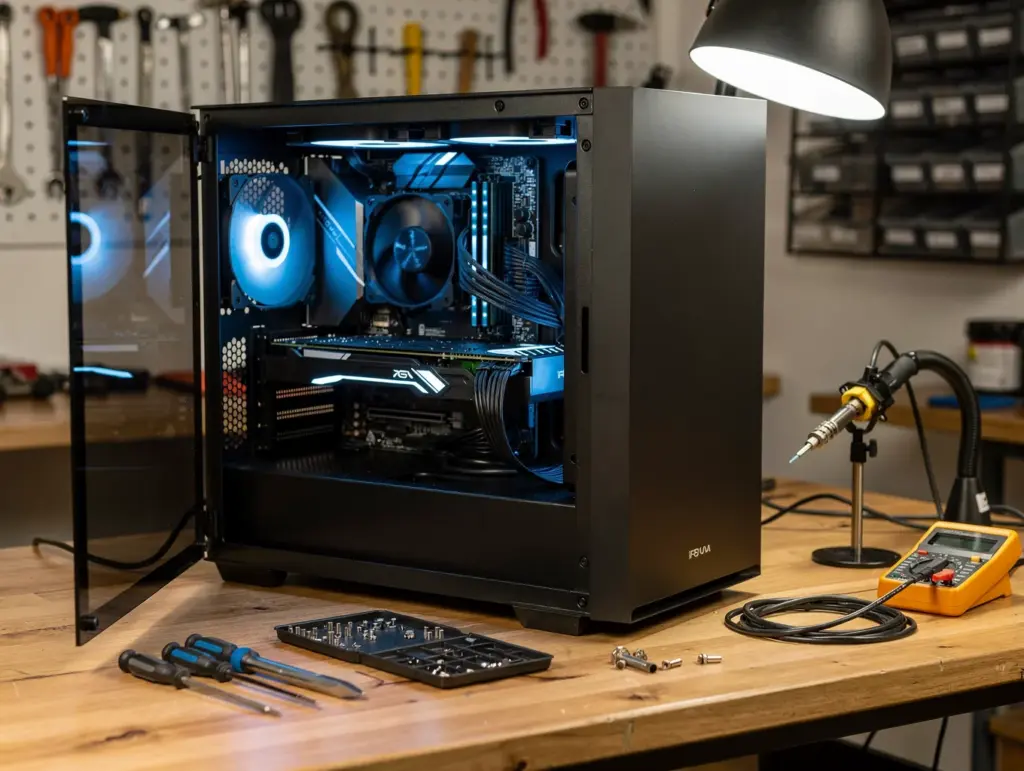
You fitted the new card, pressed the power button and the fans spun up. Then the monitor stayed black or said "No Signal". If you have no signal after installing graphics card hardware, the cause is usually simple. It is most often a cable in the wrong port, a loose card or a missing power plug.
This article is for a desktop PC that powers on after a graphics card was installed or swapped. If the PC showed nothing even before the change, see our checklist for a PC that turns on but shows no display. If it will not power on at all, use our fault-finding guide for a PC that won't turn on.
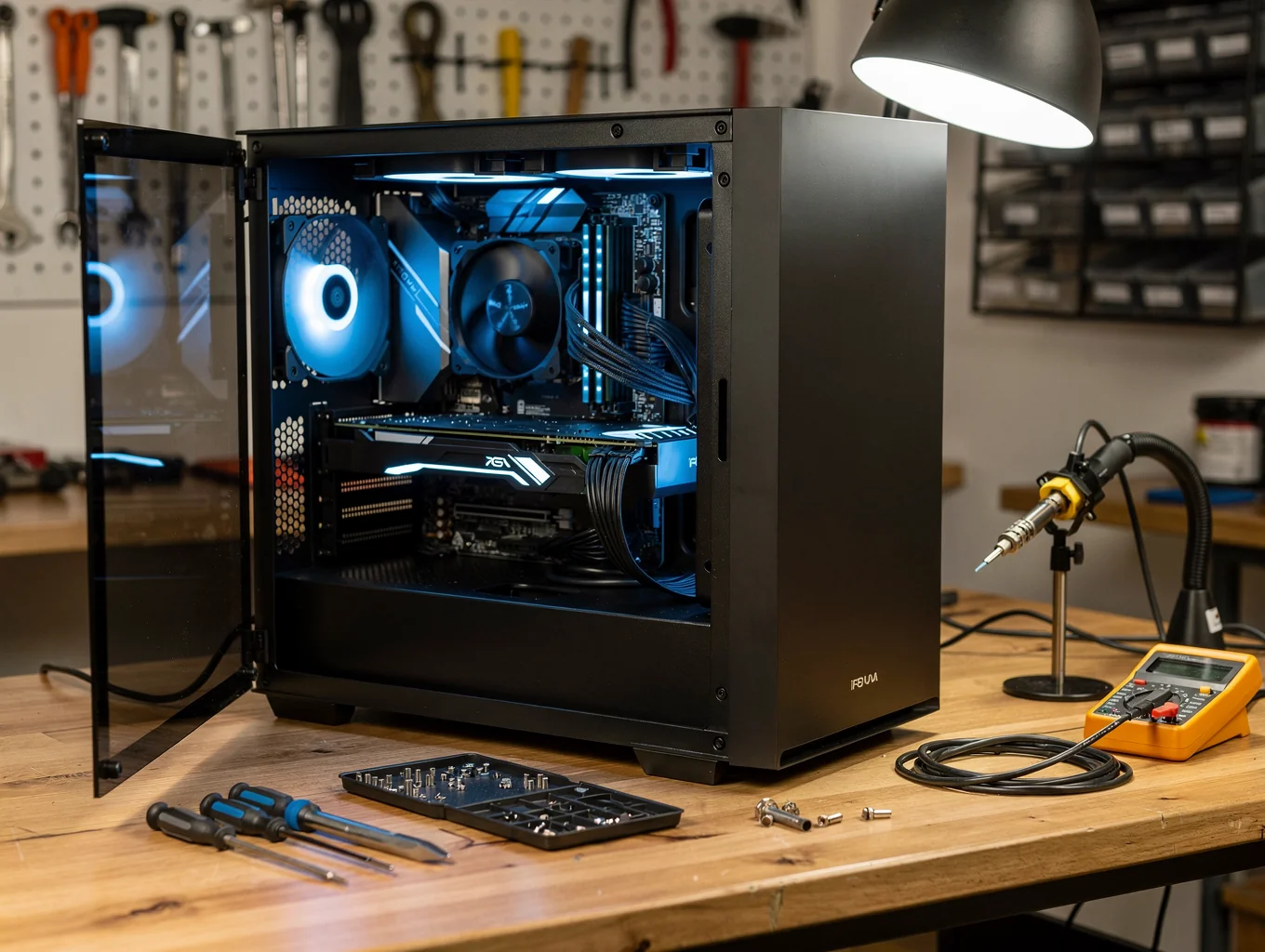
No Picture at Startup or Black After Windows Starts?
Two different problems look alike. Work out which one you have before you start, because it decides where to look.
- No image from the first second. You never see the motherboard logo, the BIOS screen or the Windows logo. The monitor says "No Signal" or stays dark. The cause is almost always a cable, the card's seating, power or a BIOS setting. Start at fix 1.
- Black only after Windows begins loading. You see the motherboard logo or the Windows logo, then the screen goes black. The card and cable are working, so the cause is usually the display driver. Go straight to fix 10.
A quick test: restart the PC and watch the screen closely. Any logo at all means the hardware path works.
Safety First Before You Open the Case
- Shut down the PC, switch the power supply off at the back and unplug the power cable before you open a desktop case.
- Press the power button once after unplugging to drain leftover charge. Then touch bare metal on the case.
- Never open the power supply. It can hold a dangerous charge even when unplugged.
- Never force a card or a connector. If a plug will not go in, check its orientation.
- Stop and ask a technician if you smell burning, see damage or feel unsure. Laptops and sealed PCs should go to a professional.
10 Fixes for No Signal After Installing Graphics Card Hardware
1. Plug the Monitor Into the Graphics Card
This is the most common mistake. A desktop with a graphics card often turns off the motherboard's own video ports. The monitor then shows nothing.
- Look at the back of the PC. The graphics card ports sit low, on the card's own metal bracket.
- Move the monitor cable from the motherboard port to a port on the card.
- Restart the PC and wait a minute.
You should see the motherboard logo or the Windows logo on the monitor. If the screen still says No Signal, go to fix 2.
2. Check the Monitor Input and the Cable
Next, rule out the easy things.
- Use the monitor's input button and select the input that matches your cable, such as HDMI or DisplayPort.
- Check the cable is pushed in fully at both ends.
- Try another cable, ideally one you know works.
- Try a different output on the card, for example a second DisplayPort.
If you use an adapter, remove it for the test. A cable and port problem can also show up later as a screen that drops out. Our article on a monitor that keeps going black for a few seconds covers that.
You should see a picture after the input change. If this does not help, the card itself may not be seated properly, so go to fix 3.
3. Reseat the Graphics Card in Its Slot
A card that is not pushed in all the way is a very common cause. Make sure the PC is off and unplugged first, and touch bare metal on the case before you touch the card.
- Remove the screw or screws that hold the card's bracket to the case.
- Release the small latch at the end of the slot and lift the card straight out.
- Look at the gold connector for dirt or damage.
- Line the card up with the top long slot, and press down evenly until the latch clicks.
- Fasten the bracket again.
Our guide on installing a graphics card step by step shows how the card should sit. Heavy cards can sag, so check that nothing pushes against the card.
You should see the card sitting flat, with the latch clicked and the bracket screwed down. If the screen is still blank after you power on, go to fix 4.
4. Check Every Power Cable on the Card
Many cards need extra power from the power supply. Fans or lights on the card do not prove it has full power.
- Find the power sockets on the card's edge. Plug a cable into each one.
- Push each plug in fully until it clicks. This matters most for the newer 12-pin connector.
- Use a separate cable from the power supply for each socket when the card asks for it. Do not rely on one cable with two plugs.
- Do not use an adapter you are unsure about. Ask the card's maker which cables it needs.
Some cards show a light or a message when a power cable is missing. Check your card's manual.
You should see the fans spin and any status light on the card come on, with no warning. If the monitor is still blank, go to fix 5.
5. Check That the Power Supply Is Strong Enough
A card that needs more power than the supply can give may not start. Compare two numbers:
- the recommended power supply wattage on the card maker's website;
- the wattage printed on your power supply's label.
If yours is lower, the supply may be too small. Our guide on how much power supply wattage your PC needs helps you work it out. You can also follow our steps to test a PC power supply safely. Never open the supply itself.
You should see that the label wattage meets the card maker's recommendation. If it does, go to fix 6. If it does not, the supply is the likely cause, so plan an upgrade before you continue.
6. Test With the Old Card or the Motherboard Ports
This test shows whether the rest of the PC works.
- Shut down, unplug the PC and remove the new card.
- Plug the monitor into the motherboard's video port. This only works if your processor has built-in graphics.
- If you still have your old card, fit it instead.
- Start the PC.
You should see a picture. If you get a picture, the PC is fine and the new card, its slot or its power is the problem. Go back to fixes 3 to 5. If you still get nothing, the cause is elsewhere, so go to fix 7.
7. Try Another PCIe Slot or Another PC
Some motherboards have more than one long slot. The ASUS Support page linked below may also suggest trying the card in another PCIe slot. Use the slot your motherboard manual recommends for a graphics card.
If you can, test the card in a second PC with a strong enough power supply. A card that fails there too may be faulty. Do not keep forcing it. The seller or maker can test or replace it.
You should see a picture in the other slot or in the second PC. If the card works there but not in your PC, the slot or the motherboard is the likely fault. If neither works, go to fix 8.
8. Reseat the Memory
Working inside the case can loosen a memory stick. A PC with bad memory may show no picture at all.
- With the PC off and unplugged, press on each memory stick until both clips click.
- Try the PC with one stick in the slot your manual recommends.
- Listen for beeps. They can point to memory or graphics faults.
Our guide on motherboard beep codes explains the sounds. If you have a picture later, you can test your RAM with Windows Memory Diagnostic.
You should see the logo on the screen. If the screen is still blank, go to fix 9.
9. Check the BIOS and Clear the CMOS
Old settings can stop a new card from sending a picture. First, get a picture from somewhere. Use the motherboard port, as in fix 6, if you can. Back up your important files before you change any BIOS setting.
- Restart the PC and press the BIOS key shown on screen. It is often Del or F2.
- Look for a setting such as Primary display or Initial display output. The name differs by maker.
- Set it to the PCIe or discrete graphics card. Change only this setting, and write down the old value first.
- Save and restart.
If you cannot reach the BIOS, clear the CMOS. Unplug the PC, then use the CLR_CMOS jumper or button, or remove the round battery for five minutes. Check your motherboard manual first. Do not touch the battery or jumper with the power connected.
Brand-new cards on older boards may need a BIOS update. That is an advanced job, so read our guide on updating your BIOS safely before you start. Back up your files first. Never switch the PC off during an update.
You should see the graphics card's logo or the BIOS screen on the monitor after you save. If the screen is still blank, go to fix 10 if you see the logo at all; otherwise see When to Stop and Get Help below.
10. Fix the Driver If the Screen Goes Black After Windows Starts
Use this fix when you see the motherboard or Windows logo and then the screen goes black. Here the card works, but Windows has a driver problem.
- Restart the PC three times in a row, switching it off at the logo each time. Windows should open its recovery menu.
- Choose the option to start in Safe Mode. Our guide on booting into Safe Mode shows other ways in.
- Remove the graphics driver in Settings, then Apps. If you swapped brands, remove the old brand's driver too.
- Restart and install the driver from the card maker's website.
Our guide on updating or reinstalling graphics drivers the right way covers each step. Try the monitor on another cable while you test.
You should see a normal desktop after a normal restart, at full screen. If the screen still goes black, see When to Stop and Get Help below.
When to Stop and Get Help
Stop and ask a professional if you have tried the old card and the motherboard port and still get no picture. Do the same if the card fails in a second PC, or if you notice burning smells, swelling or scorch marks. A technician can test each part with known good parts. That costs less than guessing and replacing the wrong one.
If you bought the card new, you can return it. A faulty new card is not common, but it does happen.
Frequently Asked Questions
Why do the fans spin but I get no signal?
The PC has power, but no picture reaches the monitor. Check that the cable is in the graphics card, the card is fully seated and every power plug is in.
Do I need to uninstall the old driver first?
Often not. But if you switched from one brand to another, removing the old driver in Safe Mode can prevent a black screen after Windows loads.
Can a new graphics card be faulty?
Yes, but check the cable, seating, power and settings first. They are far more common causes.
Does my CPU need built-in graphics to test this?
No. Built-in graphics only lets you use the motherboard ports. Without it, test with the old card or in another PC.
Is it safe to open the power supply to check it?
No. Never open a power supply. Test it with the steps in our guide, or ask a technician.
Official Help and More Guides
For the maker's own advice, see ASUS Support's page on troubleshooting no display or abnormality on the monitor. It also suggests checking that the power supply meets the card's recommended wattage.
If the PC itself will not start properly after other upgrades, see our guide on a PC that won't boot after a hardware upgrade.
Summary: Check the Simple Things First
Start with the monitor cable and the port on the card. Then reseat the card and check every power plug. Leave BIOS changes and drivers until last.
For more fixes, browse our PC repair and troubleshooting resources or search by symptom in the Knowledge Library.