Windows Hello Fingerprint Not Working? 9 Fixes for Windows 11
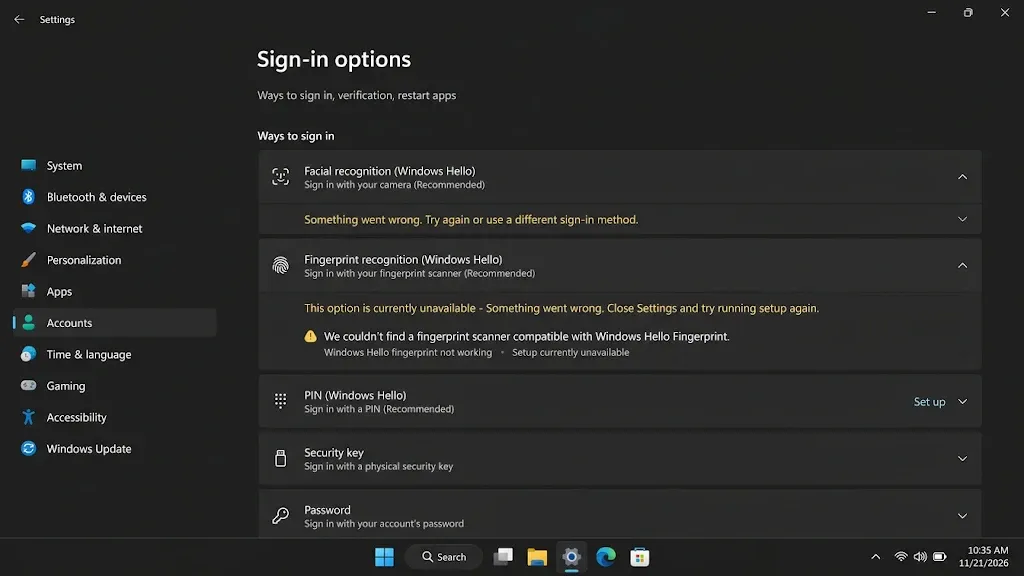
A Windows Hello fingerprint not working problem usually shows up at the sign-in screen. The fingerprint option may be greyed out. Windows may also say it could not recognize your finger.
Face sign-in can fail in a similar way, so this guide covers Windows Hello face recognition too.
Nothing in this guide was run on a real PC. The exact menu wording moves between builds of Windows 11, so look for the same words if a label differs.
Why Windows Hello fingerprint not working happens
Most failures have a simple cause. The sensor may be dirty or wet. The stored fingerprint may no longer match. A driver or a recent update can also break the reader.
On a work or school PC, IT can turn on stricter anti-spoofing for face sign-in. This can make face sign-in fail, for example in dark rooms. If that applies to you, ask your IT team.
Microsoft describes the common errors and their causes on its Microsoft page on Windows Hello common issues. Work through the fixes below in order.
Before you start
Keep your PIN or password working. Windows asks for a PIN as a fallback when you set up fingerprint or face sign-in, so you can always get in. Then follow these safety rules.
- Never delete system folders, including the Ngc folder.
- Never clear the TPM to fix a sign-in problem.
- Never download driver packs from random sites.
If you forgot your password, read how to reset a forgotten Windows 11 password first.
Nine fixes to try, in order
1. Sign in with a PIN or password and restart
Sign in with your PIN or password. Then restart the PC. This shows whether only the reader is failing.
You should see: the PIN or password screen work, and your desktop after the restart.
If this does not help: go on to fix 2.
2. Clean the sensor or camera and check for blocks
Dry your finger first. Clean the fingerprint sensor with a soft, dry cloth. Remove any case or screen protector that covers the reader.
For face sign-in, clean the camera lens and remove any camera cover. Check the lighting. Glasses, hats and strong side light can also cause failures.
For general webcam faults, see the webcam fix guide.
You should see: a clean sensor or lens, with nothing covering it.
If this does not help: go on to fix 3.
3. Check the sign-in options and add a new scan
Open Settings, then Accounts, then Sign-in options. Check that the Fingerprint recognition or Facial recognition section is present.
For a fingerprint, select Fingerprint recognition (Windows Hello), then choose Add a finger. Scan the same finger again at different angles. If you can, register a second finger too. Extra scans give the reader more chances to match you.
For face sign-in, select Facial recognition (Windows Hello), then choose Improve recognition.
You should see: the method listed, with a new scan saved.
If this does not help: go on to fix 4.
4. Remove the data and set it up again
In the same Sign-in options page, select Fingerprint recognition or Facial recognition. Select Remove and confirm. Then select Set up and register again.
Remove then Set up replaces the stored scan. So for a fingerprint, do it with a clean, dry finger and capture several angles. For Windows Hello face recognition, set up again if your appearance has changed a lot.
You should see: the setup finish with a message that you can sign in with the method.
If this does not help: go on to fix 5.
5. Check the device in Device Manager
Right-click Start and open Device Manager. Expand Biometric devices for a fingerprint reader. On most PCs the reader is listed under Biometric devices; the heading can differ. For face sign-in, also check Cameras. If the camera is listed but video apps cannot use it, see our guide to a webcam that works in Camera but not in Zoom or Teams.
If the device is disabled, right-click it and choose Enable device. Then restart the PC. To look for hardware, choose Scan for hardware changes from the Action menu.
To check a device's health, open its Properties and read the Device status box.
If you use an external USB fingerprint reader
On Windows 11 24H2 and later, Microsoft says Enhanced sign-in security can block external readers that do not support it.
Where your PC shows this option, look under Settings, then Accounts, then Sign-in options, then Additional settings.
Turning this switch off removes existing Enhanced sign-in security enrollments and passkeys. Only test it if you accept setting Windows Hello up again. Check the reader maker first.
You should see: the device listed without a warning icon, and Device status saying it works properly.
If this does not help: go on to fix 6.
6. Restart the Windows Biometric Service
Press the Windows key and R, type services.msc, and press Enter. Find Windows Biometric Service.
Check that it is Running and that its Startup type is not Disabled. Then select Restart.
This is a common check. Microsoft's Windows Hello pages do not describe it, so change nothing else in Services.
You should see: the service Running again after the restart.
If this does not help: go on to fix 7.
7. Update or roll back the driver
Open Settings, then Windows Update, then Advanced options, then Optional updates (menu names move between builds). Look under Driver updates for a fingerprint or camera driver. Install it and restart.
If none is listed, check the support page of your PC or reader maker for the driver for your model. If the problem began after an update, open Device Manager, open the device Properties, and choose Roll Back Driver on the Driver tab, if it is active.
For a full guide, read how to update drivers on Windows 11.
You should see: a newer driver version, or a rollback that finishes.
If this does not help: go on to fix 8.
8. Undo a recent update or repair system files
If the failure began right after an update, you can remove that update. Follow this guide to uninstalling a Windows update.
For damaged system files, use the SFC and DISM guide. A restore point can also help. See how to use System Restore. If updates themselves are stuck, read how to fix Windows Update.
You should see: the update removed or the system repaired, then a fresh sign-in test.
If this does not help: go on to fix 9.
9. Check the BIOS and the hardware
Back up your important files first. Then restart the PC and open the BIOS or UEFI settings. Only look. Check whether a fingerprint reader or biometric option is disabled. Do not change other settings.
If you must change something, read the safe BIOS guide first, and follow its warnings.
Signs of a hardware fault include a reader that is not detected anywhere. Another sign is a PC that was dropped or had liquid spilled on it. In those cases, contact the PC or reader maker.
You should see: the reader option enabled, or a clear sign that the hardware needs service.
Frequently asked questions
Why does the fingerprint work sometimes but not always?
A dirty, wet or cold finger can change the scan. Register the finger again at several angles. Adding a second finger also helps.
Can I use Windows Hello face recognition instead?
Yes, if your PC supports it. Face sign-in can be a good backup. Keep your PIN or password as well, in case neither biometric method works.
Does Windows Hello face recognition need a special camera?
Microsoft's page on how to configure Windows Hello says face sign-in needs a Windows Hello compatible infrared camera. An external IR camera can also work.
What if my PIN also stops working?
That is a separate problem. Read why the Windows 11 PIN stops working. If the PIN option is missing, see the guide to a PIN that is not available.
Will removing the fingerprint delete my files?
No. Removing a fingerprint removes the Windows Hello fingerprint setup, not your files. Do not delete the Ngc folder by hand.
Can a major update break Windows Hello?
It can happen. After a major update, the fingerprint may need to be set up again.
Is Safe Mode useful here?
It can help if the PC will not start normally. Read how to boot into Safe Mode. If Windows asks for a BitLocker recovery key after a hardware change, see how to find the BitLocker recovery key.
Next steps
Start with the sign-in check in fix 1. Then clean the sensor, reset the method and check the driver. Stop at the first fix that gets sign-in working again.
If none of the fixes work, the reader may be faulty. Contact the maker for a repair or replacement. For more help, browse the PC repair guides.