“Something Happened and Your PIN Isn’t Available” in Windows 11: 8 Fixes
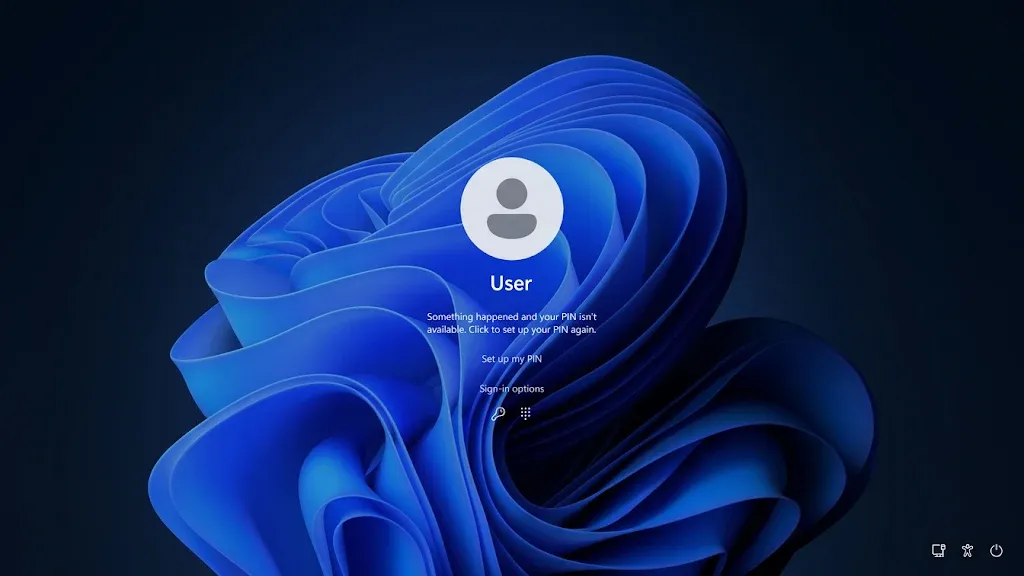
Windows 11 PIN not available is what you are dealing with when the lock screen says "Something happened and your PIN isn't available". Windows Hello cannot read the keys it stored for your PIN. It most often follows a Windows update, a BIOS or TPM firmware update, a Safe Mode or msconfig startup change, a change to the account, or a damaged PIN folder.
Your files are not deleted, and in most cases you can still get in with your account password. This guide shows how to sign in right away, reset the PIN safely and fix the loop when Set up my PIN does nothing. If your PIN is rejected, or the Add and Remove buttons are greyed out, read Windows 11 PIN not working instead. For other startup and sign-in faults, browse our PC repair guides.
Safety Warnings Before You Start
- Do not clear or reset the TPM in your BIOS unless you have checked your 48-digit BitLocker recovery key on another device. Clearing the TPM wipes stored hardware keys and can lock an encrypted drive for good. See how to find your BitLocker recovery key before you change any firmware security setting.
- Keep password sign-in available until your new PIN has worked after a full restart.
- Is this a work or school PC? If it is managed by an organization, do not run Fix 6. Windows Hello for Business keys live in the directory too, so ask your IT help desk instead.
- Only touch the exact
Ngcfolder in Fix 6. Never change permissions onC:\Windowsor other parent system folders.
Quick Diagnosis: What Happens When You Try to Sign In?
| What you see | Likely cause | Start with |
|---|---|---|
| Sign-in options shows a key (password) icon below the error | The PIN data is broken, but password sign-in still works | Fixes 1, 2 and 3 |
| Set up my PIN spins and returns to the same error | No internet on the lock screen, or a damaged Ngc folder | Fixes 2 and 6 |
The error began right after msconfig or Safe Mode | Windows started with Safe boot or a reduced startup, and Hello needs a normal start | Fix 4 |
| The error began after a BIOS update or motherboard change | The TPM keys changed with the firmware | Fixes 1, 3 and 7 |
Error code 0x80090011, 0x8009002d or 0x80070032 | Commonly reported with damaged Windows Hello key storage or permissions | Fixes 5 and 6 |
Step-by-Step: Fix "Something Happened and Your PIN Isn't Available"
Fix 1: Sign In With Your Password First
A Windows Hello PIN works only on this PC. Your Microsoft account password or local password stays valid, so use it to reach the desktop before you try deeper repairs.
- On the lock screen, select Sign-in options below the PIN box or the Set up my PIN button.
- Select the key icon (Password).
- Enter your Microsoft account password (or your local Windows password) and press Enter.
You should see: your normal desktop. Go to Fix 3 to rebuild the PIN. If you forgot your password or it is not accepted, follow how to reset a forgotten Windows 11 password.
Fix 2: Restart the PC and Check Your Internet Connection
If you sign in with a Microsoft account, Windows may need to be online to set up a new PIN.
- Select the Network icon in the bottom-right corner of the lock screen and check that Wi-Fi or Ethernet is connected.
- Select the Power icon and choose Restart. Do not choose Shut down, because Fast Startup can keep the broken state.
- Try again, or select Set up my PIN once you are connected.
You should see: the Microsoft account prompt opens and stays open. If it flashes and closes at once, continue below.
Fix 3: Reset or Remove the PIN in Windows Settings
Once you are signed in with your password, replace the broken PIN in Settings.
- Press Windows + I and go to Accounts > Sign-in options.
- Select PIN (Windows Hello) to expand it.
- Select I forgot my PIN. Or, if Remove is available, select it, confirm with your password, then select Set up.
- Follow the prompts to confirm your account and create a new PIN.
- Restart the PC and test the new PIN.
You should see: Windows accepts the new PIN on the lock screen. If Remove is greyed out or setup fails with an error code, go to Fix 5 and Fix 6.
Fix 4: Leave Safe Mode or Reduced Startup (If You Used msconfig)
Windows Hello PIN sign-in is normally not available in Safe Mode, so the message is expected there. If the error began after you changed startup options in System Configuration (msconfig) or booted into Safe Mode, make Windows start normally.
If you can sign in with your password (try this first):
- Sign in with your password (Fix 1), press Windows + R, type
msconfigand press Enter. - On the General tab, choose Normal startup.
- On the Boot tab, make sure Safe boot is not ticked.
- Select OK and restart.
If you cannot sign in at all:
- On the sign-in screen, hold Shift, select the Power icon and choose Restart. Keep holding Shift until the blue Choose an option screen appears.
- Select Troubleshoot > Advanced options > Command Prompt.
- If asked for a BitLocker key, enter it (see where to find your BitLocker recovery key).
- Type these two commands, pressing Enter after each:
bcdedit /deletevalue {default} safeboot
bcdedit /deletevalue {current} safeboot
One of them may say "Element not found". That is normal. Close Command Prompt and select Continue.
Note: these commands only clear the Safe boot flag. If you had picked Diagnostic startup in msconfig, sign in with your password after the restart and choose Normal startup as in the first list.
You should see: Windows starts normally and the PIN or password box works. If the PIN is still not available, go on to Fix 5.
Fix 5: Check the Windows Hello Services
PIN sign-in relies on two services named Microsoft Passport and Microsoft Passport Container. (The Windows Biometric Service is only for fingerprint and face sign-in.) Microsoft lists both as Manual services, which means Windows starts them when needed.
- Sign in with your password, press Windows + R, type
services.mscand press Enter. - Double-click Microsoft Passport Container.
- If Startup type says Disabled, change it to Manual, select Apply, then Start. If it already says Manual, leave it alone.
- Repeat for Microsoft Passport.
- Restart and test the PIN.
You should see: neither service is Disabled, and Set up now works. Do not change other services. If setup still fails, the PIN data is probably damaged: go to Fix 6.
Fix 6: Reset the Damaged Ngc Folder (Last Resort)
Windows keeps local PIN and Windows Hello data in a protected folder named Ngc. Microsoft's community answers fix this error by clearing that folder so Windows builds a fresh one. This is not a step on a Microsoft Support page. We rename the folder instead of deleting it, so you keep a copy while you test.
Warning: this removes every Windows Hello PIN, fingerprint and face sign-in for every user on this PC, and each person must set theirs up again. Make sure you know your account password. Skip this fix on a work or school PC, and try Fixes 1 to 5 first.
Rename the folder and set up a new PIN
- Sign in with an administrator account using your password.
- Right-click Start, select Terminal (Admin) and open a Command Prompt tab (or choose Command Prompt (Admin) if you see it).
- Run these three commands one at a time, pressing Enter after each:
takeown /f "C:\Windows\ServiceProfiles\LocalService\AppData\Local\Microsoft\Ngc" /r /d y
icacls "C:\Windows\ServiceProfiles\LocalService\AppData\Local\Microsoft\Ngc" /grant Administrators:F /t
ren "C:\Windows\ServiceProfiles\LocalService\AppData\Local\Microsoft\Ngc" Ngc.old- Restart the PC and sign in with your password.
- Open Settings > Accounts > Sign-in options > PIN (Windows Hello) and select Set up.
- Restart once more and test the new PIN.
You should see: Set up saves a new PIN without an error code, and the PIN still works after a restart. Leave the Ngc.old folder where it is for now. It is generally harmless, and deleting it would need the same permission steps.
If it fails
If Windows says the folder is in use, repeat the steps in Safe Mode (the PIN is unavailable there, but your password works). If it says access is denied, see fixing "You need permission to perform this action". On a PC where Windows is not on drive C: in the recovery Command Prompt, change the drive letter.
How to undo this fix
Sign in with your password, open an admin Command Prompt, rename the new folder with ren "C:\Windows\ServiceProfiles\LocalService\AppData\Local\Microsoft\Ngc" Ngc.new, then rename the old one back with ren "C:\Windows\ServiceProfiles\LocalService\AppData\Local\Microsoft\Ngc.old" Ngc and restart. This only brings back the old data, which was already damaged, so you will rarely need it.
Fix 7: Check the TPM After a BIOS or Hardware Change
Windows 11 keeps PIN keys protected by the Trusted Platform Module (TPM). A BIOS update or firmware reset can turn the TPM off or change its state.
- Press Windows + R, type
tpm.mscand press Enter. - Under Status, look for The TPM is ready for use, and check that Specification Version shows 2.0.
- If it says Compatible TPM cannot be found, save your BitLocker recovery key first, then restart into the BIOS and turn the TPM back on (often called Intel PTT or AMD fTPM). Follow how to enable TPM 2.0 and Secure Boot in Windows 11 for the steps.
You should see: the TPM is ready. Then repeat Fix 3 to create a new PIN. Do not select Clear TPM unless your BitLocker recovery key is saved elsewhere.
Fix 8: Repair System Files, Roll Back an Update or Test a Second Account
Try these if PIN setup fails for every account, or began right after a Windows update.
- Repair Windows files. Open Terminal (Admin), run
DISM /Online /Cleanup-Image /RestoreHealth, thensfc /scannow, and restart. How to repair Windows system files with SFC and DISM explains the results. - Undo a broken update. Open Settings > Windows Update > Update history > Uninstall updates and remove the newest update, or use a restore point from before the problem. See how to uninstall a Windows update or how to use System Restore.
- Test a second account. If a new administrator account can create a PIN and yours cannot, your user profile may be damaged. Follow how to fix a corrupt user profile in Windows.
You should see: a PIN that saves and survives a restart. If it still fails after all eight fixes, back up your files and get help.
When to Stop and Get Help
- Your PC is managed by work or school: Group Policy or Microsoft Intune may require a specific PIN rule or a certificate reset. Contact your organization's IT help desk.
- You cannot sign in with a password and you have no BitLocker key: back up any data you can still reach, or ask a local technician before you reset Windows.
tpm.msckeeps reporting a hardware error: a failing TPM needs the PC maker's support or a BIOS update from the maker.
Common Mistakes
- Clearing the TPM in the BIOS as a quick fix. This triggers BitLocker recovery and can lock you out of your files if you do not have the key.
- Turning on "For improved security, only allow Windows Hello sign-in" too early. Keep password sign-in visible in Settings > Accounts > Sign-in options so you always have a way back in.
- Using Shut down instead of Restart. Fast Startup keeps cached session data, so use Restart after you change sign-in settings or services.
Sources
- Microsoft Support: Change or reset your PIN in Windows: Microsoft's own steps for a forgotten or broken PIN.
- Microsoft Support: Update Your Security Processor (TPM) Firmware: relevant if the error began after a TPM firmware update.
- Microsoft Learn: Guidance on configuring system services: lists Microsoft Passport and Microsoft Passport Container as Manual services.
- Microsoft Q&A: Diagnostic Mode "Something happened and your PIN isn't available": community answers for the
msconfigcase. The Ngc folder fix also comes from Microsoft Q&A community answers, not from a Microsoft Support page.
More Help
For more Windows sign-in, startup and hardware troubleshooting guides, visit the PC Repair Atlas homepage.
FAQ
Why does Windows 11 say "Something happened and your PIN isn't available"?
Windows Hello keeps your PIN's keys in the TPM and in the protected Ngc folder. A Windows update, BIOS update, TPM reset or Safe boot start can break the link between your account and those keys.
How do I get past the screen if "Set up my PIN" does nothing?
Select Sign-in options under the message, choose the key icon and sign in with your Microsoft account or local password.
Is it safe to rename or delete the Ngc folder?
On a personal PC it is a common repair, as long as you know your account password. It removes every PIN, fingerprint and face sign-in on the PC, and Microsoft does not document it as a supported step. Do not do it on a work or school PC.
Will resetting my PIN delete my files?
No. None of the steps in this guide delete your documents, photos or installed apps.