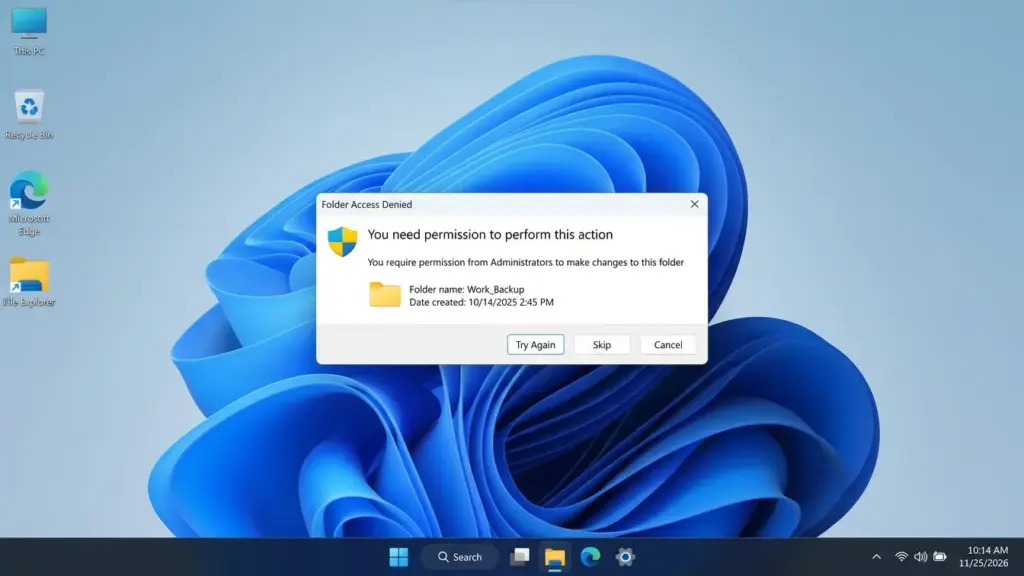
Fix ‘You Need Permission to Perform This Action’ Error
The message 'You need permission to perform this action' appears when Windows does not let your account change, delete or open a file or folder. It is often a safety feature, and you should not override it for system files. For your own files, especially on an old drive, you can fix it. This guide shows how.
Before you start
Make sure the file or folder is yours. Do not change permissions on the Windows, Program Files or ProgramData folders, or on the whole C: drive. They are protected for a reason.
If the message names TrustedInstaller (for example "You require permission from TrustedInstaller"), it is a protected Windows file. Leave it alone: deleting or renaming it can stop Windows from starting.
Step-by-step: fix the permission error
Step 1: Sign in as an administrator
Make sure your account is an administrator (Settings > Accounts > Your info shows Administrator under your name), and try the action again. If a window says "You'll need to provide administrator permission" with a Continue button, select Continue: for a file in another user's folder, that is often the whole fix.
Step 2: Check whether the file is in use
Close programs that may have the file open, then restart the PC and try again. A locked file can show a permission-style message. If Task Manager will not open so you can find the program holding the file, see our guide to fixing Task Manager that will not open in Windows 11.
You should see: the action works after the restart. If it does, the file was locked, not protected, and you need nothing else.
Step 3: Change the owner in the properties
Right-click the file or folder and choose Properties.
Open the Security tab and select Advanced.
Next to Owner, select Change, type your user name, select Check Names and OK.
Tick Replace owner on subcontainers and objects and select OK.
Select OK on every window to close them, then reopen Properties before you go to Step 4. Windows only lets you edit permissions after the new owner is saved.
You should see: your name next to Owner when you reopen the Advanced window.
Step 4: Give yourself permission
Back on the Security tab, select Edit, choose your account and tick Full control. If your account is not in the list, select Add, type your user name and select Check Names. Select OK.
You should see: you can open, rename or delete the item. If you still get the message, go to the next step.
Step 5: Use the commands
For many files, the commands are faster. Open Command Prompt as administrator and run these two commands, changing the path and the user name:
The first command makes you the owner of the folder and everything in it. The second gives your account full control. If your user name has a space, put it in quotes ("Your Name":F). Check the path twice before you press Enter, and never run these commands on C:\, C:\Windows or C:\Program Files: that can stop Windows from starting.
You should see: lines saying "SUCCESS" for takeown and "Successfully processed" for icacls. A line saying "Access is denied" means a file is locked, so try Safe Mode (Step 8).
Step 6: Check Windows Security's folder protection
Open Windows Security > Virus & threat protection > Ransomware protection. If Controlled folder access is on, it may block a program from changing a folder. Choose Allow an app through Controlled folder access and add the program you are using. Keep the feature on if you can: it protects your files from ransomware.
Step 7: Files from an old drive or another PC
Files copied from another drive keep the old owner, so Windows may refuse to open them. You do not have to take ownership of the whole drive. Open the old drive in File Explorer, select only the folders you need and copy them to a new folder inside your own Documents folder. If File Explorer freezes during the copy, see our guide to fixing File Explorer that is not responding in Windows 11. If Windows shows a Continue button, select it. Then use Steps 3 and 4 on the copy. If the old drive came from a failing PC, copy your files first and change permissions afterwards (see check hard drive or SSD health).
You should see: the copied folder opens and you can edit its files. The original on the old drive stays as it was.
Step 8: Try Safe Mode
In Safe Mode, fewer programs run and hold files, which can help with a stubborn one. Start Safe Mode, sign in with your administrator account and try to delete, rename or move the file again. Restart normally afterwards.
You should see: the action working in Safe Mode. If it still fails and the file sits in a Windows or Program Files folder, it is protected: leave it alone.
Step 9: Check for malware
Malware can lock files. If you see other problems too, open Windows Security > Virus & threat protection and select Quick scan.
You should see: a message such as "No current threats". If the scan finds something, follow remove a virus or malware. A clean scan does not prove the file is fine, so go back to Steps 2 to 5 if the error continues.
Common mistakes
Taking ownership of a whole drive or of C:\Users. Take ownership of one folder at a time, and only of your own data.
Skipping the step that reopens Properties. The permission list stays greyed out until the new owner is saved.
Turning off User Account Control or Controlled folder access to make the error go away. That weakens protection for every file. Allow the one program instead.
Editing a folder that sits inside OneDrive or a synced folder. Pause syncing first, or the sync can undo or repeat the change.
A safer alternative
If you only need the files from an old drive, you do not have to change the owner of everything. Copy just the folders you need to your own Documents folder with the Continue button from Step 1, then change permissions on the copy. The original stays as it was, so nothing can go wrong with it.
Sources
takeown (Microsoft Learn): how the command makes an administrator the owner of a file or folder, used in Step 5.
icacls (Microsoft Learn): how the command shows and changes permissions, including the grant option used in Step 5.
Is it safe to take ownership? For your own files, yes. Do not do it for system folders.
Why does it say I need permission as an administrator? The file is owned by another account or by the system, or it is in use.
Can I undo the change? You can set the owner and permissions again, but keep a note of what you changed.