How to Fix File Explorer Not Responding in Windows 11
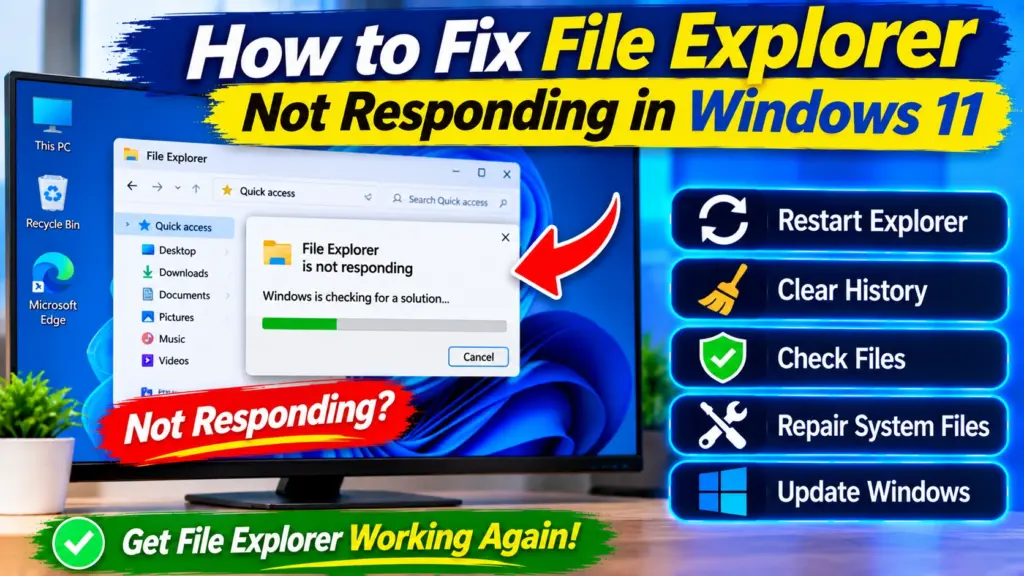
If File Explorer is not responding in Windows 11, it is almost always waiting on one slow thing: a damaged file, a broken thumbnail, a dead network location, a sync tool or a damaged Windows component. This guide finds which one, starting with the least disruptive fixes and telling you what each step should show. You do not need to reset Windows just because one folder is slow or Explorer stops responding.
Which fix to start with
| What you see | Likely cause | Start at |
|---|---|---|
| Everything freezes, taskbar too | Explorer itself is stuck | Step 1 |
| Only one folder freezes | A bad file, thumbnails or a slow location | Steps 2 and 3 |
| Freezes when you open File Explorer | Recent files, Home page or a dead network shortcut | Steps 4 and 6 |
| Window is blank or white for a while | Folder view settings or a slow sync folder | Steps 5 and 6 |
| Freezes or closes when you right-click | A third-party extension | Step 8 |
| Happens in every program, not only Explorer | Drive, memory or system files | Steps 7 and 9, then the last section |
Step-by-step: repair a frozen File Explorer
Step 1: Restart Windows Explorer
Press Ctrl + Shift + Esc to open Task Manager (if you see a small window, choose More details). Find Windows Explorer in the Processes list, select it and choose Restart task.
- You should see: the taskbar and desktop disappear for a second or two and then return. Open the same folder again. Your other programs stay open.
- If Windows Explorer is not listed or Task Manager itself is slow: choose Run new task (top right), type
explorer.exeand press Enter. - If the freeze comes back within minutes: a restart only clears the symptom. Go on to find the trigger. If Explorer itself keeps using high CPU or memory, see Windows Explorer high CPU or memory usage.
Step 2: Find out whether one folder is the trigger
Try opening Documents, Pictures and another local folder. If only one location freezes, the cause is a file, a removable drive or a network path in that location. If only the Downloads folder is slow, follow this Downloads-folder article.
If every folder freezes, go on to Step 3. If one folder with many pictures or videos freezes, the thumbnails are the likely cause. Go to Step 3 and turn thumbnails off. To find a single bad file, open the folder in a different view (for example List) and move half of the files to another folder. The half that freezes holds the problem file. Repeat until you find it.
Step 3: Turn off thumbnails and the preview pane
- In File Explorer, select the three dots (See more) and choose Options. On Windows 10 choose View > Options.
- Open the View tab and tick Always show icons, never thumbnails.
- Choose Apply to Folders (if shown), then OK.
- Turn off the preview pane with Alt + P if a grey pane is open on the right.
You should see: folders open at once, with plain file icons. If the freezing stops, a damaged file or a broken thumbnail handler was the cause. Turn thumbnails back on later if you want them. A corrupted thumbnail cache can cause the same symptoms, so see clearing the thumbnail cache for what that cache holds and when to clear it. If the freezing continues, undo nothing and go on.
Step 4: Clear File Explorer history and simplify its start page
In the same Options window, on the General tab, select Clear beside Clear File Explorer history. Set Open File Explorer to to This PC. Untick Show recently used files and Show frequently used folders for now. This stops a bad recent-file entry or a dead network shortcut from loading every time. Select OK.
On the View tab, tick Launch folder windows in a separate process. This keeps one frozen window from taking the others with it.
You should see: File Explorer opens straight to This PC without a pause. If it opens quickly now, the old Home page content was the cause. You can turn recent files back on later, one setting at a time.
Step 5: Reset the folder view settings
Damaged view settings for one folder type can make a window hang while it draws. In Options > View, select Reset Folders, confirm with Yes, then select Restore Defaults and OK. Close all Explorer windows and open the folder again.
You should see: the folder opens with the default layout. Your files are not touched. Only the view, sort order and column choices go back to normal.
Step 6: Disconnect drives, network locations and sync tools you do not need
Safely remove unused USB drives, memory cards and external disks, then restart Explorer. A failing or slow removable drive can make Explorer wait while it reads folders. For mapped network drives that are offline, right-click the drive in This PC and choose Disconnect. If the same happens with an internal drive, check SSD or hard-drive health.
Cloud folders can also stall Explorer while they sync. Select the cloud icon in the notification area, open its settings and choose Pause syncing for a few hours (OneDrive offers 2, 8 or 24 hours). Then open the folder again. If it opens normally while syncing is paused, the sync tool is working through a large queue or a stuck file. Let it finish, or see how to fix OneDrive not syncing.
Step 7: Repair Windows system files
Right-click Start, choose Terminal (Admin) and run:
DISM /Online /Cleanup-Image /RestoreHealth
sfc /scannow
DISM should end with The restore operation completed successfully. SFC should report no integrity violations or say it repaired files. Restart. The full meaning of each result is in the SFC and DISM repair guide.
Step 8: Check third-party extensions and read the crash
Cloud-storage tools, archive utilities and context-menu extensions can make Explorer crash, often when you right-click a file. Leftover context-menu items from removed tools are covered in why the right-click menu is slow. Think about what you installed just before the problem began.
- Open Settings > Apps > Installed apps and sort by Install date.
- Update or uninstall the newest file-related tool (a zip utility, cloud drive or file previewer) and test again.
- To see what crashed, press Windows + R, type
perfmon /reland press Enter. Reliability Monitor lists Windows Explorer stopped working with the faulting module. A name that is not from Microsoft points to the guilty tool. See how to use Reliability Monitor. - For more detail, press Windows + R, type
eventvwr.mscand press Enter. Open Windows Logs > Application and look for Error entries from the source Application Error or Application Hang that nameexplorer.exe. The Faulting module name line names the file that failed. A third-party .dll there is the extension to remove.
Step 9: Install Windows updates and update the graphics driver
Open Settings > Windows Update, install pending updates and restart. If Search is also slow or missing, see how to fix Windows Search. If the freezes come with screen flicker or a brief black screen, also update the graphics driver from your PC or graphics-card maker (see update or reinstall graphics drivers).
If Explorer still freezes
- Test with a new account: create a local account in Settings > Accounts > Other users, sign in to it and open the same folder. If it works there, your own profile settings are damaged. Move your files to the new account.
- Test with a clean start: a clean boot turns off non-Microsoft start-up items. If Explorer works, switch items back on in groups to find the cause.
- Test in Safe Mode: if Explorer is fine in Safe Mode, a program or driver that loads in normal mode is the cause.
- Other apps freeze too, disk activity stays high or the PC is slow everywhere: the problem is bigger than Explorer. Check drive health and back up your files before you go further. See how to fix 100% disk usage.
- Explorer will not open at all: Microsoft lists extra checks, including paging-file settings, in Fix File Explorer if it won’t open or start.
More help
For other Windows problems, search by symptom in the PC repair guides on PC Repair Atlas. If your desktop icons have also disappeared, see what to do when desktop icons are missing in Windows 11.
FAQ
Will restarting Windows Explorer close my programs? No. It restarts the desktop shell, taskbar and file windows, not your open applications.
Why does File Explorer freeze only on right-click? A third-party context-menu extension is a common cause. Update or remove recently installed utilities first.
Is it safe to clear File Explorer history? Yes. It removes recent and frequent locations from Explorer. It does not delete your files.
Does Reset Folders delete anything? No. It only returns the folder views, sort order and columns to their defaults.