Windows 11 Desktop Icons Missing or Disappeared? 8 Fixes
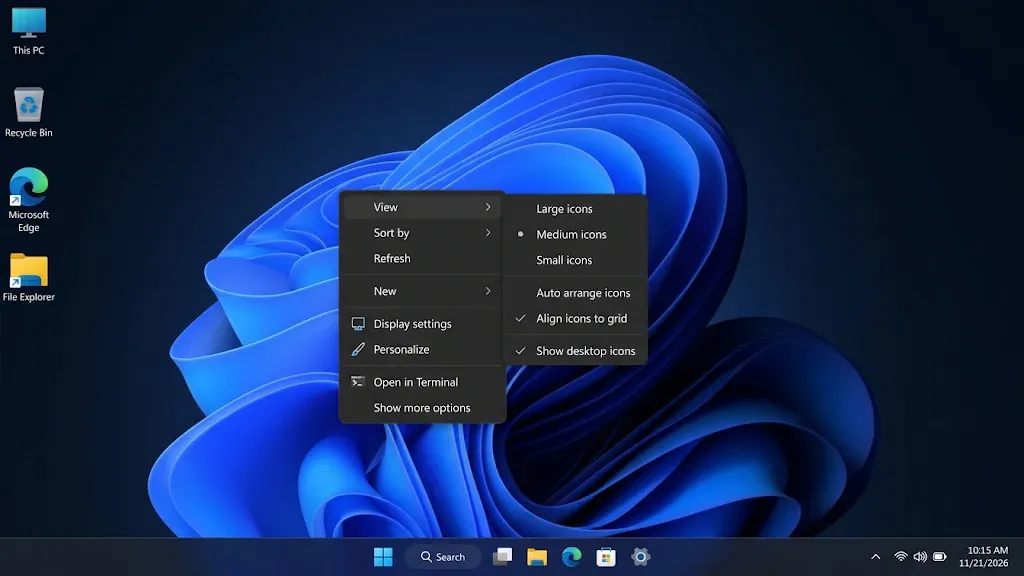
When Windows 11 desktop icons missing is the problem, the desktop can look empty even though your files are still there. In most cases the icons are hidden, moved off the screen or saved in another Desktop folder. This article covers only that problem: icons, files or shortcuts that do not show on the desktop.
Work through the fixes in order. Each one says what you should see and what to try if it does not help. Stop as soon as your icons come back. For other Windows problems, the PC repair guides list more fixes.
Safety first: none of these steps needs a registry edit, a BIOS change or a downloaded tool. Do not delete hidden or system files while you look for missing icons.
Windows 11 Desktop Icons Missing: Quick Symptom Check
| What you see | Likely cause | Start with |
|---|---|---|
| Wallpaper only, no icons | Show desktop icons is off | Fix 1 |
| This PC or Recycle Bin missing | System icons are hidden | Fix 2 |
| Icons gone after a display change | Icons off-screen or wrong screen | Fixes 3 and 4 |
| Files are in another Desktop folder | Desktop moved to OneDrive | Fix 5 |
| Icons stuck or blank | Explorer glitch | Fix 6 |
Fix 1: Turn On Show Desktop Icons
- Right-click an empty area of the desktop.
- Hover over View.
- Make sure Show desktop icons has a tick. Click it if it does not.
You should see: your icons return at once. If the option is already ticked, go to Fix 2.
Fix 2: Bring Back This PC, Recycle Bin and Other System Icons
Windows keeps its own icons, such as This PC, Recycle Bin, Network, User's Files and Control Panel, in a separate settings page. Microsoft's guide also gives a route from the desktop: right-click the desktop, choose Personalize, then Themes, then Desktop icon settings (menu names can differ by build). If the desktop right-click menu itself is slow or cluttered, see why the desktop right-click menu is slow.
- Press Windows + I to open Settings.
- Select Personalization, then Themes.
- Scroll down and select Desktop icon settings.
- Tick the icons you want, then select Apply and OK.
You should see: the ticked icons on the desktop. Microsoft notes that themes can change these icons. If an icon keeps disappearing, untick Allow themes to change desktop icons in the same window.
If the menu names differ on your PC, look for Desktop icon settings in the Themes page. Menus move between Windows 11 builds.
Fix 3: Check Auto Arrange and Off-Screen Icons
Icons can sit past the visible edge of the screen after a display change. Auto arrange usually lines them up again.
- Right-click the desktop and open View.
- Turn on Auto arrange icons once. The icons should line up on the visible screen.
- If you want to place icons yourself, turn Auto arrange off again. Turn off Align icons to grid too, if you want free placement.
You should see: icons lined up in a column or grid on the visible screen. If they are still missing, go to Fix 4.
Fix 4: Check the Display Mode, Scale and Second Monitor
Icons can seem gone after you connect a projector or a second monitor, or after you change the resolution.
- Press Windows + P. Choose Extend if you use two screens, or PC screen only to test one screen.
- Open Settings, then System, then Display. Select Identify to see which screen is which.
- If you changed the scale or resolution, set them back to the values Windows recommends.
You should see: the desktop on the screen you chose. Microsoft describes Extend as a way to see your desktop across several screens, where you can move items between them.
If you need a second monitor set up properly, see how to set up dual monitors on Windows 11.
Fix 5: Check Whether Your Desktop Moved to OneDrive
OneDrive can back up the Desktop folder. When that backup is on, the Desktop you see may be a folder inside OneDrive. Your shortcuts can sit safely there while the local Desktop looks empty. Microsoft notes that if your folder backup location is corrupted, your desktop might be showing the wrong location. If the Desktop folder itself has been moved or is empty, see how to restore the default Desktop location.
- Open File Explorer and select OneDrive in the left pane.
- Look for a Desktop folder inside it and open it. Check whether your icons and files are there.
- To see which Desktop folder Windows uses, right-click the Desktop folder, select Properties and open the Location tab. If there is no Location tab, you are looking at the wrong Desktop folder, such as one that is not in OneDrive or one that belongs to a work or school account. Look for Desktop in other folders.
Warning: do not move or delete folders in OneDrive until you know which Desktop holds your files. Deleting in the wrong place can sync the change to every device.
You should see: your files either in the OneDrive Desktop folder or in the local Desktop folder at C:\Users\YourName\Desktop. Files in OneDrive are safe. For sync problems, see how to fix OneDrive not syncing.
On a shared PC, also check C:\Users\Public\Desktop. Items in that folder show for every account.
Fix 6: Restart Windows Explorer
Windows Explorer draws the desktop, the taskbar and the icons. Restarting it is safe and does not delete anything.
- Press Ctrl + Shift + Esc to open Task Manager.
- If you see a compact view, select More details.
- Find Windows Explorer in the list, select it and choose Restart in the lower right corner.
You should see: the screen flicker or go blank for a few seconds, then the desktop redraw. That is normal. If icons still do not return, go to Fix 7.
If the icons look blank, garbled or white after the restart, the graphics driver can be a cause. See how to update drivers in Windows 11. A desktop file that opens the wrong program or shows the wrong icon points to a file association problem, covered in fixing files that open in the wrong program.
If Explorer keeps freezing or crashing, see how to fix File Explorer not responding. If Explorer keeps using a lot of CPU or memory even when you are idle, see Windows Explorer high CPU or memory usage.
Fix 7: Check Protection History and the Recycle Bin
Antivirus software or a cleaning tool can remove a file or shortcut from the desktop. Windows Security keeps a record of what it acted on.
- Open Windows Security and select Virus & threat protection, then Protection history.
- Look for an item that names your file or shortcut.
- Open the Recycle Bin and check for your icons or files. Right-click an item and choose Restore to send it back to its folder.
Warning: restore an item from Protection history only if you recognise it and trust it. Do not empty the Recycle Bin until you have checked it.
You should see: your item listed in Protection history or in the Recycle Bin. If nothing is listed, the file was not removed this way. For files that are really deleted, see how to recover deleted files on Windows 11.
Fix 8: Test a New User Account, Then Repair System Files
This test tells you whether the fault is in your own profile or in Windows itself.
- Open Settings, then Accounts, then Other users. Select Add account and create a temporary test account.
- Sign in to the test account. If the desktop shows normal icons there, your own profile is the likely cause. See how to fix a corrupt user profile.
- If the test account shows the same problem, repair Windows system files with how to repair Windows system files with SFC and DISM. Then install pending updates with how to fix Windows Update stuck or failing.
Warning: back up your files before a repair or a profile change. If the problem started after an update or an install, System Restore can roll the PC back to an earlier point.
You should see: either normal icons in the test account, which points to your profile, or a clear result after the repair. Delete the test account afterwards if you no longer need it. If Windows will not start normally, try Safe Mode. Icons that appear there suggest a driver or startup app is to blame.
FAQ
Why are my desktop icons missing after an update? An update can sometimes reset the Show desktop icons setting or a theme. Check Fixes 1 and 2 first. If the problem started at the same time as an update, System Restore may help.
Will restarting Explorer delete my files? No. It restarts the program that draws the desktop and taskbar. Your files stay where they are.
Is it safe to change the desktop icon settings? Yes. That page only adds or removes the system icons. It does not touch your files.
Should I move missing files back to the Desktop? Find them first. Check the local Desktop folder, the OneDrive Desktop folder and the Recycle Bin, then move them only if you need to.
Sources
- Customize the desktop icons in Windows | Microsoft Support
- Where have my Desktop icons gone? | Microsoft Support
- How to use multiple monitors in Windows | Microsoft Support
Note: these steps follow Microsoft's documentation. They were not run on a real PC for this article. Menu names can move between Windows 11 builds, so use the closest match if a name differs.