Desktop or Documents Folder Moved or Missing in Windows 11 and 10: How to Restore the Default Location
Last reviewed: November 25, 2026. This guide on a Desktop folder moved was compared with Microsoft documentation, and none of its steps were run on a real PC.
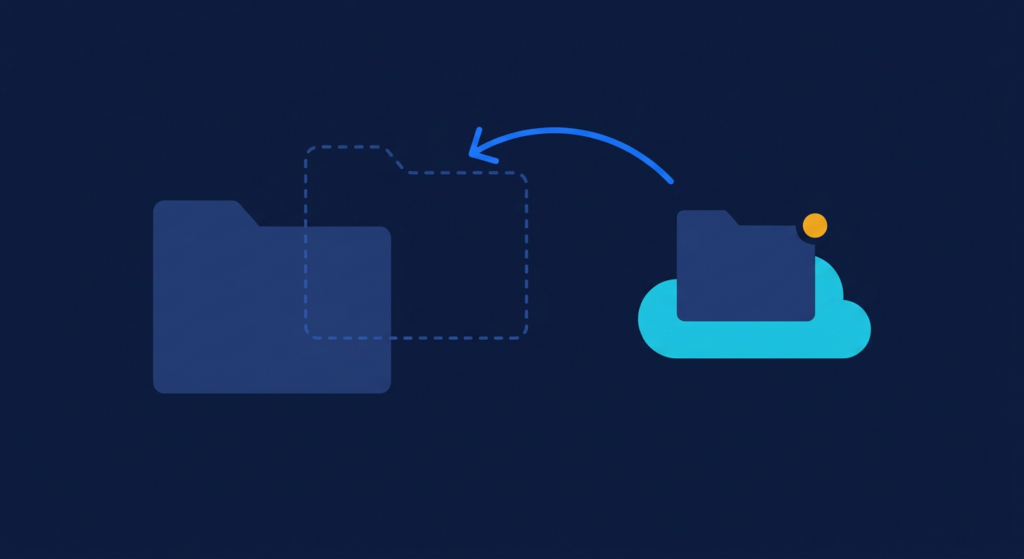
If a Desktop folder moved to another drive, to a path inside OneDrive, or to a folder that no longer exists, the Desktop can look empty even though your files are still on the PC. Documents, Downloads and Pictures can behave the same way. This guide explains where Windows keeps each personal folder location, how to read that location without changing anything, and how to restore the default safely on Windows 11 and Windows 10. For related troubleshooting, browse our PC repair guides.
Quick answer: when a Desktop folder moved
Quick answer
- Each personal folder, such as Desktop, Documents, Downloads or Pictures, has a location stored for your user account. If that location names a drive, folder or OneDrive path that is missing or different, the folder looks empty or moved.
- Read the path first, in the Location tab of the folder's Properties. Then check whether the target drive or folder exists.
- The supported route to put it back is the Location tab. We do not recommend hand-editing the registry values behind these folders.
- Answer the move prompt only after you have checked the old location for files.
- If OneDrive backs up your Desktop, Documents or Pictures, change that in OneDrive's own settings.
In this guide
- Why a Desktop folder moved on your PC
- Back up, then read the location
- Where did my folder go?
- Symptoms and checks at a glance
- Decision tree: which cause fits
- The causes, in order of likelihood
- Restore the default location
- What not to do
- When to stop and get help
- Frequently asked questions
- How this guide was checked
- Sources
Why a Desktop folder moved on your PC
Windows does not hard-code where your Desktop lives. Microsoft's Known Folders documentation describes KNOWNFOLDERID values as GUIDs that identify standard folders registered with the system as Known Folders. For FOLDERID_Desktop, the documented default path is %USERPROFILE%\Desktop. The documented defaults for Documents, Downloads and Pictures are %USERPROFILE%\Documents, %USERPROFILE%\Downloads and %USERPROFILE%\Pictures.
Microsoft also notes that the paths on a particular computer may differ from those defaults, because of choices made during installation or later folder redirection. That is the situation this guide covers. In most cases the folder has not been deleted. Windows is pointing at a different location from the one you expect.
Where the location is stored, we rely on common descriptions. Commonly, per-user values sit under HKEY_CURRENT_USER\Software\Microsoft\Windows\CurrentVersion\Explorer\User Shell Folders. We did not confirm that key layout on a Microsoft page we opened, so read it, do not edit it. The same account-level setting explains why a folder can look moved for one user and normal for another on the same PC. For the layout of hives and keys, read the registry explained: hives, keys and values. For how per-user registry files are stored, see NTUSER.DAT and UsrClass.dat.
Three causes account for most cases: the location was changed with the Location tab, OneDrive backs the folder up, or the drive it points to is no longer connected.
Back up, then read the location
Back up first
Copy anything important from the folder before you change its location. If the device uses BitLocker, keep the recovery key somewhere safe before any restart. For the registry side of any change, read backing up the registry before any change. System Restore is the last undo, and we describe it near the end.
Good to know
Reading a location in Properties does not change it. Only the Restore Default button and the move prompt change anything, and both are covered in the repair steps.
Look only at first. Note the path you see, the account you are signed in with, and the drive it names. If Registry Editor is needed for reading, keep to reading and avoid edits. If it will not open, see Registry Editor that will not open. For a broader list of registry symptoms, see registry problems, symptoms and causes.
Where did my folder go? A route diagram
Follow the route in order. Each stop narrows the cause, and each one is a read-only check.
- Open check Does the folder open in File Explorer? If it does not, the path points somewhere missing. Go to causes 1 and 2.
- Path check Does the Location tab name a drive, a network share or a OneDrive folder? Each one has its own cause below.
- Files check Are your files in the old location? If so, the folder moved but the data did not. Go to cause 4.
- Sign-in check Does the path change back after you sign out? If so, go to cause 5.
- Next step Use the repair steps only after the path and target are clear.
Symptoms and checks at a glance
Use this table to match what you see with a likely cause. Each row points to a section below.
| Symptom | Likely cause | Look-only check |
|---|---|---|
| Folder looks empty, files seem gone | Location points to a new or missing path | Read the path in the Location tab |
| Location is not available message | Drive letter changed or drive is disconnected | Check the drive under This PC |
| Files appear in OneDrive, not on the PC | OneDrive backup redirects the folder | Read OneDrive's backup settings |
| Files in old place, folder in new place | Earlier move left files behind | Look in the old location for files |
| Location resets at each sign-in | A policy or organization manages it | Ask whether the setting is managed |
Decision tree: which cause fits
Answer the questions from the top. Each branch points to the cause to read next.
- Does the folder open in File Explorer?
- No: read cause 1, then cause 2 if the path names a drive.
- Yes, but it looks empty: check the old location, which is cause 4.
- Does the path name a drive, a network share or a OneDrive folder?
- Drive or share: check it is connected, which is cause 2.
- OneDrive folder: check the backup settings, which is cause 3.
- Does the path change back after sign-out?
- Yes: read cause 5 about managed settings.
The causes, in order of likelihood
Each cause has a recognition step, a look-only check and a next step. Where we could not confirm a claim on a Microsoft page, the text says so.
1. The location points to a path that no longer exists
How to recognise it
The folder opens empty, or it does not open at all. The Location tab shows a path you do not recognise, such as an old user folder or a removed drive.
Look-only check
Right-click the folder, choose Properties, then the Location tab. Read the path and do not click Move. In Command Prompt, these commands only read values. The output is a general pattern, not a fixed result.
reg query "HKCU\Software\Microsoft\Windows\CurrentVersion\Explorer\User Shell Folders" /v Desktopreg query "HKCU\Software\Microsoft\Windows\CurrentVersion\Explorer\User Shell Folders" /v PersonalOften the value uses a variable such as %USERPROFILE% or %OneDrive%. Expanded variables and plain paths can both be valid, so compare the result with the Location tab, not with a memory of it. For searching keys in the registry, see searching the registry for a key, and for the output format of reg query, see reg query for reading the registry.
What to do next
Go to the repair steps. Do not edit the value in Registry Editor.
2. A drive, external disk or network share is missing
How to recognise it
The Location tab names a letter or share that is not in File Explorer, and you may see a message that the location is not available.
Look-only check
Open This PC and list the drives. If the drive letter changed, the path in the Location tab still uses the old letter. Confirm which drive now holds the folder before you change anything.
What to do next
Reconnect the drive or share first. Only if it is gone for good should you choose a new location, and only with the Location tab.
3. OneDrive backup has redirected the folder
How to recognise it
Your Desktop, Documents or Pictures show OneDrive status, or files appear in a OneDrive folder and not on the PC. Backup has been turned on in OneDrive settings for these folders in many cases, though not all.
Look-only check
Select the OneDrive cloud icon in the notification area, then the Help & Settings icon, then Settings. Open the Sync and backup tab and select Manage backup. Read only. Microsoft's page on backing up folders with OneDrive uses these same menu names, but match the wording to your own screen.
What to do next
Change backup only in OneDrive's own settings, and only as far as those settings allow. Turning a folder's backup off is a separate action from Restore Default. When you turn it off, Windows asks whether to keep the files only in OneDrive or only on the PC. Files already backed up stay in the OneDrive folder and no longer appear in the device folder, and new files you add afterwards are not backed up. If you want them back in the device folder, move them there by hand from the OneDrive folder; the "Where are my files" shortcut in the device folder opens that folder in OneDrive. On a work or school PC, folder redirection or backup may be set by your organization, so do not change it without asking IT. For syncing problems, see how to fix OneDrive not syncing.
4. The folder moved, but the files stayed in the old place
How to recognise it
The new folder is empty, and the old folder still holds your files. This is the most common result of answering No to the move prompt.
Look-only check
Open the old location by typing its path into File Explorer's address bar, or from your user folder. Count the files there. Do not delete anything, even files that look like duplicates.
What to do next
Do not delete the old folder. Read the repair steps, which cover the move prompt, before you choose anything.
5. A policy or your organization manages the location
How to recognise it
The location resets at sign-in, the Location tab buttons are greyed out, or the device is managed by an organization.
Look-only check
Ask whether the device is managed before you change anything. Read settings managed by your organization and how Group Policy differs from the registry.
What to do next
Ask the administrator. Do not try to override a managed setting by hand.
Restore the default location
The supported route is the Location tab. We could not confirm the wording of the Restore Default button on a Microsoft page we opened, so treat the steps below as general guidance. Do not hand-edit the User Shell Folders values in Registry Editor. Hand edits can point folders at the wrong place, and Microsoft does not document them as a fix.
Check the path and the drive first
- Reconnect the missing drive. Plug in the external disk or reconnect the network share, then open File Explorer. You should see the drive under This PC or the share in the navigation pane. If this fails, the drive letter may have changed. Check the letter in Disk Management, a Microsoft tool, and do not format or change partitions.
- Read the current path. Right-click the folder, choose Properties, then the Location tab. Read the path and do not click Move. You should see the path that Windows is using. If this fails, the folder may not appear under your user folder at all. Read corrupt user profile problems.
- Confirm the target. Run a read-only listing in Command Prompt, with the path you read in quotes. You should see the folder contents or a message that the path cannot be found. If the drive is missing, go back to step 1.
- Click Restore Default, then Apply. Before you click, keep a copy of anything important in the folder and check OneDrive status, as in cause 3. This is general guidance: Restore Default may not move existing files back by itself. You should see the Location path change to the default folder inside your user profile. If this fails, the button may be greyed out because a setting is managed. Ask the administrator, as in cause 5.
Answer the move prompt and check the result
- Answer the move prompt carefully. Windows may ask whether to move files from the old location. Before you answer, look in the old location for files. Yes moves the files to the new location. No leaves them where they are. If you are not sure, choose No, then check both locations. You should see your files in the new folder after Yes, or still in the old folder after No. If this fails, stop, and do not delete the old folder.
- Let the Location tab create the folder. If the default folder is missing, use the Location tab so that Windows creates it. Do not make a same-named folder elsewhere by hand. This is general guidance, not a confirmed Microsoft step.
- Check OneDrive if it applies. Read the backup section in OneDrive's own settings, as in cause 3. You should see the folder status there. If this fails, follow the OneDrive sync guide linked above.
- Sign out, sign in, and check. You should see the folder open at the expected path with its files. If it still fails, System Restore is the last undo. Read how to use System Restore first, and do not run it just to test a theory.
What not to do
- Do not edit User Shell Folders values by hand. The Location tab is the supported route.
- Do not run scripts or single-file downloads to re-point folders.
- Do not delete the old folder before you have checked it for files.
- Do not use a registry cleaner. No Microsoft page we opened shows a cleaner repairing folder locations.
- Do not treat this as a desktop icon problem. Hidden or missing icons are covered in Windows 11 desktop icons that are missing.
- Do not change AppData or ProgramData folders to fix a personal folder. Those are covered in AppData and ProgramData folders in Windows 11.
When to stop and get help
Stop when the location is managed by an organization, when the path names a network share you do not own, or when files are missing after you answered Yes to the move prompt. Bring the path, the drive, the time of the change and the account name to your administrator. The Repair Assistant can help narrow the cause without changing anything on the PC.
Frequently asked questions
The basics
Why does my Desktop look empty after it moved?
Usually because the location now points to a different path. The files may still be in the old place. Read the path in the Location tab before you do anything else.
Is my data deleted when a folder moves?
Not by the change alone. Files move only if you answer Yes to the prompt. Check the old location for files before you choose.
Can I fix it in Registry Editor instead?
We do not recommend it. Hand edits can point folders at the wrong place, and Microsoft does not document them as a fix. Use the Location tab.
What does the Yes or No prompt do?
Yes moves the files to the new location. No leaves them where they are. If you are unsure, choose No and check both locations.
Drives, OneDrive and policy
Does OneDrive move my Desktop?
It can, when folder backup is turned on for the Desktop, Documents or Pictures. Change that in OneDrive's own settings, not by moving folders around.
Why is Restore Default greyed out?
Most often a policy or your organization manages the setting. Ask the administrator. Do not try to override it.
Can System Restore bring the folder back?
It is the last undo, not a first step. Read what System Restore does to the registry to see its limits before you rely on it.
Does this guide apply to Windows 10 too?
Yes. The Location tab and the default paths are the same idea on Windows 10 and Windows 11, although menu wording can differ by build.
How this guide was checked
We compared the default-path statements with Microsoft Learn pages we opened, and none of the steps were run on a real PC. We did not confirm the Location tab wording, the Restore Default button or the Yes and No prompt on a Microsoft page, so those steps are described as general guidance. We opened the Microsoft Support page on backing up folders with OneDrive and checked the OneDrive backup steps against it. Where a claim could not be confirmed, the text says so.