How to Fix 100% Disk Usage in Windows 10 and 11
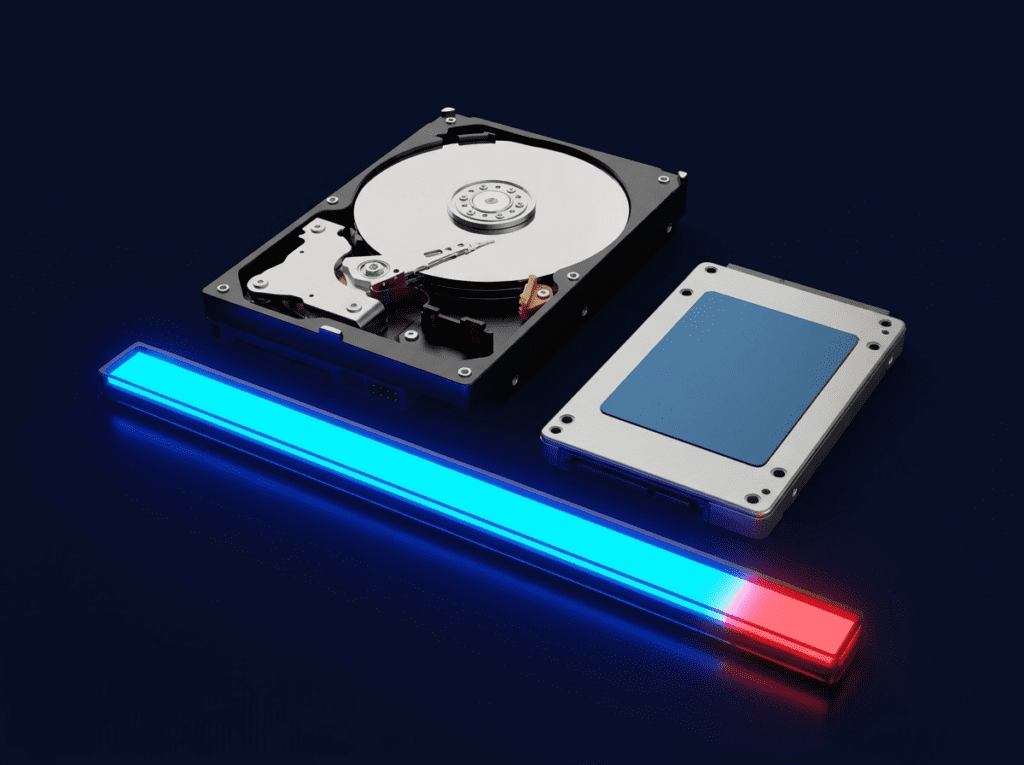
100% disk usage means Task Manager shows your disk at 100 percent, and everything slows down: apps take a long time to open, the mouse freezes and the PC feels stuck. It happens most often on PCs with a traditional hard drive (HDD), but it can happen with an SSD too. The fix depends on what is using the disk, so we start by finding the cause. If the whole PC feels slow, not just the disk, our full slow PC diagnosis guide covers every check.
Windows 10 note: Windows 10 reached end of support on October 14, 2025, so it no longer gets free security updates. These steps work on Windows 10 and 11. Consider moving to Windows 11 or enrolling in Extended Security Updates.
Signs of 100% disk usage
- The Disk column in Task Manager stays at or near 100 percent.
- The PC freezes for several seconds, especially after startup.
- Apps and File Explorer are slow to respond.
- The hard drive light stays on, or you hear constant clicking from an HDD.
High disk use for a few minutes after startup or after an update is normal. It is a problem when it continues for a long time. If you have an SSD and only see short spikes, read is 100% disk usage normal on an SSD first.
Step-by-step: find and fix the cause
Step 1: Find the process using the disk
Press Ctrl + Shift + Esc, open the Processes tab and click the Disk column to sort. Note the top process. For more detail, press Windows + R, type resmon and open the Disk tab. Sort Disk Activity by Total (B/sec) to see which files are being read or written. If the spike comes and goes, reading Windows Performance Monitor counters shows the disk pattern over time. In the Storage list below, the Response Time (ms) column shows how long the drive takes to answer. As a rough rule of thumb (not an official limit), a figure that stays around 100 ms or more while usage is high suggests the drive cannot keep up. Write down the top process; most steps below depend on it.
You should see: one or two processes at the top of the Disk column. If the top name is an update or Microsoft Store service, start with Step 2. If it is Antimalware Service Executable or an antivirus scan, go to Step 6. If it is a game or browser and memory is nearly full, go to Step 7. If the top process is System and the drive is an HDD, go on through Steps 2 to 5. For the drivers and kernel tasks behind it, read our System process high CPU or disk guide.
Step 2: Let Windows finish its background work
Open Settings > Windows Update and let any updates finish and restart the PC. Also check for Microsoft Store or app downloads running in the background. If updates keep the disk busy, open Settings > Windows Update > Advanced options > Delivery Optimization and turn off Allow downloads from other PCs, so your PC stops sharing updates with others. Background telemetry can also keep the disk busy, so see our Compatibility Telemetry high disk usage guide.
You should see: the Disk column drop once the updates and downloads finish. If it stays at 100 percent with nothing updating, go on to Step 3.
Step 3: Check the drive type and free space
In Task Manager, open Performance > Disk and read the Type line (HDD or SSD). If the drive is almost full, follow our guide on freeing up disk space. As a general guide, try to keep 10 to 15 percent free. If the space refills soon after you clean up, see why the drive fills up again after cleaning. Not every PC cleaner helps; read why a PC cleaner may not help.
You should see: the drive type and how much space is free. If the drive is nearly full, free up space and check the Disk column again. If it has plenty of space, go on to Step 4.
Step 4: Test Windows Search
Press Windows + R, type services.msc, find Windows Search, right-click it and choose Stop. Wait a few minutes. If disk usage falls, indexing is the cause. Instead of disabling it for good, reduce the indexed locations in Control Panel > Indexing Options > Modify, then start the service again (right-click, Start). If usage does not change, start it again and go on. For more indexer fixes, see our guide to Windows Search Indexer high CPU or disk usage.
You should see: the Disk column fall while the service is stopped. If it does, indexing was the cause. If it stays high, go on to Step 5.
Step 5: Test SysMain
Stop the SysMain service the same way. SysMain preloads frequently used apps, which can keep a slow HDD busy. If nothing changes after a few minutes, start it again. For a closer look at SysMain disk use, read our SysMain high disk usage guide.
You should see: the Disk column fall while SysMain is stopped. If it does, SysMain was contributing, so keep it stopped only while you test. If it stays high, start SysMain again and go on to Step 6.
Step 6: Check antivirus scans and startup programs
If the top process in Step 1 is Antimalware Service Executable or your third-party antivirus, a scan is running. Let it finish, or schedule scans for a time you are not using the PC. Then open the Startup apps tab in Task Manager and disable programs you do not need at startup, especially cloud sync tools and updaters. See how to disable startup programs.
You should see: the Disk column fall once the scan ends or the unneeded startup programs are off. Restart the PC and check again. If the disk stays busy, go on to Step 7.
Step 7: Check for low memory
When RAM is full, Windows uses the disk as extra memory, which can push disk usage to 100 percent. In Task Manager, open Performance > Memory. If memory use stays very high, close apps or add RAM (see how much RAM you need).
You should see: memory use that stays well below its limit while the disk is busy. If memory is nearly full most of the time, close apps or add RAM. If memory has room and the disk is still at 100 percent, go on to Step 8.
Step 8: Update the storage and chipset drivers, scan for malware and check the drive
Install the latest chipset and storage drivers from your PC or motherboard maker (see how to update drivers in Windows 11 safely). Do not edit the registry for this. Then run a full scan with the steps in our malware removal guide, and check the drive’s health with how to check hard drive or SSD health. A failing drive can show constant 100 percent usage with very slow transfers. If you suspect the drive is failing, back up your files first.
You should see: a clean scan and a drive health result without warnings. The Disk column should fall once the drivers are installed and the scan is done. If the health check reports a warning, back up your files before going further.
Step 9: Upgrade to an SSD
If you have an HDD and none of the steps help, an SSD is the biggest improvement you can make. Before you spend money, how to clean up an older PC with a hard drive and little RAM lists the cleanup steps to try first. Back up your files first (how to back up your Windows PC). Then either clone the old drive with the SSD maker’s free tool, or install Windows fresh on the new drive (clean install Windows 11). See our guide on replacing a drive with an SSD.
You should see: Windows running from the new drive, with the Disk column staying low when the PC is idle. If it still sits at 100 percent after the upgrade, go back to Step 1 and find the top process again.
More help
For other slow-PC problems, search by symptom in the PC repair guides on PC Repair Atlas.
FAQ
Is it safe to disable SysMain or Windows Search? You can stop them to test. Turn them back on if there is no improvement, because they help on many PCs.
Why is my SSD at 100% usage? It is often normal in short spikes. See is 100% disk usage normal on an SSD for how to tell a spike from a problem.
Can a bad cable cause it? On a desktop with a SATA drive, a loose or damaged cable can slow the drive. If you can open the case safely, switch off and unplug the PC first, then reseat the data cable.
Sources
- Tips to improve PC performance in Windows (Microsoft Support): Microsoft’s own list of safe performance steps, including updates, startup apps and free space.
- Windows 10 support has ended on October 14, 2025 (Microsoft Support).
The 100 ms and 10 to 15 percent figures are common rules of thumb, not Microsoft limits. These steps have not been run on every PC.