SysMain (Superfetch) High Disk Usage in Windows 11: What It Does and Should You Turn It Off?
SysMain high disk usage is one of the most common reasons people open Task Manager and ask what is wrong. We see it on older laptops and desktops, often right after a restart or a large update. This guide explains what the service does, why it can look busy, and what we would check before touching any setting.
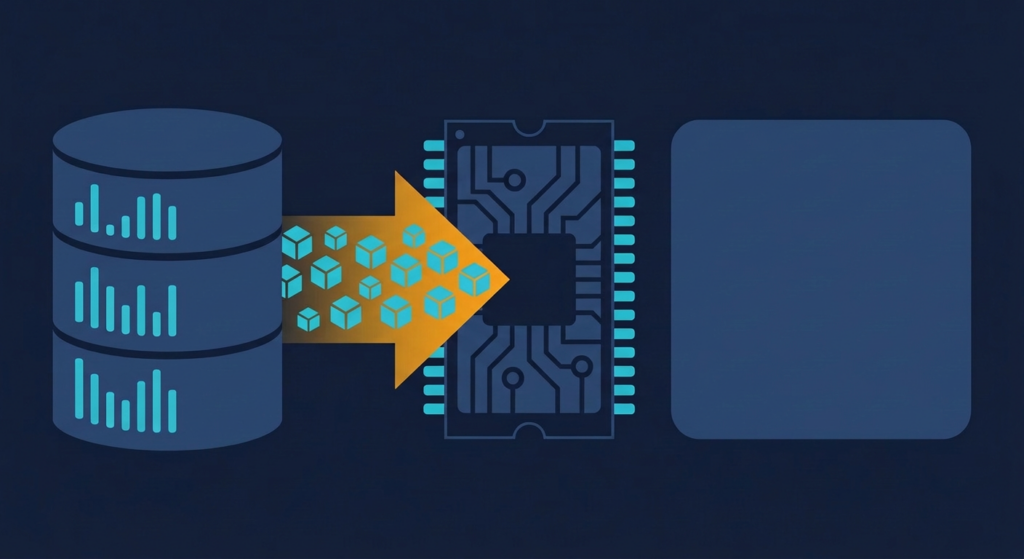
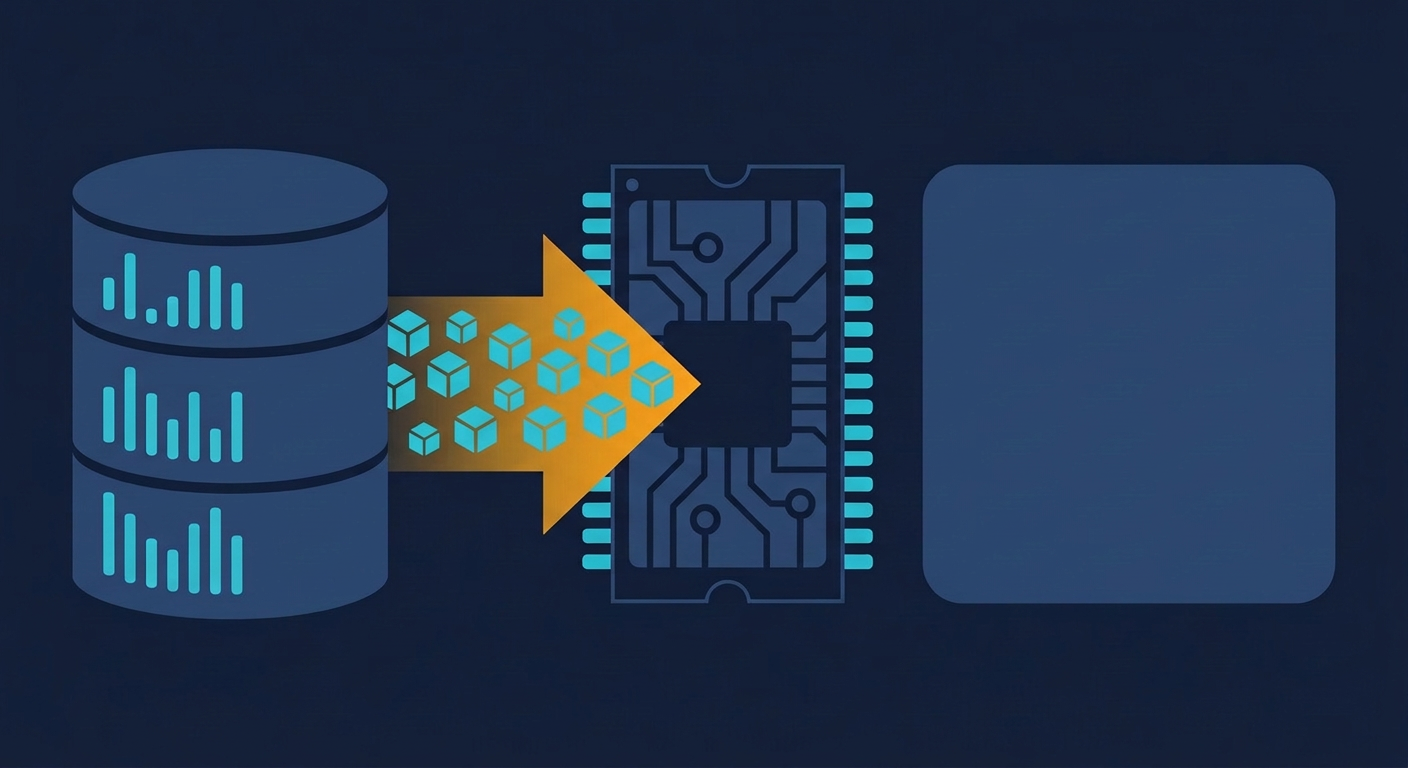
Last reviewed: November 24, 2026. Steps were compared with Microsoft documentation where a page exists; none was run on every PC. The picture above is an illustration, not a screenshot.
Quick answer
- SysMain is the Windows service once called Superfetch. It preloads data for apps you use often.
- Short bursts of disk activity after startup or an update are usually normal.
- Heavy disk use that never settles, or freezes your apps, needs more checks.
- Microsoft does not document that turning SysMain off makes a PC faster.
- Check first: wait, restart normally, free space, drive health, drivers, malware, then DISM and SFC.
In this article
- What SysMain high disk usage means
- What SysMain is
- How SysMain relates to Prefetch and standby memory
- Why it can show high disk usage
- Does the drive type change things?
- Symptoms at a glance
- Decision tree: is SysMain the real cause?
- How to confirm SysMain is the cause
- Safe first steps before any test
- The honest verdict on turning it off
- Optional reversible test with undo
- When to stop and get help
- Windows 10 notes
- How we checked this article
- Frequently asked questions
- Sources
What SysMain high disk usage means
When Task Manager shows Service Host: SysMain using the disk, Windows is reading files. That activity alone is not a fault. SysMain is the Windows service that tries to keep useful data ready, so apps open faster when you click them.
A problem starts when the disk stays busy for a long time, the PC feels frozen, or other programs wait for the drive. Those signs matter more than the name of the process.
We sort every case with three questions. Is the activity short or long? Does it start only after a restart, an update or a big install? Does the PC feel slow while it happens? Short, quiet activity after those events usually means normal background work. Long, constant activity that freezes apps needs the checks further down.
What SysMain is
SysMain is the current name of the service that older Windows versions called Superfetch. Microsoft Learn uses the names SysMain and SuperFetch on the same service. The service watches how you use the PC, then loads data for apps you use often into memory.
Microsoft's consumer documentation on this service is thin. The Microsoft Learn article we opened is a troubleshooting page about a CPU spike on Windows 7 SP1. It does not describe how the service is designed. The purpose described above is commonly reported, not a Microsoft specification.
Secondary articles add that SysMain does most of its work while the PC is idle, and that it steps back when you open apps. We treat those details as commonly reported too. They match what most users see in Task Manager. For the scheduled work Windows does while the PC is idle, see our guide to how Windows Automatic Maintenance works.
How SysMain relates to Prefetch and standby memory
Prefetch and SysMain are often mixed up. A secondary article describes Prefetch files, which end in .pf, as records of what an app reads when it launches. It describes SysMain as the part that decides what data to keep in or reload into RAM. Both use the same folder, which adds to the confusion.
The data SysMain preloads goes to standby memory. Task Manager shows this as Cached memory. Standby memory is not wasted RAM. Windows gives it back when an app needs the space. Our guide on high memory numbers explains how to read these figures: high memory usage in Windows 11.
If the memory numbers look high with nothing open, read our guide on memory use with nothing open before changing any service. For the folder itself and what is safe to remove, see Prefetch and temp folders. Deleting Prefetch files does not turn SysMain off.
Why it can show high disk usage
SysMain can show high disk activity for a few clear reasons. Each one is common and most of them settle on their own. The table below lists the usual patterns, and the sections after it explain each one. Other processes can cause the same pattern, and our guide to ntoskrnl.exe high CPU and disk use covers those.
Right after startup
After a restart, many apps load at once. SysMain also starts building its picture of what you use. The disk can be busy for a few minutes. It should quiet down once the desktop settles and you start your normal work.
After an update or a big install
A Windows update or a large app install changes many files. The service may read more data in the hours or days after that change. This is why many people see the activity after an update and not during normal use.
On older hard drives and low RAM
Hard drives read much more slowly than SSDs. On an older drive with little RAM, Windows has less room to keep preloaded data. The disk may stay busy longer, and the PC may feel slow while it works. This is the case where a test can be worth trying, carefully.
Does the drive type change things?
Guides often say SysMain matters more on hard drives than on SSDs. A secondary article says the same. It adds that a computer with an SSD and plenty of RAM sees only a small gain from the service. Microsoft does not document this difference in the pages we opened, so treat it as commonly reported.
An SSD can still show high disk numbers from other causes. Slow SSD speed has its own guide: fix slow SSD performance. A general 100 percent disk problem is covered by fixing 100 percent disk usage. For an SSD that stays at 100 percent, read whether 100 percent disk usage is normal on an SSD. Those guides own their topics. This article covers SysMain only.
Symptoms at a glance
Use this table to match what you see with a likely reading. It is a starting point, not a diagnosis. Your next step is in the column on the right.
| What you see | Likely reading | First check | When to worry |
|---|---|---|---|
| Service Host: SysMain uses the disk for a few minutes after boot | Normal background caching | Wait 10 minutes and watch the Disk column | Only if the activity never stops |
| Disk stays high for hours on an older hard drive with little RAM | Drive speed or RAM limit | Free space, drive health and RAM use | Apps freeze or the PC is hard to use |
| Disk spikes right after a big update | Post-update file work | Wait, then restart normally | Still busy a full day later |
| SysMain and CPU both high while one 64-bit app runs | Rare app-specific issue | Note the app and check for updates | It repeats with the same app |
Decision tree: is SysMain the real cause?
Use this tree after you open Task Manager. Start at the top and follow one branch at a time.
- Is Service Host: SysMain the top disk user?
- No. Look at the process that is. Check our clean boot guide if another program keeps the disk busy.
- Also check our compatibility telemetry guide if that process is the busy one. If the busy process is the Store service, see our guide to WSAPPX.
- Yes. Did the activity start within 10 minutes of boot or an update?
- Yes. Wait and check again. If it settles, it is normal.
- No. Does it stay high for hours?
- Yes. Work through the first steps below.
- No. Keep watching during normal use.
- No. Look at the process that is. Check our clean boot guide if another program keeps the disk busy.
How to confirm SysMain is the cause
Confirm the cause before you change anything. A few minutes of checking can show whether SysMain is really the busy process. These checks only read information. They do not change the service.
Use Task Manager
Press Ctrl and Shift and Esc together to open Task Manager. Select More details if you see the short view. On the Processes tab, select the Disk column so the busiest items rise to the top. Look for Service Host: SysMain.
Task ManagerProcessesDisk
On the Details tab, SysMain runs inside an svchost.exe process. The Services tab lists the service name SysMain next to its process ID. Our guide on Service Host high CPU and memory explains how to read these entries.
Check the service in the Services console
Press Win and R together, type services.msc and press Enter. Scroll to SysMain. The Status column shows Running when the service is active. Note the status and the startup type. Do not change anything yet. If SysMain will not start, Event Viewer may show Service Control Manager errors for it.
Use Resource Monitor for disk detail
From Task Manager, open the Performance tab and select Open Resource Monitor. Go to the Disk tab and sort by Total (B/sec) or Disk Write. Find SysMain in the list. Our Performance Monitor guide shows other ways to watch a slow PC over time.
What a normal result looks like
- SysMain is busy for a few minutes after boot or an update.
- The disk column falls back to low numbers on its own.
- Apps open and respond while the activity runs.
What points to a problem
- SysMain stays at the top of the Disk column for hours.
- Apps freeze, or the mouse stutters while the disk is busy.
- The same pattern returns each day with no update or install behind it.
Safe first steps before any test
Work through these steps before you touch the service. Most cases settle after the first few. Each step is safe, and none of them needs a third-party tool.
- Wait after updates
- Restart normally
- Check free space
- Check drive health
- Check storage drivers and Windows Update
- Run a malware check
- Run DISM, then SFC
- Consider an SSD upgrade on older hard drives
Wait after updates and restart normally
After a big update, give the PC time to finish its file work. Leave it on for an hour without heavy tasks. Then restart from the Start menu so the PC does a full shutdown and boot cycle.
Avoid choosing Shut down with Fast Startup on when you test. A secondary article notes that a restart does a full shutdown, while a normal shutdown can use a hibernation file. Our guide on Fast Startup explains the setting.
Note
Restart the PC once before you compare any numbers. This keeps your baseline and your test on the same footing.
Check free space and drive health
Open Settings, then System, then Storage. Look at how full the drive is. A nearly full drive leaves little room for Windows to work. Our guide on freeing up disk space lists safe places to start.
SettingsSystemStorage
Drive health is the next check. Our guide on checking drive health before a repair shows how to read the health status. If the drive reports errors, stop here and back up your files first.
Check storage drivers and Windows Update
Old or faulty storage drivers can make disk activity look worse. Install pending Windows updates first. Then check the storage controller driver in Device Manager. Our guide on updating drivers in Windows 11 explains the safe way to do that.
If updates keep failing, read fixing Windows Update when it is stuck or failing before you repeat the test.
Run a malware check
Malware can read and write files in the background. It can look like SysMain at first glance. Run a full scan with Microsoft Defender, the built-in Windows Security app. Our guide on removing viruses and malware covers what to do if the scan finds something.
Run DISM first, then SFC
If the PC still acts up, check the system files. Microsoft's System File Checker page says to run DISM before SFC. DISM supplies the files that SFC needs to repair corrupted files. Open Command Prompt as administrator, then run the DISM command below and wait for it to finish.
DISM.exe /Online /Cleanup-image /RestorehealthWhen DISM finishes, run the SFC command in the same window. Do not close the window until it reaches 100 percent.
sfc /scannowCareful
Do not close the Command Prompt window during the scan. Microsoft warns that closing it early can leave the check incomplete. Run both commands only from an administrator window.
Our guide on SFC and DISM repair covers the results messages in more detail.
Consider an SSD upgrade on older hard drives
On an older hard drive, many people find a solid-state drive helps more than any service change. This is general guidance, not a promise of speed. Our guide on installing a second SSD in a desktop explains the basic steps and what to check first.
The honest verdict on turning it off
No Microsoft data we found shows that turning SysMain off makes a PC faster. Microsoft's consumer pages do not recommend turning it off as a fix for high disk use. That is our reading of the pages we opened.
A secondary article reports one test. On two PCs, turning the service off barely changed boot times and made cold app launches slightly slower. That is one test, reported secondhand, so treat it as a single data point and not a rule.
If disk activity settles after a while, it is normal. Turning SysMain off is optional. It is a test you can undo. We do not recommend it as a default setting for any PC.
When a test may be worth it
A test may be worth trying only when the first steps are done, the drive is healthy, and the PC still feels stuck. It is more reasonable on an older hard drive with little RAM. It is less reasonable on a healthy SSD PC with plenty of memory.
Optional reversible test with undo
Use this test only after the first steps. Change one thing at a time, and keep notes. Do not turn off other services or clear folders during the same test. That would make the result impossible to read.
Step 1: record a baseline
- Open the Disk column Open Task Manager and the Processes tab. Select the Disk column.
- Watch for 10 minutes Use the PC normally. Note how high the Service Host: SysMain row sits, and whether the activity stops.
- Restart normally Restart from the Start menu. Then wait for the desktop to settle.
The 10-minute window is a rule of thumb from a published test guide. It is not a Microsoft figure. If the activity stops within that window, the test is not needed.
Step 2: stop the service for one test period
Do this only if the activity continues. Leave the startup type alone for this step. The test changes only the running state.
- Open Services Press Win and R, type services.msc, and press Enter.
- Stop SysMain Right-click SysMain and select Stop.
- Compare for the same period Use the PC the same way for the same length of time. Note the Disk column and how the apps feel.
Note
Menu names can differ between Windows builds. The Services console itself works the same way in Windows 10 and Windows 11.
How to undo the test
Undo is simple, and you can do it at any time. Restart the service in the same console.
- Open Services Press Win and R, type services.msc, and press Enter.
- Start SysMain Right-click SysMain and select Start.
- Check the status The Status column should show Running again.
What a normal result looks like
- The stopped test shows no clear benefit, so you start SysMain again.
- The PC behaves the same as before the test.
What points to a problem
- Apps are slower while SysMain is stopped, which is common on older PCs.
- The service will not start. Check the next steps in this article.
Only for hard-drive PCs: the startup type setting
Change the startup type only if the stopped test clearly helps. Also check that the PC uses a hard drive. We do not recommend this as a default. It is an extra step that most PCs do not need.
Careful
Setting the startup type to Manual or Disabled stops SysMain from starting at boot. It can make apps feel slower to open. Use the Services console only. Do not use command-line or registry methods for this test.
- Open the service properties In Services, double-click SysMain.
- Change the startup type Choose Manual or Disabled in the Startup type list, then select OK.
- Watch for a full day Compare the disk activity and how the apps feel with the change in place.
Undo: open SysMain properties again, set Startup type back to Automatic, select Apply, then select Start. Confirm that the Status column shows Running.
When to stop and get help
Stop the test if the PC shows any of these signs. Do not keep changing settings to chase a result. A repeated problem usually has a cause outside this article.
- The drive reports errors or the health status is poor.
- Disk activity is high even after you stop SysMain and restart.
- Apps crash, freeze, or show file errors.
- The problem started with a new driver, a new program, or a failed update.
If none of this helps, our general guide on diagnosing a slow PC step by step gives a broader order to follow.
Windows 10 notes
Windows 10 also has the SysMain service, and the steps in this guide work in much the same way. Task Manager and the Services console look similar. Menu names can differ between builds, so check the labels on your own screen.
Windows 10 reached end of support on October 14, 2025. Microsoft says the consumer Extended Security Updates program can protect a Windows 10 device until October 12, 2027. Read Microsoft's Windows 10 end of support page for the options.
For more step-by-step help with slow computers, browse our PC repair guides when you are ready.
How we checked this article
We read the Microsoft pages named in the sources list. Only one Microsoft Learn article covers SysMain directly, and it is about a CPU spike on Windows 7 SP1. It does not describe what the service does, so we label those descriptions as commonly reported.
We checked the DISM and SFC order on Microsoft's System File Checker page. We read two secondary articles for commonly reported behaviour, including the test procedure and the drive-type claims. We did not run these steps on any PC for this article.
Frequently asked questions
General questions about SysMain
What is SysMain in Windows 11?
SysMain is the Windows service that older versions called Superfetch. It watches how you use the PC and loads data for apps you use often into memory. Microsoft's consumer documentation on it is thin, so most descriptions are commonly reported rather than officially documented.
Is SysMain high disk usage normal?
Short bursts of disk activity after startup or a big update are usually normal. If the activity settles within a few minutes, you have nothing to fix. Heavy activity that never stops, or that freezes apps, needs the checks in this guide.
Is SysMain the same as Superfetch?
Yes, SysMain is the current name for the service that was called Superfetch. Microsoft Learn uses both names on the same service. Some older guides still use the Superfetch name, so you may see both in Task Manager discussions and forum posts.
Does SysMain cause high memory use?
SysMain preloads data into standby memory, which Task Manager shows as Cached. That memory is reclaimed when an app needs it. High cached memory alone is not a fault, so read the Available and In use figures before you decide anything.
Turning SysMain off and testing it
Should I turn off SysMain?
For most PCs, we do not recommend turning it off as a default. Microsoft does not document a benefit from turning it off. Consider a reversible test only after the first steps, and only if the PC still feels stuck after normal disk activity has settled.
Will disabling SysMain make my PC faster?
No Microsoft data we found shows that it does. One secondary report describes a test where stopping the service barely changed boot times and made some app launches slightly slower. Treat that as a single report, not proof for your PC.
Is SysMain different on an SSD?
Guides often say SysMain matters less on an SSD. Microsoft does not document that difference in the pages we opened, so we label it as commonly reported. An SSD with high disk numbers may have another cause, which is worth checking separately.
How do I undo a SysMain test?
Open Services, select SysMain, and choose Start. If you changed the startup type, set it back to Automatic first, then start the service. Check that the Status column shows Running. Use only the Services console for this, not command-line or registry methods.
Sources
- Microsoft Learn: SuperFetch (SysMain) service spikes the CPU for 1-2 minutes when a 64-bit application is running
- Microsoft Support: Use the System File Checker tool to repair missing or corrupted system files
- WindowsForum: Should You Disable SysMain on Windows 11? Superfetch Performance, CPU and Disk Usage Explained (secondary article)
- Geeks in Phoenix: What is SysMain in Windows 11? (secondary article)