Service Control Manager Errors 7000, 7009 and 7011 in Windows 11: How to Fix Service Timeouts
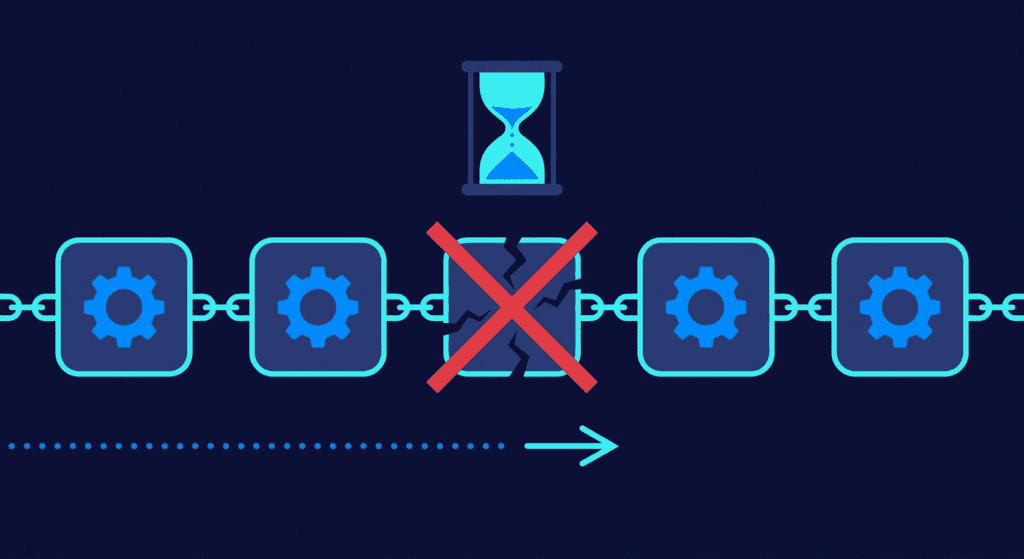
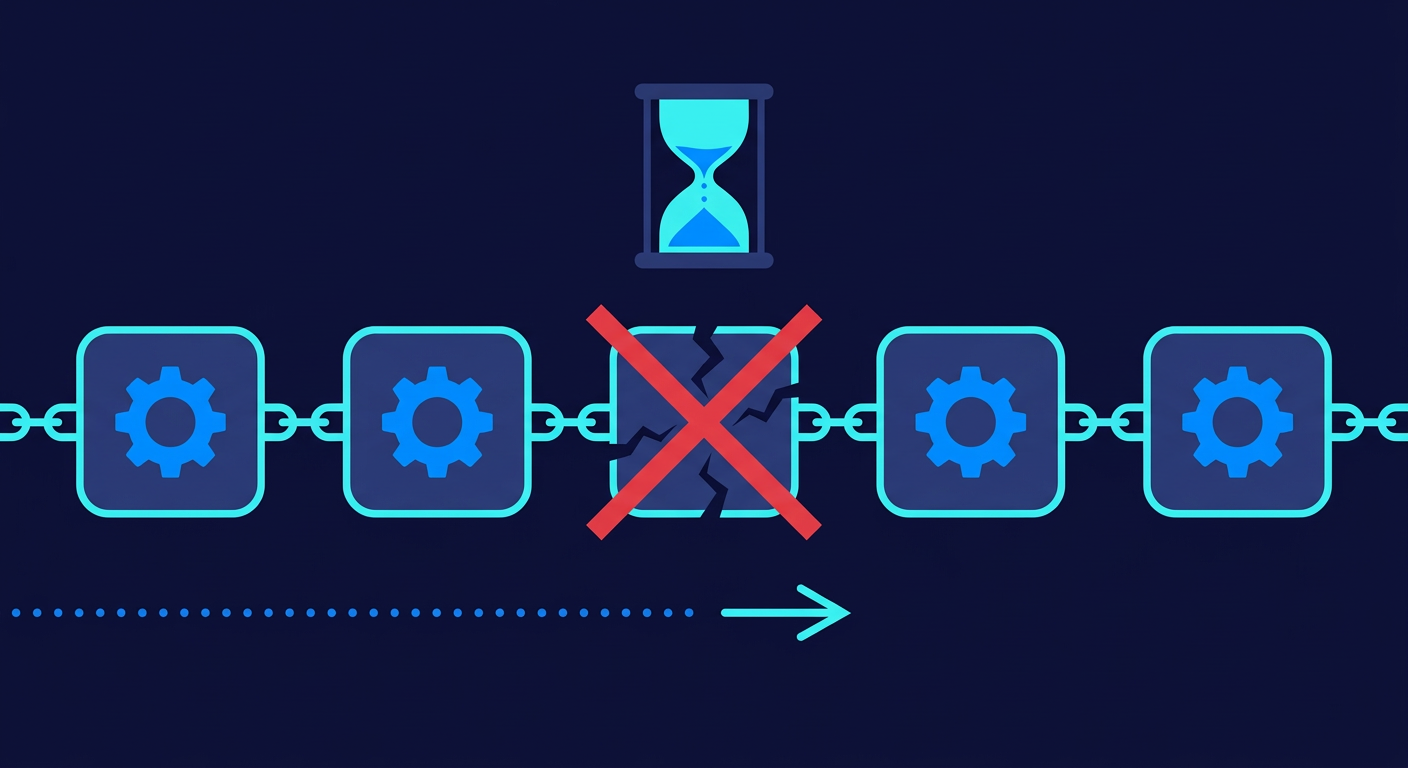
A Service Control Manager error 7009 in Windows 11 means that Windows waited for a service to connect during startup and stopped waiting when the timeout ran out. The service did not respond in time, so Windows logged the event and moved on. In most cases the fix is not one setting but a short, safe sequence: find the service name in the event, check that service, restart, install updates, and only then move to repair tools and a clean boot.
Before you start
Sign in as an administrator, save your open work, and do not change registry values or disable Windows services in bulk. The steps below use only Event Viewer, services.msc, Windows Update, normal restarts and built-in repair commands.
Quick answer
- Event IDs 7000, 7009 and 7011 from Service Control Manager mean a Windows service failed to start or did not answer within the time Windows allows.
- Open Event Viewer, read the service name in the event text, then look that service up in services.msc.
- Restart once, wait a few minutes after sign-in, and check whether the event repeats. Many timeouts come from a heavy load during startup.
- Work in order: restart, updates, the program that owns the service, clean boot, DISM, then SFC, then a malware scan.
- Do not edit the ServicesPipeTimeout value, do not set Microsoft services to Disabled, and do not use sc config on Microsoft services as a fix.
- Windows 10 support ended on October 14, 2025, so Windows 10 users should read the note near the end of this guide.
In this guide
- What Service Control Manager error 7009 means, with 7000 and 7011
- How to read the event in Event Viewer
- How to find the service in services.msc
- Why these timeouts happen
- Decision tree: which fix to try first
- The safe order, as a diagram
- Safe fixes, step by step
- When software can help and when it cannot
- Windows 10 note
- Frequently asked questions
- How this guide was checked
- Sources
What Service Control Manager error 7009 means, with 7000 and 7011
What the Service Control Manager does
The Service Control Manager is the part of Windows that starts, stops and watches services. A service is a background program, such as a driver helper, a network component or a vendor's update tool. When the Service Control Manager starts a service and the service does not answer in time, it writes an event to the System log under the source Service Control Manager. The three event IDs in the title are the ones most often seen together.
Microsoft's support article on service time-outs (KB 922918) states that the Service Control Manager waits for the time set by the ServicesPipeTimeout entry before it logs event 7000 or 7011. That article is written for Windows Server, and it describes this as a workaround that may help. It is not a repair step for home PCs in this guide. We explain it further in the cause section, and we ask you not to change it.
The table below is a reading aid. The meanings for 7000, 7009 and 7011 are based on the Microsoft article and the Microsoft Q&A examples listed in Sources. We could not confirm the exact wording of 7001, 7023, 7031 and 7034 on a Microsoft page during our check, so treat those rows as general guidance.
What events 7000, 7009 and 7011 each mean
| Event | What it usually means | What to check first |
|---|---|---|
| 7000 | A service failed to start. Microsoft's article says Windows logs this when the service does not start in time. | The service name in the event text, then its startup type in services.msc. |
| 7009 | Windows timed out while waiting for a service to connect. A Microsoft Q&A example reads: timeout reached while waiting for the service to connect. | Whether the named service is needed, and whether the event repeats after a restart. |
| 7011 | Windows timed out while waiting for a response from a service during a transaction. The Microsoft article names 7011 with 7000. | Recent software or driver changes, and Reliability Monitor for the same time. |
| 7001 | General guidance: a service depends on another service that did not start. | The Dependencies tab in services.msc for the named service. |
| 7023 | General guidance: a service stopped with an error. | The error code in the event details and the program that owns the service. |
| 7031 or 7034 | General guidance: a service ended unexpectedly, sometimes followed by a restart attempt. | Whether the same service name appears again, and whether a program crash appears nearby. |
Why event 7009 is the one to check first
Event 7009 is the one most people search for. In the Microsoft Q&A thread we read, the event text named one service and gave a timeout in milliseconds. The service name is the most useful detail in the whole event, so note it before you do anything else.
How to read the event in Event Viewer
Event Viewer keeps a record of what happened at startup. The System log is where Service Control Manager events are written. Not every entry in that log comes from a service: a registry file that is still in use can be logged as Event ID 1530. Menu names can vary a little between Windows 11 versions, so if a name below is different on your PC, look for the nearest match.
- Open Event Viewer. Click Start, type Event Viewer, and press Enter.
StartEvent Viewer
You should see: the Event Viewer window with a left pane that lists Custom Views, Windows Logs and Applications and Services Logs.
If this does not help: press Win + R, type eventvwr.msc, and press Enter.
- Open the System log. In the left pane, expand Windows Logs, then click System.
Windows LogsSystem
You should see: a list of events with columns for Level, Date and Time, Source and Event ID.
If this does not help: use the search box in the Actions pane to look for the event ID, such as 7009.
- Filter for the service events. In the Actions pane, choose Filter Current Log, type 7000,7009,7011 in the Event IDs box, and click OK.
You should see: only the matching events, with the newest at the top.
If this does not help: sort by Source instead and look for Service Control Manager.
- Read one event fully. Double-click a 7009 or 7011 event and read the General tab.
You should see: a sentence that names the service. Write that name down exactly as it appears.
If this does not help: copy the text from the Details tab, using the XML View if you can, and keep it for later.
- Note the time. Compare the event time with the time you signed in.
You should see: whether the events happen during startup or later, while you are using the PC.
If this does not help: note the date and time of the last two or three events so you can compare them with Reliability Monitor later.
How to find the service in services.msc
Once you have the service name, open the Services app to see what it is. Services can have a display name that differs from the name in the event, so compare the two carefully. If the name does not appear in the list at all, the service may be missing or misnamed, and our guide on service error 1060 when a service is missing covers that case. Do not stop or disable a service just to see what happens.
- Open Services. Press Win + R, type services.msc, and press Enter.
You should see: a list of services sorted by name, with columns for Status and Startup Type.
If this does not help: click Start, type Services, and open the Services app.
- Find the service. Scroll to the name from the event, or use the search by sorting the Name column.
You should see: the display name, a description and the current status.
If this does not help: search the service name on a search engine together with the word service, and check the publisher.
- Check the General tab. Double-click the service and read Startup type, Service status and Path to executable.
You should see: a startup type such as Automatic, Manual or Disabled, and a path to a program file.
If this does not help: write down the path. It shows which program owns the service, which you will need later.
- Check the Dependencies tab. Open the Dependencies tab and note which services this one needs.
You should see: one list of services this one depends on and another list of services that depend on it.
If this does not help: if the list is empty, the service has no listed dependency, and you can move on.
- Check the Log On tab. Open the Log On tab and note the account the service runs as.
You should see: an account such as Local System or a named user account.
If this does not help: note any text you cannot read, and return to it when you check the owning program.
Note
Menu and tab names in services.msc can vary a little by Windows version. The tabs named here are the ones we describe as general guidance; if a name differs, look for the closest label on the same window.
Why these timeouts happen
A timeout means the service did not answer in the window Windows allowed. That can happen for very different reasons, and the fix depends on which one applies. General troubleshooting practice lists these common causes: slow boot or a heavy load at startup, when many programs try to start at once; Fast Startup, which saves kernel and driver state at shutdown; a third-party service that is slow or broken; a missing dependency that another service needed first; damaged system files; and a recent update or driver change. The Microsoft Q&A examples we read describe the same pattern, with one service in the event and a driver or vendor program behind it. If the failure shows an RPC message instead, read our RPC server is unavailable error guide.
Slow startup is a common background cause. If your PC takes a long time to become usable, the services that start early may compete for disk and processor time. Our guide on why Windows 11 starts slowly covers the startup load in more detail. If the load at boot comes from the System entry in Task Manager, our System process high CPU guide covers the checks.
Startup programs add to that load. A vendor helper that starts with Windows can slow the services around it. You can review what starts with Windows, and turn off items you do not need, by following our guide to startup programs in Windows 11.
The ServicesPipeTimeout setting, in plain terms
Microsoft's article on events 7000 and 7011 describes a registry value called ServicesPipeTimeout, which sets how long the Service Control Manager waits before it logs a timeout. The article is written for Windows Server, and it presents a change to that value as a workaround. Our site does not give registry-edit steps, and we ask you not to change this value on your PC. A timeout you see on a home PC is better handled by the safe steps in this guide, which can find the real cause. This value sits under the control set, explained in how control sets are numbered.
Drivers and updates are another common source. Driver changes and recent updates can leave a service waiting on a component that no longer responds. If the component is WMI Provider Host, see our WMI Provider Host high CPU guide. Check for updates and vendor driver updates before you assume the fault is in Windows itself, and read our guide on updating drivers in Windows 11 if a vendor driver is the likely owner.
Decision tree: which fix to try first
Use this tree to decide where to start. Follow each branch in order, and stop when the event stops repeating.
- Does the event repeat after a restart?
- Yes: the cause is still active. Go to the service check, then the owning program.
- The service belongs to a program you know: update or repair that program.
- The service belongs to Windows: install updates, then run the repair commands.
- No: the event was a one-time startup timing problem. Watch for a few days and note any return.
- Yes: the cause is still active. Go to the service check, then the owning program.
If the event returns only at startup, and the PC is slow until several minutes after sign-in, the load is the likely cause. Try a restart before any other change, and check Reliability Monitor for the same date.
The safe order, as a diagram
Work through the fixes in this order. Each step is safer than the next, and each one tells you whether to continue.
- Restart the PC once and check the event log after sign-in.
- Wait and retest for a few minutes after the desktop appears.
- Check timing in Reliability Monitor and Event Viewer.
- Restart, do not just shut down, when you test a change.
- Install updates from Windows Update.
- Repair or reinstall the program that owns the service.
- Do a clean boot to see whether a third-party service is involved.
- Run DISM to repair the Windows component store.
- Run SFC to check protected system files.
- Run a malware scan to rule out a rogue service.
- Consider System Restore only if the problem began after a known change.
Safe fixes, step by step
Each fix below has the action, what you should see, and what to do if it does not help. Do not skip the first two steps, because many timeouts clear once the load settles.
Restart the PC once
Click Start, then the Power button, then Restart. Use Restart rather than Shut down for this test, because a restart runs a full boot cycle. Sign in, wait five minutes, and open Event Viewer to check the System log.
You should see: no new 7000, 7009 or 7011 event with the same service name after the restart.
If this does not help: go on to the next step. A repeated event tells you the cause is still active.
Wait and retest
Leave the PC alone for ten minutes after the desktop appears. Do not open large programs during that time. Then check the System log again. Scheduled background work can also run in that window and delay services; see our Windows Automatic Maintenance guide.
You should see: events that stop once the startup load settles. Many one-time timeouts appear only in the first minutes after sign-in.
If this does not help: note the time of each repeated event, and continue to the timing check.
Check timing in Reliability Monitor
Reliability Monitor shows failures on a timeline. Open it by clicking Start, typing Reliability Monitor, and pressing Enter. Our guide to using Reliability Monitor to find Windows crashes explains the timeline in more detail.
You should see: a timeline with a red mark or warning on the dates when the events appeared. Compare those dates with any software installs, driver updates or Windows updates that happened the same day.
If this does not help: the timeline may show nothing for these events. That is normal for timing issues, so continue with the next steps.
Restart rather than shut down while you test
Fast Startup is a Windows setting that saves kernel and driver state to disk at shutdown, so the next start is faster. Microsoft's article on Fast Startup describes this for Windows 10, and it notes that the setting does not apply to Restart. A restart runs a full boot, so a restart is the better test when you want to see whether a service starts correctly. Menu names for Fast Startup can vary by Windows version, so check the power options on your PC. Our guide to turning off Fast Startup in Windows 11 covers the setting.
You should see: the event log after a restart, which shows whether the same service still times out during a full boot.
If this does not help: keep the Fast Startup setting as it is, unless you have a clear reason to change it, and move on to updates.
Install updates
Click Start, then Settings, then Windows Update, and select Check for updates. Install any update offered, then restart. Also check the optional updates section for driver updates from the PC maker, if your PC shows one.
You should see: a restart that finishes and no new event after sign-in.
If this does not help: note the date of the last update that installed. If the events began just after it, Reliability Monitor and the program repair step become more important.
Repair or reinstall the program that owns the service
If the service's Path to executable points to a vendor program, repair or reinstall that program. Click Start, then Settings, then Apps, then Installed apps, find the program, select it, and choose Modify or Repair if offered. If no repair option is shown, use Uninstall, then install the latest version from the vendor's own website.
You should see: a repair or installer window, then a restart with no new event for that service.
If this does not help: contact the vendor, quoting the service name and the exact event text. Do not delete the service file by hand.
Do a clean boot
A clean boot starts Windows with only the services that come with it, so you can see whether a third-party service is the cause. Follow our guide to doing a clean boot in Windows 11, and undo it when you are finished, as that guide explains.
You should see: no timeout events during the clean boot. If the events stop, a third-party service is the likely cause, and you can turn services back on one group at a time.
If this does not help: keep the clean boot off afterwards, and go on to the repair commands. Do not disable Microsoft services in bulk to find the cause.
Run DISM, then SFC
DISM repairs the Windows component store, which SFC relies on. Run DISM first. Click Start, type Terminal or Command Prompt, choose Run as administrator, and type the command below.
DISM /Online /Cleanup-Image /RestoreHealthYou should see: a progress bar, then a message that the operation completed successfully. DISM can take a long time, so do not close the window while it runs. The Microsoft DISM reference page did not open in our check, so treat this step as general guidance. If DISM reports a source error, our guide on DISM error 0x800f081f explains the usual causes.
Then run SFC in the same administrator window. Microsoft's sfc reference says the command scans protected system files and replaces incorrect versions, and that you must be an administrator to run it.
sfc /scannowYou should see: a message that Windows Resource Protection did not find integrity violations, or that it repaired files. If it reports files it could not fix, see our guide on SFC finding corrupt files it cannot fix, and our SFC and DISM repair guide for the full sequence.
If this does not help: restart, then check the event log again. Repair commands do not always clear a timeout caused by a third-party service.
Run a malware scan
A rogue service can cause timeouts. Run a full scan with Microsoft Defender from Settings, then Privacy and security, then Windows Security, then Virus and threat protection. If the scan finds something, follow the prompts. For a stubborn infection, our guide to removing virus and malware from a Windows PC lists the steps in order. If you need a safer environment, our guide to booting into Safe Mode in Windows explains how to start with a limited set of drivers.
You should see: a completed scan report with no threats, or a list of items removed.
If this does not help: keep the event details and the scan report, and go to the System Restore step.
Consider System Restore as a later option
System Restore returns system files and settings to an earlier point. Use it only if the events began after a known change and the earlier steps failed. Click Start, type Create a restore point, open it, and choose System Restore. Our guide to using System Restore in Windows explains the choices.
You should see: a list of restore points with dates. Choose a date before the events began.
If this does not help: System Restore does not remove personal files, but it can undo the change you made. If no restore point helps, the Repair Assistant can help you narrow the problem, or you can contact the vendor of the program that owns the service.
When software can help and when it cannot
You do not need a service repair or optimizer tool to fix these events. The built-in tools in this guide, Event Viewer, services.msc, Windows Update, Reliability Monitor, DISM and SFC, can find the service and the cause. Third-party tools that promise to repair services or raise performance often change settings you do not need to change, and they can make the next step harder to diagnose. If a program is the owner of the service, the safe route is the vendor's own repair or support page. A broad PC cleaner rarely fixes a single service timeout, because the timeout comes from one service and its owner, not from clutter across the system.
Windows 10 note
Note
Windows 10 reached end of support on October 14, 2025. Microsoft says it no longer provides technical assistance, feature updates or security updates for Windows 10. If you still run Windows 10, the consumer Extended Security Updates program can protect your device until October 12, 2027, according to Microsoft's support page. Menu names can differ on Windows 10, so check each step against your own screen. For more repair guides, visit the PC repair guides home page.
On Windows 10, the Microsoft article on Fast Startup applies directly, since it lists Windows 10 as the version it covers. Keep Windows 10 up to date while the ESU program covers it, and plan an upgrade or a new device once you can.
Frequently asked questions
Questions about the event itself
Is Service Control Manager error 7009 dangerous?
Not in itself. It means a service did not answer in time. The risk depends on which service it is, so check the name in the event and what that service does before you decide how urgent the problem is.
Does Event ID 7000 mean my hard drive is failing?
No. Event 7000 means a service failed to start. It does not on its own show a disk fault, so check the service name first and then the repair steps in this guide.
Do I need to change the ServicesPipeTimeout value?
No, and we advise against it on a home PC. Microsoft's article describes this value for Windows Server as a workaround. The safer steps in this guide look for the real cause first.
Will a restart fix a 7009 timeout?
Sometimes. A restart can clear a timeout that came from a heavy load at startup. If the same event returns after a restart, the cause is still active, so continue with the service check and the repair steps.
Questions about fixes
Can I disable the service named in the event?
Do not disable it as a fix. Disabling a service can break the program or hardware that depends on it. If the service belongs to a program you know, ask that program's publisher what it does before you change anything.
Should I run SFC or DISM first?
Run DISM first, then SFC. DISM repairs the component store that SFC uses. Both need an administrator window, and both can take a long time to finish.
Do 7000, 7009 and 7011 always appear together?
No, but they often do. Microsoft's article names 7000 and 7011 together, and the Microsoft Q&A examples show 7009 alone too. Read each event separately, and note the service name in each one.
Is this the same as a Windows Update error?
Not usually. A Windows Update error has its own message and codes. This guide covers Service Control Manager events about services that fail to start or time out, and those can sometimes follow an update, so check the update history as one clue.
How this guide was checked
We did not run these steps on a real PC. This guide is based on the Microsoft pages listed in Sources, read during our check, and on general troubleshooting practice. Where we could not confirm a menu name, a number or a behaviour on a Microsoft page, we say so or label the step as general guidance. We did not invent any error text: the event wording quoted here comes from the Microsoft Q&A examples and the Microsoft article. Last reviewed: November 24, 2026.
Sources
- A service does not start, and events 7000 and 7011 are logged in Windows Server - the ServicesPipeTimeout description and the Windows Server applicability note.
- Fast startup causes hibernation or shutdown to fail in Windows 10 or Windows 8.1 - what Fast Startup saves, and that it does not apply to Restart.
- sfc - Microsoft Learn - what sfc /scannow does and the administrator requirement.
- Windows startup settings - Microsoft Support - the Troubleshoot, Advanced options and Startup Settings path, and Safe Mode with Networking.
- Windows 10 support has ended on October 14, 2025 - Microsoft Support - the end-of-support date and the consumer ESU end date.
- Several Service Control Manager Issues (Event ID's 7000, 7009, 7011) - Microsoft Q&A - community example of the 7009 event text. This is a community answer, not official documentation.