How to Use Reliability Monitor to Find Windows Crashes
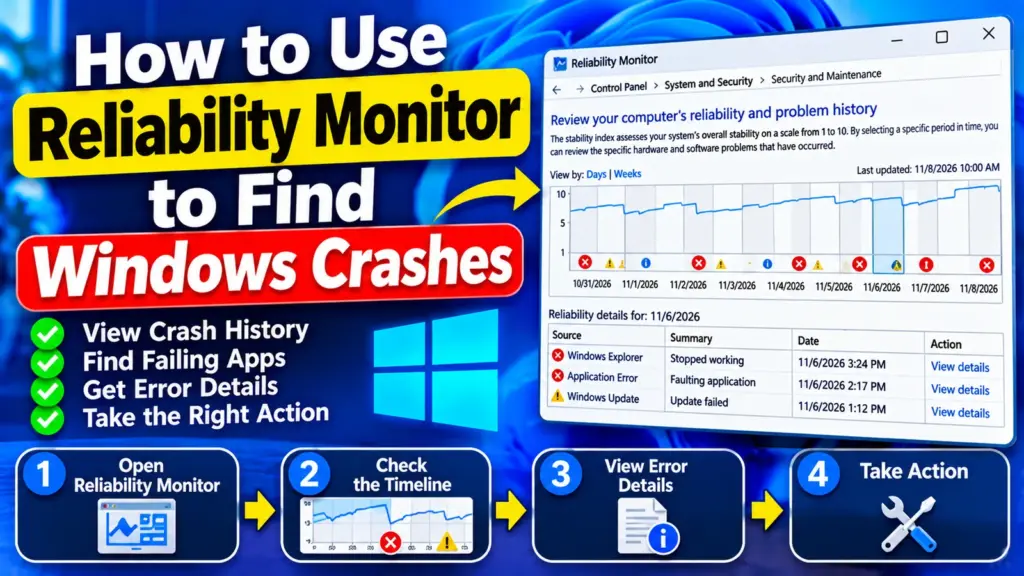
Windows Reliability Monitor gives a simple timeline of Windows problems. It is easier to start with than Event Viewer because it shows application crashes, Windows failures, updates and warnings by date. It will not always name the exact faulty part, but it shows whether the same app, driver or error appears each time the PC misbehaves. It is built into Windows 10 and 11, needs no download and does not change your Windows settings.
Step-by-step: use Windows Reliability Monitor to read your crash history
Step 1: Open Reliability Monitor
Press Windows + R, type perfmon /rel and press Enter. Or open Start, search for Reliability Monitor and select View reliability history. Microsoft documents the /rel switch on its perfmon command page.
You should see: a chart with dates along the bottom, a blue line (the stability index from 1 to 10) and rows of icons: a red circle with an X for failures, a yellow triangle for warnings and a blue circle for information. If the chart is empty or says There is not enough data, the PC has only just been set up or used, or its history is missing. Use the PC for a day or so and look again.
Step 2: Find the day the problem began
Switch between Days and Weeks at the top and use the arrows to move through recent time. Look for red X icons on the days the PC crashed or an app failed. Click a day. Its entries appear in the list below the chart, with a Source column (the app or Windows) and a Summary column.
Step 3: Read the repeated critical events
Select a critical event and choose View technical details. Write down the application name, the failure time and the Fault Module Name if Windows shows one. A single unexplained crash may not mean much. The same program failing at every launch is a much stronger clue. Common entries and what they mean:
| Entry in the list | What it usually points to |
|---|---|
| Stopped working (one app) | The app itself, a plug-in, or a driver it uses. Update or repair the app. |
| Stopped responding / Hang | The app waited on something slow (a drive, a network folder, a driver). |
| Windows was not properly shut down | A power cut, a power-button hold, or a crash or freeze that stopped the PC. Check the day for other entries. |
| Hardware error (WHEA) | The CPU, memory, drive or an overclock reported a fault. See how to test RAM and how to check temperatures. |
| Windows Update failed with a code | The code is the clue. Search it, or see fix Windows Update stuck or failing. |
| Blue screen or Windows stopped working with a stop code | A driver, memory or system-file fault. See the blue-screen guide. |
Step 4: Compare errors with recent changes
On the same dates, look at the blue information icons: software installations, driver updates and Windows updates are listed there. If crashes began right after a known change, update, repair or uninstall that item first. Do not remove a driver just because its name appears once in a log.
Step 5: Match the next step to the pattern
- Many unrelated apps crash: repair Windows files with SFC and DISM.
- The whole PC freezes or restarts: follow how to fix a PC that keeps freezing or hanging, or PC restarting by itself. To match the red X entries with the matching Event Viewer entries, see Windows 11 random restarts: 9 Event Viewer checks.
- Crashes happen when opening files or copying data: check hard-drive or SSD health.
- One application is always listed: update or reinstall that application first.
- The same non-Microsoft file name is the fault module each time: search for that file name. It may belong to a driver or a program you can update or remove.
Step 6: Save a record and re-check
At the bottom of the window, Save reliability history exports the data, and Check for solutions to all problems asks Microsoft for known fixes. On current versions of Windows that check may find nothing, so treat it as a bonus, not an answer. Before you make changes, take a screenshot of the chart or note the error names. After a repair, return to Reliability Monitor over the next few days.
- No new red X icons, and the blue line rises: the fix worked.
- The same red X returns: the first fix was not the cause. Go back to Step 5 with the new details.
Example: reading one week of entries
This is an example, not a real PC. Suppose the stability line drops on Tuesday and stays low. Tuesday’s list shows a blue information entry, Successful Windows Update, followed that evening by three red entries for the same game, each Stopped working with the same fault module, a graphics driver file. On Wednesday there is one more game crash and a Windows was not properly shut down entry.
- The drop starts right after an update, so a changed driver or update is the first suspect.
- The same module in every game crash points to the graphics driver, not to the game.
- The improper shutdown on Wednesday is most likely a result, not a second fault: a freeze and a held power button.
The next step would be to reinstall the graphics driver (see update or reinstall graphics drivers), then watch the chart. Different dates and modules give different answers, but the method is the same: find the first bad day, look at what changed, and find the name that repeats.
What Reliability Monitor cannot tell you
It records symptoms, not every root cause. An app crash can be caused by the app, a driver, unstable RAM or corrupt system files. The stability index is a trend line, not a health score, and some technicians give it little weight, so use the timeline to narrow the search and not as a verdict. Do not treat the first error name as a final diagnosis. For more detail on an event, open Event Viewer and match the time, then check the load at that moment in reading Windows Performance Monitor counters. Dell also explains the tool for its users in How to use Windows Reliability Monitor to identify software issues. If the entry is a hardware error, the guide to WHEA_UNCORRECTABLE_ERROR explains the next step. For the Application Error entry behind a red X, see Event ID 1000 in Event Viewer.
More help
For other crashes and errors, search by symptom in the PC repair guides on PC Repair Atlas.
FAQ
Is Reliability Monitor safe to use? Yes. It only displays recorded Windows events and does not change your system.
What does a low stability index mean? It means Windows recorded more recent failures or warnings. It is a trend indicator, not a health score for one piece of hardware.
Should I delete every event after fixing the issue? No. Keep the history. It can help confirm whether the problem returns.
Why is the chart empty on a new PC? It needs some time in use to collect data. A PC that was only just set up may show a message that there is not enough data.
Does Reliability Monitor work on Windows 10? Yes. It uses the same perfmon /rel command on Windows 10 and 11.