How to Fix a PC That Keeps Freezing or Hanging
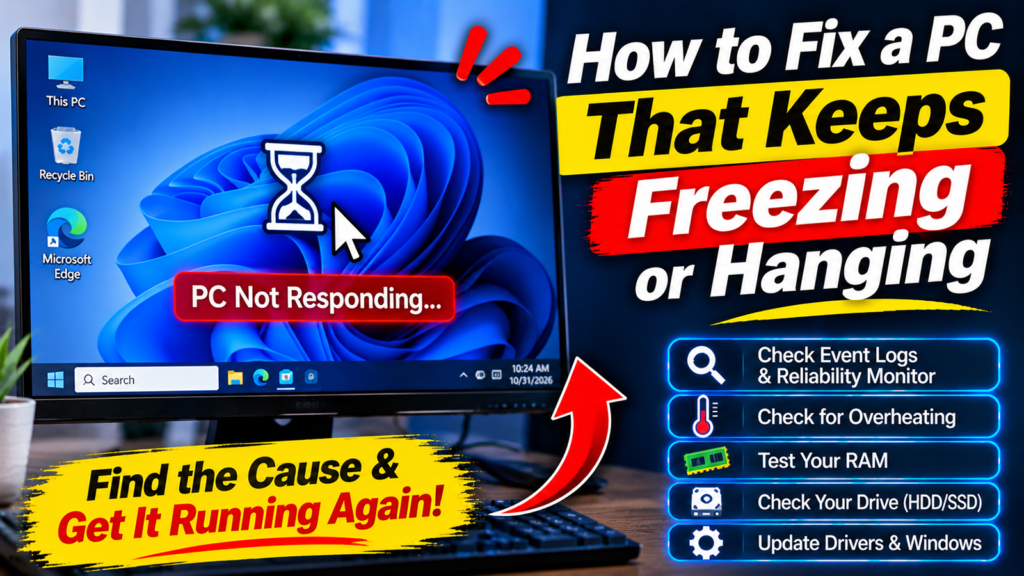
PC freezing is one of the hardest problems to pin down, because it may happen only now and then and leave no obvious error. The good news is that Windows keeps records of what happened. This guide shows how to read them and how to test the usual causes in a sensible order, with what to look for at each step.
Windows 10 note: Windows 10 reached end of support on October 14, 2025, so it no longer gets free security updates. These steps also work on Windows 10. Consider moving to Windows 11 or enrolling in Extended Security Updates.
First, what kind of freeze is it?
- One program freezes (‘Not Responding’): the problem is probably that app. Press Ctrl + Shift + Esc, select the app and choose End task. If it keeps happening with the same app, see Windows 11 program not responding: 10 fixes when one app keeps freezing.
- The whole screen freezes, but the PC still responds a little: try Windows + Ctrl + Shift + B, which restarts the graphics driver. A short blink and a working screen means the graphics driver was the problem (see Step 7).
- Everything is dead, including the keyboard lights: wait a couple of minutes. If nothing changes, hold the power button for about 10 seconds to turn it off. Use this only as a last resort, because it can damage open files.
Step-by-step: find the cause
Step 1: Note the pattern
Write down what you were doing each time: gaming, watching video, waiting after startup, or leaving the PC idle. Freezes under load point to heat or power. Freezes with a solid drive light point to the drive or low memory. Freezes only at idle or after sleep point to drivers or power settings. If the freeze happens only when you open a folder such as Downloads, see how to fix a Downloads folder that keeps freezing in File Explorer.
Step 2: Open Reliability Monitor
Press Windows + R, type perfmon /rel and press Enter. The chart shows a timeline of crashes and critical events. Red crosses mark failures, and double-clicking one shows the program or driver involved. A repeated name is a strong clue. If the chart shows Windows was not properly shut down after each freeze, the PC was forced off. Our guide to using Reliability Monitor to find Windows crashes shows how to read it.
Step 3: Check Event Viewer
Open Event Viewer > Windows Logs > System and look at the time of the last freeze. Look for these sources and IDs:
- Kernel-Power, ID 41: the PC restarted without a clean shutdown. This is a symptom of a forced power-off, not the cause.
- Disk (IDs 7, 11, 51 or 153) or ntfs: the drive or its cable had trouble. Go to Step 5.
- Display, ID 4101: the graphics driver stopped responding and recovered. Go to Step 7.
- WHEA-Logger: a hardware error was reported by the CPU, memory or bus. Check temperatures (Step 4) and memory (Step 6), and turn off any overclock (Step 10). To track down the failing part, read how to find the failing hardware.
If nothing appears around the freeze time, it was probably a hard hang. Go on with the steps below. If you are not sure which of these steps fits your freeze, the step-by-step Repair Assistant can help you choose.
Step 4: Check temperatures
Overheating makes a PC freeze or throttle. Install a free tool such as HWiNFO, open Sensors only, and leave it running while you use the PC the way it freezes. Note the highest CPU and GPU temperatures. Readings that sit near the maximum for your model, or a Thermal Throttling row that turns to Yes, point to heat. See how to check CPU and GPU temperature, and clean and improve airflow with fixing a PC that keeps overheating.
Step 5: Check the drive
A failing drive can make Windows hang while it waits for data. First check free space: Settings > System > Storage. As a rough rule of thumb, not a Microsoft figure, keep 10 to 15 percent or more free. Then open a Command Prompt as administrator and run this scan, which makes no changes:
chkdsk C: /scan"Windows has scanned the file system and found no problems" is a good result. Errors, or disk events in Step 3, mean you should back up your files now. Do not run chkdsk /f /r on a drive that is clicking or disappearing. Follow how to check hard drive or SSD health for the health readings.
Step 6: Test the memory
Faulty RAM causes random freezes. Press Windows + R, type mdsched.exe and choose Restart now and check for problems. Any error means faulty memory or an unstable memory profile. A pass is not proof, so see how to check if your RAM is failing for the more thorough MemTest86 test.
Step 7: Update drivers and Windows, or roll them back
Install Windows updates and the latest chipset and graphics drivers from the manufacturer. If the freezes began after a driver update, roll it back: open Device Manager > Display adapters, double-click your graphics card, open the Driver tab and choose Roll Back Driver (greyed out means there is nothing to roll back). See how to update or reinstall graphics drivers.
Step 8: Look for a runaway process
When a freeze starts to build, press Ctrl + Shift + Esc and sort the Processes tab by CPU, Memory and Disk. A process using nearly all of one for minutes is the suspect. For more detail press Windows + R, type resmon and open the Disk tab. See fix high CPU usage. Before you install a PC cleaner to deal with a process like this, read whether a PC cleaner can fix freezing.
Step 9: Repair Windows files
Open Command Prompt as administrator and run these in order. DISM should end with "The restore operation completed successfully". The guide on repairing Windows system files with SFC and DISM explains the results:
DISM /Online /Cleanup-Image /RestoreHealth
sfc /scannow
Step 10: Test with a clean boot and default hardware settings
- Press Windows + R, type msconfig, open the Services tab, tick Hide all Microsoft services and choose Disable all.
- Open the Startup tab, choose Open Task Manager and disable every startup item. Restart.
- If the freezes stop, turn items back on in halves until the freezes return. The last group holds the culprit. To undo the test, set msconfig back to Normal startup. Microsoft’s steps are in how to perform a clean boot in Windows.
- Back up your files first. Then enter the BIOS and note the current settings so you can restore them. Choose Load Optimized Defaults (this also turns off any overclock and XMP or EXPO profile) and save. If the freezes stop, an unstable memory or overclock setting was the cause. Once you have a stable setting, see how to enable XMP or EXPO safely.
If nothing shows up
- If the freezes happen only under heavy load and no log or temperature explains them, test the power supply: testing a PC power supply safely.
- Back up your files, then try resetting Windows 11 without losing your files. If the freezes continue after a fresh Windows, the cause is hardware. For more fixes to try first, see 10 fixes to try before reinstalling Windows 11.
- When hardware tests do not find the fault, a repair shop can test with spare parts.
More help
Want to understand why freezes happen? Read why does my computer keep freezing: 10 common causes explained. For other problems, search by symptom on the PC Repair Atlas homepage.
FAQ
Why does my PC freeze but not show an error? A hard freeze often leaves no record. Reliability Monitor and temperature readings give the best clues.
Can a virus make a PC freeze? Yes. Scan with our malware removal guide if other signs are present.
Is it the power supply? It can be, especially under load. If freezes happen only when gaming, test with a known-good power supply. Our guide to testing a PC power supply safely covers the safe checks.