How to Clean Up an Old Windows PC: What Helps When You Have 4 GB of RAM and a Hard Drive
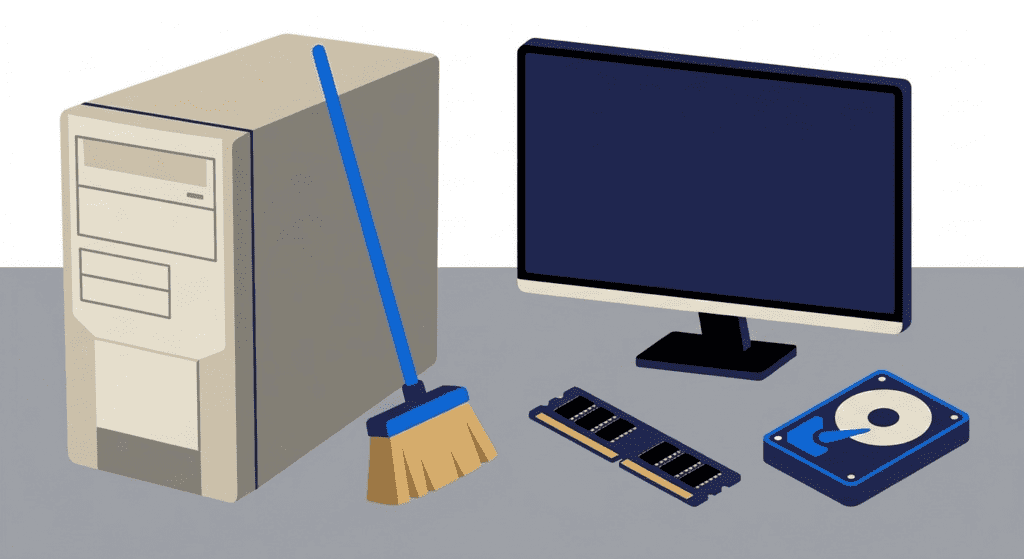
To clean up an old computer well, start by finding out what it is short of. A PC with 4 GB of RAM and a spinning hard drive slows down for different reasons than a newer machine, and the usual one-click cleaner fixes very little of it. Some cleanup helps a lot, some does nothing, and some can make things worse.
This guide puts the steps in the safest order, says what you should see after each one and shows where cleaning stops helping and an upgrade makes sense. For what cleaners do in general, read our PC cleaner overview.
Last reviewed: November 22, 2026. Steps were compared with Microsoft documentation and none was run on a real PC. The picture above is an illustration, not a Windows screenshot.
Quick answer
What to do, in order
- Back up your files first. Old drives can fail without warning.
- Find your RAM and drive type before you change anything.
- Free space, remove unused apps and trim startup apps. These help old PCs most.
- Let Windows finish its updates, then check that Optimize Drives is on for a hard drive.
- Skip registry cleaners, RAM boosters and anything that disables Windows Security or Update.
- If memory stays full or the drive stays at 100%, cleaning is not the fix. Add RAM or switch to an SSD.
In this guide
Know what you are cleaning
Old PCs are not all the same. Two checks tell you most of what you need.
Check your RAM
Open Settings > System > About and read Installed RAM. Then press Ctrl + Shift + Esc, open the Performance tab and select Memory. Look at how much is in use right after a restart, with nothing open. You should see a number that stays well below the total. If memory is already close to full at idle, no cleanup will give you much room. Our guides on how much RAM you need and reading high memory use with nothing open explain what the numbers mean.
Check your drive type
In Task Manager, select Performance and then the Disk entry. Current builds usually label the drive type, such as HDD or SSD, near the top right. If your build does not show it, open the Defragment and Optimize Drives tool from the Start menu, where the Media type column names the drive. This matters because Microsoft’s guidance treats the two differently: hard drives can be defragmented, and SSDs get a retrim instead.
The safe order
- Back up Copy photos and documents somewhere else. See the backup guide.
- Free space Clear temporary files and old downloads.
- Remove unused apps Fewer programs means less running in the background.
- Trim startup apps This shortens the long wait after sign-in.
- Update Let Windows finish, then restart.
- Optimize Confirm Optimize Drives is on for a hard drive.
- Measure again If it is still slow, check the hardware.
Step-by-step cleanup
Step 1: Back up first
An older hard drive is the part most likely to fail. Copy anything you cannot replace to an external drive or cloud storage before you start. A restore point is not a backup of your files. If you hear clicking, see SMART warnings or the PC freezes while saving, read our drive health guide before running any repair tool.
You should see your photos and documents in the external drive or cloud account, opening correctly from there, before you change anything else.
Step 2: Free up space
Open Settings > System > Storage. Microsoft says Storage Sense, the Temporary files list and Disk Cleanup are the supported ways to clear temporary files. Choose Temporary files, tick only the categories you understand and select Remove files. The Disk Cleanup tool and what each checkbox deletes are explained in our Disk Cleanup walkthrough, and bigger jobs are covered in the free-up-space guide.
You should see the Storage bar shrink. Keep a comfortable amount free. Microsoft gives no exact percentage, and it says the low-disk threshold depends on the drive size. As a rule of thumb from us, a drive that is nearly full leaves Windows little room for updates and temporary files. If your PC is a small laptop with 64GB or 128GB of storage, see our guide to freeing space on small Windows laptops.
Step 3: Uninstall apps you no longer use
Open Settings > Apps > Installed apps, sort by size or date, select the three dots and choose Uninstall. Remove old trials, toolbars, second browsers and bundled extras you never open. Do not remove drivers or anything from your PC maker if you are unsure; search the name first. Leftover folders are normal and mostly harmless. See how to judge leftover folders before deleting any.
You should see fewer entries in Installed apps, and the free space in the Storage bar may be higher than before.
Step 4: Trim startup apps
Press Ctrl + Shift + Esc, open Startup apps and disable entries you do not need at sign-in. This helps an old PC more than almost any other step. That is our general advice: a hard drive reads many small files slowly when several apps launch at once. Disabled apps are not deleted. For which entries are safe to turn off, see the keep-or-disable guide, and for the full method read disabling startup programs.
Step 5: Turn off background activity you do not need
Microsoft’s performance tips suggest setting background permissions to Never for apps you do not need. Go to Settings > Apps > Installed apps, select the three dots next to an app, choose Advanced options and set Let this app run in the background to Never. Only Store-style apps show this option, and desktop programs do not. Change one app at a time so you can undo it.
Step 6: Let Windows finish its updates
Open Settings > Windows Update > Check for updates. Leave the PC plugged in and let the update complete, then restart. A freshly updated PC may do extra background work for a while; see why a PC is busy after an update.
Step 7: Optimize a hard drive, not an SSD
Open Defragment and Optimize Drives. Microsoft’s page says to select the drive, then choose Analyze to check whether a hard drive needs optimization, or Optimize to run it. It also describes a scheduled optimization setting. For a hard drive, keep the schedule on and let Windows run it. If the drive is an SSD, Windows treats Optimize differently and you should not defragment it by hand. Our guide to Defragment Windows 11 explains the weekly schedule and when defragmenting is not needed.
Step 8: Reduce visual effects
Microsoft’s tips include the classic performance settings. Select Start, type Adjust the appearance and performance of Windows, open it and choose Adjust for best performance on the Visual Effects tab. This turns off animations and shadows. It makes little difference on a fast PC and can help a little on a weak graphics chip. You can switch it back anytime.
Step 9: Run a quick malware scan
Open Windows Security > Virus & threat protection and select Quick scan. Microsoft notes malware can consume CPU and disk resources. If the scan finds something, follow the malware removal guide.
Step 10: Leave the page file alone
Many old guides tell you to resize the page file. Leave it on automatic unless you have a specific, documented reason. Our page file guide explains the one case where a change makes sense.
Step 11: Measure again
Restart, wait two minutes after sign-in and open Task Manager. Compare memory, disk and CPU with what you saw at the start. If the numbers barely moved, the PC is limited by its hardware, not by clutter. The slow-PC diagnosis guide shows how to read them, and why a computer is so slow lists the other common causes.
What helps and what does not
| Problem on an old PC | Cleanup that helps | Cleanup that does not |
|---|---|---|
| Very slow after sign-in | Trim startup apps, finish updates | Registry cleaners, RAM boosters |
| Drive almost full | Temporary files, unused apps, old downloads | Deleting system folders by hand |
| Memory full at idle | Fewer startup apps and browser tabs | “Memory optimizer” tools; more RAM is the real fix |
| Disk at 100% for long periods | Pause updates and heavy apps while you work, check drive health | Repeated cleanups; see the 100% disk usage guide |
| Loud fan and heat | Dust removal; see the overheating guide | Any software cleaner |
| Browser slow with many tabs | Close tabs, remove unused extensions | Clearing cache daily; see when clearing cache is worth it |
Dust is the one cleaning job that really is about cleaning. On a desktop, power off and unplug, then blow dust out of the fans and filters while holding the fan blades still. For a laptop, follow safe laptop cleaning.
Is cleaning enough? A quick decision tree
- Is your drive a hard drive and does it sit at 100% in Task Manager for minutes after sign-in?
- Yes: after cleaning, an SSD is the biggest single upgrade for this kind of PC. Check health first.
- No: go to the next question.
- Is memory above about 80% with nothing open?
- Yes: more RAM, or lighter apps, will help more than cleaning.
- No: go to the next question.
- Is the CPU busy at idle?
- Yes: open the Details tab, find the process and use the high CPU guide.
- No: the cleanup steps above are probably enough. Repeat them once a month.
The 80% mark is our rule of thumb, not a Microsoft figure.
When an upgrade beats cleaning
Microsoft’s own tips say older PCs with outdated hardware may not see significant improvements from the steps above, and that upgrading the device may be the best long-term solution. Hardware changes that are worth considering:
| Upgrade | Helps with | Check first |
|---|---|---|
| More RAM | Full memory, heavy paging, many browser tabs | Type and maximum your board supports; see the RAM upgrade guide |
| SSD in place of a hard drive | Slow start-up, slow app launches, 100% disk | Drive health and your backup; see choosing an SSD |
| Fresh Windows install | Years of leftover software on one install | A full backup and your product access; see the clean install guide |
| Replacement PC | Unsupported CPU, limited ports, repeated faults | Whether the repair costs more than the benefit |
We cannot predict how much faster your own PC will get, so we give no speed figures. Test one change at a time if you can.
Windows version and support
Many old PCs run Windows 10. Microsoft states that support for Windows 10 ended on October 14, 2025, and that after that date it no longer provides free software updates from Windows Update, technical assistance or security fixes. The PC still works, but Microsoft recommends moving to Windows 11. Read Microsoft’s page on the end of Windows 10 support for your options. For a cleaner on Windows 10 specifically, see PC cleaner for Windows 10 after end of support.
Windows 11 has minimum hardware requirements, including 4 GB of RAM, 64 GB of storage, a compatible 64-bit processor, UEFI with Secure Boot and TPM 2.0 (see Microsoft’s Windows 11 system requirements). Four gigabytes is a minimum, not a comfortable amount. Our general advice is that a PC at the minimum feels cramped once a browser is open, but we have no benchmark to quote. Menu names in this guide follow Windows 11 and may differ on Windows 10.
What to skip on an old PC
- Registry cleaners. They promise speed that Microsoft does not document. See whether a registry cleaner is safe and the comparison with a PC cleaner. If one has already shown a long error list, read what that report means before deleting anything.
- “Lightweight” optimizer suites. Check our list of cleanup software red flags and the guide to PC optimization software before installing anything.
- Turning off Windows Security or Windows Update to save resources. That trades speed for risk.
- Disabling system services you do not understand. A wrong change can break updates or devices, and the gain is small.
- Deleting WinSxS or Windows.old by hand. Use the supported routes. Read why WinSxS is large and how to remove Windows.old safely.
If you want a regular routine after this first pass, use the weekly, monthly and yearly cleanup schedule. For a guided path, the Repair Assistant asks a few questions and points to a guide. It does not scan your PC.
FAQ
About old PC cleanup
Can a PC cleaner make an old computer fast again?
Not by itself. Cleaners can clear temporary files, but an old PC is usually limited by RAM, a hard drive or heat. See what to check when a cleaner did not speed the PC up.
Is 4 GB of RAM enough for Windows 11?
It is Microsoft’s minimum for installing Windows 11. Whether it feels enough depends on what you run. A browser with several tabs can use most of it.
Should I defragment my hard drive?
Let Windows do it. Open Optimize Drives and keep the scheduled optimization on. Do not defragment an SSD by hand.
Is it safe to delete files in the Windows folder to free space?
No. Use Storage Sense, the Temporary files list or Disk Cleanup, which Microsoft describes as the supported ways to clear temporary files.
Should I reinstall Windows on an old PC?
It can help if the install has years of leftovers, but it is a big step. Back up first and only do it after the simpler steps and a drive health check.
Will a registry cleaner help an old PC?
We found no Microsoft guidance that says so, and it can remove entries Windows needs. Skip it.
When should I stop cleaning and upgrade?
When memory is full at idle, the drive sits at 100% for minutes after sign-in, or the PC is slow after the steps above, hardware is the limit. An SSD or more RAM is usually the next step.
How this guide was checked
We read Microsoft Support’s pages on PC performance tips, Storage Sense, drive optimization and Windows 11 requirements and compared each step with them. Where Microsoft gives no figure, such as how much free space to keep or how much RAM feels enough, the text says it is our general advice. No third-party tool was tested and no step was run on a real PC.
Sources
- Tips to improve PC performance in Windows (Microsoft Support)
- Manage drive space with Storage Sense (Microsoft Support)
- Defragment and optimize your drives in Windows (Microsoft Support)
- Windows 11 system requirements (Microsoft Support)
- Windows 10 support has ended (Microsoft Support)
More help
For more step-by-step repair guides, visit the PC repair guides home page.