How Much RAM Do You Need? 8 GB vs 16 GB vs 32 GB
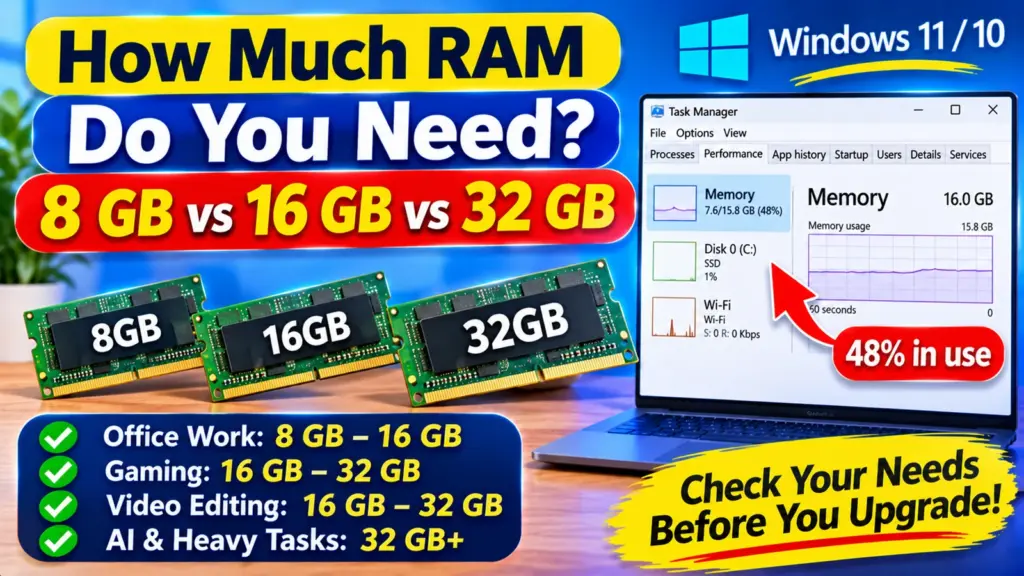
How much RAM do I need? It depends on what you do, and more RAM does not always mean a faster PC. If you have more than you use, the extra does nothing. If you have too little, everything slows down. This guide gives rough amounts for common uses, then shows how to measure your own needs in Task Manager before you buy.
How much RAM do I need? A rough guide by amount
- 8 GB: enough for basic use such as web browsing, email, documents and video. It gets tight with many browser tabs or several programs open. Windows 11’s official minimum is only 4 GB (see Microsoft’s Windows 11 requirements), so 8 GB runs it, but with little spare room.
- 16 GB: the best choice for most people. It handles heavy multitasking and most games.
- 32 GB: for heavy multitasking, video and photo editing, large projects, virtual machines and some demanding games or tools.
- 64 GB or more: for professional work with very large files, many virtual machines or big datasets. Local AI work can also use a lot (see run local AI without a GPU).
These are rules of thumb, not fixed limits. Needs change with your software, and some new games ask for more than 16 GB at their highest settings. A laptop or PC that uses integrated graphics also shares its RAM with the screen, so it has less left for programs.
Which amount fits which use
| What you do | A comfortable amount | Why |
|---|---|---|
| Web, email, documents, streaming | 8 GB | Each browser tab can use a few hundred MB, so tabs add up. |
| Office work with many apps and 30+ tabs | 16 GB | Leaves room so Windows does not swap to the drive. |
| Gaming | 16 GB, 32 GB for the heaviest games | Games plus a browser, chat app and launcher at once. |
| Photo editing, light video editing | 16 to 32 GB | Large files and previews are held in memory. |
| 4K video, 3D work, virtual machines | 32 to 64 GB | Each virtual machine takes its own share. |
Step-by-step: find out how much you need
Step 1: Check what you have
Press Ctrl + Shift + Esc, open Performance and select Memory. The total is at the top. Lower down you see the speed, Slots used (for example 2 of 4) and the Form factor (DIMM on a desktop, SODIMM on most laptops, row of chips if soldered). The type (DDR4 or DDR5) is shown beside the total on many PCs. For more detail, see how to check your PC specs.
You should see: the total in GB and the slots used. If it says Slots used: 2 of 2, you can only grow by replacing sticks, not adding. If only some slots are in use, you can add more.
Step 2: Measure your use during real work
Leave Task Manager open on the Memory page while you do your normal work, with your usual programs and browser tabs open. Note these numbers:
- In use: memory that programs are using now.
- Available: memory still free. This is the number that matters most.
- Committed: the amount programs have asked for (shown as two numbers, for example 14.2/19.0 GB). When the first number gets close to the second, Windows is running short and starts using the disk as extra memory.
- Hardware reserved: memory taken by the system, which is normal and often shows when integrated graphics are used.
Measure for at least an hour of your busiest typical work, and note the highest In use figure, not the first one you see. A single quiet moment tells you little. If memory looks full even with little open, see how to read Task Manager memory when little is open.
Step 3: Read the signs
- Memory use is regularly above 80 to 90 percent while you work: you would benefit from more RAM.
- Plenty is free (Available stays above about 25 percent): more RAM will not make the PC faster. Look at the drive, the processor or software instead (see how to diagnose a slow PC).
- The disk is busy when memory is full: Windows is using the page file (see increase virtual memory). That is a strong sign you need more RAM.
If one program uses most of the memory, check that program first. A browser with dozens of tabs is a common cause. If a program’s memory keeps growing the longer it runs, even when you are idle, it may have a memory leak: update or restart it before you buy RAM. On an older PC with a hard drive, a safe cleanup order can ease memory and disk pressure before you spend money; see cleanup steps for an older PC with little RAM and a hard drive.
Step 4: Think about speed and channels
Two matching sticks run in dual channel, which is faster than one stick. This matters most for gaming and integrated graphics. Faster RAM helps a little, and capacity matters more. If your kit is rated above the basic speed, you may have to switch on its profile in the BIOS. Before you change any BIOS setting, write down the current values and back up your important files. Then see how to enable XMP or EXPO safely.
Step 5: Check that your PC can take more, and which type
DDR4 and DDR5 are different and do not fit each other’s slots, so buy the type your board or laptop uses. Many desktops can take more RAM easily. Some laptops have soldered memory that cannot be changed, and some have one soldered part plus one slot. Check your exact model before you buy. Also check the Windows limit: Windows 11 Home supports up to 128 GB, which is far above what most people need. See how to upgrade RAM and how to upgrade laptop RAM and SSD. If you are buying a new laptop that cannot be upgraded, choose the size you need now, and read how to choose a laptop and the specs that really matter.
Step 6: Rule out a faulty stick before you buy more
If the PC crashes, restarts or shows blue screens, more RAM will not fix a faulty stick. Test the memory first with Windows Memory Diagnostic. Buy a matched kit when you add RAM, because mixing different sticks can lower the speed or cause instability.
More help
For more PC building and upgrade help, browse the PC Repair Atlas homepage.
FAQ
Is 8 GB enough for Windows 11? Windows 11 runs on it, but it can feel slow with many programs or tabs open.
Is 16 GB enough for gaming? For most games, yes. A few new games ask for more at their highest settings.
Does more RAM make games faster? Only if you run out of memory. Beyond that, the graphics card and processor matter more.
Can I mix two different RAM sticks? Sometimes, but it is risky. The PC runs at the slower stick’s speed and may be unstable. A matched kit is safer.
Will adding RAM make my old laptop faster? Only if memory is full during your normal work. If the drive is a slow hard disk, a solid-state drive helps more.