How to Increase Virtual Memory (Page File) in Windows 11
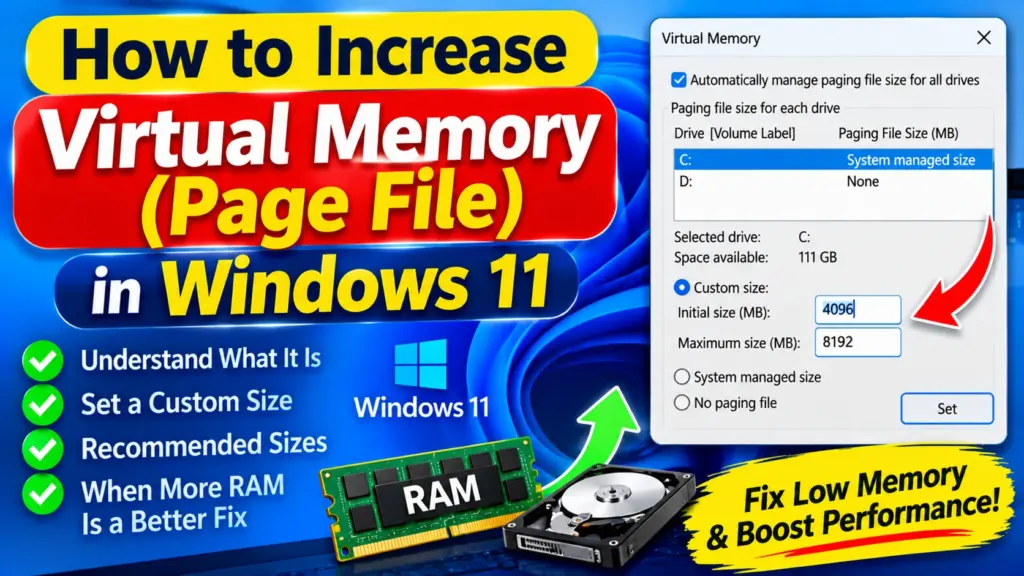
When your RAM is full, Windows uses part of your drive as extra memory. This is called virtual memory, or the page file. To learn what that file is on disk and why it should stay, read what the pagefile.sys file does. Windows manages it automatically, but a message such as “Your system is low on virtual memory”, or apps that close with out-of-memory errors, can mean it needs attention. This guide shows how to check whether it is the problem, how to increase virtual memory safely and how to confirm that the change worked.
When to change the page file
- You see “Your system is low on virtual memory”.
- Games, editors or large programs crash with out-of-memory errors.
- The page file is on a drive that is almost full.
Before you change it, check whether you simply need more RAM (see how much RAM do you need). If a single program is using all your memory, close or fix that program first. A bigger page file only hides a memory leak.
Step-by-step: change virtual memory
Step 1: Check your memory use and the current page file
Press Ctrl + Shift + Esc, open Performance > Memory and watch the numbers while you do your normal work.
- In use is the RAM being used. As a rough guide, it should stay below about 85 percent. If it stays high with nothing open, see why memory stays high with nothing open.
- Committed shows two numbers, for example 14.2/22.9 GB. The first is what programs have asked for. The second is the limit (RAM plus the page file). If the first number gets close to the second during your work, the limit is too low. Raising it, or adding RAM, helps.
- To see the current page file size, open Terminal and run
Get-CimInstance Win32_PageFileUsage | Select Name, AllocatedBaseSize, PeakUsage. AllocatedBaseSize and PeakUsage are in MB. A PeakUsage far below the size means the page file is big enough.
Step 2: Open the virtual memory settings
- Press Windows + R, type
sysdm.cpland press Enter. - Open the Advanced tab and select Settings under Performance.
- Open the Advanced tab and select Change under Virtual memory.
You will see Automatically manage paging file size for all drives and, below, Total paging file size for all drives. Write down the current values so you can go back.
Step 3: Set a custom size
- Untick Automatically manage paging file size for all drives.
- Select the drive that has the most free space (an SSD is best) and choose Custom size.
- Enter an Initial size and a Maximum size in megabytes.
- Select Set, then OK. Windows asks to restart.
Common starting values: an initial size of about 1 to 1.5 times your RAM and a maximum of about 2 to 3 times your RAM. For example, with 16 GB of RAM use 16384 MB as the initial size and 32768 MB as the maximum. Keep some free space on the drive after the page file grows (about 10 GB is a common rough guide). These are rough guides, and Windows’ automatic setting is fine for most people.
Step 4: Restart the PC and check the result
The change applies after a restart. After the restart, repeat the Get-CimInstance Win32_PageFileUsage command from Step 1. You should see the new AllocatedBaseSize. The Committed limit in Task Manager should also be higher, and the out-of-memory message should stop appearing. Try the task that crashed before.
Step 5: Do not turn off the page file
Switching it off can cause crashes, and Windows may not be able to save crash information (see the blue-screen guide). Blue screens that point to bad memory are covered in the MEMORY_MANAGEMENT blue screen guide. If you see no improvement or problems, return to System managed size and restart.
If it does not help
- The same crash still happens: a program may be leaking memory. In Task Manager, sort by Memory and see which program grows until the crash. Update or reinstall it. See Chrome or Edge using too much memory if it is a browser.
- The PC gets slow after the change: the page file is now in use heavily. That means you need more RAM, not a bigger file.
- The drive is nearly full: there is no room to grow. Free some space first.
- The settings are greyed out or revert after restart: sign in with an administrator account. A work PC may have a policy that sets it.
Make sure the drive has space
The page file needs free space on its drive. If the drive is almost full, see how to free up disk space. To see what else takes up room on C:, read why the C: drive keeps filling up.
Virtual memory is not a replacement for RAM
Virtual memory is much slower than RAM. If your PC uses the page file heavily, it will feel slow, and on a hard drive it can push the disk to 100 percent (see fix 100% disk usage). Adding RAM is the real fix. See how to upgrade RAM.
More help
For other memory and slowdown problems, search by symptom in the PC repair guides on PC Repair Atlas.
FAQ
What is the best page file size? For most PCs, let Windows manage it. Use a custom size only to fix a problem.
Should I put the page file on the SSD? Yes. An SSD is much faster than a hard drive.
Does a bigger page file make games faster? No. It can only prevent out-of-memory crashes.