How to Clean a Laptop Safely: Screen, Keyboard and Vents
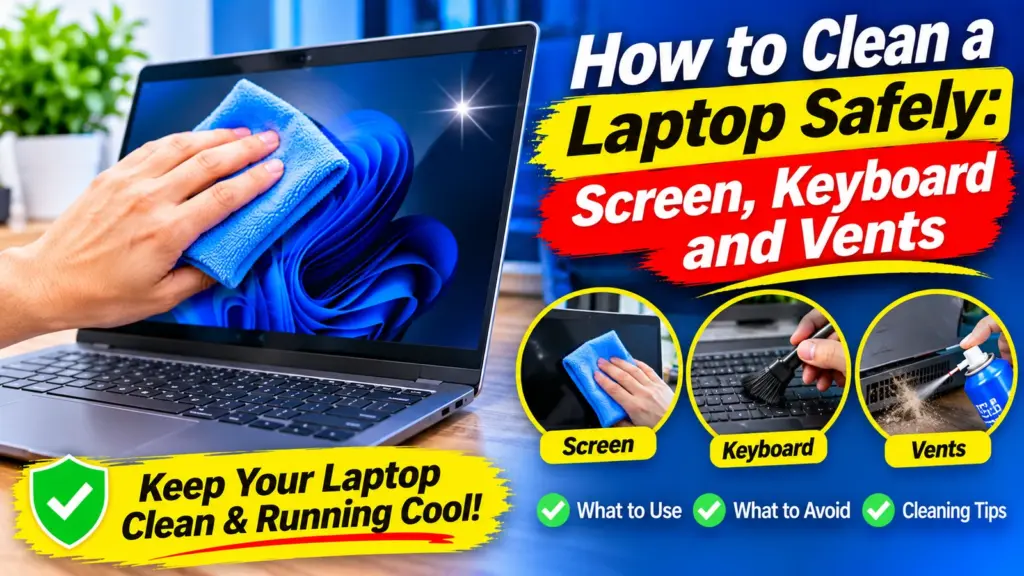
A laptop collects dust, fingerprints and crumbs, and dust in the vents makes it run hotter and louder. Cleaning is easy, but the wrong product can damage the screen coating or the keyboard. This guide shows what to use on each part. Makers differ on some details, such as alcohol on screens and compressed air, so when your laptop's maker gives its own advice, follow that. Examples are Apple, Microsoft Surface, Dell, HP, Lenovo and ASUS support pages.
What you need
- Two or three microfibre cloths
- Distilled water
- 70% isopropyl alcohol (for the case and key tops only, not for the screen unless your maker allows it)
- Compressed air and a soft brush
- Cotton swabs
Safety first
- Shut the laptop down fully, unplug the charger and disconnect all cables. Only remove the battery if it is meant to be removed by the user.
- Never spray liquid directly onto the laptop. Apply a little to the cloth.
- Do not use window cleaner, ammonia, bleach, acetone or abrasive cleaners, and never use a vacuum cleaner, which can create static electricity.
- Do not open the case unless you know the warranty and the model allows it. Many thin laptops have sealed batteries, and a punctured battery can burn.
Step-by-step: clean each part
Step 1: The screen
Wipe with a dry microfibre cloth first. If it is still dirty, dampen a clean cloth slightly with distilled water, and wipe gently in one direction with very little pressure. Dry it with another cloth. Do not press on the screen. You should see: no streaks. If marks remain, repeat with a lightly damp cloth, or check your maker's advice before using any screen cleaner. Never use alcohol on a screen with an anti-glare or oleophobic coating unless your maker's page says it is fine.
Step 2: The keyboard
- Hold the laptop upside down at an angle and tap it gently to loosen crumbs.
- Use short bursts of compressed air across the keys, with the can upright. Some makers advise against compressed air, so check yours first.
- Brush around the keys with a soft brush.
- Wipe the key tops with a cloth lightly dampened with 70% isopropyl alcohol.
Do not pull keys off unless you know how your keyboard is built, since many laptop keys have small clips that break. If a key sticks after cleaning, let it dry fully. If it still sticks, see fix a laptop keyboard that is not working.
Step 3: The vents and fan
Blow short bursts of compressed air into the vents from outside, and use a brush to loosen dust. Keep the can upright and a few centimetres away, or as the can's label says. Hold the fan still, or use short bursts, so it does not spin at high speed, since that can damage the bearing. If the laptop is still hot and loud, the fan or heatsink may be clogged inside. Opening it may affect your warranty, so see the maker's service guide, ask a technician, or read laptop fan is loud or always running and fixing a PC that keeps overheating.
Step 4: Ports
Never put a toothpick, pin or any metal tool into a port. The contacts inside bend or break easily. Shut the laptop down, unplug everything and shine a flashlight into the port to see what is there. Turn the laptop so the port faces down and tap it gently, then give it a short burst of compressed air with the can upright and a few centimetres away. Use a soft, dry brush only on the outer edge of the port. If a cable still does not fit or the laptop does not charge, ask the maker or a repair shop to look at it.
Step 5: The trackpad, palm rest and case
Wipe with a cloth lightly dampened with water, or with a little isopropyl alcohol for grease. Clean the base and the rubber feet too, so dirt does not get carried to the vents. If the trackpad misbehaves afterwards, see fix a laptop touchpad not working.
Step 6: Let it dry
Wait several minutes until everything is dry before you plug in the charger and start the laptop. You should see: a normal start with no new fan noise. If something stopped working, shut down and check that no liquid got into a port or the keyboard.
How often?
- A light wipe of the screen and keyboard every week or two
- The vents every few months, or more often if you have pets, smoke or dusty rooms
Habits that keep a laptop clean
- Avoid eating and drinking over the keyboard.
- Use the laptop on a hard, flat surface, not on a bed or blanket, so the vents stay clear.
- Close the lid gently, and do not leave pens or earphones on the keyboard (they can mark the screen).
If you spill liquid
Power it off at once, unplug it, hold it so liquid drains away from the keyboard and take it to a repair shop as soon as possible. Do not turn it on to check. Sugary drinks are often said to be especially damaging, but any liquid can cause harm. See fix a laptop keyboard that is not working for problems afterwards.
More help
For more repair help, see the PC repair guides home page. Common mistakes are listed in laptop cleaning mistakes to avoid.
FAQ
Can I use disinfecting wipes? Use only wipes that the laptop maker allows, and never on the screen unless the maker says it is safe.
Is compressed air safe? In short bursts with the can upright, it is widely used, but some makers advise against it. Check your maker's page. Long blasts can chill and damage parts.
Why is my laptop still hot after cleaning? The cooling system may be clogged inside or the thermal paste may be old. See how to apply thermal paste and fix a PC that keeps overheating.