How to Fix a Laptop Touchpad Not Working in Windows
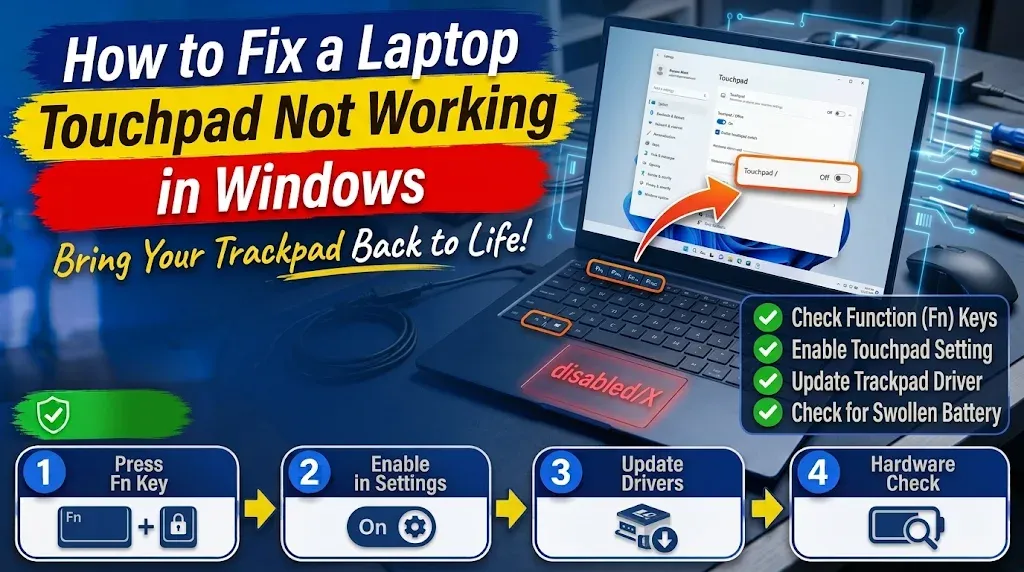
If your laptop touchpad does not respond, the cause is often simple: it was switched off with a key, or a setting turns it off when a mouse is connected. This guide goes from the easy checks to driver and hardware causes, including one that is easy to miss. Each step says what you should see.
Tip if you cannot click: you can still work without the touchpad. Connect a USB or Bluetooth mouse, or use the keyboard: press Windows + I for Settings, Tab and the arrow keys to move, Enter to select, and Windows + X then M for Device Manager.
Safety note
If the laptop case or the touchpad looks raised or bulging, stop using it. A swollen battery can push up from underneath and is a fire risk. See Step 9. Do not press on it or try to flatten it.
Step-by-step: fix the touchpad
Step 1: Restart and clean
Restart the laptop (Windows + X, then U, then R if the pointer does not work) and wipe the touchpad with a slightly damp, lint-free cloth. Dry hands work better than wet or oily ones.
You should see: the pointer move again after the restart. If it does, a temporary glitch was the cause. If not, continue.
Step 2: Check the touchpad key
Many laptops have an Fn key combination or a dedicated key (often on the F-row with a touchpad icon) that turns the touchpad on and off. Press it once and test. Some laptops also let you turn it off by double-tapping a corner of the touchpad (often a small dimple or a light marks the spot).
You should see: a small on-screen icon or a light change, and the pointer start moving. Try the key twice, because the first press may have switched it off.
Step 3: Check the settings in Windows
Open Settings > Bluetooth & devices > Touchpad.
- Make sure the Touchpad switch is On.
- Check Leave touchpad on when a mouse is connected. If it is off, Windows disables the touchpad whenever a mouse or USB receiver is connected.
- Check the sensitivity and the tap and gesture options. If the pointer moves but taps, scrolling or multi-finger gestures do not, see Windows 11 touchpad gestures not working.
You should see: the Touchpad page with its switches. If the Touchpad page is missing from Settings, the driver is not loaded or not working (go to Step 5), and your laptop may not have a precision touchpad.
Step 4: Check the maker's touchpad settings
Open Control Panel > Mouse and look for a tab named after the touchpad maker (such as Elan, Synaptics or ASUS Smart Gesture). Make sure the device is enabled, and that an option such as "disable internal pointing device when an external device is attached" is not ticked.
Step 5: Reinstall the driver
Open Device Manager and expand Mice and other pointing devices and Human Interface Devices (choose View > Show hidden devices first). Right-click the touchpad entry (it may be called HID-compliant touch pad or I2C HID Device) and check the menu:
- If it says Enable device, the device was switched off. Choose it.
- If the touchpad worked before an update, open Properties > Driver > Roll Back Driver, if the button is available.
- Otherwise choose Uninstall device, then restart. Windows reinstalls a basic driver by itself.
If that does not work, install the touchpad driver from the laptop maker's support page for your exact model (see update drivers in Windows 11). Microsoft's own page Fix touchpad problems in Windows describes the same update and reinstall route.
You should see: the touchpad entry without a yellow warning icon in Device Manager, and the pointer move after the restart. If a yellow warning stays, see the Code message in the device's Properties > General.
Step 6: Check the BIOS
Restart and enter the BIOS (usually F2, Delete, F10 or Esc while the laptop starts; the maker's page says which). Some laptops have an Internal Pointing Device option that must be set to Enabled (it can be under Advanced or Configuration). Before you change it, write down or photograph the current setting so you can restore it. Only change that one option, and leave the rest alone. If the touchpad works in the BIOS but not in Windows, the problem is software.
You should see: the setting set to Enabled. If you do not find the option, leave the BIOS without changing anything.
Step 7: Test with an external mouse
Connect a USB or Bluetooth mouse. If the mouse works, Windows is fine and the touchpad is the problem. If a mouse also misbehaves, see fix mouse lag or a mouse not working. If the keyboard does not work either, see how to fix a laptop keyboard that is not working.
Step 8: Fix a cursor that jumps
If the cursor jumps while you type, open Settings > Bluetooth & devices > Touchpad and lower the Touchpad sensitivity (use Low sensitivity or Medium sensitivity). Some maker tabs in Control Panel > Mouse have an option that blocks the touchpad while you type, so check that tab too.
Step 9: Check for a swollen battery
If the touchpad clicks poorly or does not respond, and the touchpad or the bottom of the laptop looks raised, the battery may be swollen. Stop using and charging the laptop, unplug the charger and take it to a repair shop. Do not puncture or bend the battery. See how to replace a laptop battery safely and how to check laptop battery health.
Step 10: Consider a hardware repair
A loose ribbon cable or a worn touchpad needs a repair. Use an external mouse until then. If the laptop is under warranty, contact the maker before opening it.
More help
For other laptop fixes and maintenance guides, visit the PC Repair Atlas homepage.
FAQ
Why does my touchpad stop working when I plug in a mouse? The setting "Leave touchpad on when a mouse is connected" is off.
Can a Windows update break the touchpad? Yes, through the driver. Roll back or reinstall it (Step 5). See also how to uninstall a Windows update.
Is it safe to use the laptop with a dead touchpad? Yes, with a mouse, unless the battery looks swollen.