How to Choose an SSD: SATA vs NVMe Explained
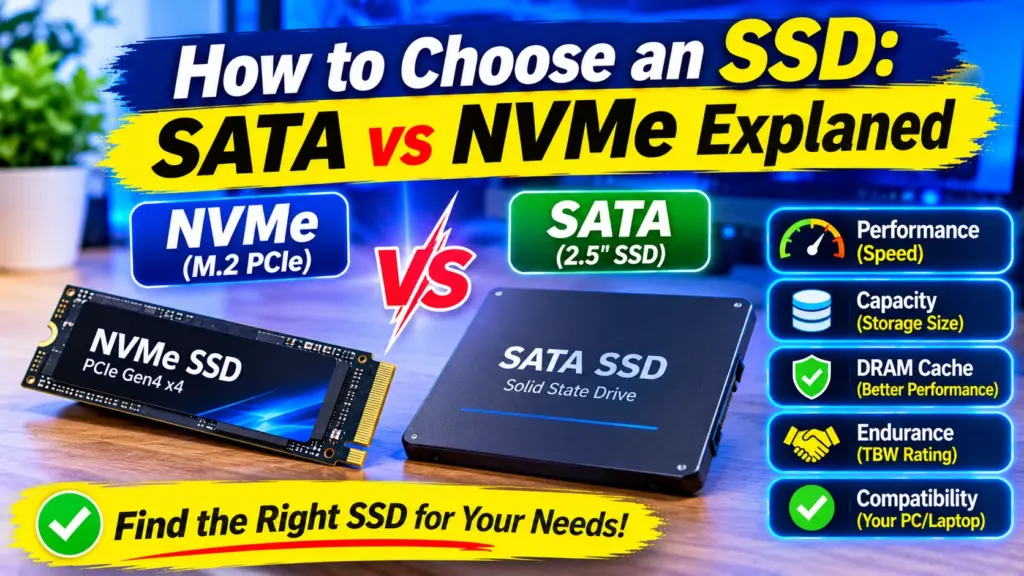
SATA vs NVMe is the first question when you shop for an SSD, and the labels can be confusing. The most important things are what your PC supports, how much space you need and a few specifications that separate good drives from poor ones. This guide explains them in plain terms and shows how to check each one.
Step-by-step: choose an SSD
Step 1: Check what your PC supports
Look in your motherboard or laptop manual for the storage slots, or open the maker's page for your exact model:
- 2.5-inch SATA: a drive in a small case that connects with a SATA data cable and power cable.
- M.2: a small stick that plugs into a slot on the motherboard. An M.2 slot can support SATA, NVMe or both, so check which. Also check the length (2280 is common, and some laptops use shorter 2242).
On some desktop boards an M.2 slot shares its lanes with SATA ports, so filling the slot can switch a SATA port off. The manual lists this under the storage notes.
You should see: a clear list such as “M.2 slot, PCIe 4.0 x4, NVMe” or “M.2 slot, SATA only”. If the manual is vague, check the guide how to check your PC specs for your model name, then search the maker's site.
Step 2: SATA or NVMe?
- SATA SSDs are limited by the SATA connection to about 550 MB/s in practice. That is far faster than a hard drive.
- NVMe SSDs use PCIe lanes and are much faster in tests.
For everyday tasks such as booting, browsing and office work, the difference between SATA and NVMe is small. NVMe matters more for large file transfers, video editing and loading big games or datasets. An NVMe drive does not work in a 2.5-inch SATA connector or in an M.2 slot that supports SATA only.
Step 3: Match the PCIe generation
NVMe drives come in PCIe generations (3.0, 4.0, 5.0). A newer drive works in an older slot but runs at the slower slot's speed. Do not pay extra for a faster generation than your motherboard supports. PCIe 5.0 drives also run hot and normally need a heatsink. To see which PCIe version your own slot and drive use, follow how to check which PCIe version your GPU and SSD use.
Step 4: Choose the capacity
A common choice is 500 GB to 1 TB, and more if you store large games or media. As a rule of thumb, try to keep about 15 to 20 percent of the drive free, because a very full drive can slow down. See how to free up disk space if you run low.
Step 5: Look at the DRAM cache
Some SSDs have their own DRAM chip that keeps the drive's mapping table. DRAM-less drives are cheaper. Many NVMe ones borrow a small part of your system RAM instead, which is fine for light use. They can be slower when you write a lot of data or when the drive is nearly full.
Step 6: Check the type of flash memory
TLC memory is the usual choice. QLC is cheaper and holds more per chip, but it can slow down more in long writes.
Step 7: Check endurance and warranty
Look at the TBW (terabytes written) rating and the warranty length. A higher number and a longer warranty show that the maker expects the drive to last longer. Many home users are unlikely to reach the rating, so treat it as a quality sign rather than a limit to worry about.
Step 8: Think about heat and fit
Fast NVMe drives can get hot. Many motherboards include M.2 heatsinks, so check that your slot has one or that the drive comes with one. In a laptop, check the height of the drive (a single-sided drive often fits where a double-sided one does not) and whether it needs a heatsink.
Step 9: Read reviews
Check independent reviews of the exact model, since the same product name can use different parts over time.
Step 10: Plan the move to the new drive
Before you swap or add a drive, back up your files (see how to back up your Windows PC). To use the new drive as your Windows drive you can either clone the old drive with the drive maker's free tool or install Windows fresh (see how to clean install Windows 11). To add it as a second drive, see how to install a second SSD, then follow how to set up a new SSD if it does not show up. For a failed drive, see replacing a faulty SSD. Check the drive's health over time with our drive health guide. An SSD does not need defragmenting, so see our Defragment Windows 11 guide for when to skip it. For SSD upkeep and whether a PC cleaner is worth running on one, see PC cleaner for SSD vs HDD.
You should see: the new drive with its full size in File Explorer or Disk Management. If it is missing from the BIOS, reseat it and check the slot notes from Step 1.
More help
For other PC building and upgrade help, browse the PC repair guides on the PC Repair Atlas homepage.
FAQ
Is NVMe worth it over SATA? For heavy file work, yes. For everyday use, a good SATA SSD is also fast.
Can I put an NVMe drive in a SATA slot? Not in a 2.5-inch SATA connector. In an M.2 slot, only if the slot supports NVMe, so check the manual first.
Do I need a heatsink? For fast NVMe drives under heavy load, it helps, and PCIe 5.0 drives usually need one. Many boards have one.