Windows Search Indexer High CPU or Disk Usage in Windows 11: 8 Fixes
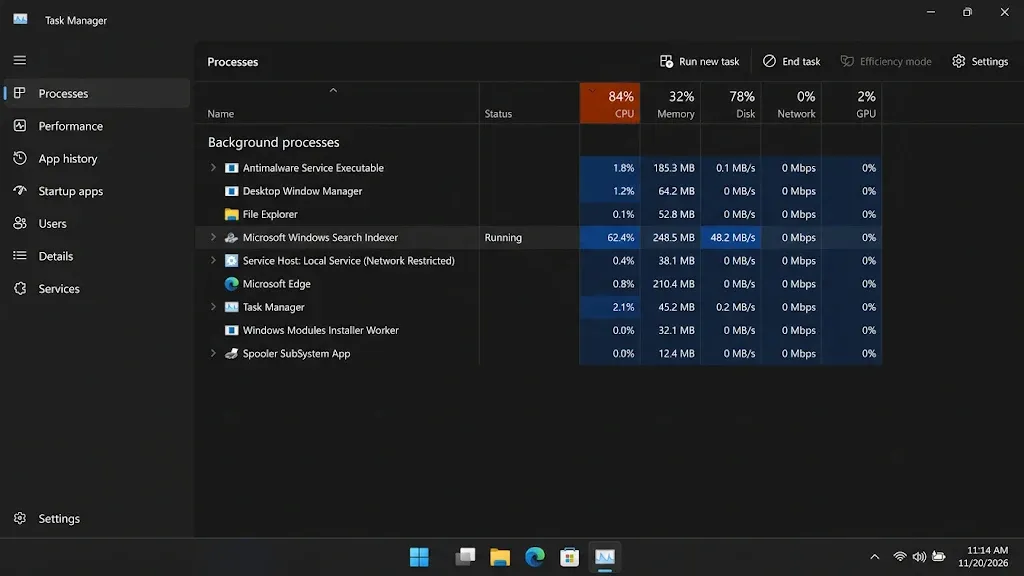
If Windows 11 feels sluggish and SearchIndexer.exe keeps near the top of Task Manager, you are probably dealing with a Search Indexer high CPU or disk problem. The fix is usually simpler than it looks. This guide is one of many in our PC repair guides, and it works as a checklist: confirm the cause first, then try the eight fixes from safest to most drastic.
What causes Search Indexer high CPU
SearchIndexer.exe is the process behind Windows Search indexing. It builds a catalogue of your files so that Start and File Explorer can find things quickly.
Heavy use is normal right after an update, a new install, a large file copy or the first index on a new PC. If it follows an update, read what Windows is busy doing after an update. It should ease off on its own within a few hours.
Heavy use is a problem when it continues for many hours on an idle, plugged-in PC, or when it comes back every time you sign in.
Common triggers include a large batch of new photos or videos, a project folder full of small files, a drive that is close to full, and a PC that is rarely idle. Each one gives the Indexer more work, so the fixes below start with the simplest causes.
How to confirm the Indexer is the cause
Check Task Manager
- Press Ctrl + Shift + Esc to open Task Manager.
- If you see a compact view, select More details.
- Sort the list by CPU or Disk, and look for SearchIndexer.exe.
Menu names can differ slightly between Windows 11 versions, so look for the same wording where you can.
Check Resource Monitor
Resource Monitor gives more detail. Search for it in the Start menu and open it. On the Disk and CPU tabs, find SearchIndexer.exe in the process list. If its disk read and write values stay high across several minutes, the Indexer is the likely source.
Match your symptom to a fix
| What you see | Likely reason | Fix |
|---|---|---|
| High use right after an update or big file copy | Normal first pass over new files | Fix 1, then Fix 2 |
| Busy for hours, status shows a waiting message | PC is rarely idle, or it runs on battery | Fix 1, then Fix 2 |
| Busy again after every sign-in | Enhanced mode or large folders in the index | Fix 3, then Fix 4 |
| Search results missing or wrong | Index incomplete or damaged | Fix 5, then Fix 8 |
| Slow PC with a nearly full drive | Low free space or a failing drive | Fix 6 |
Eight fixes, safest first
Work through these in order. Stop when the problem goes away, and keep the PC plugged in while you test.
Fix 1: Let the first index finish
When it fits: the high use began after an update, a new install or a big change to your files.
- Plug in the laptop and leave it on.
- Close heavy tasks such as video exports and large downloads.
- Leave the PC idle for a few hours.
You should see: SearchIndexer.exe usage falling over time. Microsoft's troubleshooting guidance mentions giving the Indexer up to 24 hours.
If this does not help: go to Fix 2.
Fix 2: Check the indexing status and count
When it fits: you want to know whether indexing is still making progress.
- Open Settings.
- Go to Privacy & security, then select Searching Windows. The page may be worded differently on some builds.
- Read the indexed item count and the status message.
- Check again after an hour.
You should see: the count rising and then levelling off, with the status returning to a normal state. A message such as waiting for the computer to become idle means Windows is holding back until the PC is idle.
The count is a guide, not a score. A large count with a steady status can be normal on a big drive.
If this does not help: go to Fix 3.
Fix 3: Switch Enhanced indexing back to Classic
When it fits: the mode is set to Enhanced, which covers the whole PC rather than a smaller set of locations.
- Open Settings, then Privacy & security, then Searching Windows.
- Look for the search mode choice, which names Classic or Enhanced. The wording varies by version.
- Select Classic and wait for the Indexer to settle.
You should see: the indexed count drop and CPU use fall once the change settles.
If this does not help: go to Fix 4.
Fix 4: Exclude big or busy folders
When it fits: you have large project, cache or backup folders that you never search.
- Open Settings, then Privacy & security, then Searching Windows.
- Select Advanced indexing options.
- Select Modify under the search locations section, then clear the folders you never search.
- Select OK.
Excluding a folder only removes it from the index. Your files stay where they are. Do not exclude folders you rely on for search.
You should see: a smaller indexed count and less Indexer activity on the next pass.
If this does not help: go to Fix 5.
Fix 5: Run the Searching Windows troubleshooter
When it fits: search is slow or behaves oddly along with the high use.
- Open Settings, then System, then Troubleshoot.
- Select Other troubleshooters.
- Find Searching Windows and select Run.
- Follow the prompts, and restart if asked.
Microsoft's guide to fixing Windows Search problems describes this tool. It can fix some settings automatically and report on others.
You should see: a report of what was checked and what changed, if anything.
If this does not help: go to Fix 6.
Fix 6: Free up space and check the drive
When it fits: the drive is nearly full, or the whole PC feels slow. Indexing needs free space to write its catalogue, and low space slows it down.
- Free some space using our guide to freeing up disk space on Windows 11. If Storage Sense is not cleaning up for you, read why Storage Sense is not working.
- Check the drive's health with our guide to checking hard drive or SSD health with SMART. For an SSD, see how to check SSD health in Windows 11.
You should see: more free space and no health warnings. If the health check reports errors, back up your files before you change anything else.
If this does not help: go to Fix 7.
Fix 7: Install updates and repair system files
When it fits: the trouble started after a failed update, or you see other system errors.
- Open Windows Update in Settings and install any pending updates. Restart when asked.
- If updates fail or stall, follow our guide to fixing Windows Update that is stuck or failing.
- If system files may be damaged, follow our SFC and DISM repair guide and Microsoft's guide to the System File Checker tool.
You should see: updates installing cleanly, and the checker reporting whether it repaired anything.
If this does not help: go to Fix 8.
Fix 8: Rebuild the index as a last resort
When it fits: results are still wrong or missing after Fixes 1 to 7.
Warning: a rebuild uses CPU and disk for hours, and search results stay incomplete until it finishes. Microsoft says it can take up to 24 hours. A rebuild does not delete your files. Do not delete the C:\ProgramData\Microsoft\Search folder by hand, because that is a different and riskier step.
- Open Settings, then Privacy & security, then Searching Windows.
- Select Advanced indexing options.
- Under Advanced, open Troubleshooting and select Rebuild.
- Keep the PC plugged in and leave it alone until it completes.
You should see: the rebuild finish, and search results return over the following hours.
If this does not help: the problem is more likely outside the index. Check the drive and system files again, then use the next section.
How to check it worked
- Open Task Manager's Details tab and sort by CPU.
- Watch SearchIndexer.exe across a normal day of use.
- Run a few searches for files you know exist, and confirm they appear.
A healthy result is short bursts after file changes, with quiet periods when the PC is idle. Constant use on an idle PC means one of the fixes did not reach the cause.
If it still happens
- If search itself is broken, read how to fix Windows search not working.
- If another process is the heavy one, read how to fix high CPU usage in Windows. If Windows Explorer is the heavy process, see Windows Explorer high CPU or memory usage in Windows 11.
- If the Windows Security scanner is busy, read the Antimalware Service Executable guide.
- If the disk sits at 100 percent, read how to fix 100 percent disk usage.
- For a wider look at slowdowns, read why is my computer so slow and how to speed up Windows 11.
Frequently asked questions
Is SearchIndexer.exe a virus?
The real one is a Windows component. You can confirm it in Task Manager's Details tab. If you can view the file location, it should sit in C:\Windows\System32. A copy in any other folder deserves a closer look with a malware scan.
Can I end it in Task Manager?
You can, but it is only temporary. Windows starts the process again, usually when the next indexing task is due.
Will a rebuild delete my files?
No. A rebuild recreates the search catalogue. Your documents, photos and programs stay where they are.
Does Enhanced indexing slow my PC?
It can. Enhanced covers more of the PC, so it has more work to do. Classic is the lighter choice for most people.
Should I turn indexing off?
That is not recommended. Search becomes slow, because Windows has to scan files on demand instead of using the index.