Windows 11 Task Manager Not Opening? 9 Fixes That Work
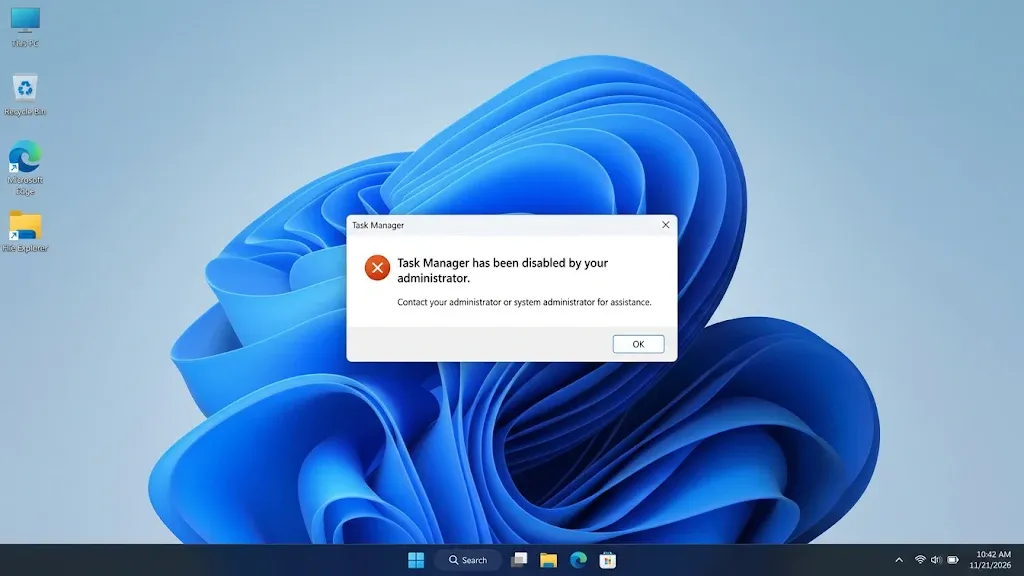
Windows 11 Task Manager not opening is frustrating when a frozen app blocks your work. The window may never appear, it may close a moment after it opens, or it may show the message "Task Manager has been disabled by your administrator." This guide covers nine fixes, from the quickest checks to the more involved ones. Each fix lists the steps, the result you should see and what to try if it does not help.
This guide is about Task Manager itself. For an app that shows Not Responding, see the guides at the end. For File Explorer problems, read File Explorer not responding in Windows 11 instead.
Before you start: a short safety note
Some fixes change system files or settings. Save your open work first. If you have files you cannot replace, back them up with our system image backup guide before you begin.
Do not download a "Task Manager fix" tool from a web page or pop-up, and do not follow registry edits from forums. Tools and edits from untrusted sources can make the problem worse. The steps below use only built-in Windows tools and settings.
Menu names change between Windows 11 builds. Where the exact wording may differ on your PC, the steps say so.
Windows 11 Task Manager not opening: 9 fixes in order
Work through the fixes in order. Stop when Task Manager opens and stays open.
Fix 1: Open Task Manager another way
Try each method once. Use the first one that works.
- Press Ctrl + Shift + Esc. Microsoft lists this as the shortcut that opens Task Manager, in its keyboard shortcuts for Windows page.
- Press Ctrl + Alt + Delete, then choose Task Manager.
- Right-click an empty part of the taskbar and choose Task Manager.
- Press Windows + R, type
taskmgrand press Enter.
You should see: the Task Manager window opens and stays open.
If this does not help: if you see "disabled by your administrator", go to Fix 4. Otherwise, continue to Fix 2.
Fix 2: Restart the PC
A stuck process or a half-loaded service can block Task Manager. A restart clears most of them.
- Click Start > Power > Restart.
Use Restart rather than Shut down. Fast Startup can keep some state from the last session.
You should see: Task Manager opens normally after you sign in.
If this does not help: if Task Manager opens but one process keeps the CPU busy, read our high CPU usage guide. Once Task Manager is open, how Efficiency mode lowers process priority can help with that process. Otherwise, continue to Fix 3.
Fix 3: Run a Windows Security scan
Malware can block Task Manager on purpose. It can also block other admin tools, such as Registry Editor. Start with a quick scan.
- Open Start, type Windows Security and open it.
- Choose Virus & threat protection, then Quick scan.
You should see: a scan result. If it reports a threat, follow its prompts to remove it.
If this does not help: if Windows Security is turned off or will not open, read how to fix Windows Security turned off. If you suspect an infection, use our virus and malware removal guide. Then continue to Fix 4.
Fix 4: Check whether a policy disables Task Manager
The message "Task Manager has been disabled by your administrator" comes from a policy setting. For background on how policies differ from registry settings, see how Group Policy differs from registry settings. Microsoft documents this message in a Learn article written for Windows Server, which points to the Group Policy setting named Remove Task Manager; the same setting name appears in Windows 11, but menu wording can differ. This step is for looking only. Change nothing here. If Regedit shows a similar block, see why Regedit says registry editing is disabled. If Command Prompt is blocked by a similar message, see command prompt disabled by an administrator for the checks to run.
- Press Windows + R, type
gpedit.mscand press Enter. The Local Group Policy Editor is normally available in Windows 11 Pro, Enterprise and Education, and is usually missing on Home editions; if gpedit.msc does not open, skip to Fix 5. - Go to User Configuration > Administrative Templates > System > Ctrl+Alt+Del Options.
- Open Remove Task Manager and note its state. Close the window without changing it.
You should see: Not configured or Disabled means this policy is not the cause. Enabled means it is blocking Task Manager. To list every policy that applies to this PC, read-only, see our guide to the gpresult command.
If this does not help, or the PC is for work or school: if an employer or school manages the PC, ask the IT team to check the policy. Do not try to get around it. On your own PC, do not change the setting in this guide. Continue to Fix 5.
Fix 5: Repair system files with SFC and DISM
Damaged system files can break Task Manager. Run the three checks in this order, in an administrator window. Right-click Start and look for Terminal (Admin) or Windows Terminal (Admin); on some builds it is called Command Prompt (Admin) or Windows PowerShell (Admin).
- Type
sfc /scannowand press Enter. Wait until it finishes. - Type
DISM /Online /Cleanup-Image /RestoreHealthand press Enter. This can take several minutes. - Type
sfc /scannowagain and press Enter.
This order is a common approach, not a Microsoft requirement. Microsoft documents each command separately, so check the result of each one before you move on.
You should see: each tool reports that it finished, with no errors left unrepaired. The exact wording varies.
If this does not help: read our SFC and DISM repair guide for what to do when a check cannot repair files. Then continue to Fix 6.
Fix 6: Install updates or remove a recent one
A faulty update can break Task Manager. Install pending updates first. If the problem began after an update, remove the newest one.
- Go to Settings > Windows Update and choose Check for updates. Install any pending updates, then restart.
- If the problem started after an update, open Settings > Windows Update > Update history. Find the most recent update.
- Choose the uninstall option for that update and follow the prompts. Our guide to uninstalling a Windows update has the full steps.
You should see: Task Manager opens after the restart.
If this does not help: if updates will not install at all, read how to fix Windows Update stuck or failing. If Settings itself will not open, see Windows 11 Settings app not opening. Then continue to Fix 7.
Fix 7: Test with a new local account
If only your user account is affected, a new account will show it. This is a test, not a permanent fix.
- Go to Settings > Accounts > Other users and choose Add account.
- Choose Add account. If Windows asks for a Microsoft account, look for an option such as I don't have this person's sign-in information, then Add a user without a Microsoft account. This wording moves between Windows 11 builds and Microsoft's own page only describes adding an account in general.
- Sign out, sign in to the new account and try Task Manager.
You should see: If Task Manager opens in the new account but not in yours, your original profile is the problem. Back up your files before you change anything in that profile.
If this does not help: if it fails in the new account too, the cause is system-wide. Remove the test account from the same Other users page, then continue to Fix 8.
Fix 8: Start in Safe Mode
Safe Mode starts Windows with a minimal set of drivers and programs. If Task Manager opens there, a startup program or driver is often involved. Our Safe Mode guide has the full steps.
- Go to Settings > System > Recovery. Next to Advanced startup, choose Restart now.
- Choose Troubleshoot > Advanced options > Startup Settings, then Restart. Press 4 for Safe Mode.
- In Safe Mode, try to open Task Manager.
You should see: Task Manager opens in Safe Mode. If it does, disable recent startup programs or drivers one at a time to find the cause.
If this does not help: if Task Manager does not open in Safe Mode, a policy or damaged system files are more likely. Go back to Fix 4 and Fix 5, then continue to Fix 9.
Fix 9: Use System Restore
System Restore returns system files and settings to an earlier point. Your personal files are not deleted, but apps installed after that point may be removed. Read our System Restore guide before you begin.
- Press Windows + R, type
rstruiand press Enter. - Choose a restore point from a date when Task Manager worked, then follow the prompts.
You should see: the PC restarts and reports that System Restore finished. Task Manager should open afterwards.
If this does not help: if no restore point exists, or none fixes the problem, the next step is a reset or repair. Our guide to resetting Windows 11 and keeping your files explains the choices. Back up first.
Frequently asked questions
Why does Task Manager say it is disabled by my administrator?
That message means a policy or a setting is blocking the tool. On a work or school PC, the administrator may have set it on purpose. Ask the IT team before you change anything.
Can malware disable Task Manager?
Some malware blocks Task Manager to stay hidden. Run the scan in Fix 3. If the block returns after a clean scan, use the malware removal guide.
Is it safe to use a Task Manager fix tool from the web?
Be careful. Tools and registry edits from unknown sites can cause more damage. This guide uses only built-in Windows tools and settings.
Will a restart always fix it?
No. A restart clears temporary problems only. If the problem returns, work through the fixes in order.
Why does Ctrl+Shift+Esc not work?
A policy or malware can block the shortcut as well as the window. Use the other methods in Fix 1, then check Fix 4.
Should I reinstall Windows?
Only as a last step. Try Fix 9 and the reset guide first, and back up your files before any reset.
Conclusion and next steps
Start with the quick checks: another way to open Task Manager, a restart and a Windows Security scan. If the message says it is disabled by an administrator, check the policy, and ask IT on a work or school PC.
Next, repair system files and check updates. Use Safe Mode and System Restore if the problem persists. A reset is the last option.
If an app shows Not Responding rather than Task Manager failing, read Windows 11 Program Not Responding. For other problems, browse the PC repair guides.