How to Reset a Forgotten Windows 11 Password (Safely)
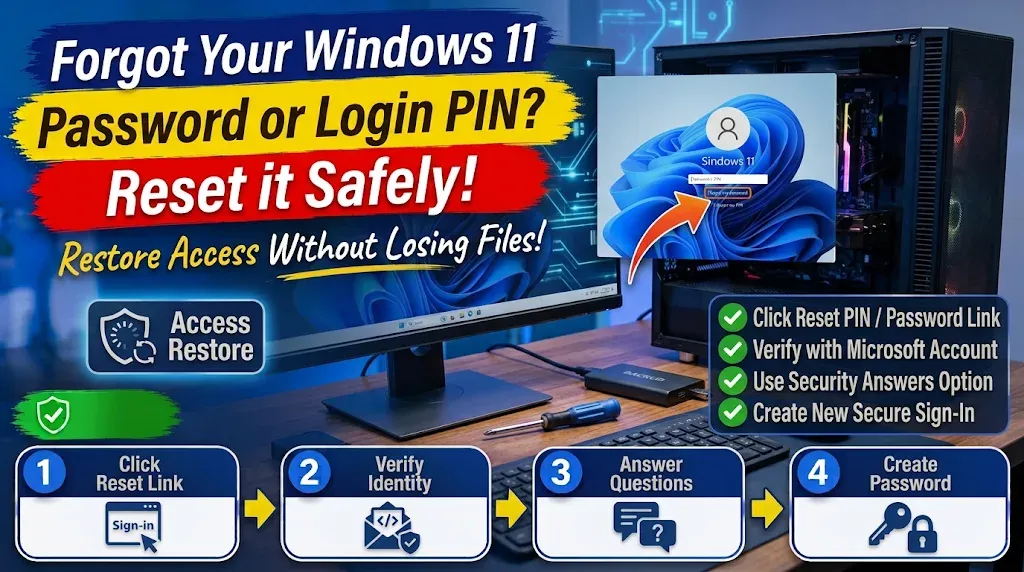
Forgetting your Windows password is stressful, but there are official ways back in. The right one depends on how you sign in. This guide covers methods for your own PC only. It does not cover bypass tools, which are unsafe and, on a PC that is not yours, illegal. If you reset the PC at the end, you can lose files, so read Step 6 before you do it.
First, which account do you use?
- Microsoft account: the sign-in screen shows an email address.
- Local account: the sign-in screen shows only a name.
- PIN or face or fingerprint (Windows Hello): this is a shortcut on top of your account password.
| What you see | Start with |
|---|---|
| "Something went wrong with your PIN" or you forgot only the PIN | Step 1 |
| Your sign-in shows an email address | Step 2 |
| A name only, with a Reset password link after a wrong try | Step 3 |
| Another administrator account exists on the PC | Step 4 |
Step-by-step: get back in
Step 1: Try a Windows Hello method or a PIN reset
If you forgot only the PIN, select I forgot my PIN on the sign-in screen and follow the steps. You will verify with your Microsoft account. You can also sign in with your password, a fingerprint or a face, if you set them up. If your fingerprint or face sign-in fails, see Windows Hello fingerprint not working: nine fixes for Windows 11. You should see a prompt to create a new PIN. If the PIN link does not appear, your sign-in uses a password only, so go to Step 2 or 3. If your password works but the PIN keeps failing, see Windows 11 PIN not working: 9 safe fixes. If the lock screen says "Something happened and your PIN isn't available", follow the Windows 11 PIN not available guide.
Step 2: Reset a Microsoft account password
On another device, open the Microsoft account password reset page, enter your email and choose how to verify your identity (a code to your phone or backup email). Then set a new password. On the locked PC, connect to the internet and sign in with the new password. If the PC is offline, the old password may still work until it connects. You should see the PC sign in with the new password once it is online. If you no longer have access to the phone or backup email, use the recovery form on the same Microsoft page. It may take some time.
Step 3: Reset a local account password with security questions
If you set security questions, a Reset password link appears under the password box after a wrong attempt. Answer the questions and choose a new password. If no link appears, the account has no security questions, so go to Step 4 or 5.
Step 4: Use another administrator account
If another administrator account exists, sign in with it. Open Settings > Accounts > Other users, or Control Panel > User Accounts > Manage another account, choose the locked account and change its password. You should see the new password work at the sign-in screen. Note that changing a local account's password this way can make some saved passwords and encrypted files for that account unreadable. If you use Windows file encryption (EFS), try Steps 2, 3 and 5 first.
Step 5: Use a password reset disk
If you made a password reset disk for the local account earlier, insert it and choose Reset password on the sign-in screen. You can make one in Control Panel > User Accounts while you are signed in, to prepare for the future.
Step 6: The last resort: reset the PC
If nothing above works, the official last option is to reset Windows from the sign-in screen: hold Shift, select the power icon, choose Restart, then Troubleshoot > Reset this PC. Warning: this removes your apps and may remove your files, and Microsoft may ask for your Microsoft account or BitLocker recovery key. Do not interrupt it, and keep the PC plugged in. If your drive is encrypted, find the key first (see where to find your BitLocker recovery key). See reset Windows 11 for the choices.
If you can sign in but your desktop is empty
A password problem is different from a damaged profile. If Windows signs you in with a temporary profile, or your desktop and files seem gone, read how to fix a corrupt user profile. Your files are normally still in the old profile folder.
What to avoid
- Password-cracking or bypass tools and websites. They often contain malware, and using them on someone else’s PC is illegal.
- Paying anyone who promises to unlock your PC without proof of ownership.
How to avoid this again
- Add security questions to a local account, and a recovery email and phone to a Microsoft account.
- Use a password manager.
- Make a password reset disk and a recovery drive.
- Keep your files backed up (see how to back up your Windows PC).
More help
For more step-by-step Windows help, browse the PC Repair Atlas homepage.
FAQ
Will resetting my password delete my files? No, the password reset methods keep your files. Only a full PC reset can remove them.
Can I reset a Microsoft account password from my phone? Yes. The reset page works on any device.
What if I do not remember my security answers? Try another method, such as another administrator account.