Airplane Mode Stuck On in Windows? How to Fix It
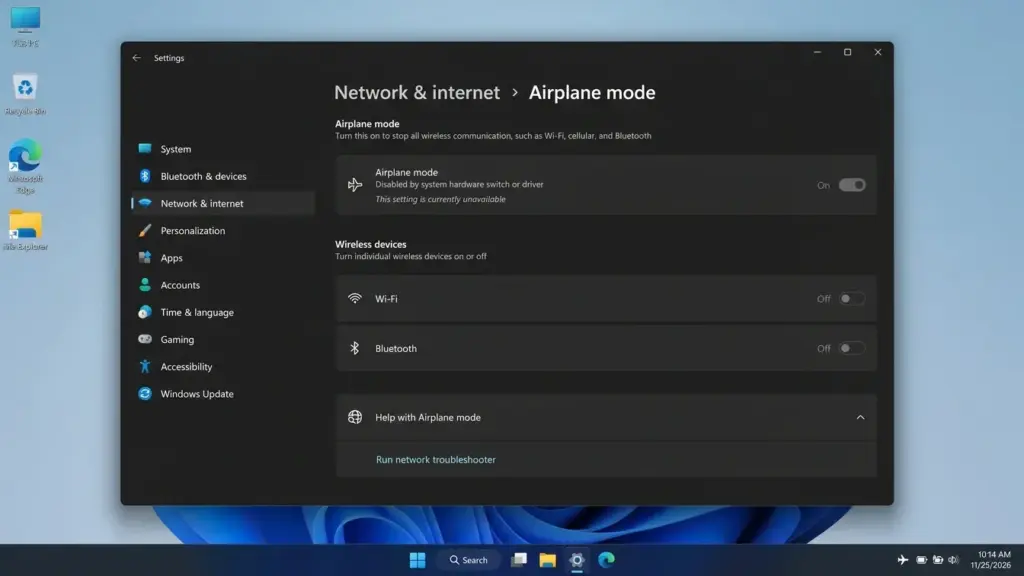
Airplane mode stuck on is usually caused by a hotkey, a stopped service or a driver. Airplane mode turns off Wi-Fi and Bluetooth, and when it stays on, will not turn off, is greyed out or turns itself back on, the steps below find the cause. Work through them in order and test after each one.
Step-by-step: turn Airplane mode off
Step 1: Try both switches
Open the quick settings (click the network icon in the taskbar) and turn Airplane mode off. Then open Settings > Network & internet > Airplane mode and check there too. Turn Wi-Fi and Bluetooth on after that. If your Bluetooth headphones then connect but play no sound, see our guide to fixing Bluetooth headphones that connect with no sound.
You should see: the Airplane mode tile turns grey and the Wi-Fi tile becomes available. If the tile will not change or is greyed out, go to the next step.
Step 2: Check the key and the switch
Many laptops have an Fn key with an airplane icon, and some have a physical wireless switch. Press the key once and check the status light. A stuck key can toggle the mode over and over.
You should see: the status light change when you press the key or move the switch. If nothing changes, the key may need the maker's hotkey driver (Step 7).
Step 3: Restart the PC
Use Restart, not Shut down. Shut down may keep the old state because of Fast Startup (see Step 9).
Step 4: Check the Radio Management Service
- Press Windows + R, type
services.mscand press Enter. - Find Radio Management Service.
- If its status is empty, right-click it and choose Start. If it is running, choose Restart.
- Double-click it. The default Startup type is Manual. If it says Disabled, set it back to Manual and select OK.
You should see: the service shows Running after you start it. If it stops again at once, note the error and continue with the drivers below.
Step 5: Check the adapters
Open Device Manager, expand Network adapters and Bluetooth, and make sure the Wi-Fi and Bluetooth adapters are enabled. A disabled adapter has a small down arrow on its icon: right-click it and choose Enable device. If the adapters are missing, see Windows 11 Wi-Fi not showing up and fix Bluetooth not working.
Step 6: Turn off adapter power saving
In Device Manager, open each adapter's Properties > Power Management and untick Allow the computer to turn off this device to save power. Select OK.
Step 7: Install the maker's hotkey and wireless drivers
Laptop makers provide a hotkey or wireless utility that controls Airplane mode. The name varies by maker (for example a wireless button or hotkey driver). Download the latest from the maker's support page for your exact model, not from a driver-updater tool (see update drivers in Windows 11). Restart afterwards. If you have no network to download it, use another PC or a phone's USB tethering, or an Ethernet cable, and copy the file over on a USB drive.
Step 8: Check the BIOS
In the BIOS, look for a Wireless option or a hotkey setting, and change nothing else. If the BIOS is old, update it only by following update BIOS safely.
Step 9: Turn off Fast Startup and install updates
- Open Control Panel > Power Options > Choose what the power buttons do.
- Select Change settings that are currently unavailable.
- Untick Turn on fast startup (recommended) and select Save changes.
Then install Windows updates in Settings > Windows Update.
Step 10: Reset the network (last resort)
Use Network reset as described in fix Wi-Fi connected but no internet. Warning: it removes every saved Wi-Fi network and password and resets VPN and virtual adapter settings, so note your Wi-Fi password first.
Common mistakes
- Using Shut down instead of Restart to test a fix. Fast Startup can bring the old state back.
- Setting the Radio Management Service to Disabled or leaving it that way. Airplane mode then cannot switch.
- Installing a driver from a driver-updater site. Use the laptop maker's page for your exact model.
- Jumping to Network reset first. It erases your saved Wi-Fi networks, so keep it for last.
A safe way to stay online meanwhile
If you need the internet to download a driver while Airplane mode is stuck, plug in an Ethernet cable (Airplane mode does not turn off a wired connection on most PCs) or share your phone's connection by USB. You do not need to change any setting to do that. If the wired connection fails too, see our guide to fixing Ethernet not working in Windows 11.
Sources
- Airplane Mode Radio Management (Microsoft Learn): Microsoft's documentation for hardware makers. It explains that the PC maker provides the button or switch (and sometimes a status light) for airplane mode, and that Windows reads it and controls the wireless radios by software. That is why Steps 2 and 7 look at the key, the switch and the maker's driver. The page is written for hardware makers, so the Settings steps above come from known Windows behaviour.
More help
For more network and laptop fixes, search by symptom on the PC Repair Atlas homepage.
FAQ
Why is Airplane mode greyed out? A service or a driver is not working. Restart the service and reinstall the adapter drivers.
Why does it turn on by itself? A stuck hotkey or a hotkey driver is often the cause.
Will I lose my Wi-Fi networks? Only if you use Network reset.