How to Fix Ethernet Not Working in Windows 11
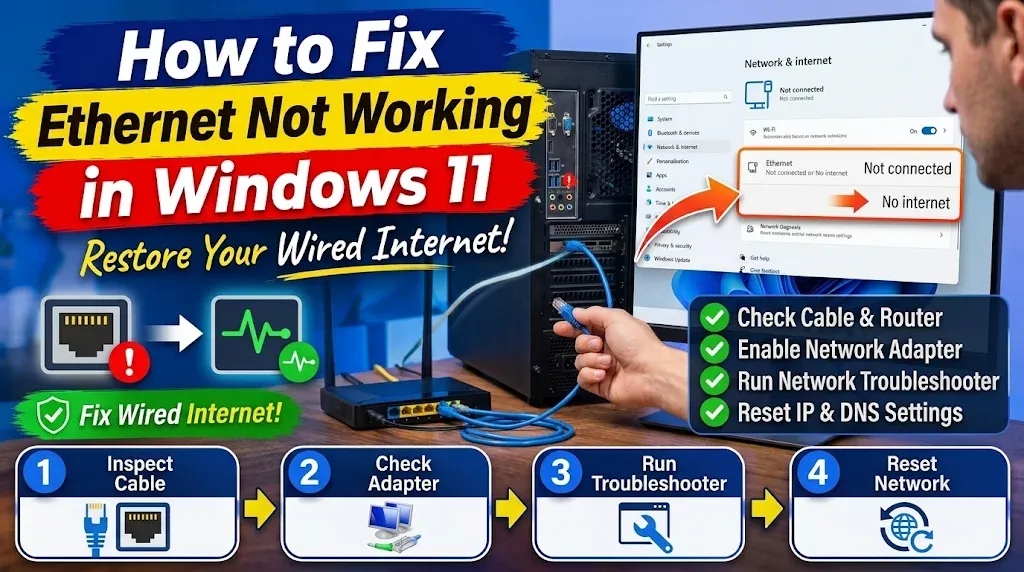
If Ethernet is not working in Windows 11, the cause is usually the cable, the router port or an address problem, not Windows itself. This guide starts with the physical link, then uses ipconfig and three ping commands to show you which part is broken, so you only change what needs changing.
Windows 10 note: Windows 10 reached end of support on October 14, 2025, so it no longer gets free security updates. These steps also work on Windows 10, with slightly different menu names. Consider moving to Windows 11 or enrolling in Extended Security Updates.
Before you start
- You need a second device (a phone is fine) to look up drivers and to test the router.
- Do not open your PC for any step here. Everything below is done with the cable, the settings and the command prompt.
Step-by-step: fix Ethernet not working in Windows 11
Step 1: Check the cable and the link lights
Push the cable firmly into the PC and into the router until each end clicks. Look at the Ethernet socket on the PC and on the router: a small light normally glows or blinks when there is a link.
- Lights on at both ends: the cable and ports are probably fine. Go to Step 3.
- No light at either end: try a different cable, then a different router port.
- Light on the router but not the PC: the PC’s network adapter is off or faulty. Go to Step 4.
If you are using a dock, a wall socket or a switch, plug the PC straight into the router once as a test.
Step 2: Test the router with another device
Connect a phone to the Wi-Fi, or another computer to the same router, and open a web page. If nothing has internet, the problem is the router or your provider. Unplug the router and modem for 30 seconds, plug them back in and wait three minutes. If it still fails, check your provider’s outage page or call them. If other devices work, continue.
Step 3: Read what Windows says
Right-click Start, choose Terminal (or Command Prompt) and run:
ipconfigFind the section called Ethernet adapter Ethernet. Read the IPv4 Address and Default Gateway lines.
- The Ethernet section is missing, or says "Media disconnected": Windows sees no link. Go back to Step 1, then to Step 4.
- IPv4 address starts with 169.254: the PC did not get an address from the router. Go to Step 5.
- An address like 192.168.x.x or 10.x.x.x and a Default Gateway: the PC is connected. Run the three pings below.
Replace 192.168.1.1 with your own Default Gateway number:
ping 192.168.1.1
ping 8.8.8.8
ping google.com
"Reply from" means success. "Request timed out" or "Destination host unreachable" means failure. Read the three results together:
- The gateway fails: the PC cannot reach the router. Try another cable and port, then Step 4.
- The gateway works but 8.8.8.8 fails: the router has no internet. Restart it, then contact your provider.
- 8.8.8.8 works but google.com fails: this is a DNS problem. Go to Step 6.
- All three work but a browser still fails: turn off any VPN, then open Settings > Network & internet > Proxy and turn off Use a proxy server if you did not set one up. If a VPN is involved, see VPN not connecting fixes for Windows 11.
Step 4: Check the adapter in Device Manager
- Right-click Start and open Device Manager, then expand Network adapters.
- Find your Ethernet adapter (the name often includes Realtek, Intel or GbE). If there is none, or only Wi-Fi shows, the adapter is not detected. See the end of this guide.
- If it has a down arrow, right-click it and choose Enable device. If it has a yellow warning, right-click it and choose Disable device, wait ten seconds, then choose Enable device. Device Manager has no "Restart" option, so this is the way to restart an adapter.
- Double-click the adapter, open the Power Management tab and untick Allow the computer to turn off this device to save power.
- Open the Advanced tab. If Speed & Duplex is set to a fixed value, set it to Auto Negotiation. If Energy Efficient Ethernet or Green Ethernet is on, turn it off as a test. Only change these two settings.
Test the connection again. If it still fails, see how to update drivers in Windows 11 safely. On the adapter’s Driver tab, choose Roll Back Driver if it is available and the problem began after an update. Otherwise choose Uninstall device (leave the delete-driver box unticked), restart the PC and let Windows reinstall it.
Step 5: Renew the address when it starts with 169.254
Open Terminal as administrator (right-click Start, choose Terminal (Admin)) and run these one at a time:
ipconfig /release
ipconfig /renew
ipconfig
If the address now looks like 192.168.x.x, it worked. If it is still 169.254.x.x, restart the router. If other devices also get no address from it, the router’s address-giving feature (DHCP) is off or full, which you must fix in the router’s settings page. See your router’s manual for that.
Step 6: Fix DNS when 8.8.8.8 works but google.com does not
In the administrator Terminal run:
ipconfig /flushdnsIf that does not help, open Settings > Network & internet > Ethernet, find DNS server assignment, choose Edit, set Manual, turn on IPv4 and enter 1.1.1.1 as preferred and 8.8.8.8 as alternate (Cloudflare and Google). Save and test. You can switch back to Automatic any time. The DNS flush is one of several caches Windows keeps; our cache-clearing guide explains the others.
Step 7: Turn off Fast Startup and reset the network stack
- Open Control Panel > Power Options > Choose what the power buttons do > Change settings that are currently unavailable and untick Turn on fast startup. Save, then restart the PC.
- If the problem remains, run these in the administrator Terminal, then restart:
netsh winsock reset
netsh int ip reset
Step 8: Use Network reset as a late step
Open Settings > Network & internet > Advanced network settings > Network reset and choose Reset now. The PC restarts and reinstalls its network adapters. It removes saved Wi-Fi networks, VPN adapters and custom DNS settings, so note any work VPN settings first. It does not delete your files. On Windows 10 the path is Settings > Network & Internet > Status > Network reset.
If nothing works
- The adapter is missing from Device Manager: restart once, then use Action > Scan for hardware changes. If it is still missing, the built-in Ethernet port may have failed. A USB Ethernet adapter is an inexpensive workaround, or ask a technician to check the board.
- It works on another cable or another PC but not on this PC: the PC’s Ethernet port or adapter is faulty. Use Wi-Fi or a USB Ethernet adapter in the meantime. If Wi-Fi is then slow, see how to speed up your Wi-Fi.
- Another device is also dead on the same router port: the router port has failed. Use another port.
- If Wi-Fi works but Ethernet does not, you can keep working on Wi-Fi while you test. If Wi-Fi shows "connected, no internet", see Wi-Fi connected but no internet on Windows. If the Wi-Fi option or your networks are missing altogether, see what to do when Wi-Fi networks do not show up.
- If you also see slowdowns or pop-ups, scan with the malware removal guide, and repair Windows files with SFC and DISM.
More help
For other network and startup problems, search by symptom in the PC repair guides on PC Repair Atlas. Once the wired connection works, you can also share files with other PCs: see how to share files between Windows PCs on a network. If you want to share this wired connection with a phone or other device, see fixing a PC mobile hotspot that will not work.
FAQ
Why does Ethernet say connected but have no internet? The cable link works, but the PC may not have a valid address (169.254.x.x), DNS may be failing, or the router may have lost its internet connection. The tests in Step 3 tell you which.
Can a bad Ethernet cable slow the connection? Yes. A damaged cable can cause drops, very low speed or no link. Swapping the cable is the fastest test.
Is it safe to change the DNS server? Yes. Cloudflare and Google DNS are widely used, and you can switch back to automatic at any time.
Will Network reset delete my files? No. It resets only network settings and removes saved Wi-Fi networks and VPN adapters.
Sources
- Fix Ethernet connection problems in Windows (Microsoft Support): checks of the cable and adapter, and the Network reset path in Step 8 for Windows 10 and 11.
- Windows 10 support has ended on October 14, 2025 (Microsoft Support).
Router menus and adapter option names differ between makers, so some wording in Step 4 may not match your PC. These steps have not been run on every PC.