If the Xbox Game Bar not opening problem shows up when you press Windows + G, you are in the right place. The panel may not appear at all, it may flash and close, or a pop-up about "ms-gamingoverlay" may appear. The capture and record buttons can also be greyed out. This article covers only that problem.
The nine fixes go from the simplest to the most involved. Each one says what you should see and what to try if it fails. Stop as soon as the Game Bar panel opens. For other PC problems, the PC repair guides on PC Repair Atlas cover them one at a time.
Safety first: nothing here edits the registry, turns off Windows Security or changes the BIOS. One fix runs a single PowerShell command, which you can repeat safely.
Symptoms at a Glance
What you see
Most likely cause
Start with
Windows + G does nothing
Game Bar is switched off, or the shortcut is blocked
Fix 1 and Fix 2
The panel flashes and closes
A damaged app or a stuck background service
Fix 4 and Fix 5
A pop-up about ms-gamingoverlay
Game Bar was removed or uninstalled
Fix 6 and Fix 7
Record or capture buttons are greyed out
No app in focus, or a driver or update problem
Fix 3 and Fix 8
What Game Bar Does
Game Bar is an overlay. You press Windows + G to open it, then use it to take screenshots, record clips and open your captures. It records only the app that has focus. Its settings sit under Settings > Gaming.
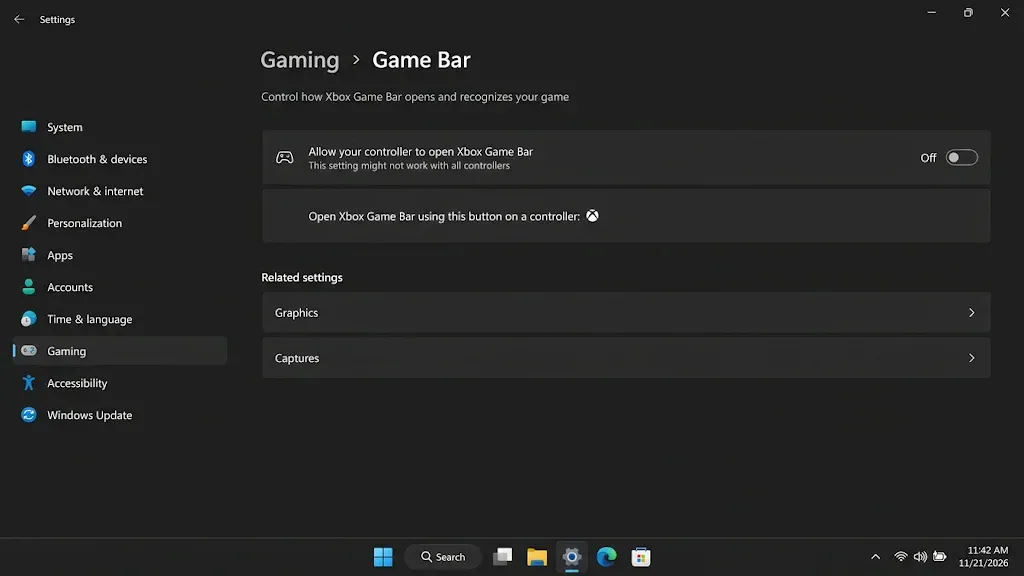
Fix 1: Xbox Game Bar Not Opening? Turn On Game Bar in Settings
Press Windows + I to open Settings.
Open Gaming, then Xbox Game Bar. On some builds the page is named differently, so look under Gaming if the name does not match.
Turn on the switch that lets you open Game Bar. Menu names move between Windows 11 builds, so read the labels closely.
Restart the PC, then press Windows + G.
You should see: the Game Bar panel over a desktop app or window. If the switch was already on, or the panel still does not open, go to Fix 2.
Fix 2: Check the Shortcut and Key Lock
Some keyboards and laptops have a Windows key lock. When it is on, the Windows key does nothing, so Windows + G fails. The lock is often Fn plus a key with a lock symbol, but the key differs by maker, so check your keyboard's manual.
Another app may also use the same shortcut. Close any recently installed tools that add shortcuts, then try again.
In some full-screen games the panel does not appear. To check whether the game is the cause, open the same overlay in a windowed app first. If Windows + G works there, the game's full-screen mode is the likely cause, not Game Bar itself.
You should see: the panel open over a windowed app. If it does not open even there, go to Fix 3.
Fix 3: Focus the Window and Check Captures
Game Bar records the app that has focus. If the desktop, File Explorer or the taskbar is active, the capture buttons can be greyed out. Click inside the app or game window first, then press Windows + G.
Press Windows + I, then open Gaming > Captures.
Check the recording and screenshot options, and the folder where captures are saved. The default folder is Videos\Captures.
Open Gaming > Game Mode. Leave it on unless a game misbehaves.
You should see: the capture buttons become active once a game or app window is in focus. Xbox support's page on capture settings explains each option.
Fix 4: Repair, Then Reset Xbox Game Bar
Warning: Reset clears the app's own settings, so your shortcut choices and capture options go back to their defaults. Microsoft's reset page does not promise anything about your clips, so copy any you want to keep from the Captures folder before you start.
Press Windows + I, then open Apps > Installed apps.
Search for Xbox Game Bar.
Select the three dots, then Advanced options.
Select Repair. Wait for it to finish, then press Windows + G.
If the panel still does not open, return to the same page, select Reset, and confirm.
You should see: the Repair or Reset step finish without an error. Restart, then test Windows + G. If the panel still does not open, go to Fix 5.
Fix 5: Check the Gaming Services App
Game Bar depends on Microsoft's Gaming Services app. If it is missing or out of date, Game Bar may not start. On some PCs, Gaming Services does not show in Installed apps or in Store search. If that happens, skip to Fix 6.
Warning: install or update Gaming Services only from Microsoft Store. Do not download it from other sites.
Open Microsoft Store from the Start menu.
Search for Gaming Services. If it has an Update or Get button, select it.
Warning: this resets the Game Bar app package to its original settings, as Fix 4 does. Type only the command below, and do not paste commands from other sites.
Click Start, type PowerShell, and open Windows PowerShell.
Microsoft's Reset-AppxPackage page says the cmdlet restores an app to its original settings, so it behaves like a freshly installed app. The page is listed in Sources.
You should see: usually no output, or a few lines of text, then the prompt again. Restart and press Windows + G. If PowerShell finds no package at all, Game Bar is probably removed, so go to Fix 7.
Fix 7: Reinstall Game Bar After It Was Removed
If a cleaner tool or an uninstaller removed Game Bar, Windows can still try to open it. That is when the pop-up about ms-gamingoverlay appears. Microsoft Q&A threads describe reinstalling Xbox Game Bar from Microsoft Store to stop it.
Open Microsoft Store and search for Xbox Game Bar.
Select Get or Install, then wait for it to finish.
Restart the PC and press Windows + G.
You should see: the Game Bar panel open, and the pop-up stop appearing. If the pop-up still shows, go to Fix 9.
Fix 8: Update Windows and the Graphics Driver
Pending Windows updates and an old graphics driver can break the capture features. Install all pending updates first. Our guide how to fix Windows Update stuck or failing helps if they will not install.
Then update the graphics driver using how to update drivers in Windows 11 safely. Restart, then test Windows + G.
You should see: the panel and the capture buttons work after the restart. If they still do not, go to Fix 9.
Fix 9: Check System Files and Test a New Account
Damaged system files can stop built-in apps from starting. Run the checks in our guide to repairing Windows system files, then restart.
If Game Bar still fails, test a new local account. Open Settings > Accounts > Other users, add a local user, sign in to it, and press Windows + G. If Game Bar works there, the problem is most likely in your main account profile. Remove the test account when you are done.
You should see: the panel open in the test account. If it fails there too, the problem is in Windows itself, and a Windows repair or support contact is the next step.
Why does Windows + G not open the Game Bar? Usually Game Bar is switched off in Settings, the Windows key is locked, or the app is damaged. Start with Fixes 1 and 2.
Will resetting Xbox Game Bar delete my clips? The reset clears the app's own settings. Microsoft's reset page does not say what happens to your files, so copy any clips you want to keep first.
Can I uninstall Xbox Game Bar? You can, but Windows may then show the ms-gamingoverlay pop-up. Reinstall it from Microsoft Store to stop the pop-up.
Is the PowerShell command safe? Copy only the single line from this guide. It resets the Game Bar package to its original settings, as Fix 4 does, so saved Game Bar settings may be cleared.
Note: these steps follow Microsoft's documentation and the Game Bar behaviour described on Microsoft and Xbox support pages. They were not run on a real PC for this article. Menu names can differ between Windows 11 builds, and some PCs hide Game Bar by design.