Windows 11 Delivery Optimization: Why It Uses Your Bandwidth and How to Limit It
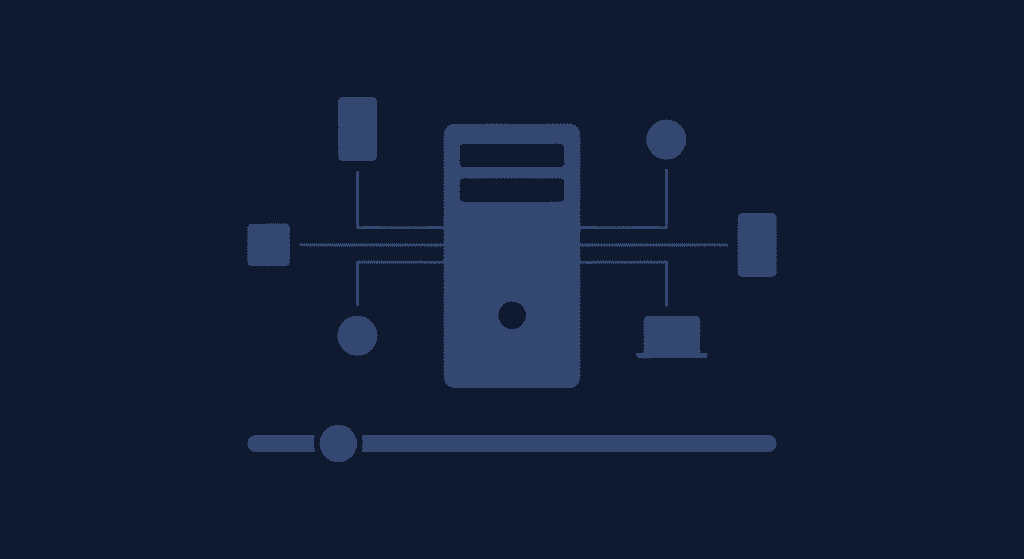
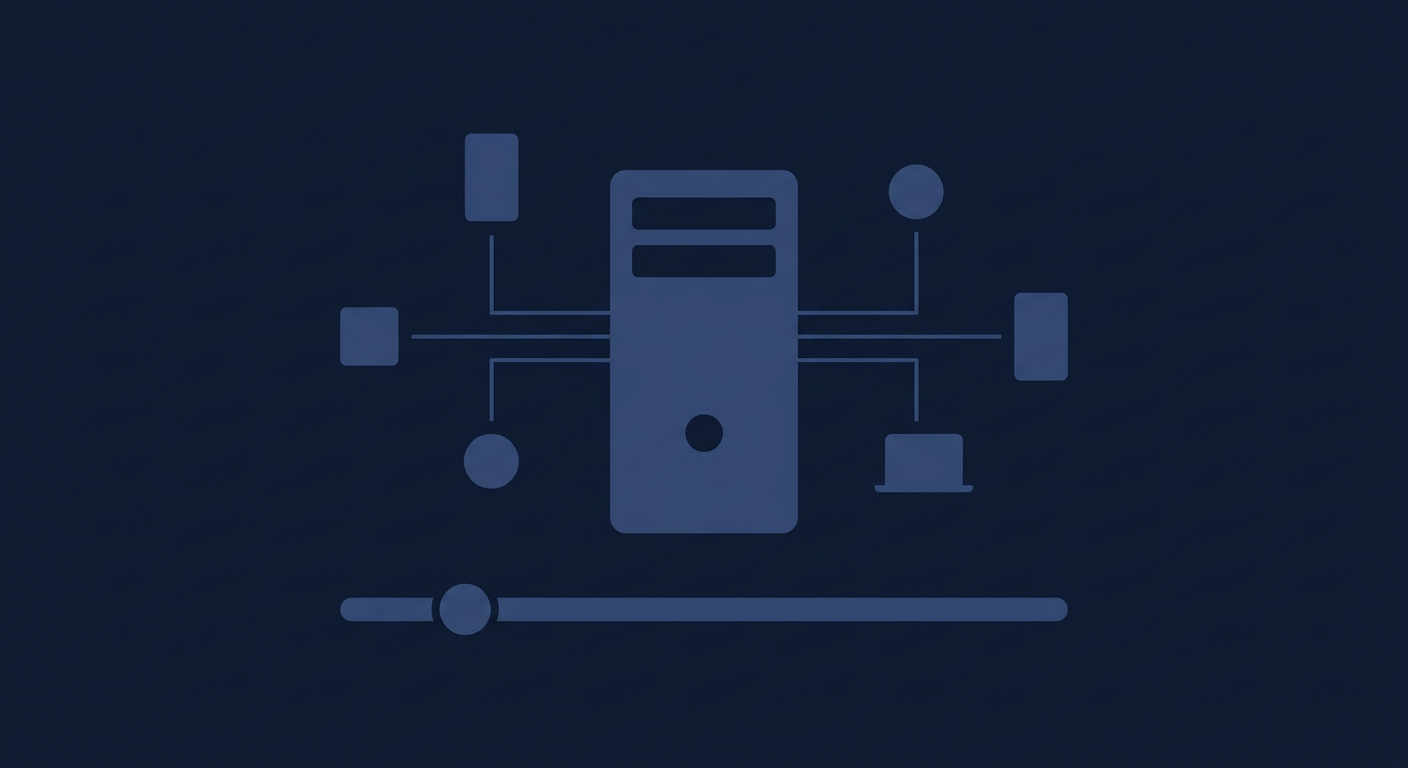
Delivery Optimization Windows 11 is the built-in system that downloads Windows updates and Microsoft Store apps in small parts. Some of those parts can come from other PCs, not only from Microsoft. That is why it can use your bandwidth, and why it may upload data you did not expect.
This guide explains what the feature does, how to see its activity, and how to limit it. It also covers when the default is fine to keep.
Last reviewed: November 24, 2026. Steps were compared with Microsoft documentation where a page exists; none were run on a real PC. The top picture is an illustration, not a screenshot.
Quick answer
Short version
- Delivery Optimization fetches update and Store files in parts, from Microsoft and sometimes from other PCs.
- It uses download bandwidth, and it can upload parts to other PCs, which uses your upload bandwidth.
- In Windows 11, you can turn off Allow downloads from other devices or limit it to your local network.
- Advanced options let you cap download speed, upload speed and the monthly upload data.
- If your connection is fast and has no data cap, the default is usually fine to leave alone.
In this guide
- What the feature does
- Why it uses bandwidth or uploads
- How to see its activity
- Turn off or limit sharing with other PCs
- Set download and upload limits
- Metered connections
- Delivery Optimization Files in storage
- Windows 10 differences
- Is it safe?
- When to leave the default alone
- Decision tree for slow updates
- Frequently asked questions
Delivery Optimization Windows 11: what it does
How the parts are gathered
Windows does not always download a file from one place. Delivery Optimization breaks the download into smaller parts. It then takes each part from the fastest source it can find, as described in Microsoft's overview.
Those sources include Microsoft itself. They can also include other PCs on your local network, or PCs on the internet that already have the same file. Microsoft's support page describes this as sharing parts between your PC and others.
What else it covers
The feature is not only for Windows Update. Microsoft Learn says it also handles Microsoft Store apps and other content, such as Microsoft Defender definition updates and Microsoft Edge updates. Your settings apply to all of it.
Background tasks can keep running after a big update. If you notice that, our guide on background activity after an update explains the usual causes. Store downloads that stall are covered in our Store download guide.
Note
Turning Delivery Optimization off does not turn off updates. Microsoft says each device then downloads its updates directly from Microsoft.
Why it can use bandwidth or upload data
Downloads take bandwidth
When Windows fetches update parts, it uses your connection like any other download. On a slow line, this can slow web pages, video calls and games while it runs.
Automatic updates often run in the background. The slowdown can appear with no warning. Background upkeep that runs during idle times is covered in our guide to how Windows Automatic Maintenance works. If your Wi-Fi also drops during large downloads, the problem may be the link, not the update. Check Wi-Fi that keeps dropping before you change any sharing settings.
Uploads happen too
Delivery Optimization also sends updates and apps from your PC to other PCs, based on your settings. Your upload speed can rise without you starting anything. On a capped plan, that upload data can count against you.
Local sharing still uses your Wi-Fi or Ethernet link. So it can slow other devices at home while it runs.
| Traffic | Where it goes | What you may notice |
|---|---|---|
| Download parts | From Microsoft or from other PCs | Slower page loads during updates |
| Upload parts to local PCs | Devices on your home or office network | Slower file copies or video calls |
| Upload parts to internet PCs | PCs outside your network | Higher upload use on a capped plan |
Defaults vary by edition
Microsoft Learn says peer sharing on the local network is enabled by default in some Windows editions. It applies when the devices sit behind the same network address translation, which means the same router, over Ethernet or Wi-Fi. The page names Enterprise, Professional and Education.
The page does not say the same for Home. So this guide does not claim a default for your edition. Check the setting itself, as shown below.
How to see Delivery Optimization activity
Activity monitor shows where your downloads came from and how fast they ran. It also shows upload totals for the current month. Look at it before you change anything, so you know which side is using data.
SettingsWindows UpdateAdvanced optionsDelivery OptimizationActivity monitor
- Open Settings. Press Windows + I.
- Go to Windows Update. Select it in the left column.
- Open Advanced options. Then select Delivery Optimization.
- Select Activity monitor. Read the download and upload totals.
You should see: a breakdown of downloads by source, the average speed, and upload stats for the current month.
If this does not work: the numbers may be empty if nothing has moved this month. Menu names also vary by version, so look for the nearest matching item under Delivery Optimization.
How to read your result
If most of the data came from other PCs, sharing is the cause. If most came from Microsoft, the download itself is the load, and a download limit will help more.
Turn off or limit sharing with other PCs
You can keep sharing on your local network and turn off sharing with internet PCs. You can also turn sharing off completely. Either way, updates still come from Microsoft.
Before you start
On a home network with several PCs, turning sharing off may make each PC download more from Microsoft. Expect that, especially on a slow line.
SettingsWindows UpdateAdvanced optionsDelivery OptimizationAllow downloads from other devices
- Open Delivery Optimization. Use the menu path above.
- Find Allow downloads from other devices. If it is Off, switch it On so the choices appear.
- Pick a choice. Choose Devices on my local network to stop sharing with internet PCs. Or switch the option Off.
You should see: the setting show your new choice, with no error message.
If this does not work: the option may be greyed out. That usually means an organisation manages this PC. Ask your IT team, since they set the policy.
Local network or internet
Devices on my local network means PCs behind the same router. Devices on the internet and my local network adds PCs outside your home. Most home users only need the local choice, or Off.
Set download and upload limits
Advanced options lets you cap how much bandwidth Delivery Optimization uses. Microsoft says these limits apply only to automatic update downloads. If you start a download yourself, such as a manual Windows Update check or a Store app, the limits are not applied.
Download limits
You can set an absolute limit in Mbps, or a percentage of measured bandwidth. Pick background downloads, foreground downloads, or both. Lower values use less bandwidth, but updates arrive more slowly.
Upload limits
Upload options let you set a percentage for uploads to PCs on the internet. You can also set a monthly upload limit from 1 to 500 GB. The page shows how much your PC has uploaded so far, and how much is left.
SettingsWindows UpdateAdvanced optionsDelivery Optimization
- Open Delivery Optimization. Use the path above.
- Set the download limit. Choose absolute or percentage, then pick a value.
- Set the upload limits. Choose a percentage and a monthly upload limit.
You should see: your limit values shown beside each option, and the monthly upload figure with its remaining amount.
If this does not work: the upload options may only appear after the download options are set. Set the download limit first, then open the page again.
| Setting | What it does | When to change it |
|---|---|---|
| Allow downloads from other devices | Chooses local network only, internet and local network, or Off | When you want less upload, or no sharing |
| Download limit, absolute | Caps download speed in Mbps | When updates slow the whole connection |
| Download limit, percentage | Uses a share of measured bandwidth | When you want a gentler cap |
| Upload limit, percentage | Caps upload speed to PCs on the internet | When uploads affect your other work |
| Monthly upload limit | Sets a data cap from 1 to 500 GB | On a capped or metered plan |
| Activity monitor | Shows sources, speed and upload totals | Before you change anything |
How metered connections change things
Microsoft's FAQ says that on a metered or capped connection, Delivery Optimization will not automatically download or send parts of updates to PCs on the internet. The FAQ covers internet peers only. It does not say the same for local devices, so check your sharing setting if you need certainty.
To mark a connection as metered, use that connection's own settings page. Menu names vary by version, so look for a metered connection option under your Wi-Fi or Ethernet connection. This is general guidance, not a Microsoft step.
If your PC shares a phone connection, the setup can fail in other ways. Our phone hotspot troubleshooting guide covers that case.
Why Delivery Optimization Files appear in storage
Microsoft's support page says Delivery Optimization creates a local cache. It keeps downloaded files there for a short time. The page also says the cache clears itself after a short period, or when its contents take up too much disk space.
You may see a Delivery Optimization Files item in the Temporary files list under Storage. Menu names vary by version. This article only explains what the item is.
Cleanup steps belong to other guides. Our Windows Update cleanup guide covers the removal steps. Files from old Windows installs are in our old Windows install guide. If Storage itself is not working, see Storage Sense that does not run. For a drive that is nearly full, read what to do when the C drive is full.
Some space is set aside by Windows for its own use. Our system and reserved storage guide explains that separately.
Why the cache exists
The cache lets Windows reuse parts it already fetched. That is why the same update does not need to come from the internet again on the same PC. It is short-lived by design, so the item shrinks over time.
Windows 10 differences
On Windows 10 the path is different. Open Settings, select Update & Security, then select Delivery Optimization. The advanced options and the activity monitor sit on the same page.
SettingsUpdate & SecurityDelivery Optimization
The sharing choices are worded a little differently. Microsoft's Windows 10 steps offer PCs on my local network, and an Off option. Choose the one that matches your goal. Menu names vary by version, so check the labels on your own screen.
Note
Support for Windows 10 ended on October 14, 2025. Consumer Extended Security Updates run until October 12, 2027. See the Microsoft end-of-support page for the details.
Is Delivery Optimization safe?
Microsoft's FAQ says Delivery Optimization does not access your personal files or folders. It also says it does not change any files on your PC. It downloads the same updates and apps you would get from Windows Update and Microsoft Store, using the same security measures.
How parts from other PCs are checked
Parts from other PCs are checked as well. According to the FAQ, Delivery Optimization gets information securely from Microsoft to check the authenticity of each part. The check happens again before the update is installed.
This article does not go beyond that wording. If you still prefer no sharing at all, the steps above turn it off.
When to leave the default alone
Many PCs do not need any change. Leave the defaults as they are if these points match your situation.
- Your internet is fast. Updates finish quickly, and nothing else slows down.
- You have no data cap. Upload use does not cost you money.
- You have one PC on the network. Sharing has little to help with.
- Updates arrive on time. Your PC stays current without any work from you.
Look at the rest of the PC first
Slow PCs often have more than one cause. Startup load and background tasks can matter more than updates. Our guide on startup apps you can safely disable covers that. For a wider list, see general speed-up steps. A registry cleaner is not one of the usual fixes for slow or failing updates, as explained in whether a registry cleaner can fix Windows Update errors.
If the slowdown began right after a feature update, our guide on a slow PC after a Windows 11 update lists the other usual causes.
A regular routine also helps. Our cleanup schedule for Windows 11 sets out a simple rhythm.
If the PC is managed by an organisation, its policy may set these choices, and the options may be greyed out.
Decision tree for slow internet during updates
Work through the tree from the top. Stop at the first answer that fits your PC.
- Does the slowdown happen only during downloads or updates?
- No. Check the Wi-Fi or Ethernet link first, then your VPN if you use one. A VPN that will not connect is covered in our VPN guide.
- Yes. Open Activity monitor and read the source breakdown.
- Most data came from other PCs. Set sharing to local network only, or Off.
- Most data was uploaded. Set a lower upload percentage and a monthly upload limit.
- Most data came from Microsoft. Set a download limit in Mbps or a percentage.
- Does the disk stay busy after the update finishes?
- Yes. Search indexing can run for a while. See search indexer high disk use.
- No. Continue to the next question.
- Is the update stuck, or does it keep failing?
- Yes. Stop changing sharing. Follow our stuck or failing update fixes first.
- No. Look at the CPU, using the Antimalware Service Executable CPU guide if that process is high.
How to read your result
If the tree ends at a download or upload limit, the update works but competes with your other traffic. If it ends at sharing, your PC is probably sending or receiving parts from other PCs. Either way, change one setting at a time, and test the connection after each change.
Frequently asked questions
About the settings
Can I see which PCs my updates came from?
Activity monitor shows a breakdown by source for the current month. It separates Microsoft from other PCs, so you can see the balance before you change anything.
Does turning off sharing stop my updates?
No. Microsoft says turning Delivery Optimization off does not disable updating. Each device then downloads its updates directly from Microsoft.
Do bandwidth limits apply to every download?
No. Microsoft says the limits apply to automatic update downloads only. A download you start yourself is not limited by these settings.
What is the difference between local network and internet sharing?
Local network sharing uses devices behind the same router. Internet sharing can reach PCs outside your home. Most home users are fine with the local choice, or with Off.
About safety and cost
Does a monthly upload limit stop downloads?
No. The monthly upload limit only covers data your PC sends to other PCs. It shows how much has been uploaded and how much is left in the month.
Does Delivery Optimization read my personal files?
Microsoft's FAQ says it does not access your personal files or folders. It also says it does not change any files on your PC.
Can I remove the Delivery Optimization Files item?
Microsoft says the cache clears itself after a short time, or when it takes too much space. For removal steps, use our Windows Update cleanup guide instead of deleting files by hand.
Why is the sharing setting greyed out?
Microsoft says the option can be greyed out when your organisation manages the device and requires Delivery Optimization. In that case, your IT team sets the choice, so ask them before you try to change it.
More help
If sharing is not the cause, the Repair Assistant can help you narrow down the problem with a few questions. You can also browse our PC repair guides for other Windows 11 topics.
Sources
- Delivery Optimization in Windows: settings paths for Windows 10 and 11, sharing choices, bandwidth and monthly upload limits, activity monitor.
- Windows Update Delivery Optimization and privacy: FAQ on what is shared, verification of parts, and metered connections.
- What is Delivery Optimization?: the overview, the content it covers, and default sharing on local networks.
- Configure Delivery Optimization for Windows: deployment-side settings, and where activity is reviewed.
- Monitor Delivery Optimization: how Delivery Optimization activity is monitored on managed PCs.