Windows 11 C Drive Full? Find What’s Taking Space and What’s Safe to Delete
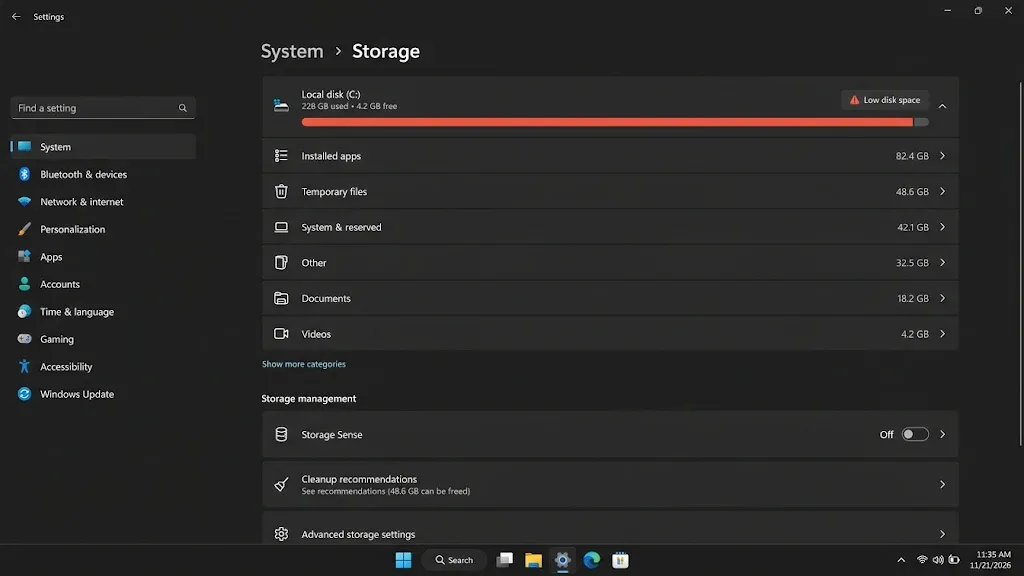
A Windows 11 C drive full warning is easy to fix once you know where the space went. Start with Settings > System > Storage. The two large groups most people find, System & reserved and Other, are normal and are not something you can clear one file at a time. A few safe clean-ups often free a good amount of space. If the PC is slow as well, see signs a Windows 11 PC needs cleaning. For the full clean-up routine, including Storage Sense, Disk Cleanup and restore points, use our guide How to Free Up Disk Space on Windows 11.
Windows 11 C drive full: why the space disappears
Windows and installed apps write to C: all the time. Updates leave files behind, apps keep caches, and Windows keeps system files for sleep, recovery and updates. Most of this is intended. The problem starts when one item grows far beyond what it should, or when a large file was saved to C: by mistake. This article covers the cases that the usual clean-up does not explain. For the caches themselves, see clear cache in Windows 11 and 10.
Step 1: Show every storage category
Open Settings > System > Storage and select Show more categories. Look at these groups:
- System & reserved: space Windows keeps for system files and updates. You cannot empty it from this page.
- Temporary files: cache and leftovers that can usually be cleared.
- Apps & features: installed programs and their files. Large games often sit here. If a program will not uninstall, see how to fix an app that will not uninstall.
- Other: a mixed group that Windows cannot sort. It can hold app data and some system files.
You should see: a list of categories with sizes that adds up to the used space on C:. If Show more categories is missing, use the Storage page as it is. Menu names change between Windows 11 builds, so look for the closest match.
Step 2: Find the big folders with File Explorer
Windows does not need a third-party tool for this. Open This PC, open the C: drive, and right-click a folder. Select Properties and read the Size on disk figure. Repeat for the folders that look large.
Some folders are hidden by default. Select View > Show > Hidden items to show them. Then type size:gigantic in the File Explorer search box to list files bigger than 128 MB.
You should see: folder sizes and a list of large files. Use this list to find your own large files, such as videos, ISO images and old installers.
If this fails: if a folder cannot be opened, you may not have permission to read it. Do not change permissions to get in. Look at the parent folder and the other groups in Storage instead.
Do not delete anything inside the Windows, Program Files or ProgramData folders by hand. Removing those files can break installed programs or Windows itself. If a large folder is there and you are not sure what it is, search for its name on the program's own support page before you touch it. To see what sits in AppData and ProgramData, read what is inside AppData and ProgramData.
Step 3: Check the space that is easy to miss
These items are often the hidden cause of a full drive:
- Hibernation file (hiberfil.sys): it can be several gigabytes. If you never use hibernate,
powercfg /hibernate offremoves it. This also turns off Fast Startup and the Hibernate option, so read our guide on the Hibernate option missing in Windows 11 first. To see why it gets so large, read why hiberfil.sys is so large. To undo it, runpowercfg /hibernate on. - Page file (pagefile.sys): Windows uses it as extra memory and manages its size. Do not delete it. For background, see how to increase virtual memory.
Older update and restore files
- Previous Windows installation(s) (Windows.old): after a feature update, Windows keeps the older version so you can roll back. Windows removes it on its own after a period. Do not delete the folder by hand. Use the Storage or Disk Cleanup option only if you are sure you will not need to roll back. To see what to check first, read what to check before removing Windows.old.
- Restore points: search for Create a restore point, select C: on the System Protection tab, and choose Configure. The Current usage line shows how much they use. Do not select Delete unless you accept losing every restore point. Cleaners can also remove them, so check what a PC cleaner may delete first.
- WinSxS folder: File Explorer often reports this folder as larger than the space it really uses. The supported way to reduce it is
DISM /Online /Cleanup-Image /StartComponentCleanupin an administrator Command Prompt. Never delete its contents by hand. The/ResetBaseoption also removes the ability to uninstall existing updates, so use it only if you accept that. For the reason behind the size, see why the WinSxS folder looks so big.
Cloud files, caches and your own folders
- OneDrive files: files you keep on the cloud can take space when they are downloaded. Right-click a folder and choose Free up space to make them online-only. If OneDrive is not syncing, see how to fix OneDrive not syncing.
- Browser caches: clear them from the browser's own settings, not from a folder on C:.
- Your own folders: Downloads, Videos and Pictures often hold the largest files, and they are yours to move or remove. Duplicate copies in these folders can add up too; see how to find and remove duplicate files in Windows 11 safely.
What each clean-up option really deletes
The clean-up options look similar, but their effects are different. For the Storage page's own list, see what each Cleanup recommendation removes. Before you tick a box, read what it removes:
- Temporary files: cache and leftover files that apps and Windows can rebuild. Usually safe to clear. If files refuse to delete, see temporary files not deleting in Windows 11.
- Recycle Bin: permanently removes the files inside. Check it first, because the files cannot be restored afterwards from there.
- Downloads: deletes your own downloaded files. Leave it unticked unless you have moved what you need.
- Windows Update Cleanup: removes old update files. Afterwards you usually cannot uninstall those updates. See how to uninstall a Windows update and roll back before you choose it.
- Previous Windows installation(s): removes the older Windows version kept for rollback. You cannot go back to that version afterwards.
- Device driver packages: removing these can make it harder to roll back a driver later. Leave them unticked unless you have a reason to remove them.
- Delivery Optimization Files: cached update files. Windows can download them again when it needs them.
- Thumbnails: preview images that Windows rebuilds as you browse folders.
- System error memory dump files: crash records that help with blue-screen troubleshooting. Keep them if you are investigating a crash.
- OneDrive Free up space: files become online-only and need an internet connection to open again.
- Storage Sense: runs on a schedule you choose. Check its settings before you allow it to empty the Recycle Bin or Downloads folder. It can also make cloud-synced files online-only. Files marked as always kept on this device are not removed. Storage Sense is off by default. If it will not run at all, see fixing Storage Sense when it does not run.
If a clean-up finishes but your free space does not change, see Disk Cleanup not freeing space in Windows 11. For a beginner walkthrough of the tool, see our step-by-step Disk Cleanup walkthrough. For an item-by-item comparison of what Windows Disk Cleanup and third-party cleaners can reach, see our side-by-side look at Disk Cleanup and third-party disk cleaners.
Move personal files safely
If your own files fill C:, move them rather than delete them. In Settings > System > Storage > Advanced storage settings, look for Where new content is saved to change the default location for new files. For personal folders such as Documents, Downloads, Pictures, Music and Videos, open File Explorer, right-click the folder, choose Properties > Location > Move, and pick a folder on another drive. The Location tab appears only for these personal folders. For any other folder, copy it to the new drive instead. For a USB or external drive, see cleaning up an external hard drive on Windows.
- Back up the folder first. Our guide on how to back up Windows PC files explains the options.
- Copy the files to the new drive, not just move them.
- Open a few copied files to check they work.
- Only then delete the originals on C:.
You should see: the folder's new location in its Properties, and the free space on C: rising after you delete the originals. Large games are a special case, because moving them without a fresh download needs its own steps. See how to move PC games to another drive without re-downloading.
If the space keeps disappearing
If the drive fills again within days, one category is growing. To check real free space before and after each clean-up, see our guide to why a C: drive keeps filling up after a disk cleaner. Open Settings > System > Storage again and compare the sizes with your earlier notes. A runaway log file or a sync folder can be the cause. Malware can also fill a drive, so run a scan using how to remove a virus or malware from a Windows PC. To keep space free after a clean-up, follow a weekly, monthly and yearly cleanup schedule.
A failing drive can also cause odd storage behaviour. Check its health with how to check hard drive and SSD health with SMART. If the drive is simply too small for your files, a larger drive is the real fix. For a 64GB or 128GB laptop, see our guide to freeing space on small Windows laptops. Compare options in how to choose an SSD: SATA vs NVMe.
If you want a quick overview of built-in tools, see free PC cleaner tools in Windows 11. Remember that a cleaner tool, including any from our overview of PC cleaners for Windows 10 and 11, is never a substitute for checking what a folder contains. If a cleaner reports gigabytes freed but free space on C: barely moves, see how to check real free space after a cleaner runs. Pop-ups that claim your drive is full of threats and push a paid cleaner are a separate risk, covered in our guide to fake PC cleaner warning pop-ups. Still on Windows 10? See cleaners after Windows 10 support ends.
FAQ
How much free space should I keep on C:? A common rule of thumb is to keep roughly 15 percent of the drive free, but that is general guidance, not a Microsoft figure. Microsoft does not give one fixed number, because feature updates need different amounts of space. Windows will tell you if an update cannot install for lack of room.
Does deleting temporary files remove my documents? No. Temporary files are cache and leftovers. Your documents are in folders such as Documents, Desktop, Pictures and Downloads.
Is Disk Cleanup safe? Generally, yes, as long as you only tick items you recognise. Read the description of each option first, as explained above.
Should I turn off hibernation to free space? Only if you never use hibernate. The hibernation file is removed by powercfg /hibernate off, and you can turn hibernate back on later with powercfg /hibernate on.
More help
For more step-by-step fixes, browse the PC repair guides on this site.
Sources
- Microsoft Support, Free up drive space in Windows
- Microsoft Support, Storage settings in Windows
- Microsoft Support, Manage drive space with Storage Sense