Free PC Cleaner for Windows 11: 6 Built-In Tools That Work
You may not need to download a free PC cleaner. Windows 11 already includes tools that clear temporary files, empty the Recycle Bin, show which apps take the most space and list the programs that start when you sign in.
Those tools cover most of the jobs cleaner programs advertise, and they come from Microsoft, so there is nothing new to install. To choose between free and paid tools for a specific need, see our guide to the main types of cleanup tool compared. Our overview of PC cleaners for Windows 10 and 11 covers the same question for Windows 10 as well. Cleaning is still worth doing now and then, but it is not a speed fix. If your PC is slow because of its hardware or a failing drive, a cleanup will change little. Registry cleaners are often sold as speed fixes too, so see how a PC cleaner differs from a registry cleaner. For a closer look at manual cleanup versus a cleaner program, read our comparison.
This guide covers the six built-in tools, shows what each one will and will not do, and ends with a routine you can run in about ten minutes. Microsoft’s own optional cleanup apps are covered in a separate section near the end.
Is There a Free PC Cleaner Already in Windows 11?
Yes, for most everyday jobs. Windows 11 has tools for temporary files, storage, installed apps, startup entries and malware checks. You do not need to download anything to use them. Menus change between Windows builds, so if a label looks different on your screen, search Settings for the feature name. If a paid cleaner has already started a subscription you did not want, see our guide to cancelling a PC cleaner free trial.
What Cleaner Programs Usually Promise
Most cleaner programs look for the same kinds of clutter. These build up during normal use:
- Temporary files that programs create for a task and do not always delete.
- Caches and thumbnails that Windows and apps can rebuild.
- Recycle Bin contents, which stay on the drive until the bin is emptied or a setting removes them.
- Startup entries that open programs every time you sign in.
- Unused apps that take up room.
- Large or old files you have forgotten about, such as past downloads.
Windows can reach each of these. For a step-by-step route through the caches these tools do not cover, see our guide to the Windows caches and how to clear them. The comparison table later in this guide matches each claim with the Windows tool that covers it.
What a Cleaner Program Cannot Do
No cleaner, free or paid, can do these things:
- Repair a failing drive or a damaged file system.
- Add memory, replace a processor or make a slow hard drive as fast as an SSD.
- Guarantee that a virus is gone. Malware hidden in protected areas needs a full scan and sometimes more steps.
- Make a PC run faster than its hardware allows.
If your problem falls into one of these groups, cleaning is the wrong first step. The section on when cleaning will not help points to the right guides.
The Six Built-In Tools
Work through these in order and check the free space after each one. Microsoft’s Microsoft Support guide to freeing up drive space covers the same tools and gives steps for both Windows 11 and Windows 10.
1. Cleanup recommendations
Where: Start > Settings > System > Storage > Cleanup recommendations.
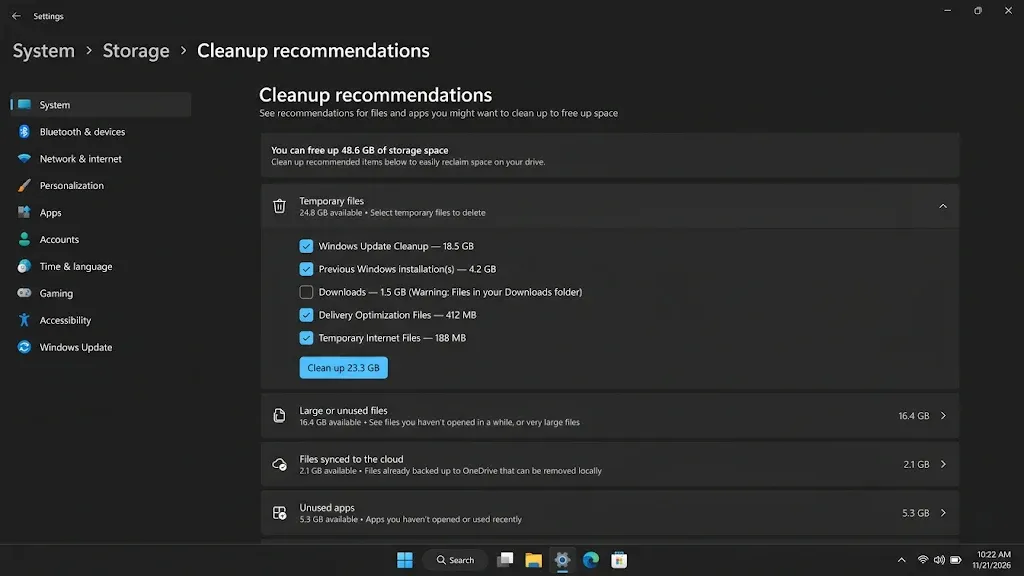
What it clears: Windows lists four groups: Temporary files, Large or unused files, Files synced to the cloud and Unused apps. Review each group, select the items you accept, then choose Clean up for that section. Windows shows how much space each selection will save before you remove anything.
You should see: the amount of space each group would free, shown beside it.
Caution: If it has been fewer than 10 days since you upgraded Windows, the previous version of Windows is listed as a system file you can delete. Deleting it removes your option to go back, and this cannot be undone. Leave it alone unless you are sure you will not need to roll back. For the full storage routine, see our storage guide for Windows 11.
If you see a Low Disk Space error: Microsoft notes that after you use Cleanup recommendations, the Temp folder can keep filling with Microsoft Store (.appx) files. Its free-up-space guide describes how to reset the Store, clear its cache and run the Windows Store Apps troubleshooter. If the drive keeps filling up again after clean-up, see our guide to what refills the C: drive after a clean-up.
For what each Cleanup recommendations item does, see Windows 11 Cleanup recommendations explained.
2. Storage Sense
Where: Start > Settings > System > Storage, then set Storage Sense to On.
What it clears: Storage Sense is off by default. Microsoft says it may turn itself on to clean select temporary files if your PC runs low on space and you have never used it, and then notify you. With default settings, it runs when the device is low on disk space and removes unnecessary temporary files. Recycle Bin content is deleted after a period of time, which you can change. Downloads and cloud content are not touched unless you set them up to be. For how to choose the cleaning options that suit your PC, see our guide to PC cleaner settings.
You should see: the Storage Sense switch set to On.
Caution: Storage Sense works on the system drive (C:) only. For other drives, go to Start > Settings > System > Storage > Advanced storage settings > Storage used on other drives. Read Microsoft’s Storage Sense article before you change the Downloads rule.
3. Temporary files, and Disk Cleanup for older routes
Where: Start > Settings > System > Storage, then select Temporary files under disk usage.
- Open Start > Settings > System > Storage and wait for Windows to finish calculating.
- Under disk usage, select Temporary files. Windows lists each category with its size.
- Tick only the categories you recognise. Leave Downloads unticked unless you have checked those files yourself. Downloads is not cleaned unless you set that up, so treat any Downloads entry in this list with care.
- If Previous Windows Installation(s) appears, read the caution below before you tick it. Microsoft lists the previous version as a system file under Cleanup recommendations, so its placement here may differ by build.
- Choose the button that starts the removal. Its label can differ between Windows builds.
You should see: each category with its size, and the free space on C: rising once the removal finishes.
Caution: Previous Windows Installation(s) holds the files that let you go back to your earlier version of Windows. Once it is deleted, that cannot be undone. Within 10 days of an upgrade, Windows lists it as a system file you can delete, so only remove it when you are sure.
Disk Cleanup: You can still open it by searching the taskbar for Disk Cleanup and choosing drive C:. Start with the Storage settings route above. If the tool itself will not open, closes at once or freezes on Calculating, see why Disk Cleanup will not open and how to fix it. The previous-version note also applies if you choose Clean up system files. For a side-by-side comparison of Storage Sense and Disk Cleanup, see our separate guide. For a beginner walkthrough of the tool, see our full Disk Cleanup walkthrough.
4. Installed apps
Where: Start > Settings > Apps > Installed apps.
Microsoft’s uninstall guide gives the same path and says to select More > Uninstall for each app.
What it clears: Programs you no longer use, removed through their own uninstallers. Look at the size shown for each entry to find the largest ones first.
You should see: the size beside each entry that reports one.
Caution: Some entries are drivers or hardware utilities that a device still needs, so check the name first. Our guide to uninstalling programs completely covers leftover files, and our guide to removing preinstalled software covers apps that came with a new PC.
5. Startup apps
Where: Start > Settings > Apps > Startup, or the Startup apps tab in Task Manager (right-click Start and select Task Manager).
What it clears: Nothing is deleted. Setting an entry to Off stops that program from starting automatically at sign-in, which can reduce background activity.
You should see: an On or Off switch for each entry in Settings. In Task Manager, a disabled entry shows None in the startup impact column.
Caution: Switch off only entries you recognise as optional. Our startup guide explains how to decide, and Microsoft’s startup article covers both locations.
To get a full boot without turning Fast Startup off, see Windows 11 Fast Startup.
6. Windows Security scan
Where: Windows Security > Virus & threat protection > Quick scan. For the Windows Security app in general, see Microsoft’s Windows Security article.
What it clears: A quick scan checks for threats and reports what it finds. It does not clear clutter or speed up the PC. To check storage capacity and other device health rather than threats, open the Device performance and health page in Windows Security.
You should see: a results page after the scan finishes.
Caution: The Microsoft Defender Offline scan is under Scan options: choose Virus & threat protection > Scan options, select Microsoft Defender Offline scan, then select Scan now. Microsoft’s Defender Offline scan article says the device restarts to run it, so save your work first. If the scan finds something you cannot remove, follow our malware removal guide. If Windows Security will not turn on at all, see our guide to Defender being turned off.
What Cleaner Programs Claim, and Which Windows Tool Covers It
The table matches common claims with the Windows tool that covers them, and says what each tool will not do. For a closer look at what each one can reach, see our comparison of Windows Disk Cleanup and third-party disk cleaners.
| What cleaner programs claim | Windows 11 tool that covers it | What it will not do |
|---|---|---|
| Remove temporary files | Temporary files, or Storage Sense | Touch Downloads or cloud files unless you set it to |
| Find large or unused files | Cleanup recommendations | Decide for you; you still choose what to remove |
| Empty the Recycle Bin | Storage Sense, with a retention period | Clear items on demand; it follows the schedule you choose |
| Remove unused programs | Installed apps | Remove leftover files, or drivers a device still needs |
| Speed up startup | Startup apps | Delete anything; it only stops entries opening at sign-in |
| Remove viruses and threats | Windows Security quick scan | Guarantee removal of a deep infection; see the malware guide |
| Clear browser cache | Your browser’s own clear-data option | Not a Windows tool, so Windows Settings cannot clear it |
| Fix the registry or boost performance | No built-in tool does this safely | Add memory, repair a drive or make slow hardware faster |
What Not to Clean by Hand
Some files look like clutter but are working parts of Windows or your apps. Leave these alone, even when a cleaner lists them:
- C:\Windows and C:\Program Files. Deleting files from them can break Windows or applications. Use the built-in tools instead, since they offer only the items Windows lists for removal.
- The WinSxS folder. Windows stores component versions here for updates and optional features. These are Windows system folders: do not delete files in them by hand. Use Windows’ own clean-up tools and only the items they offer.
- Prefetch. Windows manages these files itself, and deleting them by hand is not a safe way to clean up.
- The driver store. Removing driver packages can leave a device without a driver it needs.
- The registry. Editing it is not part of a safe cleanup. Read why registry cleaners are risky before you consider any registry tool. If a cleaner has already reported errors, read what a registry error report means.
A 10-Minute Safe Routine
This routine uses only the tools above. Write down the free space on C: first, so you can compare at the end.
- Note the free space. Open Start > Settings > System > Storage and note the free space on C:. You should see the capacity bar and a free-space figure. To cross-check, open File Explorer, select This PC and read the figure under Devices and drives.
- Review the recommendations. Open Cleanup recommendations, review each group and choose Clean up only for the items you accept. You should see the space freed for each section.
- Clear temporary files. Open Temporary files, tick only categories you recognise and leave Downloads unticked. If Previous Windows Installation(s) appears, stop and read the caution above. You should see the category sizes fall after removal.
- Turn on Storage Sense. Set Storage Sense to On and choose how long Recycle Bin items are kept. You should see the switch set to On.
- Review installed apps. Open Installed apps and uninstall only programs you recognise and no longer use. You should see those entries gone from the list.
- Review startup apps. Switch off only entries you recognise as optional. You should see those entries marked Off.
- Run a quick scan. Open Windows Security, select Virus & threat protection, then Quick scan. You should see a results page.
- Empty the Recycle Bin. Skip this if Storage Sense has already cleared it. You should see the bin empty.
- Compare and restart. Go back to Settings > System > Storage, compare the free space with your first note, then restart the PC so that startup changes take effect. You should see a difference, though a small one if the clutter was small.
If the free space barely changed, that is also a result. It means the clutter was small, and the slowdown probably has another cause. If a cleaner reports gigabytes freed but free space on C: barely changes, see why reported cleaner savings may not show on C:.
Microsoft’s Own Cleanup Apps (Optional, Not Tested by Us)
Microsoft also publishes two separate apps. We have not installed or tested either one. The notes below describe only what Microsoft’s pages showed when we read them.
PC Manager
Microsoft’s PC Manager page describes a Microsoft app for Windows 10 (19042.0 and above) and Windows 11. Its listed features are cleanup, storage management, pop-up management, a health checkup and a toolbox of Windows tools. When we read the page, the download button said Coming Soon, so the app may not be downloadable yet. Check the page before you rely on it. Microsoft’s Q&A forum says availability depends on region. For a comparison of PC Manager with third-party cleaners and Windows' built-in tools, see our Microsoft PC Manager vs third-party cleaners guide.
PC Assist
Microsoft’s Free up drive space page mentions PC Assist as an optional tip. Its PC Assist download page describes an app that helps you understand your PC's storage condition, available space and potential issues. The installer is named PCAssistInstaller_en_v0.4.4.13.exe. The page warns that you might be asked to set Bing as your default homepage and search engine before you finish. Download only from the Microsoft page, decline any optional offer that changes your browser settings, and remember that this guide works without it.
When Cleaning Will Not Help
If the PC is still slow after the routine, the cause is probably in one of these areas. Each guide has its own steps, so use it rather than repeating the cleanup:
- Slow overall, cause unclear: start with our guide to diagnosing a slow PC. For an older PC with 4 GB RAM and a hard drive, see how to clean up an old Windows PC.
- Disk at or near 100 percent: see our 100% disk usage guide.
- Processor busy: see our high CPU usage guide.
- Memory nearly full: see our high memory usage guide.
- Drive errors or a slow SSD: see our drive health check guide.
Frequently Asked Questions
Is cleaning already built into Windows 11?
Yes. Storage settings, Installed apps, Startup apps and Windows Security cover the jobs most cleaner programs advertise. Storage settings includes Cleanup recommendations, Temporary files and Storage Sense. None of these tools needs a download.
Is a third-party cleaner program safe?
Some are and some are not. Be wary of tools that promise large speed gains, install extra software during setup or delete files without showing you a list first. Check the publisher, and read what the tool will change before you confirm. For how to judge a third-party cleaner, see our PC cleaner software checklist. If you already have a cleaner you no longer want, see our guide to uninstalling a cleaner completely.
How often should I clean?
A monthly check is a reasonable habit; there is no Microsoft schedule. Storage Sense can handle temporary files on its own, so the monthly check can focus on the Recycle Bin, Installed apps and Startup apps. Our weekly, monthly and yearly cleanup schedule turns the routine into a calendar.
More Help
For step-by-step help with slow or unstable Windows PCs, browse the PC repair guides on PC Repair Atlas. Want the broader picture first? Read our Windows 11 speed guide. Not sure which repairs you can safely do yourself? Our guide to DIY computer repair explains when to call a technician.