PC Disk Cleaner vs Windows Disk Cleanup: What Each One Actually Removes (and What It Can’t Reach)
Last reviewed: November 22, 2026. This PC disk cleaner vs Disk Cleanup comparison was checked against Microsoft documentation. None of the steps were run on a real PC.
In this guide
Quick answer
- Windows Disk Cleanup (cleanmgr) removes Windows-managed junk. That covers temporary files, thumbnails, Recycle Bin contents and error reports.
- In system files mode, it also handles Windows Update leftovers and, when offered, a previous Windows installation.
- A PC disk cleaner is a third-party tool. Its class of products can also target app and browser caches. It can also target large-file lists and duplicate finders.
- That extra reach has a cost. You may remove files you did not choose, the installer may bring unwanted apps, and you may delete something an app still needs.
- For most people, start with Disk Cleanup. Clear browser caches in the browser. Use a third-party tool only for a specific job you can review file by file.
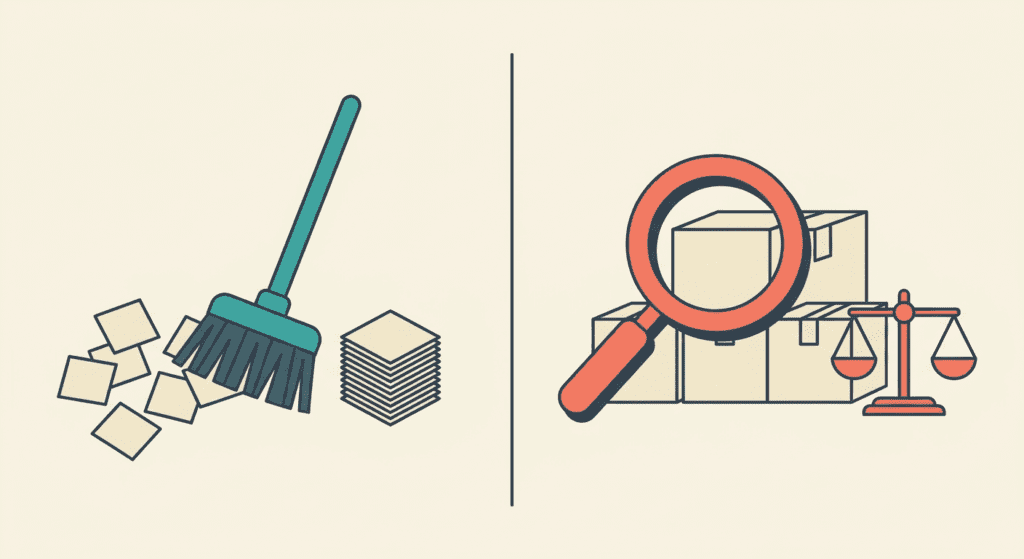
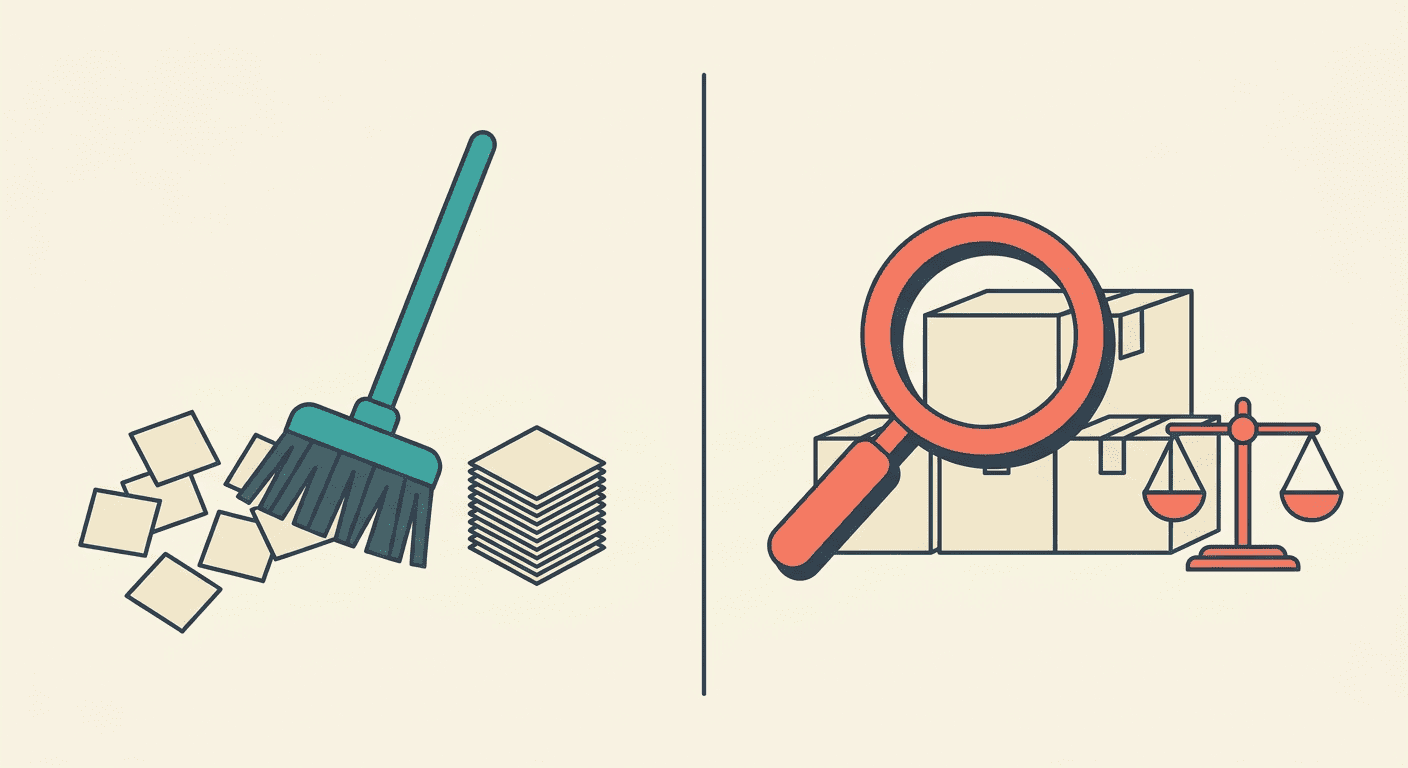
If you are weighing a PC disk cleaner vs Disk Cleanup, the real question is which junk each one can reach. It is also which of those files you can safely lose. Both promise more free space on the C: drive. They work from different lists.
Where the two tools overlap
Disk Cleanup comes with Windows, and it follows Microsoft's definition of unnecessary files. A third-party PC disk cleaner is a separate program. It decides its own list, and that list is often wider and less transparent.
This guide compares the two item by item. It does not repeat the click-by-click walkthrough in our step-by-step Disk Cleanup guide. It also does not rank products. If your question is about timing, such as why the drive fills again a week later, it points to the article that covers that problem.
What each tool is
Windows Disk Cleanup, started as cleanmgr, is the built-in utility that Microsoft documents as clearing unnecessary files. Those include Temp, Internet, downloaded program and Recycle Bin files. Microsoft's cleanmgr reference says the tool applies to Windows 10 and 11. It has two modes: the normal scan of your user files, and a "Clean up system files" option that scans Windows-level items and asks for administrator approval. If the tool will not open, closes at once or lacks the system files button, see the fixes for Disk Cleanup that will not open.
A PC disk cleaner is a third-party program in the broad class of system cleanup tools. The name covers everything from narrow cache cleaners to suites that bundle registry, startup and privacy features. This guide judges the class by what it can reach, not by brand. For a plain definition of the category, see our overview of PC cleaners on Windows 10 and 11. If you also want to compare the built-in Storage Sense feature, the three-way comparison covers all three options. For how a registry cleaner differs from a general PC cleaner, read PC cleaner vs registry cleaner.
The two tools are not the same size of problem. Disk Cleanup works from a fixed set of Windows-managed locations. A third-party tool works from a list the vendor wrote, which may include locations Windows does not manage at all. That difference explains almost every row in the comparison below. For what each Cleanup recommendations item does, see Windows 11 Cleanup recommendations explained.
PC disk cleaner vs Disk Cleanup: item by item
The table sets the two side by side for the junk types people ask about most. "Built-in" means Windows Disk Cleanup covers the item. "Class reach" means a third-party tool in this category may cover it. Class reach is not a promise: it depends on the product, and a tool that claims an item may still leave it alone.
| Junk type | Windows Disk Cleanup | Third-party class reach | What to know |
|---|---|---|---|
| Temporary files | Yes (Temp) | Usually yes | Files open in a running app are skipped or fail |
| Thumbnails | Yes | Usually yes | Rebuilt by Explorer when you open folders |
| Windows Update cleanup | Yes, system files mode | Sometimes | Removes update files Windows no longer needs |
| Delivery Optimization files | Yes, system files mode | Sometimes | Cached update pieces; not personal files |
| Recycle Bin | Yes | Usually yes | Deleted items are removed for good |
| Error reports and logs | Yes | Sometimes | Deleting them removes diagnostic history |
| Previous Windows installation | Yes, system files mode, when offered | Sometimes | Cannot be undone |
| Browser caches | No | Sometimes | Clear inside the browser instead |
| Other app caches | No | Sometimes | Varies by app |
| Large-file and duplicate finders | No | Often | Review each file before deleting |
| WinSxS, system folders, driver store | Managed by Windows, not for manual deletion | Should not be touched | Leave these to Windows |
Temporary files and thumbnails
Temporary files are the most common target for both tools, and they are the safest place to start. Disk Cleanup clears the Windows temp locations. Our general advice: it skips anything an open program is still using, so a file that refuses to go is usually a sign that something is running. Our general advice: thumbnail cache files are rebuilt by Explorer the next time you open a folder, so clearing them costs you a little waiting time and nothing else.
A third-party tool will usually list the same locations, plus a few extra temp folders that individual apps create. The extra folders are where the risk starts. An app may create a temp folder for a reason that matters only while it runs, and a cleaner that does not check the app's state can remove something it still needs. Before you confirm anything, see which scan-result items are safe to delete.
Windows Update cleanup and Delivery Optimization files
Windows Update leaves superseded update files behind. Disk Cleanup's system files mode can remove them, and it is the better choice here because our general advice is that Windows Update knows which files are no longer used by the installed version. A third-party tool that deletes update folders by age or name is guessing. For the step-by-step approach to this item, see our guide to Windows Update cleanup.
Delivery Optimization files are cached pieces of updates that your PC keeps to share with other devices. They are not your personal files, and they are rebuilt when needed. Disk Cleanup can clear them in system files mode. Third-party tools often list them too, but the gain is usually modest, and the same cache exists whether or not you clean it.
Recycle Bin, error reports and logs
The Recycle Bin is the one item where both tools do exactly what the name says. Anything in it is gone for good after cleaning, so check it first if you might want a file back. Error reports and logs are small, but they are the history you would need if a crash returns. Our general advice: Disk Cleanup removes them without asking you to read them, and a third-party tool may do the same. If you are troubleshooting a recurring problem, keep the logs until you have what you need.
Previous Windows installation (Windows.old)
The previous Windows installation is the largest item on the list, and the one most likely to cause regret. Microsoft's guidance on freeing drive space describes this removal as available only within a limited period after an upgrade. That period is fewer than 10 days since the upgrade. It warns that the action "this can't be undone". Once it is gone, rolling back to the earlier version is no longer possible. Read the Windows.old removal guide before you confirm anything.
A third-party tool may offer to remove the same folder at any time. Treat that offer with suspicion. If the window has passed, the folder is either not there or not safe to remove by that route. If the window is still open, Disk Cleanup's own option is the one to use, because it is the path Microsoft documents.
Warning
Do not delete the previous Windows installation with a third-party tool. Use the Windows option during the window Microsoft describes, and only when you are sure you will not roll back.
Browser caches
Disk Cleanup does not clear Chrome or Firefox caches. That is the most common surprise for people who expected a "clean everything" button. Browser caches are cleared inside the browser itself, through its own privacy or clearing settings. Clearing them signs you out of some sites and makes the next visit a little slower, which is the trade-off. The steps are in our browser cache guide for Windows 11.
Third-party tools often offer to clear browser caches from outside the browser. That can work, but the browser is the only program that knows which files it can drop safely. Use the browser's own option where it exists, and treat an outside tool's browser option as a second choice.
Other app caches
Many desktop apps keep caches in their own folders under the user profile. Disk Cleanup does not reach them. A third-party tool may list some of them, and this is one of the real reasons people look at the category. The cost is that each app handles its cache differently. Some rebuild it in seconds, while others keep settings or offline data there. Clear an app cache only when the app is closed, and only when you know what it stores. For the folders involved, see our AppData and ProgramData guide.
Large-file and duplicate finders
Disk Cleanup has no view of your personal files, so it cannot tell you which video is taking up 20 GB. A third-party finder can. It sorts files by size or matches duplicates by content, which is useful when you want to free space from your own data. The catch is that a finder shows you candidates, and the decision is still yours. Only delete a file you recognise, and keep a copy of anything you are not sure about. For a careful approach to duplicates, see our guide to finding duplicate files safely.
Things nobody should touch
WinSxS, system folders and the driver store are parts of Windows that the operating system manages. Manual deletion breaks updates, drivers or repair features. Disk Cleanup's system files mode handles the parts of these areas that can be safely reduced. It does so through Windows' own logic. A third-party tool that offers to empty these folders is asking you to do something Windows does not recommend. For what this space is and why it stays large, see our guide to system and reserved storage. Our WinSxS folder guide explains why that folder is not safe to clear by hand.
Which tool for which goal
The table below turns the item list into a choice. Use it when you know what you want to achieve and need a starting point, not a verdict on either tool.
| Your goal | Start with | Why | Caution |
|---|---|---|---|
| Free space from routine junk | Windows Disk Cleanup | Built-in, with a visible list of categories | Read each category before you confirm |
| Free space after a recent upgrade | Disk Cleanup system files mode, inside the window | Microsoft's own removal path | The previous installation cannot be restored |
| Fix a browser that is slow or cluttered | The browser's own clear-cache option | The browser knows which files it can drop | You may be signed out of some sites |
| Find large files you forgot about | Explorer sorted by size, then a finder if needed | Shows your own data, not just temp files | Never delete a file you cannot identify |
| Remove duplicate photos or documents | A finder that matches by content, then manual review | Duplicates are hard to spot by name | Keep a backup before bulk deletion |
| The drive keeps refilling | Find what is refilling before cleaning again | One-time cleaning does not stop a steady source | Cleaning alone will not fix the source |
The refill problem deserves its own check. If the same space returns within days, a one-off clean will not help, and the guide on why C: keeps refilling covers how to find the source. The table answers the question of which tool to open. It does not replace finding the cause.
- Is the junk in a Windows-managed location?
- Yes: run Disk Cleanup first and read each category.
- No: check whether the app or browser has its own cleanup option.
- Is the file one you recognise and can replace?
- Yes: you can remove it after a backup check.
- No: leave it alone and look up what it belongs to.
What third-party tools can reach that Windows cannot
The honest case for a third-party PC disk cleaner rests on three areas: app and browser caches spread across many folders, large personal files that Windows does not sort for you, and duplicate copies that only a content check can find. Those are real gaps in Disk Cleanup, and a well-scoped tool can fill them. If your problem is one of those three, the category is worth a look. For a broader view of what the category covers, see our overview of system cleanup software.
Does freeing space make a PC faster?
Be careful with the claim that freeing space makes a PC faster. Removing junk frees room, and that is all it does for certain. Whether a performance tool changes anything else depends on the cause of the slowdown. Our review of optimisation software explains what those tools can and cannot change, and no third-party cleaner should be trusted to promise a speed-up. If a cleaner reports gigabytes freed but C: stays full, our guide on a PC cleaner not freeing up space explains the gap.
What a third-party cleaner costs you
The costs are real. First, trust: a cleaner needs access to your files, and you are trusting its list. Second, the installer. Microsoft describes potentially unwanted applications as software that is not clearly malicious. Such software may still behave in ways you did not want. Microsoft also notes that PUA blocking is off by default. Turn it on in Windows Security and leave it on, because a cleaner installer is a common place for unwanted extras to appear. Third, deletion risk: a tool that is wrong about one folder can break an app or remove a file you needed. Leftover services and scheduled tasks are a harder case, as our guide on leftover services, tasks and startup entries explains.
If you are considering a free product, read the free PC cleaner guide for Windows 11 first. Before you install anything, use the safety checklist for PC cleaner software, and avoid the patterns in the list of system cleanup software to avoid.
What Disk Cleanup does that a third-party tool should not replace
Disk Cleanup's strongest feature is that it works from Windows' own knowledge of what is safe to remove. Its system files mode handles Update leftovers and the previous installation through documented routes. It does not touch the folders Windows manages. A third-party tool that replaces this with its own list is trading known behaviour for a guess. That is the main reason to keep the built-in tool in the routine, even if you also use another product.
Disk Cleanup is also not a complete answer. If it frees little, the cause may be outside its list, and the guide on Disk Cleanup freeing little space covers those cases. Storage Sense is a separate built-in option. Microsoft's documentation says it is off by default and applies to the C: drive only. It also says that online-only cloud files do not free space when they are removed from the device. If it seems not to run, the Storage Sense troubleshooting guide has the checks.
A practical rule works for most people. Run Disk Cleanup for routine junk, handle browser and app caches inside those programs, and reach for a third-party tool only when you have a specific job that the built-in options cannot do. Review every file it proposes, and stop if a list includes Windows folders you do not recognise.
Frequently asked questions
Is Windows Disk Cleanup still available in Windows 11?
Yes. Microsoft's cleanmgr reference describes the tool as applying to Windows 10 and 11, and it clears unnecessary files such as Temp, Internet, downloaded program and Recycle Bin files.
Does Disk Cleanup clear Chrome or Firefox caches?
No. Browser caches are not in Disk Cleanup's list. Clear them inside the browser using its own clearing options.
Can I remove the previous Windows installation at any time?
No. Microsoft's guidance describes this removal as available only within a limited period after an upgrade, fewer than 10 days since the upgrade, and it cannot be undone once done.
Should I use a PC disk cleaner in addition to Disk Cleanup?
Only for a specific job the built-in tools cannot do, such as reviewing large personal files or duplicates. Review every item it proposes before you confirm, and keep Disk Cleanup for Windows-managed junk.
Will a third-party cleaner make my PC faster?
Not reliably. Removing junk frees space, but it does not guarantee a speed-up. The cause of a slowdown decides whether any cleaning will help.
Is it safe to delete WinSxS or the driver store to free space?
No. These folders are managed by Windows and are not for manual deletion. Deleting them can break updates, drivers and repair features.
Should I turn on potentially unwanted app blocking?
Yes. Microsoft notes that PUA blocking is off by default. Turning it on in Windows Security is a sensible step before installing any cleaner, and it is worth leaving on.
More help
For more troubleshooting guides on Windows storage, updates and performance, browse our PC repair guides.
How this guide was checked
The comparison relies on Microsoft's documentation for cleanmgr, freeing drive space, Storage Sense and potentially unwanted applications. The third-party column describes a class of tools, not any specific product, and no product was tested. None of the steps were run on a real PC, and the reach claims for third-party tools are general patterns to check against the tool you are considering.