Disk Cleanup Not Freeing Space in Windows 11? 9 Reasons and Fixes
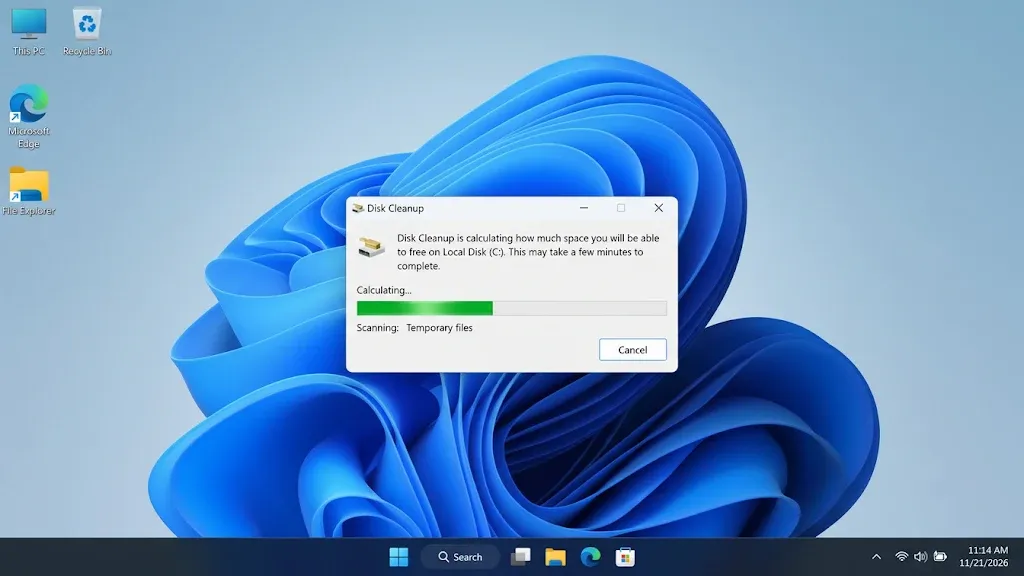
When Disk Cleanup does not free space on Windows 11, there are several possible causes. You run a clean-up, it seems to finish, and the free space on C: barely changes. Sometimes the tool sits at "Calculating" for a long time. This page covers only that symptom. For more help, browse our PC repair guides. If you have not used the tool before, see what each Disk Cleanup checkbox means.
Before you start
Write down the free space on C: now. Open File Explorer, select This PC, right-click C:, and choose Properties. Note the Free space number. You will compare it after each fix.
Back up important files before you change anything. If you have no recent backup, read our guide to backing up Windows files with a system image first.
None of the steps below need registry edits. You also do not delete anything inside Windows system folders by hand. Manual deletion there can break updates and apps, so skip it.
Disk Cleanup not freeing space: symptoms and causes
Match what you see with the likely reason. Then try the fix with that number.
| What you see | Likely reason | Fix number |
|---|---|---|
| The clean-up finishes, but free space barely moves | The numbers have not refreshed yet, or a restart may be pending | 1, 4 |
| Stuck on "Calculating" for minutes | The scan is slow on a busy drive, or the window has hung | 2, 3 |
| Storage and File Explorer show different free space | The two views read at different times, or count sizes differently | 4 |
| Recycle Bin fills again after emptying | Deleted items sit in another drive's bin | 5 |
| Some items are skipped as in use | Apps or background services hold the files open | 6 |
| Space used by restore points keeps growing | System Protection is using a large share of C: | 7 |
| Deleted cloud files come back, or the space returns | OneDrive files are downloaded again when opened | 8 |
| The same failure on every run, or disk errors | A drive or file system problem | 9 |
Nine fixes to try, in order
1. Restart and check the numbers again
When it fits: you ran a clean-up and the free space did not change yet. The numbers may simply not have refreshed, and a restart is a quick way to check. A restart may not free any space by itself.
- Save your work and close open apps.
- Select Start, then Power, then Restart. Choose Restart, not Shut down.
- After you sign in, open File Explorer and check the Free space for C: again.
You may see: a higher free space number, or the leftover clean-up items gone from the list.
If this does not help: go to fix 2. If Windows Update itself is stuck, read our guide to a stuck or failing Windows Update.
2. Wait out a long Calculating step
When it fits: Disk Cleanup shows "Calculating" for several minutes. The tool takes a few moments to work out sizes, so a long wait can be normal on a slow or nearly full drive. If the slow category is Windows Update Cleanup, our guide to what update leftovers are safe to remove explains that option.
- Select Start, type Disk Cleanup, and open it.
- Choose C: and leave the window alone for several minutes.
- If it still says Calculating, close the window, restart the PC, and try once more.
You may see: a list of file groups with sizes and a check box for each one.
If this does not help: use fix 3. It avoids the Disk Cleanup window completely.
3. Use the Storage settings instead of Disk Cleanup
When it fits: the Disk Cleanup window hangs, closes on its own, or lacks the options you expect. Menus differ by build, so names may vary a little. Microsoft now points users to Storage settings for cleanup, and on some builds the Disk Cleanup button in C: Properties opens Storage instead. If Disk Cleanup will not open at all, see our guide to Disk Cleanup that will not open.
- Select Start, then Settings, then System, then Storage.
- On most builds, open Temporary files. Tick the groups you want, then select Remove files.
- Go back to Storage and open Cleanup recommendations. Select Clean up for each section you want to review.
- Wait for each section to finish, then check the free space again.
Storage Sense can also run on its own. Turning it on will not repair a stuck tool. If Storage Sense itself is the problem, see our Storage Sense not working guide.
You may see: the Storage page may show a higher free total once each section finishes.
If Cleanup recommendations leaves a "Low Disk Space" error, the Temp folder may be filling up with Microsoft Store application (.appx) files. Microsoft's fallback is to run the Windows Store Apps troubleshooter (Start, then Settings, then System, then Troubleshoot, then Other troubleshooters, then Run next to Windows Store Apps), press Windows logo key + R, type wsreset.exe and select OK to clear the Store cache, then run the Windows Update troubleshooter in the same list and restart the PC. For browser, DNS and other caches, see clear cache in Windows 11 and 10.
If this does not help: go to fix 4, then check the other fixes.
4. Compare the free space numbers in Storage and File Explorer
When it fits: Storage says space was freed, but File Explorer shows less, or the numbers seem to lag behind your last clean-up.
- Select Start, then Settings, then System, then Storage, and note the free figure.
- Open File Explorer, right-click C:, choose Properties, and compare the Free space figure.
- If they differ, close Settings, wait a few minutes, and open Storage again.
- Select Show more categories. Reserved storage may appear there.
- To check a folder, right-click it and compare Size with Size on disk. Many small files take more space on disk than their size suggests.
File Explorer may report the size of the WinSxS folder differently from the space it really uses, so do not treat that number as exact. Never delete WinSxS contents by hand.
You may see: the two free-space figures agree after a short wait. If they do not, the gap is probably reserved or counted differently.
If this does not help: go to fix 5.
5. Empty the Recycle Bin on the right drive
When it fits: you emptied the Recycle Bin, but the space did not come back. Or the bin fills again soon after you empty it.
- Open the Recycle Bin from the desktop or by searching Start.
- If it holds items, select Empty Recycle Bin and confirm.
- Check whether you deleted files from another drive. Items deleted from another drive go to that drive's own bin, not the one for C:.
You may see: the Recycle Bin may report that it is empty, and the free space on C: may rise.
If this does not help: go to fix 6.
6. Close the apps that hold files open
When it fits: the clean-up skips items and reports that files are in use.
- Save your work. Close browsers, Office apps, and any program you used recently.
- Restart the PC so that locked files are released.
- Run the clean-up again right after you sign in, before you open other apps.
You may see: fewer items skipped on the second run.
If this does not help: the same files may belong to a background service. Do not change file permissions or take ownership of system files to force a delete. Check the help for that app instead.
If files refuse to delete with an error instead, see our article on temporary files not deleting in Windows 11.
7. Lower the space used by restore points
When it fits: System Protection keeps growing, and the clean-up cannot reduce it. Restore points are useful, so keep some of them.
- Select Start, search for Create a restore point, and open it.
- Under Protection Settings, select C: and choose Configure.
- Lower Max Usage, select Apply, then select OK.
Older restore points may be removed to fit the new limit. Do not delete every restore point unless a warning asks you to. Our guide to using System Restore explains the trade-off.
You may see: the Max Usage figure is smaller, and the free space may rise after older points are removed.
If this does not help: go to fix 8.
8. Check OneDrive files and cloud placeholders
When it fits: your Documents or Desktop folders sync to OneDrive. Files you delete come back, or the space returns after you open a cloud file.
- Select the OneDrive icon in the taskbar, then open its settings. Menu names vary by version.
- Look for the backup or sync settings and check which folders are included.
- In File Explorer, right-click a file or folder inside OneDrive and choose Free up space.
You may see: the file shows a cloud icon, and the free space on C: may rise. Cloud-only files take little space on the drive.
If this does not help: if OneDrive will not sync at all, read our guide to OneDrive not syncing.
9. Check the drive for errors
When it fits: the same failure happens on every clean-up, the drive feels slow, or you see disk errors in Event Viewer. Back up first.
- Back up important files before you run any disk command.
- Select Start, search for Command Prompt, right-click it, and choose Run as administrator.
- Type chkdsk C: /scan and press Enter. This runs an online scan on NTFS drives.
- Read the result. If it reports problems, check the drive's health before you do anything else.
Use this exact command here. Other chkdsk options can change the disk, so do not add them.
You may see: a report that the scan found no problems, or a short list of issues to read.
If this does not help: read our guide to checking hard drive and SSD health with SMART. A drive that keeps failing needs a repair shop or replacement.
How to check the fix worked
Restart the PC once. Open File Explorer and note the free space on C:. Compare it with the number you wrote down at the start.
Then run one clean-up. Check that it finishes without a long Calculating step, and that the Storage page agrees with File Explorer.
- Free space on C: is higher than before, or the clean-up reports what it removed.
- Storage and File Explorer show close figures.
- The clean-up finishes without hanging.
Gains can be small. Windows does not promise a set amount of space, so judge the result by the numbers on your own PC. If a third-party cleaner reports space freed but free space does not change, see how to check real free space when a cleaner's totals do not match.
If the problem continues
If nothing changes after all nine fixes, the drive may simply hold more data than it can fit. If the space keeps refilling within days of a clean-up, see our guide to why a C: drive keeps filling up after a disk cleaner. Check what fills C: in our guide to what fills the C: drive. For the full clean-up order, see our free up disk space guide.
Our article on the built-in Windows 11 cleanup tools covers the other options. When apps, games, and files genuinely use the whole drive, a larger drive or an external drive for files is the real fix. If you are considering a third-party cleaner, compare free and paid options in system cleanup software for Windows 11. If you want to look at one PC cleaner in detail first, our PC cleaner guide for Windows 10 and 11 covers it.
Frequently asked questions
Why does Disk Cleanup say it freed space, but C: looks the same?
Sometimes the numbers have not refreshed yet, or a restart may be needed. Restart the PC, then check Storage and File Explorer again.
Is it safe to clean up WinSxS?
Use the supported command DISM /online /Cleanup-Image /StartComponentCleanup in an administrator Command Prompt. Do not add /ResetBase, because it makes existing updates impossible to uninstall. Gains can be small. Never delete WinSxS contents by hand.
Should I turn off hibernation to get space?
Hibernation uses a large hidden file. You can run powercfg /hibernate off from an administrator Command Prompt, and powercfg /hibernate on undoes it. Microsoft's guide to disabling hibernation says that hybrid sleep does not work while hibernation is off, and that you may lose data if power is lost while the hybrid sleep setting is turned on. If the Hibernate option is missing, see our guide to a missing Hibernate option.
Will Storage Sense fix this problem?
Storage Sense frees temporary files and Recycle Bin items. It does not repair a clean-up that hangs or reports the wrong space. For a closer look, see Disk Cleanup compared with Storage Sense.
Can I delete pagefile.sys to free space?
No. Do not delete pagefile.sys by hand. Windows manages it, and deleting it can cause errors.