Windows 11 Hibernate Option Missing? 9 Fixes to Turn It Back On
If you have a Windows 11 hibernate option missing from the power menu, your PC is probably fine. Hibernate is switched off or hidden on many setups, and it takes a few minutes to bring back. This article covers that one problem: Hibernate is not listed next to Sleep, Restart and Shut down, or the box for it is missing in Power Options.
The nine fixes go from the safest to the last. Each one says what you should see and what to try if it fails. Stop as soon as Hibernate shows up. If your problem is something else, the PC repair guides on PC Repair Atlas list other Windows fixes.
Safety first: nothing here opens the PC, edits the registry or changes the BIOS. Three fixes use a short command that is safe to repeat.
Hibernate, Sleep and Shut Down: What Is the Difference?
Sleep: keeps your work in memory and uses a little power. It wakes in seconds.
Hibernate: saves your open work to the drive, in a file called hiberfil.sys, then turns the PC fully off. It uses no power, and it wakes more slowly than Sleep.
Shut down: closes everything. With Fast startup on, Windows still keeps part of its state in the same file.
Microsoft's Shut down, sleep, or hibernate your PC page says to choose Start > Power > Hibernate once it is available. In Windows 11 it does not always appear there by default, so Fix 2 is where most people succeed.
Which Fix Should You Start With?
Hibernate is simply not in the Power menu: start with Fix 2.
The Hibernate box is missing from Shutdown settings: go to Fixes 3 to 5.
You turned it on, but it vanished again: see Fixes 5 and 6.
Laptop only: Fix 7 covers what the lid does when you close it.
Work or school PC, or a virtual machine: go to Fix 8.
Fix 1: Look in the Right Places First
Click Start, then the power icon at the bottom right of the menu.
Right-click Start (or press Windows + X) and open Shut down or sign out.
You should see: Sleep, Shut down and Restart. If Hibernate is in either list, you are done. If it is not, go to Fix 2.
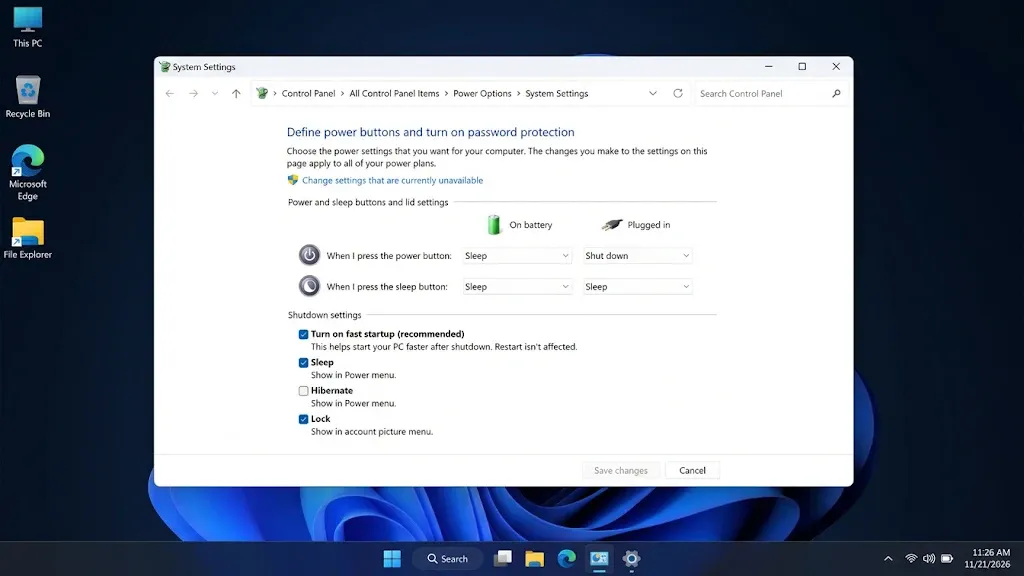
Fix 2: Tick Hibernate in Power Options
Press Windows + R, type control and press Enter.
Open Hardware and Sound > Power Options.
On the left, click Choose what the power buttons do.
Click Change settings that are currently unavailable. Allow the permission prompt.
Under Shutdown settings, tick Hibernate.
Click Save changes.
You should see:Hibernate appear under Start > Power straight away. If there is no Hibernate box under Shutdown settings, hibernation is switched off at a deeper level. Go to Fix 3.
Fix 3: Ask Windows What Your PC Supports
Right-click Start and choose Terminal (Admin), then choose Yes.
Type this and press Enter:
powercfg /a
You should see: a list of sleep states. Look for Hibernate under the states that are available. If it sits under the states that are not available, the lines beneath it give the reason. A line that says hibernation has not been enabled usually means Fix 4 will help. Other reasons, such as a virtual machine or a policy, are covered in Fix 8.
Fix 4: Turn Hibernation On With powercfg
In the same administrator window, type:
powercfg /hibernate on
Press Enter. Microsoft's guide How to disable and re-enable hibernation describes the same command.
You should see: usually no message, which is normal. Then repeat Fix 2: the Hibernate box should now be there. If an error appears, read it. An error about disk space leads to Fix 6, and an error about access means the window was not opened as administrator.
Fix 5: Switch the Hibernation File Back to Full
Windows can keep a smaller, reduced hibernation file. Microsoft says a reduced file supports only Fast startup. A full file supports Hibernate, hybrid sleep and Fast startup. If a tool or a tweak set the file to reduced, Hibernate disappears from the menu.
In the administrator window, type:
powercfg /hibernate /type full
You should see: usually no message. Repeat Fix 2 and tick Hibernate if it is listed. If it is still not listed, go on.
Fix 6: Free Up Disk Space for the Hibernation File
A full hibernation file takes up a sizeable share of your installed memory, and a reduced one is smaller. The exact size varies from PC to PC, so check the free space on the Windows drive before you run the command. If the file is already very large, our guide on shrinking a large hiberfil.sys safely covers the options.
If the drive is almost full, Windows may refuse to create the file. Check Settings > System > Storage and clear space with our guide how to free up disk space on Windows 11. Then run powercfg /hibernate on again. If the drive stays short, see how to measure real free space, which also covers the hibernation file.
You should see: the command finish without an error, and Hibernate in Power Options. Hiberfil.sys is a hidden system file, so you will not see it unless you show protected files. Do not delete it by hand. Use the command instead.
Fix 7: Check What the Lid and Power Button Do
Laptop: in Power Options, click Choose what closing the lid does. The list for When I close the lid shows Hibernate once hibernation is on. Choose it if you want the laptop to save and switch off when you shut the lid.
Desktop: there is no lid. Open Choose what the power buttons do and set When I press the power button to Hibernate if you like. Otherwise leave it on Sleep or Shut down.
You should see: Hibernate in both lists on a PC where it works. If it is missing from these lists too, Windows still treats hibernation as unavailable. Go to Fix 8.
Fix 8: Rule Out Policy and Virtual Machines
Work or school PC: your organization can hide the shutdown options with a policy. You cannot change a policy yourself, so ask your IT contact.
Virtual machine: many virtual machines do not offer Hibernate. Check the virtual machine's own settings and documentation.
Home PC: a leftover tool that claims to "clean" or "optimize" Windows may have turned hibernation off. Uninstall it, then repeat Fix 4.
You should see: a clear reason in the powercfg /a output, or Hibernate back after the tool is gone. Do not change policies or settings you do not understand.
Fix 9: Update Windows, Check Drivers and Repair System Files
Restart, then repeat Fixes 3 and 2.
You should see: the Hibernate box in Power Options. If it still does not appear, your PC's maker may have turned it off in its power design. Check the maker's support page.
Why is Hibernate missing in Windows 11? It is often just turned off. Windows does not always show Hibernate in the power menu until you tick it in Power Options.
Is it safe to turn Hibernate on? Yes. It uses some free disk space for the hibernation file, and nothing else changes.
Does Fast startup need Hibernate? Fast startup uses the same hibernation file. If hibernation is switched off, the Fast startup option is usually gone from Shutdown settings too.
Should I use Hibernate on an SSD? It is generally fine. Each hibernation writes your open memory to the drive once, which is a small cost for most people on a modern SSD.
Can I delete hiberfil.sys to save space? Do not delete it by hand. Switching hibernation off with powercfg /hibernate off removes it safely, and powercfg /hibernate on brings it back.
Note: these steps follow Microsoft's documentation and well-known Windows behaviour. They were not run on a real PC for this article. Menu names can differ slightly between Windows 11 versions, and a few PCs hide Hibernate by design.