PC Won’t Wake From Sleep in Windows? How to Fix It
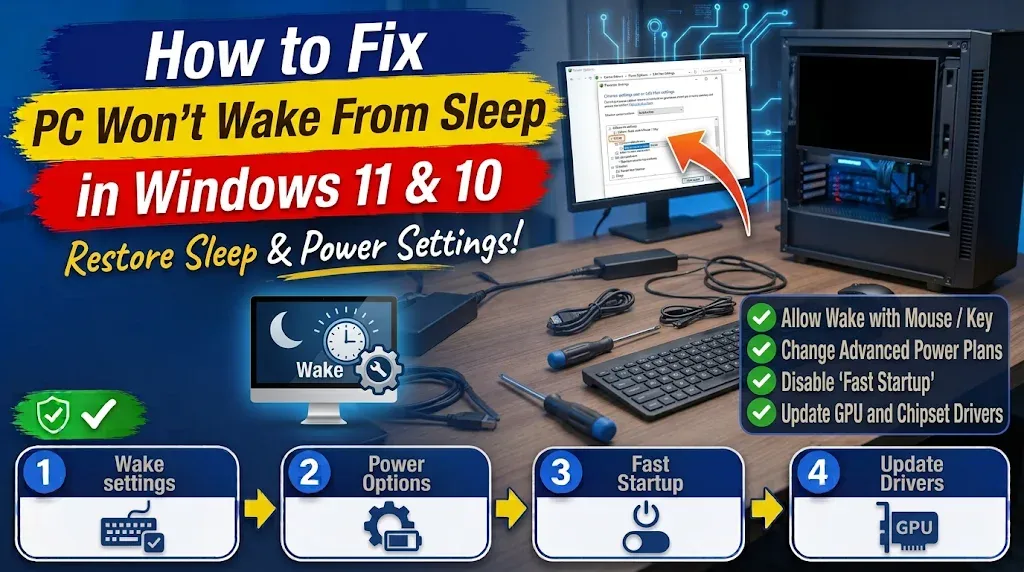
If your PC will not wake from sleep, you are left with a black screen and a forced restart. The cause is usually the graphics driver, a USB device, a power setting or a BIOS option. This guide goes through them, starting with the quick checks. If you are not sure which of these applies to your PC, the free Repair Assistant can help you narrow it down. If your PC will not go to sleep in the first place, read Windows 11 PC won't go to sleep instead. If Wi-Fi is also gone after the PC wakes, see Wi-Fi that disconnects after sleep. If the PC wakes but the screen stays black, see Windows 11 not waking from sleep.
Step-by-step: fix sleep and wake problems
Step 1: Try the quick wake methods
Press a key, move the mouse, press the power button briefly and, on a laptop, open and close the lid. Press Windows + Ctrl + Shift + B to restart the graphics driver. Check that the monitor is on and set to the right input.
Step 2: Check what sleep states your PC supports
Open Command Prompt as administrator and run:
powercfg /aThe list shows the sleep modes your PC supports. After a wake problem, you can also run powercfg /lastwake to see what woke the PC.
Step 3: Check the advanced sleep settings
Open Control Panel > Power Options > Change plan settings > Change advanced power settings and expand Sleep. Try turning Allow hybrid sleep off, and check that Allow wake timers is not set in a way that causes trouble.
Step 4: Allow the keyboard and mouse to wake the PC
Open Device Manager, expand Keyboards and Mice and other pointing devices, open each device's Properties > Power Management tab and tick Allow this device to wake the computer.
Step 5: Turn off USB power saving
In the advanced power settings, open USB settings > USB selective suspend setting and set it to Disabled. See fix USB device not recognized for more.
Step 6: Turn off Fast Startup
Open Control Panel > Power Options > Choose what the power buttons do > Change settings that are currently unavailable and untick Turn on fast startup. Fast Startup can leave drivers in a bad state.
Step 7: Update the graphics driver
A graphics driver bug is a common cause of a black screen after sleep. See update or reinstall graphics drivers.
Step 8: Check the BIOS
Back up first: note your current BIOS version and photograph your current settings before you change anything. Then update the BIOS and chipset drivers (see update BIOS safely). In the BIOS, look for a sleep state option (S3) or power options that affect wake. Change only what you understand.
Step 9: Look in the event log
Open Event Viewer > Windows Logs > System and look for a Kernel-Power event after the failed wake. If the PC restarts at random too, see fix a PC restarting by itself.
Step 10: Use a workaround
If nothing works, open Settings > System > Power & battery > Screen and sleep and set sleep to Never, or use shutdown or hibernate instead. If Hibernate is missing from the Power menu, see Windows 11 hibernate option missing.
More help
For more Windows power and startup fixes, search by symptom on the PC Repair Atlas homepage.
FAQ
Why does my PC wake only with the power button? The keyboard or mouse may not be allowed to wake it. Check Step 4.
Is sleep or hibernate better? Sleep is faster to resume. Hibernate saves more power and keeps your work if power is lost.
Can a power supply cause sleep problems? Rarely, but a weak one can cause failed wakes. See PC won't turn on or show anything on screen for tests.