Windows 11 Wi-Fi Keeps Disconnecting After Sleep? 9 Fixes That Actually Help
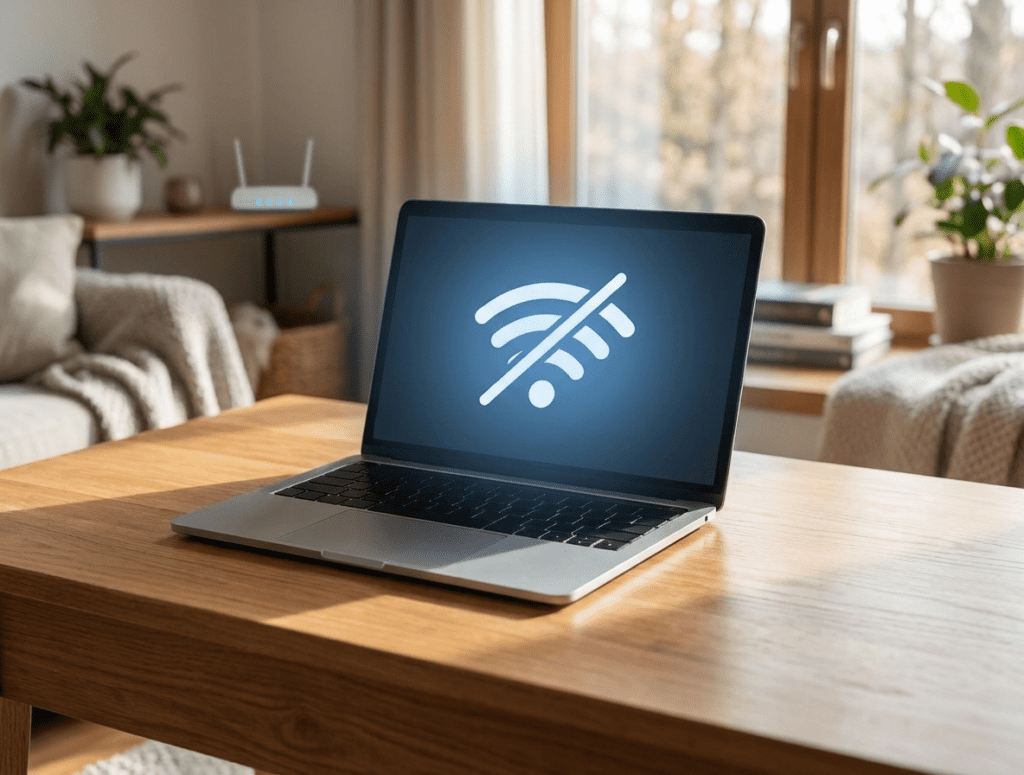
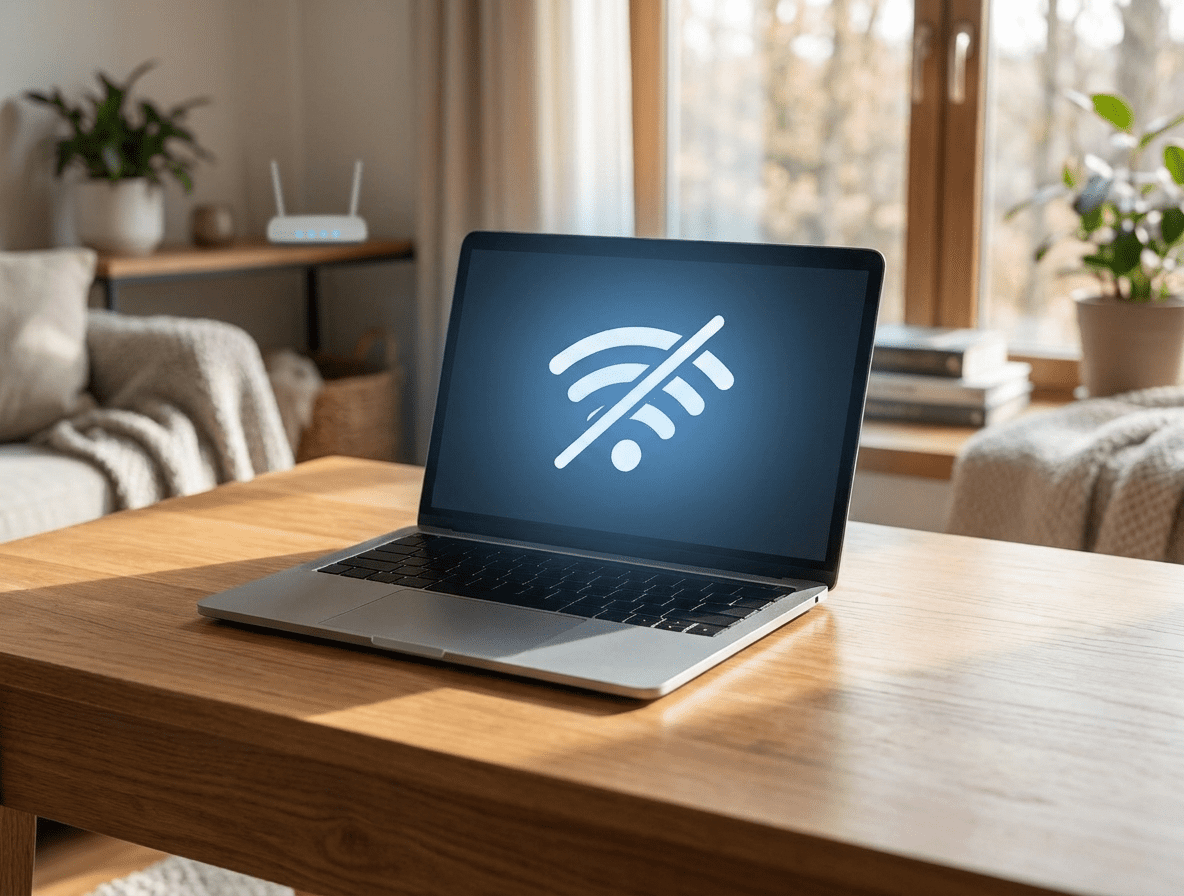
You close the lid, come back later, and the Wi-Fi icon shows no connection. When Windows 11 Wi-Fi disconnects after sleep, the laptop is usually fine. Windows has most likely put the adapter into a low-power state that it does not leave cleanly.
This article covers one case: the PC wakes normally, but Wi-Fi is gone or never reconnects. Change one thing at a time, then test by putting the PC to sleep for a few minutes. For drops at other times, read our article on Windows 11 Wi-Fi that keeps disconnecting. If the PC itself will not wake, use our guide on a PC that will not wake from sleep.
What You See and What It Usually Means
| What you see | Likely cause | Start with |
|---|---|---|
| Wi-Fi returns when you switch the adapter off and on | Adapter did not wake cleanly | Fixes 1 to 4 |
| Wi-Fi fails after Shut down, but not after Restart | Fast Startup | Fix 5 |
| Only your PC loses Wi-Fi, your phone stays online | PC settings or driver | Fixes 2 to 4 and 6 |
| Other devices drop now and then too | Router | Fix 7 |
| It began after an update | Update or new driver | Fixes 4 and 8 |
9 Fixes When Wi-Fi Disconnects After Sleep
Fixes 1 to 3 are quick and easy to undo. Fixes 4 to 8 check drivers, startup and the router. Fix 9 resets your network settings, so keep it for last.
Fix 1: Reconnect Fast and Note the Pattern
Put the PC to sleep for five minutes and wake it. Wait a minute, because Windows needs a few seconds to rejoin. If Wi-Fi is still off:
- Open Settings > Network & internet > Advanced network settings.
- Find your Wi-Fi adapter, select Disable, then select Enable.
- If you do not see it there, right-click Start, open Device Manager, and use Disable device then Enable device on the adapter under Network adapters.
If Wi-Fi comes back, the adapter is not waking cleanly. This is a workaround, not a cure, so carry on with Fix 2. If Wi-Fi stays off even after these steps, Airplane mode may be stuck on: see our guide to fixing Airplane mode that is stuck in Windows.
Fix 2: Stop Windows Turning the Adapter Off
- Open Device Manager and expand Network adapters.
- Double-click your Wi-Fi adapter. Its name often contains "Wireless", "Wi-Fi" or "WLAN".
- Open the Power Management tab.
- Untick Allow the computer to turn off this device to save power, then select OK.
You should see Wi-Fi back after the next sleep. The tab is missing on some adapters. If so, go to Fix 3.
Fix 3: Set Wireless Adapter Power Saving to Maximum Performance
This is a separate setting in your power plan. Intel describes Maximum Performance as the option that favours the connection over saving power.
- Type Edit power plan in the Start search and open it.
- Select Change advanced power settings.
- Expand Wireless Adapter Settings, then Power Saving Mode.
- Set Plugged in and On battery to Maximum Performance.
Battery life may drop a little. Some PCs hide this setting, and then you can skip it.
Fix 4: Update or Roll Back the Wi-Fi Driver
A driver that mishandles sleep is a common cause. If the problem began after an update, open the adapter in Device Manager, select the Driver tab and choose Roll Back Driver. It is greyed out when no older driver exists.
Otherwise check Settings > Windows Update > Advanced options > Optional updates for a driver, or take the newest one from your laptop maker. Our guide on updating drivers in Windows 11 safely lists the safe sources. Restart afterwards.
Fix 5: Compare Sleep, Restart and Fast Startup
Sleep does not use Fast Startup, but Shut down does. That makes it a useful test.
- Shut down the PC, start it again and check Wi-Fi.
- Choose Restart and check Wi-Fi again.
- If Wi-Fi fails only after Shut down, open Control Panel > Power Options > Choose what the power buttons do.
- Select Change settings that are currently unavailable and untick Turn on fast startup.
Startup may become a few seconds slower. If Wi-Fi fails only after waking from sleep, leave Fast Startup on.
Fix 6: Read the Wi-Fi Report
Windows can show why a connection ended. Right-click Start, open Terminal (Admin) or Command Prompt (Admin), and run:
netsh wlan show wlanreport
Windows saves an HTML report at C:\ProgramData\Microsoft\Windows\WlanReport\wlan-report-latest.html. Open it in a browser and look at the recent sessions. A session that ends right after a wake, with a disconnect reason, points at power or driver trouble. Microsoft explains the layout on its page about the wireless network report.
Fix 7: Check the Router
Some routers drop quiet devices. Restart the router and modem. Then install router firmware updates if your router offers them. If your router has separate 2.4 GHz and 5 GHz networks, try the other one. Our guide on speeding up Wi-Fi on a Windows PC explains bands and channels. Menus differ by brand, so use your router maker's support page.
Fix 8: Undo a Recent Windows Update
If sleep problems began right after an update, open Settings > Windows Update > Update history > Uninstall updates and remove the newest one. Not every update can be removed. Our guide on uninstalling a Windows update explains the options. Also run any pending update, because a later one may fix the fault. See how to fix Windows Update when it is stuck or failing if it will not install.
Fix 9: Use Network Reset (Last Resort)
Open Settings > Network & internet > Advanced network settings > Network reset and select Reset now. Windows reinstalls your network adapters, forgets every saved Wi-Fi network and password, and removes VPN connections you added. It then restarts. Your files and apps stay. Write down your Wi-Fi password first.
When to Get Help
If Wi-Fi fails after every sleep even after all nine fixes, while a cable and your other devices work, the Wi-Fi card may be failing. A cheap USB Wi-Fi adapter is a quick test. A technician can also check it.
Frequently Asked Questions
Why does Wi-Fi stop working after my laptop sleeps?
Windows may switch the adapter to a low-power state during sleep. Some adapters or drivers then fail to switch back. Fixes 2, 3 and 4 target that.
Does turning off Fast Startup help with sleep problems?
Only if Wi-Fi also fails after Shut down. Sleep does not use Fast Startup.
Is it my router or my PC?
If your phone stays connected while only the PC loses Wi-Fi, suspect the PC. If every device drops, check the router.
Will Network reset delete my files?
No. It removes saved networks and VPN connections and restarts the PC.
Final Thoughts
Start with the adapter's power settings, then check the driver, Fast Startup and the router. For more help with other computer problems, browse our PC repair guides.