Windows 11 Temporary Files Won’t Delete? Safe Fixes for Errors and In-Use Files
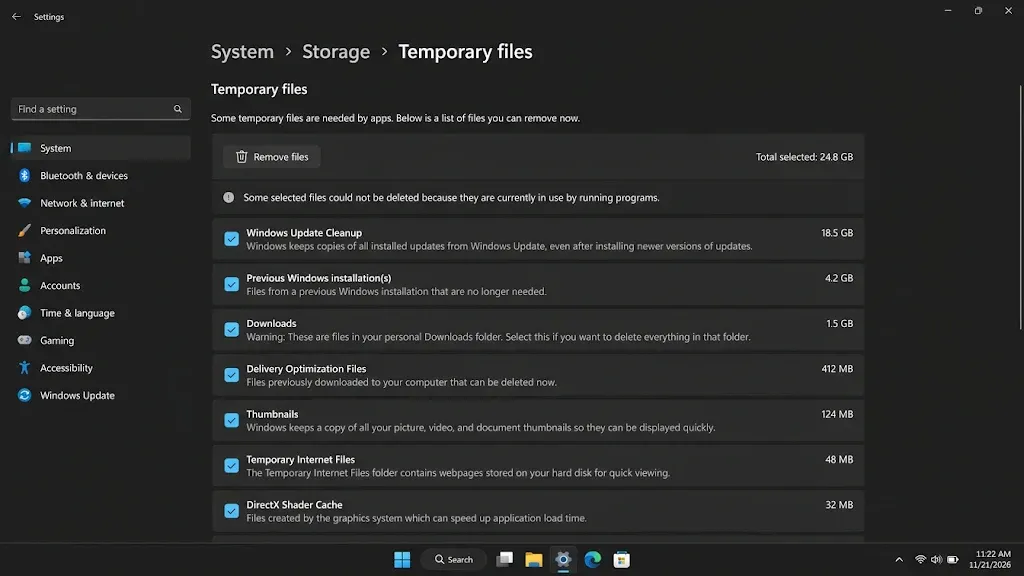
Temporary files are small working copies that Windows and apps create while they run. To clear cached files such as thumbnails or browser cache, see how to clear the cache in Windows 11. For how browser cache differs from Windows temporary files, see browser cache vs. Windows temporary files: what a PC cleaner should delete. When they refuse to go away, the cause is usually not the files themselves but something still using them. If you are dealing with temporary files not deleting on Windows 11, this guide covers that deletion step only: the "file in use" message, access denied errors, and the Storage screen where Remove files seems to finish but the same items come back. For more step-by-step help, browse the PC repair guides on this site.
Work through the fixes in order. The first ones are the safest and take the least time.
Before you start
- Back up first. If any file matters to you, copy it somewhere safe before you delete anything. Our guide to backing up a Windows PC with a system image explains one way to do this.
- Make no registry edits. Guides that tell you to change the registry to force a deletion are not needed for this problem, and one wrong change can stop Windows from starting.
- Never delete system folders by hand. Folders such as C:\Windows\Temp are managed by Windows. Use the Storage settings described below instead.
Menu names can differ by Windows 11 build. If a label is not exactly where this guide says, look for the closest match in the same area.
Symptom to fix quick reference
| What you see | Likely reason | Fix |
|---|---|---|
| Remove files finishes, but the same items are back | Windows or an app recreates them, or a running program keeps creating them | Fix 1, then Fix 3 |
| "File in use" or "open in another program" | An app still has the file open | Fix 2, then Fix 5 |
| "Access denied" or "You need permission" | The file or folder belongs to a system account or another user | Fix 7 |
| Items stay after a restart | Locked files or a stuck background process | Fix 4, then Fix 6 |
| Deletion errors on the system drive | Possible drive or file system problem | Fix 8 (scan only) |
Eight fixes, safest first
Fix 1: Restart the PC
When it fits: You have not restarted since the cleanup failed, or a program has been open for days.
- Save your work and close open programs.
- Select Start, select the power icon, and choose Restart. Do not choose Shut down.
- After the PC starts and you sign in, open Settings > System > Storage > Temporary files.
Restart is the choice here because Fast Startup applies to shutdown, not to restart, so a restart clears the session that often keeps files locked.
You should see: Files that were locked by the last session are free, and the list may be shorter.
If this does not help: Go to Fix 2. Some apps reopen automatically after sign-in and lock the same files again.
Fix 2: Close the app holding the file
When it fits: The message names a file or says it is open in another program. Browsers, installers, update windows and Office documents are the usual causes.
- Close the app that the message names. If none is named, close browsers, installers and any open Office documents.
- If an app will not close from its window, right-click the taskbar and open Task Manager.
- On the Processes tab, select the app and choose End task. End only tasks you recognise.
- Try the deletion again.
You should see: The item is removed, or the message names a different file, which means the first one is free.
If this does not help: Go to Fix 5 to find the exact program holding the file.
Fix 3: Use Storage settings instead of deleting by hand
When it fits: You want to remove temporary files safely and let Windows decide what is safe to remove.
- Open Settings, select System, then select Storage.
- Open Cleanup recommendations. Menus differ by build, so look for the closest match if the label is different.
- Select Temporary files, review the list, and select Clean up.
- Wait for the process to finish, then open Temporary files again.
You should see: The list is shorter, or the items that remain are ones Windows says it cannot remove yet.
Files that come back at once may be rebuilt by Windows or by apps, and that is normal. A PC that keeps rebuilding odd temporary files after a fresh start may need a security check. Open Windows Security, select Virus & threat protection, and run a scan.
If this does not help: Go to Fix 4 only if you want to check your own user temp folder by hand.
Fix 4: Clean the user temp folder by hand, skipping locked items
When it fits: Fix 3 finished, but your own user temp folder still holds files. This is the user folder only, not the system one.
- Press the Windows key and R together, type %temp%, and press Enter.
- Press Ctrl and A together to select everything in the window.
- Press Delete.
- If a dialog says an item is in use, choose Skip and leave that item alone.
You should see: Most items are removed. The items you skipped stay, and that is expected.
If this does not help: Go to Fix 5 to find what holds the remaining files. Do not force them out with third-party tools.
Fix 5: Find the program that locks the file
When it fits: One specific file keeps failing, and you want to know which program has it open.
- Press the Windows key and R together, type resmon, and press Enter. Resource Monitor opens.
- Select the CPU tab.
- Find the Associated Handles section and type part of the file name into its search box.
- Note the process names in the results, close that program using Fix 2, and try the deletion again.
You should see: The results point to one or two programs. After you close them, the file deletes.
If this does not help: Restart as in Fix 1. If the same program keeps coming back, check its settings for background sync or updates.
Fix 6: Delete after a fresh sign-in or in Safe Mode
When it fits: Nothing else worked, and background processes seem to be the only thing blocking the deletion.
- Sign out, sign back in, and run Fix 3 before opening other apps.
- If the files still block, open Settings, select System, then Recovery. Under Advanced startup, select Restart now.
- On the blue screen, choose Troubleshoot, then Advanced options, then Startup Settings, then Restart.
- After the restart, press 4 or F4 to start in Safe Mode. Menus and labels can differ by build, so follow the closest match.
- In Safe Mode, run Fix 3 or Fix 4, then restart normally.
You should see: Fewer blocked items, because few programs run in Safe Mode.
If this does not help: If access errors appear, go to Fix 7. If the drive reports errors, go to Fix 8.
Fix 7: Handle permission errors safely
When it fits: The message says access denied or that you need permission to perform this action, usually for a folder that Windows or another account owns.
- Note the exact folder path shown in the message.
- If the path is inside your own user folder, check that you are signed in to the account that owns it.
- If the path is a system folder, stop here. Do not take ownership, and do not run takeown or icacls on system folders.
You should see: Either the item is one your own account can remove, or you know to leave it alone.
If the permission problem continues, follow our guide to fixing the "you need permission to perform this action" message. On a shared PC, files in another user's folder are theirs; see how to clean up without removing them. If system files seem damaged, see how to repair Windows system files with SFC and DISM.
Fix 8: Check the drive for errors (scan only)
When it fits: Deletions fail on the system drive with errors, or files keep reappearing with read errors. Back up first.
- Back up important files before you continue.
- Search for Command Prompt, right-click it, and choose Run as administrator.
- Type
chkdsk C: /scanand press Enter. - Wait for the report. Do not add /f or /r here. Microsoft's chkdsk reference describes /scan as an online scan that runs while the drive stays in use.
You should see: A report on the drive. If it lists errors, check the drive's health next.
If this does not help: Read our guide on checking hard drive and SSD health with SMART.
How to check it worked
Free space may not change, and that is fine, because temporary files are often small compared with the whole drive. Success means the items you were targeting were removed, or there are fewer of them. Open Settings > System > Storage > Temporary files and compare the list with what you saw before. For the other categories on that page, including System & reserved, see what the System & reserved storage category contains. If the free space on C: keeps falling back after each clean-up, see our guide to why a C: drive keeps filling up after a disk cleaner.
If the clean-up runs but free space does not change, our guide on why a clean-up does not change free space on Windows 11 covers that separate problem. To run the built-in tool itself, see how to use Disk Cleanup step by step. If the tool will not open at all, these fixes for Disk Cleanup that will not open cover the usual causes.
If it still fails
- If the system drive is short on space overall, see our guide to finding what uses space on the Windows 11 system drive.
- For more ways to make room, read the built-in options for freeing space on Windows 11.
- If you are tempted to install a cleaner, read whether a free PC cleaner is worth using on Windows 11 first.
- If an update left files behind, see how to fix Windows Update when it is stuck or failing.
- If the locked files belong to a synced folder, see fixing OneDrive when it is not syncing.
Frequently asked questions
Is it safe to delete everything in %temp%?
Mostly yes for files that are not in use, because apps recreate what they need. Skip any item that is in use, and do not delete files you do not recognise from other folders. For what the Temp and Prefetch folders hold, see what the Temp and Prefetch folders hold and what is safe to delete.
Can I delete C:\Windows\Temp by hand?
Windows manages that folder, so do not delete it by hand. Use the Storage settings in Fix 3 instead.
Why do temporary files come back?
Apps and Windows create working files while they run. Some are rebuilt at sign-in, or when an update or a sync runs. Returning files are normal in many cases.
Do I need a cleaner app?
No. The built-in Storage settings and the steps in this guide handle this problem. Extra cleaner apps add little and can remove things you did not intend to.
Will deleting temporary files speed up my PC?
Not by much. Temporary files usually take little space, and removing them rarely makes a noticeable difference in speed.
Sources
- Microsoft Support, Free up drive space in Windows
- Microsoft Learn, chkdsk command reference