Browser Cache vs. Windows Temporary Files: What Should a PC Cleaner Actually Delete?
Last reviewed: November 23, 2026 (Pacific). Steps were compared with Microsoft documentation; none was run on a real PC.
Quick answer
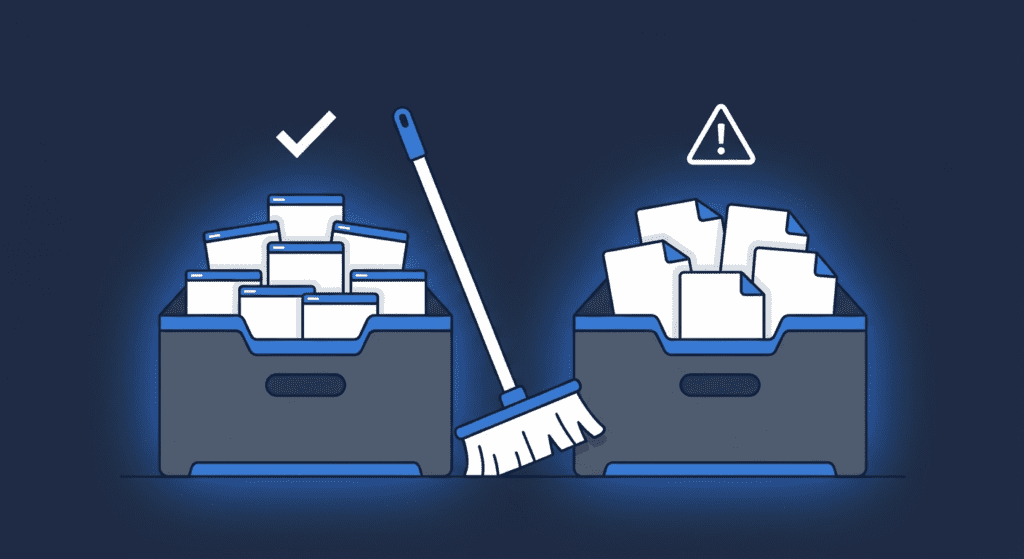
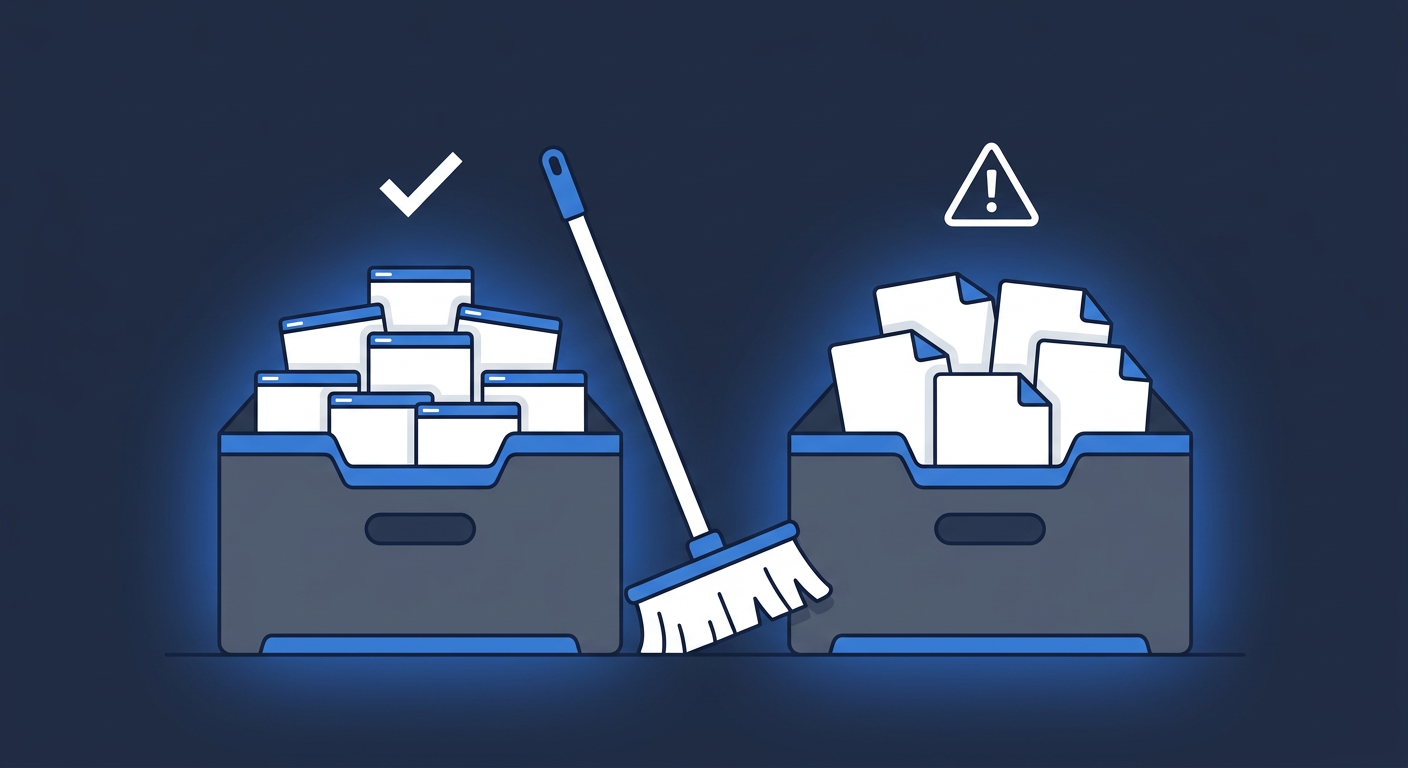
If you are comparing browser cache vs temporary files before a scan, they are different things. Browser cache holds copies of pages and media that the browser can rebuild, so clearing it usually means a slower first visit to some sites. Windows temporary files are leftovers from apps, installers and updates, and many can be reviewed in the Temporary files list Windows shows you. Cookies, history, saved passwords and autofill are not cache, so leave them unticked unless you mean to remove them.
In this guide
- Browser cache vs temporary files: what each one holds
- Which items are safe to delete?
- What a cleaner bundles under cache or temp
- Decision tree: what to tick before you scan
- A safe order for clearing
- What a good result looks like
- What a cleaner cannot know
- What clearing cache does not do
- Checking and clearing these by hand
- How this guide was checked
- Frequently asked questions
- Sources
Browser cache vs temporary files: what each one holds
Cleaning tools often put browser cache and Windows temporary files under one heading, but they live in different places and do different jobs. A browser keeps copies of pages, images and other media so a site can load faster the next time you visit. Microsoft's Edge help calls these "cached images and files" and says the browser uses them to load content faster the next time you visit those sites. Windows and installed apps create temporary files for their own work, such as setting up software or applying an update.
The cost of deleting each one is different. Browser cache can be rebuilt on your next visit, so the usual cost is a slower first visit. Many temporary files are also disposable, but some are still in use, and some hold update data that Windows may need for a while. For the click-by-click browser steps, see how to clear cache in Windows 11. This guide covers only the decision.
Browser cache, cookies, history, passwords and autofill
A browser stores several kinds of data, and they do not behave the same way when you clear them. Microsoft's Edge help describes cookies and other site data as information sites store to remember preferences, such as sign-in information. That is why clearing cookies can sign you out of sites. Browsing history is a list of pages you visited, and it is mainly a privacy matter rather than a speed one.
Saved passwords and autofill entries are a separate group. They are not copies of web pages, so they are not cache. Removing them can cost you access to accounts you rely on. If a cleaner offers one browser tick box, check which of these it would remove before you scan. For how a cleaner treats history and passwords, see whether a PC cleaner deletes browser history and passwords.
Windows temporary files and system caches
Windows shows a Temporary files category in its Storage settings. Under Settings > System > Storage, Cleanup recommendations lists Temporary files next to Large or unused files, Files synced to the cloud and Unused apps. Windows suggests items and shows how much space each would free, and you choose what to remove. Microsoft's Storage settings page also says Windows reserves part of the drive for temporary files, caches and other files, and clears that reserved space when the device runs low.
Some other items are less obvious. Delivery Optimization files, thumbnails and error reports are often grouped with temporary data by cleaners. The Microsoft pages reviewed for this guide do not describe each of them in detail, and menu names vary by Windows version, so check the list your own PC shows rather than trusting a label. Windows.old is different again: after an upgrade it holds the previous Windows version, and removing it ends the option to go back. The details are in the Windows.old guide.
Which items are safe to delete?
The table sorts common items by what they are and whether they can be removed. "Safe" here means the item can be rebuilt or is not needed, not that removing it has no cost. Treat it as a starting point and check your own PC.
Rebuildable items and items that need care
| Item | What it is | Safe to delete? |
|---|---|---|
| Browser cache (cached images and files) | Copies of pages, images and media kept to load sites faster next time | Yes, rebuildable. The cost is a slower first visit. |
| Cookies and site data | Stored preferences and sign-in information | Needs care. The cost is being signed out of sites. |
| Browsing history | A list of pages you visited | Your choice. Mainly a privacy matter. |
| Saved passwords and autofill | Login details and form entries, not cache | Leave alone unless you mean to remove them. The cost may be lost access. |
| Temporary files (Windows Temporary files list) | Leftovers from apps, installers and updates | Usually yes after you review the list. Files in use may be skipped. |
| Delivery Optimization files | Update pieces Windows keeps for delivery | Needs care. Windows may need them again; check whether your PC lists them. |
| Thumbnails | Small preview images of pictures and folders | Usually yes. Windows can rebuild them. |
| Error reports | Crash data kept for diagnosis | Usually yes. You lose diagnostic data only. |
| Windows Update cleanup | Old update files no longer needed | Needs care. It can limit uninstalling some updates. |
| Recycle Bin | Files you deleted that can still be restored | Needs care. Emptying it is permanent. |
| Windows.old | The previous Windows version after an upgrade | Needs care. It removes the option to roll back, and this cannot be undone. |
Risk labels in this guide: rebuildable means removing the item costs time or a slower visit; needs care means it changes something you may want; leave alone means removing it can lose data that is hard to get back.
What a cleaner bundles under cache or temp
Each cleaner names its tick boxes in its own way, so a label alone does not tell you what will go. The table shows what a label commonly covers and what to check before you tick it.
| Label | Commonly includes | Check before ticking |
|---|---|---|
| Browser cache | Cached images and files in one or more browsers | Which browsers; whether cookies, history or passwords are ticked too |
| Temp or temporary files | Windows and app temporary folders | Whether the list shows what it removes; files in use may be skipped |
| System cache | Thumbnails, update leftovers, error reports, Delivery Optimization files | Whether Windows Update cleanup or Windows.old is included |
| Recycle Bin | Files you deleted that can still be restored | Whether the bin should be emptied now at all |
A cleaner that hides its file list makes this check harder. If you cannot see what a label covers, the safer move is to clear that item by hand, where Windows shows the list itself. For more on reading a tool's list, see which scan results are safe to delete.
Decision tree: what to tick before you scan
Use this tree before any scan, and tick only what the answers allow. For a wider routine, see how to use a PC cleaner safely.
- Is the item a copy that the browser or Windows can rebuild?
- Yes: is it browser cache, thumbnails or a temporary file?
- Yes: tick it only after you close the browser and apps that may use it.
- No: check what it is first. Update leftovers and Windows.old need their own decision.
- No: is it a cookie, a login, a history entry, a saved password or autofill?
- Yes: leave it unticked unless you want to sign out, erase history or lose saved details.
- Yes: is it browser cache, thumbnails or a temporary file?
- Is it Windows.old, Windows Update cleanup or the Recycle Bin?
- Yes: read the consequence first. These are needs care items, so tick them only when you are sure.
A safe order for clearing
When you clear things by hand, start with the least risky item and check free space after each step. Microsoft's free-up-space guide suggests trying the steps in order and checking how much room you have before moving on.
- Close the browser and any app that may be using temporary files.
- Check free space under Devices and drives in File Explorer, on the This PC page.
- Open Settings > System > Storage and review Temporary files. Remove only what the list shows.
- Check Storage Sense on the same Storage page, and choose its options rather than assuming they are set.
- Clear browser cache from the browser's own clear browsing data page, with only cached images and files ticked.
- Review Windows Update cleanup and Windows.old last, using the Windows Update cleanup guide before anything is removed.
What a good result looks like
Free space rises by roughly the amount the list showed, your sites still keep you signed in, and the first visit to a site you use often may be a little slower. That slower visit is the expected cost of clearing cache.
You are signed out of sites, saved details are gone, or a file you needed is missing. Stop there, check the Recycle Bin and the browser's options, and run no more ticks until you know why. If something is already gone, see how to recover files a PC cleaner deleted.
What a cleaner cannot know
A cleaner sees file names, folders and sizes. It does not know who else uses the PC, which sites you rely on being logged into, or what a work account expects to keep. Those gaps matter more than the labels.
Shared PCs are the first gap. Another person's profile may hold cache or sign-ins they expect to keep, and a scan run from your account will not show their data in the same way. Work accounts are the second. An organisation may manage browser sign-ins or settings, so clearing data on a work PC may remove something a policy depends on. Check with whoever manages the device before you clear it.
Site logins are the third gap. Cookies are how many sites keep you signed in, and a cleaner cannot tell which logins you want. Game launchers are the fourth. Some launchers and games may download or rebuild their own shader or download caches later, which can take time. This varies by launcher, and the pages reviewed for this guide do not cover it, so check your launcher before clearing its folders. Many of these folders sit in AppData; see the AppData and ProgramData guide before you remove anything there. For game PCs in particular, see gaming PC cleanup on Windows 11.
Cloud files are the last gap. Microsoft's OneDrive page says files you have not used in the last 30 days can be set to online-only when a device runs low on space, and that choice is made in settings, not by a cleaner's guess. Before any scan, read the checklist in the PC cleaner safety checklist.
What clearing cache does not do
Clearing browser cache does not make a PC faster in general. It can change how quickly some sites load on your next visit, and nothing more. It is unlikely to fix a slow PC caused by startup apps, a nearly full drive, a failing disk or a driver problem. This guide does not promise any speed gain from clearing cache or temporary files.
The same is true for temporary files. Removing them frees space, which can help a PC that is short of room, but it is not a speed test. If the drive keeps filling up after a clean, the steps in how to free up disk space on Windows 11 cover more causes. If temporary files will not delete at all, see why Windows 11 temporary files will not delete rather than forcing the issue.
Checking and clearing these by hand
Menu names vary by Windows version and language, so read the path on your own PC before you click. Storage settings are under Settings > System > Storage, where Temporary files and Storage Sense appear. Microsoft's Storage Sense page says it works on the system drive only, usually C:, and that you turn it on in those settings. If it does not run as you expect, see why Storage Sense is not working on Windows 11.
Browser clear-data pages sit inside each browser's settings. Microsoft's Edge help covers the history, cookies and cached images options on one page, and it is the best place to check what each box removes. For a comparison of built-in tools against third-party cleaners, see PC cleaner vs Storage Sense vs Disk Cleanup, and for the cleaner hub, see PC cleaner for Windows 10 and 11. Some tools are best avoided altogether; see system cleanup software to avoid, and for the Disk Cleanup comparison, see PC disk cleaner vs Windows Disk Cleanup.
How this guide was checked
Steps and definitions were compared with Microsoft Support pages on Storage settings, freeing up drive space, Storage Sense and Edge browsing data. None of the steps was run on a real PC, and no phone, browser or Windows test was made for this article. Items that the Microsoft pages reviewed here do not describe in detail, such as the exact contents of thumbnail and error-report folders, are hedged in the text. Whether Storage Sense is on by default was not confirmed on those pages, so check its setting on your own PC.
More help: find other guides on the PC repair guides home page, or describe your problem to the repair assistant.
Frequently asked questions
Is browser cache the same as temporary files?
No. Browser cache is copies of web pages and media that the browser keeps to load sites faster next time. Temporary files are leftovers that Windows and apps create for their own work. Both can often be rebuilt, but they are stored and cleared in different places.
Will clearing browser cache sign me out?
Usually not by itself. Cookies and site data are a separate option, and clearing those can sign you out of sites. Check which boxes are ticked before you clear.
Does Windows clean temporary files on its own?
Storage Sense can. Microsoft says that when it is turned on with default settings, it runs when the device is low on disk space and cleans unnecessary temporary files. Whether it is on depends on your PC, so check its setting.
Should a cleaner empty the Recycle Bin?
It can, but the Recycle Bin is a needs care item. Emptying it is permanent, so look inside first if you might need anything in it.
Will clearing cache make my PC faster?
Not in general. Clearing browser cache mainly affects how quickly some sites load on the next visit. This guide does not promise any speed gain.
Can I delete Windows.old?
You can, but it removes the option to go back to the previous Windows version, and Microsoft says that cannot be undone. Read the Windows.old guide before you decide.
What if a cleaner ticks cookies by default?
Untick them unless you are happy to be signed out of sites and to have site preferences reset. Read the list the scan shows before you run the clean, not after.