Does a PC Cleaner Delete Browser History, Cookies and Saved Passwords? Windows Privacy Explained
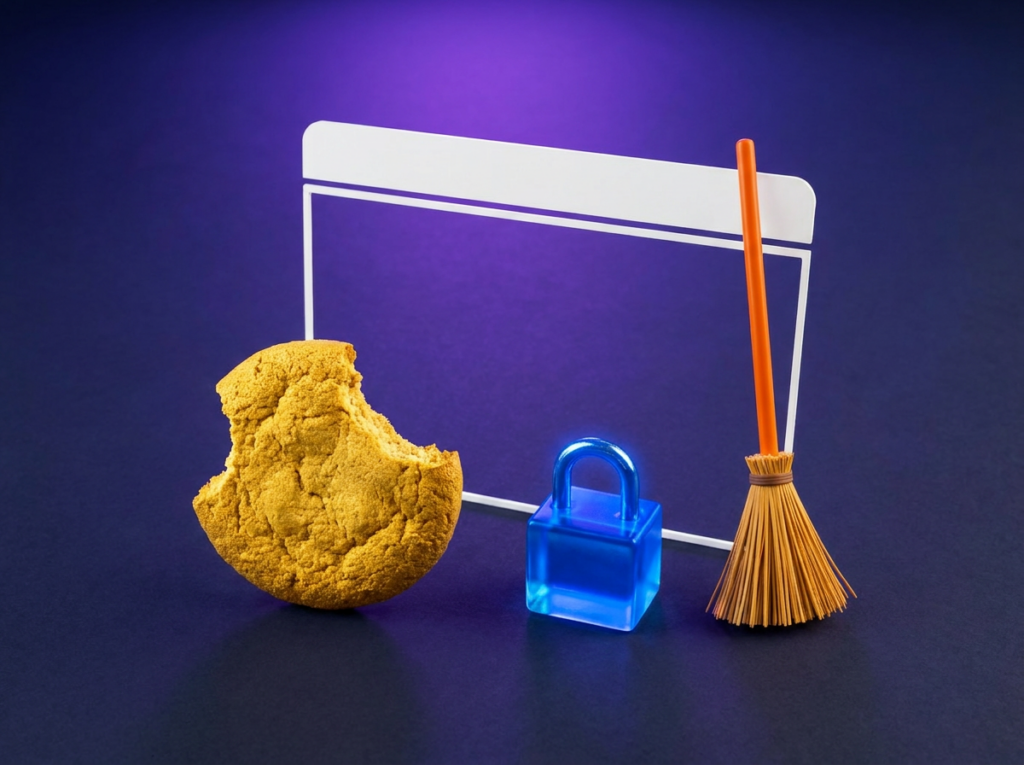
Will a PC cleaner delete browser history when you run it? The honest answer is that it depends on the tool and on which boxes you tick. A PC cleaner delete browser history option may remove only the cache, or it may also remove cookies, saved passwords and autofill. Check the list before you scan, because one wrong tick can sign you out of many sites or erase logins you have not backed up.
Last reviewed: November 23, 2026. Steps were compared with Microsoft documentation; none was run on a real PC.
Quick answer
- Cache: clearing it is the lowest-risk choice. Pages simply load more slowly on your next visit.
- Cookies: removing them signs you out of most sites. They can also clear “remember this device” and two-factor trust, so expect extra prompts.
- History: removing it loses your list of visited pages. If sync is on, it can also clear history on your other signed-in devices.
- Saved passwords and autofill: removed only when that option is ticked. Some tools may list them with a box already ticked.
- Before any scan: check the defaults, the time range and the sync status. Then clear a narrow range first.
In this guide
- What a PC cleaner delete browser history option removes
- How Chrome, Edge and Firefox keep saved passwords
- What sync does when you clear data
- What a cleaner cannot do for your privacy
- Why “All time” with passwords ticked is the risky default
- Before you clean: a checklist
- Decision tree: should the cleaner touch browser data?
- A safer alternative: clear browsing data in your browser
- If something was deleted by mistake
- Private browsing is not a cleaner
- Windows 10 and Windows 11 notes
- Frequently asked questions
- How This Guide Was Checked
- Sources
What a PC cleaner delete browser history option removes
Cleaners do not use the same names as browsers. One tool may say “Browser cache” while another says “Internet temporary files”. Browser cache is a different store from Windows temporary files, and the difference is covered in browser cache vs. Windows temporary files: what a PC cleaner should delete. Map each item to the tables below before you tick it. If a cleaner reports a large saving but your drive barely changes, see our guide to why a PC cleaner may not be freeing up space in Windows 11. For the wider picture of what these tools do, read our overview of PC cleaners for Windows 10 and 11, and our guide to system cleanup software in Windows 11.
Browser data types and their verdicts
The verdict column is a rule of thumb, not a promise. “Low risk” means you can usually clear it and let it rebuild. “Check first” means you should know your sync and account status before you clear. “Signs you out” means you will need to sign in again. “Do not tick unless backed up” means keep that box empty until you have a copy.
Cache, cookies and browsing history
| Data type | What it is and what you lose | Does sync restore it? | Verdict |
|---|---|---|---|
| Cache (cached images and files) | Copies of page parts kept so pages open faster next time. You lose the copies, so the next visit may load more slowly. | Not described as synced in the pages checked for this article. It rebuilds as you browse. | Low risk |
| Cookies and site data | Small files sites use to remember you, plus stored site data. You lose sign-ins and “remember this device” trust. | Not restored automatically. You sign in again and may need a two-factor code. | Signs you out |
| Browsing history | A list of pages you visited. You lose recall of past visits and some address bar shortcuts. | It can be removed everywhere. When history sync is on, clearing it can also clear it on signed-in devices. | Check sync first |
Downloads, autofill, passwords, permissions, tabs and extensions
| Data type | What it is and what you lose | Does sync restore it? | Verdict |
|---|---|---|---|
| Download history | The list of files you downloaded. You lose the list, not necessarily the files. | Follows history when synced. This article did not check whether the files themselves are affected, so look in your Downloads folder before and after. | Check first |
| Form and autofill data | Addresses, names and card entries saved when you filled in forms. You must type them again. | Only if they were synced. Items kept in your account may stay there; check your account page. | Tick only if you want to re-enter them |
| Saved passwords | Logins the browser saved. You lose them on this PC, and each site must be signed in again. | Only if the passwords were synced and another device still has them, or if you hold an export or a password manager copy. | Do not tick unless backed up |
| Site permissions | Choices such as camera, location or notification access that you gave to sites. You must grant them again. | Not described in the pages checked for this article. | Low harm, but annoying |
| Session and open tabs | Pages open right now. Clearing can close them, and you lose the window layout. | No. Reopen the pages by hand. | Save first |
| Extensions | Browser add-ons. They are not part of the browsing-data list in the Chrome page checked for this article. | Depends on your account settings. Check them in the browser. | Review separately |
Cache is the lowest-risk item because browsers rebuild it as you browse. Clearing it can still leave pages loading more slowly for a while. Our guide to how a PC cleaner can leave a Windows PC feeling slower covers that side of cleaning.
How Chrome, Edge and Firefox keep saved passwords
Chrome and Edge
Chrome and Edge generally keep saved passwords in your browser profile, which is the folder of settings and data for your account on this PC. When you sign in and sync is on, passwords can also be kept in your account.
Microsoft’s Edge help page describes where saved passwords are kept. It lists “Site passwords that you’ve saved” and says they are kept “on your device (or, if sync is turned on, across your synced devices)”. That is the key point: a password can exist in more than one place.
Both browsers have a password area in their settings where you can usually export saved passwords to a file. Menu names change between versions, so search the settings for “Passwords”. The export steps were not opened for this article, so none are given here.
Protect any export
A password export is usually a plain text file. Keep it somewhere safe, use it only where you need it, and delete it when you are done.
Firefox
Firefox generally keeps its own list of saved logins, and it can sync them if you use a Firefox account. Check the Firefox password settings before any cleaner runs. Check the saved logins list separately, because clearing cookies and site data may not cover it.
What sync does when you clear data
Sync copies some browser data between the devices you are signed in on. When it is on, a clear action on one device can reach the others.
The Microsoft Edge help page is direct about this. It says: “To clear browsing data just on the device you’re currently using, make sure sync is turned off.” It also says: “Items that are synced will be cleared across all synced devices.”
Google’s Chrome help says the same for history: “When you delete your browsing history in Chrome, it’s also deleted on your devices where you’re signed in to Chrome and have your history synced to your Google Account.”
A cleaner can make this worse
A cleaner that runs with sync on may clear history on your laptop, tablet or phone without any warning on those devices. Check the sync status before you tick history.
How to check sync in Edge
The Edge help page gives this path (menu names vary): Settings and more > Settings > Profiles > Sync. Do not switch sync off just to clean, because its effect on your saved data should be checked first.
What a cleaner cannot do for your privacy
Many people expect a cleaner to make them anonymous. It does not. It only changes what is stored on this PC. Windows keeps its own short lists of what you open, such as the Run dialog history and recent items, and these are covered separately in our guide to Run dialog history and recent items.
Websites and your internet provider keep their own records
Sites you visit and your internet provider can keep their own records of your visits. Clearing history on your PC does not change those records. If privacy from them matters to you, a cleaner is the wrong tool.
Account activity is kept outside the PC
Searches and other activity can be saved to your Google or Microsoft account. Google’s Chrome help notes: “Separately, you can also delete your Google search history from your account.” Deleting local history does not remove that activity. Use the activity pages in your account settings.
A cleaner cannot reach data on a server
A cleaner works on files and settings on your PC. It cannot delete records that a company keeps on its own servers. For those, you need the service’s own tools or a request to the service.
A cleaner may not reach every browser file
Browser profiles can hold protected or encrypted data, and a cleaner may not be able to read or remove all of it. Our general advice: do not assume a cleaner’s report lists every item the browser keeps. Use the browser’s own clear tool to check.
A cleaner may also not show you your sync settings or your password manager. Check those yourself, as the checklist below explains.
A cleaner is not a security tool
A cleaner does not remove malware, and it does not protect you from it. For how a cleaner differs from an antivirus scanner, see our guide to PC cleaner vs. antivirus on Windows 11. If a browser problem looks like a threat, use our guide to removing virus and malware from a Windows PC instead. Pop-ups that claim your PC is infected are covered in our fake virus warning guide. If a cleaner asks you to switch off Windows Security, see what to do when Defender is turned off.
Why “All time” with passwords ticked is the risky default
All time means the full range, not just recent visits. If you also tick saved passwords, you remove every login stored on this PC. That includes logins that were never synced or backed up.
Some cleaners tick passwords and autofill by default. The risk can start before you read the list, so check each box yourself.
Our rule of thumb: pick a short time range, leave passwords and autofill unticked, and clear those items only after a backup. Read the list every time, even when the cleaner looks the same as last month.
Before you clean: a checklist
Work through these steps in order. Each one takes a minute and can prevent a lost password. Our guide to using a PC cleaner safely in Windows 11 covers safe use in more detail.
- Close the browser completely. A running browser can write data while the cleaner works.
- Check sync status. Open the browser’s sync settings and note whether sync is on and which account is signed in.
- Confirm your passwords are saved somewhere safe. Check your account or password manager, or export a file and store it safely. Our safety checklist for PC cleaner software covers more checks.
- List the sites that use two-factor codes. Make sure you can reach your phone, authenticator or backup codes before you clear cookies.
- Save any open work and tabs. Open tabs close when you clear, and you may not get them back.
- Choose a narrow time range. Start with the last hour or the last day, not all time.
- Untick passwords and autofill. Tick them only if you have already backed them up or you want them gone.
- Check the cleaner’s default boxes. Read every category. Do not use registry or optimization buttons for a browser task. For what the scan results mean, see our guide to which PC cleaner scan results are safe to delete.
You should see: every item above checked off before any scan starts, with your passwords either backed up or unticked.
If this fails: if you cannot find your sync status or your password backup, do not run the cleaner yet.
Decision tree: should the cleaner touch browser data?
- Do you only want less clutter on this PC?
- Yes: clear the cache only, with the time range set to a short period. See how to clear cache in Windows 11.
- No: go to the next question.
- Is sync on?
- Yes: clearing history may also clear it on your other devices. Decide whether that is what you want.
- No: go to the next question.
- Do you have saved passwords that are not backed up?
- Yes: untick passwords and autofill. Back them up first.
- No: go to the next question.
- Does the tool tick browser passwords or autofill by default?
- Yes: untick them before you scan.
- No: still read the list, and keep the browser items you do not recognise unticked.
- Does the tool offer registry or optimization buttons?
- Yes: skip them for a browser task. See our registry cleaner guide for why.
- No: continue with the clean.
- Is the tool asking for a payment or a new permission?
- Yes: stop. Read twelve red flags in cleanup software.
- No: run the scan and review every item before you confirm.
A safer alternative: clear browsing data in your browser
The browser’s own tool shows each item and the time range before anything is removed. It is usually the safest way to clear history, cache or cookies, because you see every tick. For a comparison of manual options with a cleaner, read PC cleaner vs. manual cleanup.
Microsoft Edge
- Select Settings and more, then Settings.
- Select Privacy, search, and services.
- Select Clear browsing data, then Choose what to clear.
- Choose a time range. Tick only the items you want removed.
- Select Clear now.
You should see: the list of items and the time range you picked, with nothing removed until you confirm. If this fails: if you cannot find Choose what to clear, search the Edge settings for “clear browsing data”.
Menu names can differ by version.
Google Chrome on a computer
- Open Chrome.
- Select More, then Delete browsing data.
- Choose a time range. To delete everything, choose All time.
- Tick Browsing history and any other items you want removed.
- Select Delete data.
You should see: the Delete browsing data box with its time range and tick boxes, before anything is deleted. If this fails: if the menu item is missing, open Chrome’s settings and search for “browsing data”.
Mozilla Firefox
- Select the menu button, then Settings.
- Select Privacy & Security on the left.
- Go to the Cookies and Site Data or Browsing data section, then select Clear browsing data.
- Set When to Everything or a shorter period, such as the last hour. Tick Cookies and site data and Temporary cached files and pages.
- Check the ticks again, then confirm the clear.
Mozilla’s page lets you set When to Everything or a shorter period, such as the last hour. Menu names can vary by version, so search the Firefox settings for “clear data” if a label has moved.
If something was deleted by mistake
Act calmly and do not clear anything else. Check the places below in this order.
Look on your other devices first
If sync was on, the item may still exist on another signed-in device, but only if that device was off or not synced at the time. Do not sign out of sync on that device until you have copied what you need.
Passwords removed from this PC
Passwords removed from the browser cannot be restored on this PC without a copy. If sync kept them in your account, sign in to the browser again. If not, use an exported file or a password manager you already use.
Account recovery and backups
If you cannot sign in to an account, use that account’s recovery options. For files, not browser passwords, see our guide to recovering deleted files in Windows 11. If the item is a file that OneDrive should be syncing, check why OneDrive is not syncing.
Our general advice: a system restore point is not a reliable way to bring back browser passwords. Read how system restore works in Windows before you rely on it, and plan regular copies with our backup guide.
Private browsing is not a cleaner
InPrivate in Edge and Incognito in Chrome stop new visits from being saved for that window. They do not delete what is already saved. Chrome’s help page notes that its History list does not store “Pages you’ve visited while you browse privately in Incognito mode”. That describes what is saved, not a clean-up.
Our general advice: private windows also do not hide your activity from your internet provider or the sites you visit.
Windows 10 and Windows 11 notes
Browser menus can differ between Windows 10 and Windows 11, and between browser versions. Follow the names on your own screen.
Windows 10 users
Microsoft’s consumer Extended Security Updates run until October 12, 2027. Read Windows 10 support has ended on October 14, 2025.
Frequently asked questions
About browser data
Will a PC cleaner delete my browser history?
It can, if history is ticked. Check the list and the time range before you scan. With sync on, the clear can also reach your other signed-in devices.
Will it delete my saved passwords?
Only if saved passwords are ticked, or the tool has a similar item. Most people should leave that box empty unless they have a backup.
Will clearing history on my PC clear it on my phone?
Only if sync is on and both devices are signed in to the same account.
Should I accept a cleaner’s default boxes?
No. Some tools tick passwords or autofill by default. Untick them, choose a short time range, and check the list before you confirm.
About privacy and recovery
Does clearing history make me anonymous?
No. Websites, internet providers and your accounts keep their own records.
Can I get back passwords a cleaner deleted?
Only from sync, an exported file or a password manager. Without one of those copies, they are gone.
Is private browsing the same as a cleaner?
No. Private windows stop new visits being saved; they do not remove what is already saved.
Should I let a cleaner clear everything?
No. Use the browser’s own tool and tick only the items you choose.
Does Windows have a built-in option?
Our general advice: Windows offers Storage Sense and Disk Cleanup for files, which our comparison of PC cleaner, Storage Sense and Disk Cleanup explains. Browser data still needs the browser’s own tool.
For more help, try the Repair Assistant, or browse the PC repair guides.
How This Guide Was Checked
The Microsoft Edge and Google Chrome help pages listed under Sources were read for this article. The Firefox help page was read only in part: it does not state the saved-logins detail, so the Firefox saved-logins points above are general advice. The password export menus were not checked, so none is given. No cleaner was installed, run or tested, and nothing was run on a real PC. Menu names vary by version, so treat them as a guide.