PC Cleaner Scan Results Explained: Which Junk Files Are Safe to Delete in Windows 11?
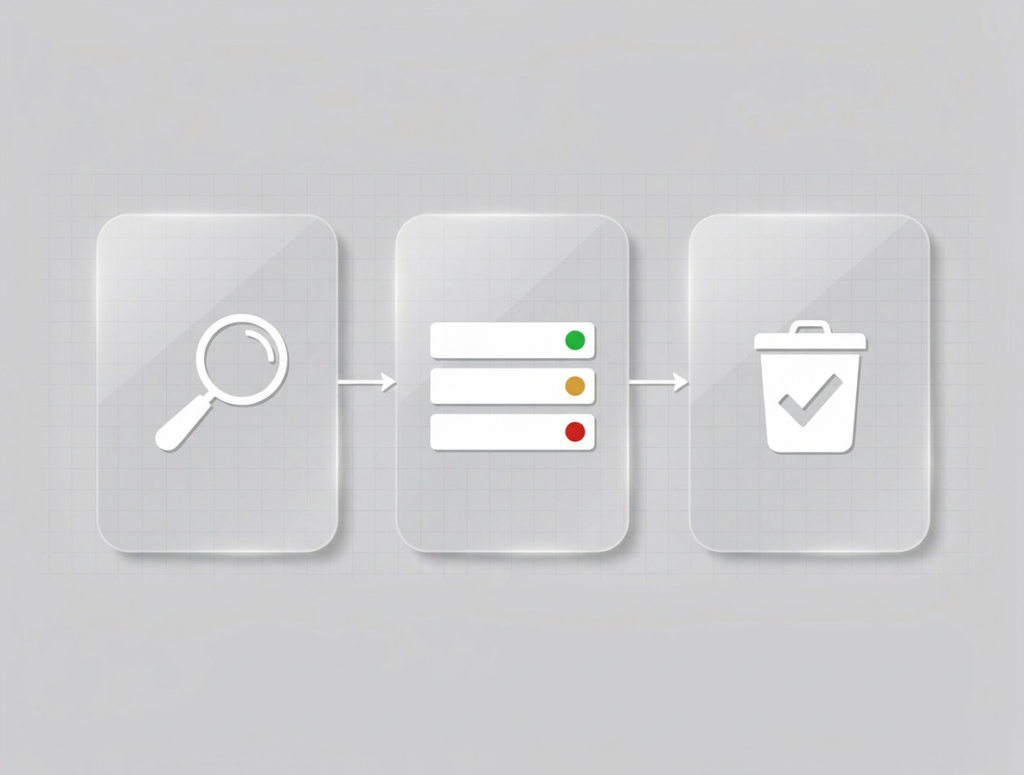
After a PC cleaner finishes its scan, it shows a report: a list of categories, an "issues found" number and a total of space it says it can free. This guide explains how to read those PC cleaner scan results in Windows 11, which files are safe to delete, which need a check first and which you should leave alone.
Last reviewed: November 23, 2026. Steps were compared with Microsoft documentation; none was run on a real PC.
Quick answer
- Each cleaner names its categories differently. Read the labels, then match each item to the safety tables in this guide.
- Items that rebuild themselves, such as temporary files, browser cache and thumbnails, are usually safe to clear.
- Browser history, saved passwords, the Recycle Bin and the Windows.old folder need a check first, because you may not get them back.
- Never delete system folders, registry entries, drivers or the hibernation file by hand because a report suggests it.
- The "issues found" count is the tool's own number. It is not a health score, and no Microsoft page we checked documents it.
- Compare the report with Windows' own Temporary files list before you trust a large total.
In this guide
- What the categories on a scan report mean
- What the issues found count does and does not mean
- Safety comparison: every common item
- Never-delete list and risky exclusions
- Compare the report with Windows' own list
- How to read a report, step by step
- Tick or not? A decision tree
- Windows 10 differences
- Frequently asked questions
- More help
- How this guide was checked
- Sources
PC cleaner scan results: what the categories mean
A scan report is a summary the cleaner writes for itself. Windows does not produce it, and the labels differ from one program to another. One tool may write "Junk files", another "System clutter" and a third "Temporary and cache data". Each name is the tool's own choice.
For a wider view of what these tools do, read our overview of PC cleaners for Windows 10 and 11. This guide focuses on reading the report itself.
Before you tick anything, open the category and read the item names, not only the total. Most reports group files into a few broad families.
Common label families
- Temporary and cache files. Files that apps and Windows write to speed things up. They are usually rebuilt when needed.
- Browser data. Cache, cookies, history, download lists and sometimes saved logins. These differ widely in risk.
- Update and upgrade leftovers. Old update files and, after a Windows upgrade, the previous Windows folder.
- Logs and error reports. Records of past events. Low value once read, and rarely a real space problem.
- Large or old files. Anything the tool judges unused. This is the category that most needs your own judgement.
- Registry issues. Entries the tool says are broken. See the registry rows in the safety tables.
- Startup items. Programs that open when you sign in. Turning one off is a setting change, not a deletion.
If a label fits none of these, treat it as unknown. Leave it unticked until you can say what it contains.
What the "issues found" count does and does not mean
Many reports show a number of issues beside each category, sometimes in red. It looks like a diagnosis. It is not one.
No Microsoft page we checked documents an "issues found" count, how it is calculated or what threshold makes it red. Treat the figure as the tool's own number, not a measure of Windows health.
- One healthy PC can show hundreds, because a count may treat each cookie or temporary file as a separate issue.
- Clearing every counted issue does not repair a fault. Many items are harmless by design. If your PC still runs badly, read what to check when a cleaner did not speed the PC up.
- The count does not say whether an item is safe. The item type does, and the tables below cover it.
Pay-to-fix prompts
If the report offers to fix all issues for a fee, stop. A count alone does not justify a purchase. Check the list against Windows' own tools first. Our guide to cleanup software to avoid lists the usual warning signs.
Safety comparison: every common item
Use these tables as a reference when a report lists an item. Safe means low risk to delete. Check first means read the item and decide. Leave alone means do not delete it by hand.
The verdicts are general guidance, not a promise about your PC. The verdicts for browser cache, thumbnails, shader caches, Prefetch and Delivery Optimization are our general advice, as we found no Microsoft source for them. Where this site has an owner guide for an item, it is linked in the row.
Temporary files and caches
| Item | What it is | Risk if deleted | Verdict |
|---|---|---|---|
| Windows temporary files | Scratch files written by Windows and installers. Some are locked while in use. | Low. Windows skips files in use, and apps recreate most of the rest. See why temporary files may not delete. | Safe |
| User temp files | Temporary files for your own account, left behind by apps you run. | Low, if apps are closed first. An open app may lose a temporary copy of unsaved work. | Safe, after closing apps |
| Browser cache | Copies of web pages and images kept so sites load faster next time. | Low. The next visit to each site is slower, and you usually stay signed in. See how to clear cache in Windows 11. | Safe |
| Thumbnail cache | Small preview images Windows keeps for folders. | Low. Previews rebuild, so folders may take a moment to show their pictures. | Safe |
| Recycle Bin | Files you deleted that stay on disk until the bin is emptied. | High for anything you may still need. Emptying the bin is permanent. See recovering deleted files before you empty it. | Check first |
| Shader and graphics caches | Compiled graphics data kept to speed up later game launches. | Low. Gamers may see a slower first launch while the cache rebuilds. See gaming PC cleanup. | Safe |
| Prefetch | Records Windows keeps of which apps have been opened. | Low, because Windows rebuilds it. No Microsoft page we checked promises a speed gain from clearing it. | Leave alone |
Temporary files and caches are rebuilt when needed. Clearing them usually costs a little time on the next use, not your data. To decide between browser cache and Windows temporary files, read our guide to what a cleaner should delete. For more on the Prefetch row above, see the Prefetch folder guide.
Privacy data in the browser
| Item | What it is | Risk if deleted | Verdict |
|---|---|---|---|
| Cookies | Small files sites store for logins and preferences. | Medium. You are signed out of sites, and their preferences reset. | Check first |
| Browser history | A list of the pages you visited. | Low for the PC, but you lose the list and the address suggestions it feeds. | Check first |
| Download history | The browser's list of files you downloaded. The files themselves stay on disk. | Low. Only the list goes, so the quick links to those files disappear. | Check first |
| Saved passwords and autofill | Logins and form details the browser stored for you. | High. Deleted logins are lost unless they are synced or kept in a password manager. This site has no owner guide for this item. | Leave alone |
Cookies are the item most likely to sign you out. Passwords are the item most likely to cause a lockout. Check that you have them somewhere safe before you clear anything in this group.
Windows update leftovers
| Item | What it is | Risk if deleted | Verdict |
|---|---|---|---|
| Windows Update Cleanup | Older update components that Windows can replace, offered in Disk Cleanup. | Low for most people. Afterwards you may not be able to remove some earlier updates. See Windows Update Cleanup. | Check first |
| SoftwareDistribution folder | Where Windows stores downloaded update files. | Low on its own, but clearing it by hand can interrupt updates. Use the Windows Update troubleshooter instead. | Leave alone |
| Delivery Optimization files | Update pieces stored for reuse and sharing between PCs. | Low. Windows downloads again what it needs. None of the Microsoft pages we checked promises a speed gain from clearing it. | Check first |
| Previous Windows installation (Windows.old) | The earlier Windows kept after an upgrade so you can go back. | High for the rollback. Once deleted, you cannot return to the previous Windows. See deleting Windows.old. | Check first |
Microsoft's drive-space page says that if it has been fewer than 10 days since you upgraded, the previous version of Windows is listed as a system file you can delete. It also says that deleting it cannot be undone.
System areas and large files
| Item | What it is | Risk if deleted | Verdict |
|---|---|---|---|
| Log files and error reports | Records of past events and crash reports. | Low, but you lose history a repair might need. | Check first |
| Memory dump files | Records written after a crash. They can be large. | Low to medium. A technician may need the crash record. See understanding blue screen errors. | Check first |
| Hibernation file (hiberfil.sys) | Stores memory contents when the PC hibernates. | Hibernation stops working, and deleting the file by hand can cause problems. Use powercfg instead. See when the hibernate option is missing. | Leave alone |
| Page file (pagefile.sys) | Disk space Windows uses as backup memory. | Apps can fail, or the PC can slow or crash. See changing the page file. | Leave alone |
| WinSxS folder | The component store for Windows features and updates. | High if files are removed by hand. Its size is not a sign of a fault. See why WinSxS looks big. | Leave alone |
| System32 and Program Files | Windows system files and installed programs. | High. Removing files breaks Windows or the apps that use them. To remove a program, use a complete uninstall. | Leave alone |
| Driver packages (driver store) | Driver files Windows keeps for your hardware. | High. A removed driver can stop a device working. See updating drivers in Windows 11. | Leave alone |
| Registry entries ("registry issues") | The settings database that Windows and apps read. | High. A wrong entry can stop an app or Windows from starting. See registry cleaner risks and what registry errors mean. | Leave alone |
Startup items, large files and personal data
| Item | What it is | Risk if deleted | Verdict |
|---|---|---|---|
| Startup items | Programs that open when you sign in. | Low if you disable them rather than delete them. Some are needed by hardware or security software. See startup apps safe to disable. | Check first |
| Large old files | Big files the tool judges unused, such as videos and installers. | Depends. Some may be your only copy of something. See what to do when the C drive is full. | Check first |
| Duplicate files | Identical copies of one file kept in different places. | Medium. The copy you delete may be the one an app or project uses. See finding duplicate files. | Check first |
| Downloads folder | Files you saved from the internet or from email. | High. Often the only copy of a file, so each file needs a decision. | Check first |
Windows folders, drivers and the registry are covered in the never-delete list below. If you are not sure what a file is, leave it.
Never-delete list and risky exclusions
Some items should never be ticked, whatever the label says. Our PC cleaner safety checklist covers the wider decision. For each scan, keep these unticked:
Windows folders, drivers and the registry
- Anything inside C:\Windows, including the WinSxS and System32 folders.
- Program Files folders. Remove programs through Settings > Apps, not by deleting folders.
- Registry entries, whatever the report calls them.
- Driver packages, the hibernation file and the page file.
To turn hibernation off, which removes the hibernation file, run this from an administrator Command Prompt. Do not delete the file by hand instead. See Microsoft's guide to disabling and re-enabling hibernation.
powercfg /hibernate offTurning hibernation back on recreates the file. Menu names vary by Windows version.
Your own files
- Your own documents, photos and the Downloads folder, unless you have checked each file.
Exclusion lists protect only what you put on them. Adding your own data folders and game save locations is sensible. Our guide to stopping a cleaner from deleting Downloads and personal files shows the settings to check first. Removing a cleaner's own protections for system folders is not.
Compare the report with Windows' own list
A quick check tells you whether a cleaner reports more than Windows does. Compare the two before you run anything. If a menu name differs on your PC, look for the same words in Settings.
Settings > System > Storage > Temporary files
Open Settings, select System, then Storage, then Temporary files. Windows lists each category with its size. Set the total from the cleaner beside this figure. If the cleaner claims far more, believe the Windows number.
If the numbers still do not match, read why a cleaner's numbers do not match free space.
Storage Sense
Storage Sense can run on a schedule. Microsoft's drive-space page says it can free space "by getting rid of items that you don't need, like temporary files and items in your Recycle Bin." Use it as your baseline. If it would remove the same things as the cleaner, the cleaner adds little. Compare the two in PC cleaner vs Storage Sense vs Disk Cleanup.
Disk Cleanup
Microsoft documents Disk Cleanup (cleanmgr) for both Windows 10 and Windows 11. It is not removed or deprecated. Read each box before you confirm. Our Disk Cleanup walkthrough covers the steps.
A read-only check of the component store
To see how large the component store is without removing anything, an administrator can run this analysis. Our general advice is that it only reports and does not clean. Microsoft's WinSxS guidance says the automatic cleanup task waits at least 30 days after an update before it removes older versions, and that the task has a 1-hour timeout. See Microsoft's guide to cleaning up the WinSxS folder.
Dism /Online /Cleanup-Image /AnalyzeComponentStoreHow to read a report, step by step
Work through the report in this order. Do not run the clean until step 6.
- Note the date and total. Write down the space the tool claims and the date of the scan. An old scan may describe files that no longer exist.
- Open each category. Read the item names and sizes, not only the label.
- Match each item to a table row. If an item is not in the tables, leave it unticked.
- Check the total against Windows. Compare it with Settings > System > Storage > Temporary files.
- Tick only Safe items. For Check first items, read the owner guide linked in the row and decide.
- Clean, then restart. Use the cleaner's button for the ticked items only, then restart the PC.
- Measure again. Check free space in Settings > System > Storage and compare it with the claim. On Windows 10, open File Explorer > This PC and read the free space under the drive.
If step 7 shows little change, the claim was inflated or there was little to remove. Your PC is not failing because of that.
For a fuller before-and-after test, read how to tell if a PC cleaner is working.
Tick or not? A decision tree
Use this when an item is not in the tables, or you are unsure about it.
- Is it a temporary file, a cache or a thumbnail?
- Yes: tick it, after closing open apps.
- No: go to the next question.
- Does it hold your data, logins or history? Examples: browser history, saved passwords, the Recycle Bin, your Downloads folder.
- Yes: check first. Leave passwords alone unless you have them saved elsewhere.
- No: go to the next question.
- Is it an update or upgrade leftover? Examples: Windows Update Cleanup, Windows.old.
- Yes: check first. Windows.old cannot be undone once deleted.
- No: go to the next question.
- Is it a Windows folder, a driver, the registry or a system file?
- Yes: leave it alone and do not tick it.
- No: go to the next question.
- Can you name what it is?
- Yes: decide from the table row that matches it.
- No: leave it unticked. An unknown item is not a reason to clean.
Windows 10 differences
Most items and verdicts are the same on Windows 10. Disk Cleanup is documented for both versions. Menu paths differ: on Windows 10, the troubleshooters sit under Update & Security. Names vary by version, so search Settings for the item if a path does not match.
Consumer support for Windows 10 ended on October 14, 2025. Microsoft says an eligible device can stay protected by the consumer Extended Security Updates program until October 12, 2027. Microsoft's end-of-support page explains the options.
Frequently asked questions
About the report
What do PC cleaner scan results mean?
They are the tool's own summary of files it can remove, with sizes and an issue count. Read the item names and match them to the safety tables before you tick anything.
Are the issues a scan finds safe to fix?
Not automatically. The count is not a health score, and no Microsoft page we checked documents it. Fix only items you can name and that fall in a Safe row.
Why does the report claim more space than Windows shows?
Its figure is an estimate. It may count the Recycle Bin, caches that rebuild, or system files in a different way. Check the real result in Settings > System > Storage.
Should I empty the Recycle Bin from a cleaner?
Only after you have checked what is in it. Emptying the bin is permanent, so look through it first.
About safety
Which junk files are safe to delete in Windows 11?
Temporary files, browser cache, thumbnail cache and shader caches are the usual Safe items. They are rebuilt when needed. Everything else in the tables needs a check or should be left alone.
Can I delete Windows.old?
You can, but it cannot be undone. Microsoft says this folder is what lets you go back to the previous Windows version. Decide whether you still need that option before you delete it.
Should I clear saved passwords or cookies?
Usually not in a cleaner's batch. Cookies sign you out of sites. Saved passwords are lost unless they are stored in a password manager or a synced account.
Is a registry cleaner part of a normal scan report?
Some reports include one. No Microsoft page we checked asks you to clean the registry, so see the never-delete list.
More help
If a report still leaves you unsure, the Repair Assistant can help you work through symptoms. You can also browse the PC repair guides.
How this guide was checked
The verdicts follow general guidance and the Microsoft pages listed below. We compared the Windows 11 and Windows 10 steps with Microsoft's drive-space page, the Disk Cleanup documentation and the Windows 10 support page.
No cleaner was installed, run or timed for this guide, and no product is named or endorsed. Menu names vary by Windows version. Where Microsoft documents nothing, the text says so.