Is PC Cleaner Software Safe for Windows 11? Risks, Benefits and What to Avoid
PC cleaner software promises more free disk space and a quicker computer, often with a single button. Before you install any of it, you need to know what these programs remove, what they cannot fix, and how to spot a risky download. This article helps you judge a cleaner. It does not explain the built-in Windows tools, which are covered in our guide to Windows 11 clean-up tools.
A note on how we wrote this. We checked Microsoft support pages on Windows Security, System Protection and performance tips, and consumer-protection advice on tech support scams. Our sources are official Microsoft support pages and Federal Trade Commission (FTC) consumer advice, plus the makers' own pages and the 2017 CCleaner security reports for the tools in the third-party section. Facts about named tools come from the makers' own pages and the named sources. We have not run hands-on tests of these tools. No company paid us for this article, and it contains no affiliate links.
If the benefits matter to you and you accept the checks below, a cleaner can be used safely. If you would rather skip the risk, our guide to manual cleanup versus a cleaner shows what to do with Windows' own tools instead. For the unsafe end of the market, see twelve red flags in cleanup software.
Quick answer
- A cleaner from a real maker, installed with care, is not automatically dangerous. A careless install or a fake scan is where the danger is.
- The benefit is modest: some storage comes back. The risks are bundled software, deleted files you needed and subscriptions you did not mean to start.
- Windows already has Storage Sense and Disk Cleanup, so a third-party cleaner is optional.
- Never use a cleaner to deal with a virus. Use Windows Security, as explained in PC cleaner vs. antivirus.
Is PC cleaner software safe for Windows 11? Benefits and risks
The honest answer is that it depends on the product and on how you use it. The table puts the realistic benefits next to the realistic risks.| Question | Benefit | Risk |
|---|---|---|
| Storage | Can clear temporary files and caches, which gives some space back | Can also delete downloads, saves or caches you still need |
| Speed | Low disk space is one cause of poor performance, so freeing space can help | Startup load, outdated software and hardware limits are not changed, so the gain is often small |
| Convenience | Several clean-ups in one list | One-click buttons can hide what is changing |
| Installation | A trustworthy maker's installer is straightforward | Bundled offers, browser changes and unwanted software spread through careless installers |
| Cost | Free tools exist | Scare scans, forced subscriptions and automatic renewal |
PC cleaner software: what it removes and what it cannot
A cleaner looks for files that Windows or your apps no longer need, then offers to delete them. Microsoft names temporary files as the clean-up target: Storage Sense removes temporary files. Other items a tool lists, such as old installer leftovers or the Recycle Bin, are the tool's own choice, so read the list before you confirm. For more on these tools, see our overview of PC cleaners for Windows 10 and 11. Microsoft's performance tips say that "Low disk space can reduce system performance" and suggest "Storage Sense and cleanup tools to remove temporary files". That is the real benefit: some storage comes back. Cleaning does not change the other causes of a slow PC. Microsoft's performance tips also list too many startup apps running in the background, outdated software and hardware that no longer meets modern performance needs. A cleaner does not change any of those, so if a computer is slow for those reasons, a cleaner will not fix it. Microsoft's guidance for suspected malware is a Windows Security scan, not a cleaner. Registry cleaners are a separate category with their own risks, which this article does not cover. For those, see our registry cleaner guide. For Windows 10, see registry cleaners on Windows 10. To see how the two kinds of tool differ, read our PC cleaner vs. registry cleaner comparison. Whether an automatic registry cleaner beats deleting keys by hand is covered in automatic versus manual registry cleaning.Is a paid PC cleaner worth it?
Windows already includes storage clean-up tools such as Storage Sense, so check what a paid product adds before you pay for anything. To choose between free and paid tools for a specific need, see our guide to system cleanup software for Windows 11. Write down what the product does that these built-in tools do not. Then check the following.- Refund and cancellation terms. Read them before you enter payment details. If you cannot find them, do not sign up.
- Auto-renewal. Look for pre-checked boxes. Read whether the subscription renews unless you cancel. If that is not clear, assume it will renew.
- The cancel date. If there is a free trial, put the date you must cancel in your calendar.
- A cancellation record. Keep a copy of your cancellation request and notes of any conversation about it.
- The sales trigger. Be wary of any subscription offered at the end of a scan that reported many problems.
A 10-point checklist for any cleaner before you install it
Work through this list before you install. If a cleaner fails any of the first five points, do not install it. Scripts and tools that change settings in bulk deserve the same caution; see debloat scripts and what they change. For a longer list of warning signs, see our twelve red flags in cleanup software. Once you have chosen a cleaner, our step-by-step guide to using a PC cleaner safely shows how to run it.Before you download
- Download only from the maker's own website, or from a store listing the maker publishes. Never download from an advert, a pop-up or a site that bundles downloads.
- Check that the maker is a real company. It should name the business, offer a working support page and publish a privacy policy that says what data it collects.
- Choose the custom install and read every screen. Untick toolbars, browser changes and extra software you did not ask for. For preinstalled apps you want gone later, see our guide to unwanted preinstalled apps. For the options worth checking, see our guide to which PC cleaner settings to turn on or off.
What it deletes and changes
- Read the list of what it will delete before you confirm. A tool that clears "everything" with one button is a warning sign.
- Avoid "optimise", "fix registry" and "boost" buttons. They can change settings without explaining each change.
- Be wary of scans that report many "issues" and then ask you to pay to fix them. A high count is not proof of damage: a scan can count each browser cookie, temporary file or history entry as a separate issue, which makes a clean PC look alarming. To clear browser caches yourself, without a scanner, follow our step-by-step guide to clearing cache in Windows 11. If a scanner reports a registry error count, read what a registry error report means.
- Check that it uninstalls cleanly. It should appear under Settings > Apps > Installed apps and remove in one clear step.
How the vendor behaves
- Walk away from tools that rely on constant pop-ups, nagging or countdown timers. Fake cleaner warnings and notification spam are covered in our guide to removing fake PC cleaner pop-ups.
- Look for independent reviews that test the tool. Read the full report, not a summary on the product's own page. Treat a pass as the minimum, not a guarantee.
- Create a restore point and back up your files before the first run. Our System Restore guide and backup guide cover both. If a cleaner has already deleted files you need or broken an app, see our guide to recovering from a PC cleaner that deleted files or broke an app.
Third-party cleaners: what we could verify
This is not a ranking or a recommendation; any tool should still pass the checklist above. We have not tested any of these on a real PC, and no speed figures are claimed. The points below are what the makers and the named sources say. For how Microsoft PC Manager compares with third-party cleaners and Windows' built-in tools, see our Microsoft PC Manager vs third-party cleaners guide.Microsoft PC Manager
- Maker and price: Microsoft Corporation, the publisher on the Microsoft Store listing. Free, as both Microsoft's page and the store listing state.
- What the maker says: cleanup and freeing up space, storage management with Storage Sense, pop-up management, a health check and a toolbox. Microsoft says it is compatible with Windows 10 (19042.0 and above) and Windows 11.
- Caution: the download button on Microsoft's page read "Coming Soon" when we checked, so availability may vary by region. Microsoft's Q&A forum says availability depends on region. Use only the Microsoft Store listing or Microsoft's page, and check what each cleanup option removes before you confirm.
- Links: Microsoft PC Manager page; Microsoft Store listing.
BleachBit
- Maker and licence: developed by Andrew Ziem. Free and open source under the GNU General Public License version 3 (GPL v3), according to bleachbit.org.
- What the maker says: it wipes out temporary files, browser caches, logs and other junk. It says it shows every file before deletion. It offers a Windows installer for Windows 10 and 11, and a portable build.
- Caution: according to its own homepage, its secure deletion feature permanently destroys files beyond recovery. Preview what it will delete, and never shred files you may need.
- Links: BleachBit; source code on GitHub.
CCleaner
- Maker and price: Gen Digital Inc., according to CCleaner's own page. The maker lists a free download and a paid Professional edition.
- What the maker says: "Make your PC faster, free up space, and fix glitches."
- Caution: in September 2017 Cisco Talos reported that CCleaner 5.33, distributed from 15 August to 12 September 2017, contained a backdoor. Avast, which owned Piriform at the time, said it took down the server and released a fixed version, 5.33.6163, on 19 September 2017. The issue was fixed in 2017. It is a reminder to download only from the maker and to keep software updated.
- Links: CCleaner page; Cisco Talos blog post, 18 September 2017; Avast statement, 19 September 2017.
Turn on potentially unwanted app blocking
Windows Security can block potentially unwanted applications (PUA), and Microsoft recommends leaving that protection on. A detected app is only blocked, not removed, until you choose an action for it. Our dedicated article on potentially unwanted apps covers the settings and next steps, and Microsoft's PUA support page explains more.Test a cleaner safely
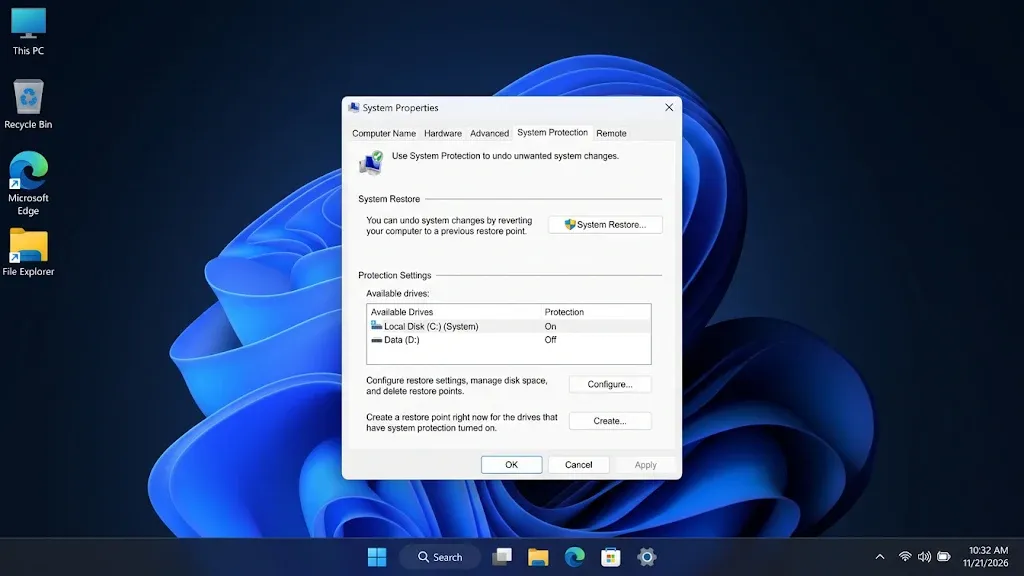
Use this sequence on a PC whose files you can afford to recover. Do not skip the restore point and backup in step 1.- Create a restore point and back up your files first. System Protection is off by default, so turn it on in Microsoft's System Protection settings and create a restore point, using our System Restore guide. Then back up your files with our backup guide before you install anything.
- Note the free space. Check the free space in your Windows storage settings (for example Settings > System > Storage; the path can differ by build). Write the figure down so you can compare it later.
- Install with the custom option. Choose custom where it is offered, read each screen and decline bundled offers. Untick any extra you did not ask for.
- Review before you delete. Open each category and read what it will remove. Clear only the items you recognise. To stop a cleaner deleting your Downloads or personal files, read how to stop a PC cleaner deleting your files. If the tool offers only one button for everything, uninstall it and stop.
- Compare the free space. Check the figure again. If the tool reports a large saving and the free space barely changes, do not trust that report. For a full before-and-after method, see how to tell if a PC cleaner is working. If the drive keeps filling up anyway, see our guide to why the C: drive keeps filling up.
- Restart and check your apps. Restart, then open the apps you use every day. Press Ctrl + Shift + Esc and check the Startup apps tab. If the cleaner itself keeps using high CPU, disk or RAM, see our guide to a cleaner that uses high CPU, disk or RAM. If something broke, use the restore point.
If you installed a bad cleaner: clean-up steps
Work through these in order. Stop when the problem is solved, but do not skip the scan.- Uninstall it. Select Start > Settings > Apps > Installed apps. Find the cleaner, select More options (...), then Uninstall. If the program does not remove cleanly, see our guide to uninstalling a cleaner completely. If the PC feels slower afterwards, read what to do when a PC cleaner made Windows slower.
- Restart. A restart stops background parts of the program that may still be running.
- Scan with Windows Security. Run a Quick scan from Virus & threat protection. If the problem returns, run a Microsoft Defender Offline scan, which restarts the PC, so save your work first. Our guide to removing viruses and malware covers the next steps, and if Windows Security is off, see our guide on Windows Security being turned off. Microsoft's Microsoft Defender offline scan page explains the offline scan.
- Check browser extensions, home page and default search. Remove any extension you do not recognise. Check the home page and the default search engine, and keep only settings you chose yourself.
- Check Startup apps. Disable any entry you cannot identify in the Startup apps tab of Task Manager; our startup programs guide explains how to decide.
- Check recent installs. Look under Installed apps for programs you do not recognise, especially any installed around the time the cleaner arrived. Our guide to uninstalling programs completely covers the stubborn ones.
- Restore if things broke. If the PC is unstable after these steps, use the restore point you made before the install. If Windows itself is damaged, see our guide to repairing Windows after a PC cleaner broke it. If a registry cleaner has already changed your settings, read how to undo registry cleaner changes and restore Windows.
- If you paid, gave access or were asked to call a number. Follow the advice in the next section. Change any password the scammer had, and change it on other accounts where you used the same one. Do this from a device you trust.
Red flags that mean stop
Some warning signs appear before you install anything. Stop if you see any of these:- A fake virus pop-up that claims your PC is infected and asks you to call a number. Our article on fake virus warnings shows what they look like.
- "Your PC is at risk" adverts, especially while browsing, that offer an instant scan.
- Tools that promise to double your speed or make an old computer feel new with one click. Microsoft's performance tips say that older PCs with outdated hardware may not see significant improvements from those steps, and that upgrading may be the best long-term solution.
- Tools that ask you to turn off Windows Security or other protection before they will run.
- Cracked versions or "free pro" downloads of paid software. Avoid them: you cannot know what was added to them.
What to know about tech support scams
Some cleaner "scans" arrive as a call, a text or a warning that looks like it comes from a well-known company. Consumer-protection guidance on tech support scams from the Federal Trade Commission (FTC) says the following, in summary:- Legitimate tech companies will not contact you by phone, email or text message to tell you there is a problem with your computer.
- Real security pop-up warnings will not ask you to call a phone number.
- Requests for remote access are a scam sign. Scammers who reach you by phone may ask for remote access to your computer and pretend to scan it for viruses.
- Scammers often ask for payment by gift card, wire transfer, bank transfer, cryptocurrency or a payment app. Do not pay tech support this way.