11 Signs Your Windows 11 PC Needs Cleaning (and 5 Times a PC Cleaner Won’t Help)
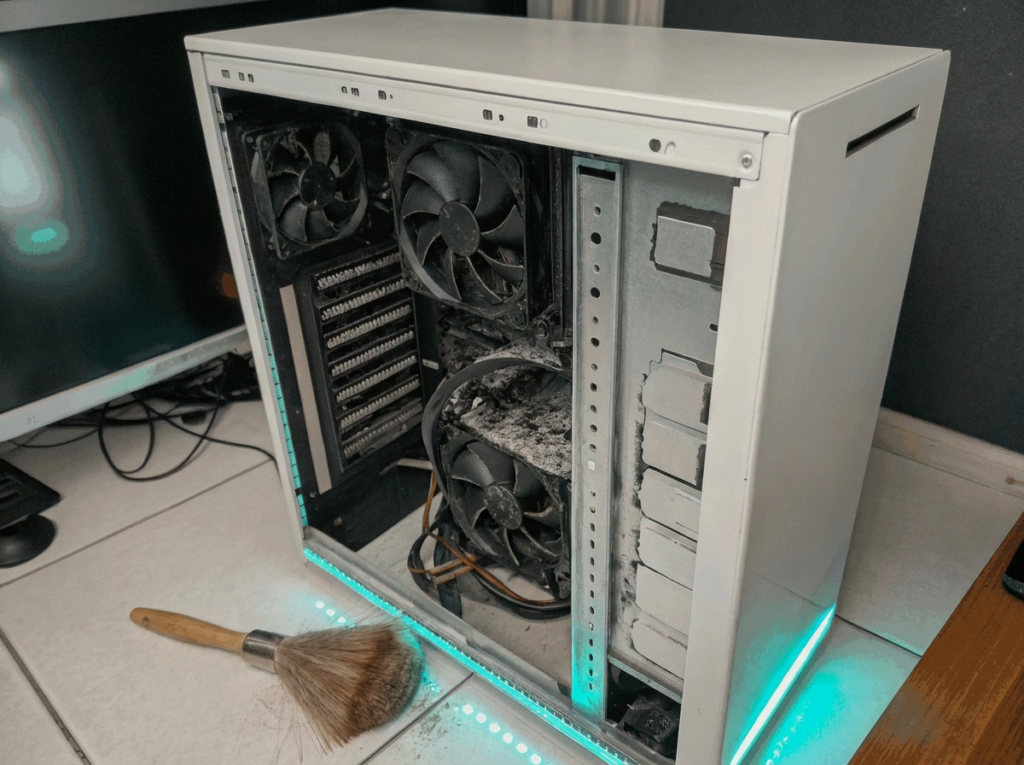
Many people ask how to tell when a PC needs cleaning, and the honest answer is that a slow PC is not always a dirty one. Some signs point to a nearly full drive, some to too many startup apps, and some to dust inside a laptop or desktop case. This guide lists eleven signs, shows how to confirm each one in Windows, and explains five cases where a PC cleaner will not help.
Last reviewed: November 23, 2026. Steps were compared with Microsoft documentation; none was run on a real PC.
Quick answer
- A PC needs cleaning when a specific sign points to a full drive, too much start-up load or dust, and you can confirm the cause in Windows.
- Check free space and startup apps first. They are the most common causes and the quickest to measure.
- Use Windows tools first: Storage settings, Startup apps, installed apps and Windows Security.
- Physical dust needs care with the power off. A software tool cannot clean a fan.
- A cleaner will not fix a failing drive, overheating, malware, damaged system files or a PC that is too small for its job.
In this guide
- The eleven signs at a glance
- Start-up and speed signs (1 to 4)
- Storage and space signs (5 to 9)
- Heat, dust and unwanted software (10 and 11)
- A safe order for working through the signs
- Decision tree: is it a cleaning job?
- 5 times a PC cleaner will not help
- A note for Windows 10 PCs
- Frequently asked questions
- How this guide was checked
- Sources
Signs your PC needs cleaning: the eleven at a glance
Match what you see with a likely cause and a first check. Each row is explained in the sections below. Menu names vary by Windows version, so if a path looks different on your PC, search Settings for the item name.
| Sign | Likely cause | First check |
|---|---|---|
| 1. Slow start-up | Too many apps launch at sign-in | Count enabled startup items |
| 2. Apps open slowly | Low free memory or a busy disk | Task Manager, Performance tab |
| 3. Many startup apps | Apps set to start with Windows | Startup apps tab, startup impact |
| 4. Browser slow, many extensions | Extensions and a large cache | Count extensions; check cache size |
| 5. C: drive nearly full | Downloads, apps, temporary and system files | Settings > System > Storage |
| 6. Windows Update fails | Not enough free space on the system drive | Update error text and Storage |
| 7. Huge Temporary files | Leftover installer and update files | Temporary files entry in Storage |
| 8. Downloads and Recycle Bin pile | Files you no longer need | Sort Downloads by size |
| 9. Lots of old programs | Unused software taking space | Installed apps list |
| 10. Loud fans with dust | Dust on fans and vents | Listen at idle; look at the vents |
| 11. Pop-ups and unwanted apps | Bundled or unwanted software | Installed apps, extensions, Windows Security |
Start-up and speed signs (1 to 4)
These four signs are often mistaken for a broken PC. The checks are quick, and none of them deletes anything.
1. Slow start-up
What you see: the sign-in screen appears quickly, but the desktop takes a long time to become usable.
How to confirm: restart and time it with a phone stopwatch, from pressing Restart to a usable desktop. Do it twice. Then open Task Manager, select the Startup apps tab and check the enabled items and their startup impact.
What cleaning helps: turning off startup items you do not need. Disabling is not uninstalling. Our guide to disabling startup programs shows the steps.
When a cleaner will not help: when start-up stays slow after the list is trimmed. An old PC with little memory or a failing drive is a likely cause. See why is my computer so slow.
2. Apps open slowly
What you see: a word processor, browser or photo editor takes a long time to open, even after the PC has been on for a while.
How to confirm: open Task Manager with Ctrl + Shift + Esc and watch Memory and Disk while the app loads. If disk use sits near 100 percent, the slow point is the disk. Microsoft's performance tips list low disk space, startup apps, outdated software and hardware limits as common causes.
What cleaning helps: freeing space on the Windows drive and cutting startup load. Freeing space is the only part a cleaning job can change.
When a cleaner will not help: when memory stays full with ordinary apps open. That points to hardware limits, covered in case 5 below.
3. Many startup apps in Task Manager
What you see: the Startup apps tab lists many enabled items, some you do not recognise, and some with a high startup impact.
How to confirm: open Task Manager, select Startup apps and sort by startup impact. Note the name and publisher of each item. Items named after apps you use daily are normal. Items you cannot identify deserve a search before you disable them.
What cleaning helps: disabling items you can name as unneeded, one at a time, with a restart between tries. Our guide to startup apps that are safe to turn off shows which items to leave alone.
When a cleaner will not help: when an unknown item keeps coming back. It may be unwanted software, see sign 11.
4. Browser slow with many extensions and a huge cache
What you see: pages load slowly, the browser uses a lot of memory, and it has add-ons you do not remember installing.
How to confirm: open the browser's extensions page and count what is installed. Find the clear-data or privacy settings to see how large the cache is. Browser menus differ, so search the browser's help pages for extensions.
What cleaning helps: removing extensions you do not use and clearing the cache. Each site will load slowly once after a cache clear. That is normal. Our guide on clearing cache in Windows 11 explains the trade-off. For the difference between browser cache and Windows temporary files, read browser cache versus Windows temporary files.
When a cleaner will not help: when a search page or toolbar keeps changing. Remove the extension that does it, then check sign 11.
Storage and space signs (5 to 9)
Storage is where cleaning really helps. Deleting files you no longer need frees space, and Windows has tools to do it safely.
5. The C: drive is nearly full or shows a low-space warning
What you see: a warning that the drive is low on space, or a nearly full bar in Storage settings.
How to confirm: open Settings > System > Storage. The bar shows used and free space and splits it into categories. Menu names vary by Windows version. Microsoft does not document the exact free-space level at which the warning appears, so trust the bar's figures.
What cleaning helps: Storage Sense and the category list. Microsoft's guide to freeing up drive space in Windows covers these tools. Read what each option removes before you turn it on. Our guide to freeing up disk space in Windows 11 walks through the same options step by step.
When a cleaner will not help: when a few very large files are needed, or the drive is simply small. If space vanishes fast, read Windows 11 C: drive full.
6. Windows Update fails for lack of space
What you see: an update stops partway, or its error text mentions space.
How to confirm: open Settings > Windows Update, read the error and check free space on the system drive. Microsoft's guidance says updates need free space, but Microsoft does not document one fixed minimum in the pages used for this article. Do not trust a figure from a third-party site.
What cleaning helps: freeing space through Storage, then running the update again. Old update files are a separate job. Our guides to Windows Update cleanup and deleting Windows.old explain when that is safe.
When a cleaner will not help: when the update fails with a different error code. Look up that code, or use the Repair Assistant.
7. Storage shows huge Temporary files
What you see: Temporary files is one of the largest categories in Storage, sometimes many gigabytes.
How to confirm: open Settings > System > Storage, then select Temporary files. Read the list of what it covers before you remove anything.
What cleaning helps: removing the temporary files Windows marks as safe to delete. Do not clear them while an update is running.
When a cleaner will not help: when the files return within days. Something keeps writing them. For stubborn cases, read temporary files not deleting and Storage Sense not working.
8. Downloads and Recycle Bin pile up
What you see: a Downloads folder full of old installers and archives, and a Recycle Bin that holds files from years ago.
How to confirm: open File Explorer, open Downloads and sort by size. Open the Recycle Bin and check what is inside. Files there can still be restored until you empty it.
What cleaning helps: deleting what you do not need, then emptying the Recycle Bin once you are sure. For copies of the same file, see duplicate files in Windows 11.
When a cleaner will not help: when the important files are the problem. A cleaner cannot tell whether a scanned tax form is still needed. Decide that yourself.
9. Lots of old programs
What you see: long lists of programs you have not opened in years, including trial software and toolbars.
How to confirm: open Settings > Apps > Installed apps, sort by size or date, and mark what you still use. Menu names vary by Windows version.
What cleaning helps: uninstalling through Installed apps. Use that route, not a folder you delete by hand. Uninstalls can leave entries behind, covered in leftover services, tasks and startup entries.
When a cleaner will not help: when the list is short and the slowdown has another cause. A program that offers to uninstall others for you is another program to check. See cleanup software to avoid.
Heat, dust and unwanted software (10 and 11)
These two signs are not solved by deleting files. One needs a careful hand, the other a check of what was installed.
10. Loud fans with dust
What you see: fans run loudly with few apps open, vents feel hot, or a laptop is hot under the keyboard.
How to confirm: listen to the fans with nothing running. Look at the vents and intake grilles for dust. To read temperatures, use the CPU and GPU temperature guide.
What cleaning helps: physical cleaning with the PC off and unplugged. Hold a can of compressed air upright and use short bursts. Keep fans from spinning freely. Microsoft does not document fan cleaning, so follow your manufacturer's guidance. For laptops, see cleaning a laptop safely.
When a cleaner will not help: a software tool cannot reach a fan or a heat sink. If the PC still runs hot, see the overheating case in case 2 below.
11. Frequent pop-ups and unwanted apps
What you see: pop-ups outside the browser, a new toolbar, a changed search page, or programs you did not choose to install.
How to confirm: open Settings > Apps > Installed apps and look for programs you do not recognise. Check the browser's extension list too. Then open Windows Security and run a scan from Virus & threat protection. The Windows Security app overview explains the options.
What cleaning helps: removing unwanted programs and extensions through their normal uninstall route, then a Windows Security scan. Windows Security also covers potentially unwanted apps under App & browser control.
When a cleaner will not help: when the cause is malware or a bundled tool. Compare the two in PC cleaner vs antivirus.
A safe order for working through the signs
Work in this order. Each step is reversible, and each one shows whether the next step is needed.
- Check free space in Storage (signs 5 to 8). Free space is the simplest fact to measure.
- Review startup apps (signs 1 and 3). Disable items you can name, one at a time.
- Review installed apps and extensions (signs 4, 9 and 11). Remove only what you recognise as unwanted.
- Run a Windows Security scan (sign 11). Update Windows first so the scan uses current protection updates.
- Clean dust from vents and fans with the PC off (sign 10).
- Measure again. Time a restart and check free space, then compare with where you started.
Decision tree: is it a cleaning job?
- Does the warning or the slowness mention space or the C: drive?
- Yes: work through signs 5 to 8. If the drive is still full, go to the five cases below.
- No: go to the next question.
- Is the PC slow only at start-up?
- Yes: check signs 1 and 3, and disable startup items you can name.
- No: go to the next question.
- Is it loud or hot?
- Yes: sign 10. Clean physically, then check temperatures.
- No: go to the next question.
- Are there pop-ups or programs you did not install?
- Yes: sign 11, then a Windows Security scan. If threats remain, see the malware case in case 3 below.
- No: none of the eleven signs fits clearly. Describe the symptom in the Repair Assistant.
5 times a PC cleaner will not help
A cleaner works on files and settings. It cannot repair a failing drive, reach heat inside a case, reliably remove a hidden threat, repair damaged Windows components or add memory. These five cases look like cleaning jobs, but they are not.
Case 1: a failing drive
What you see: slow file access, save errors, files that vanish, or a drive that disappears from File Explorer.
Why a cleaner is not the answer: a cleaner deletes files. It cannot repair a disk that is wearing out. Microsoft's Storage pages show space, not drive health.
What to do: back up your files now, then read our SSD health guide.
Case 2: overheating or dust
What you see: loud fans, shutdowns under load, or heat near the keyboard.
Why a cleaner is not the answer: dust sits on fans and heat sinks. Software does not move it. A tool that reports an optimised PC changes nothing inside the case.
What to do: clean the vents as in sign 10, then read fix PC overheating.
Case 3: malware or unwanted apps
What you see: new toolbars, pop-ups, programs that return after removal, or a browser that redirects.
Why a cleaner is not the answer: a cleaner is not a malware tool. Windows Security includes Microsoft Defender Antivirus. If you run another antivirus app, Defender turns off automatically, so check which one is active.
What to do: run a Windows Security scan, then follow remove virus malware from a Windows PC if threats remain.
Case 4: damaged system files, drivers or blue screens
What you see: repeated blue screens, Windows features that stop working, or errors that name a system file.
Why a cleaner is not the answer: a cleaner removes junk. It does not replace a damaged file. Microsoft documents System File Checker for this, and it recommends running DISM before SFC. The short commands are below, and our SFC and DISM guide has the full steps.
DISM.exe /Online /Cleanup-image /Restorehealthsfc /scannowWhat to do: for repeated blue screens, read understanding and fixing blue screen errors.
Case 5: a hardware limit
What you see: a PC with very little memory that slows with two apps open, or a hard drive that stays busy all the time.
Why a cleaner is not the answer: deleting files does not add memory, and cleaning does not turn a hard drive into a solid-state drive. Those are hardware limits. Our general advice is that a PC with very little memory will stay slow with ordinary apps open, however clean it is. To see how much memory your tasks need, read our RAM guide.
What to do: check memory use in Task Manager with normal apps open. Our old PC low RAM and hard drive guide covers what is realistic. For wider options, see how to speed up Windows 11.
A note for Windows 10 PCs
Consumer support for Windows 10 has ended, as Microsoft's Windows 10 end-of-support page explains. Microsoft's consumer Extended Security Updates run until October 12, 2027, so check whether your PC is covered before you rely on any step here. The sign checks work on Windows 10 too, although menu names differ. For the free-space check in sign 5, open File Explorer, select This PC, and the free space for drive C: is shown under the drive name. For more help, browse the PC repair guides.
Frequently asked questions
Questions about the signs
How do I know my PC needs cleaning rather than repair?
Start with the checks in this guide. Free space, startup apps and unwanted programs are cleaning jobs. Repeated errors, failing hardware and blue screens need a different route.
Is a slow PC always a dirty PC?
No. Slowness can come from startup load, a full drive, low memory, a failing disk or heat. Only some of these are cleaning jobs.
How often should I check for these signs?
There is no fixed schedule in Microsoft's documentation. Our general advice is to check free space and startup apps every few months. For a routine, see our PC cleanup schedule for Windows 11.
Questions about safety
Is it safe to delete temporary files?
Windows marks many temporary files as safe to remove. Do not delete them during an update, and read the Storage list before you confirm.
Can dust really slow a PC down?
Dust can block airflow and raise temperatures. Some PCs then slow down under load to protect their parts. The effect depends on the design.
Do I need a PC cleaner to handle these signs?
No. Windows tools cover signs 1 to 9, and Windows Security covers the scan in sign 11. Our overview of PC cleaners explains what a cleaner adds and what it does not.
Should I back up before cleaning?
Yes. Back up files you cannot replace before you delete anything large or run a tool that changes settings.
What if the sign comes back after cleaning?
Then the cause was not fully removed. Check the other signs in this guide, and see the five cases above before you buy any software.
How This Guide Was Checked
The signs and checks were compared with Microsoft's documentation on Storage settings, Storage Sense, startup apps, Windows Security, System File Checker and performance tips. No PC was cleaned, repaired or timed for this article, and no cleaner was installed or tested. Where Microsoft documents nothing on a point, the text says so. Menu names vary by Windows version.
Sources
- Tips to improve PC performance in Windows, Microsoft Support
- Configure startup applications in Windows, Microsoft Support
- Free up drive space in Windows, Microsoft Support
- Manage drive space with Storage Sense, Microsoft Support
- Windows Security app overview, Microsoft Support
- Use the System File Checker tool to repair missing or corrupted system files, Microsoft Support