Windows 11 App Not Uninstalling? 9 Fixes by Error Message
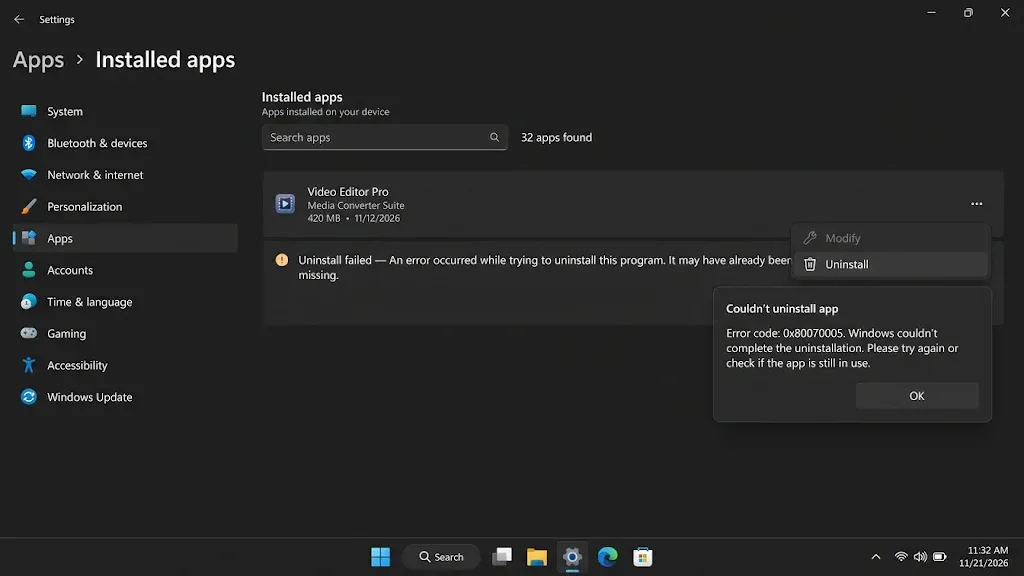
A Windows 11 app not uninstalling problem usually shows up in one of a few ways. The progress bar stops. The Uninstall button is grey. The uninstaller opens and closes straight away. Sometimes it shows an error code. This guide covers only that failure. You will find nine fixes, sorted by what you see on screen. For more step-by-step help, visit our PC repair guides.
Before you start
Take a few minutes to prepare. Most fixes are safe, but a few change system settings. Doing these checks first makes recovery easier if something goes wrong.
- Back up the app's own data, such as saved games, settings files and licence keys. Uninstalling may delete them.
- Create a restore point before you change anything. Our guide on using System Restore in Windows explains how.
- Sign in with an administrator account. Some apps can only be removed by an administrator.
- Keep a copy of your personal files. For a full copy, read our guide on backing up a Windows PC with a system image.
Windows 11 app not uninstalling: match your error
Find what you see in the first column. The last column suggests which fix to try first. Menus can differ between Windows 11 builds, so use the closest match.
| What you see | Likely cause | Fix number |
|---|---|---|
| Uninstall starts, then nothing happens | The app or a helper may still be running | Fix 1 |
| Uninstall is greyed out or missing | Often a system app, a managed PC or a standard account | Fix 3 |
| Error 1618: another installation is already in progress | Another installer or update is busy | Fix 4 |
| Error 1603: a fatal error occurred during installation | A general installer error; a file in use or a pending restart is often the cause | Fix 2, then Fix 4 |
| Error 1605: this action is only valid for installed products | The install record may not match the app | Fix 6 |
| Error 1612: the installation source is not available | The original installer cannot be found | Fix 6 |
| Uninstaller opens and closes at once | Possibly damaged app files | Fix 5 |
Nine fixes to try, in order
Try each fix in order. Stop when the app is gone. Each fix ends with what to check and what to try next.
1. Close the app and end its background process
Use this fix when the app or one of its helpers is still running. Windows may not remove a program that is in use.
- Press Ctrl, Shift and Esc together to open Task Manager.
- Select Processes. Look for the app name or the publisher name.
- Select the process, then choose End task.
- Repeat for any other process from the same publisher.
- Open Settings > Apps > Installed apps and try the uninstall again.
What to check: the process no longer appears in Task Manager, then the uninstall runs again.
If this does not help: restart the PC and move on to Fix 2.
2. Restart and install pending Windows updates
Use this fix when a restart is pending or an update is still downloading. Either one can lock files the uninstaller needs.
- Save your work and restart the PC.
- After sign-in, open Settings > Windows Update.
- Select Check for updates, install what is listed, and restart if asked.
- Try the uninstall again.
What to check: no restart is pending and no update is still downloading before you try again.
If this does not help: a stuck update can block installs and removals. Read our guide on fixing Windows Update when it is stuck or failing, then try Fix 3.
3. Check why Uninstall is greyed out or missing
Use this fix when the Uninstall button is grey, or the menu has no Uninstall option at all. The cause is often the account or the PC, not the app.
- Open Settings > Apps > Installed apps.
- Select the More icon (three dots) next to the app and look for Uninstall.
- If there is still no Uninstall option, open Control Panel, select Programs > Programs and Features, right-click the program and choose Uninstall or Uninstall/Change. Some classic desktop programs can only be removed this way.
- If you use a standard account, sign out and sign in as an administrator.
- If a work or school group manages this PC, ask your IT team. Do not try to bypass that policy.
- If the app is a core Windows component, leave it in place.
What to check: Uninstall may appear when you are signed in as an administrator. On a managed PC the option may stay grey.
If this does not help: on most builds, some system apps have no uninstall option at all. Try Fix 4 for apps that do show Uninstall but then fail.
4. Wait out error 1618 or 1603, then retry
Use this fix when the error says another installation is in progress (1618), or that a fatal error occurred (1603). Both can clear once the busy process finishes. If Windows says the Windows Installer service cannot be accessed, read this guide to the Windows Installer service error. Error 2503 is a related installer message, covered in our guide to Windows Installer error 2503.
- Close any other installer window you have open.
- Open Task Manager and check whether another installer is still running. Wait for it to finish.
- Wait for any Microsoft Store or Windows Update download to end.
- Restart the PC if the error was 1603.
- Start the uninstall again from Settings > Apps > Installed apps.
What to check: the uninstall either finishes or shows a different message, which you can match against this guide.
If this does not help: the error may come back if the app's files are damaged. Go to Fix 5.
5. Repair the app, then uninstall it
Use this fix when the uninstaller opens and closes, or fails with no clear code. Many apps offer Repair in Windows 11, but not all of them do.
- Open Settings > Apps > Installed apps.
- Select the More icon (three dots) next to the app, then choose Advanced options. Some apps do not have this option, and menus can differ.
- Select Repair if it is available, and wait for it to finish. Restart if asked.
- Try Uninstall again.
- If Repair is not available or does not fix the problem, select Reset. Reset may return the app to its default state, which can remove its settings or data. Keep your backup first, then try Uninstall again.
What to check: the Repair or Reset step finishes without an error, then you try Uninstall again. If an app then reports a missing Visual C++ runtime file, see how to repair MSVCP140.dll and VCRUNTIME140.dll.
If this does not help: Windows 11 can suggest troubleshooting steps when an install or removal fails, so follow any guidance in the error message. Microsoft also offers a Program Install and Uninstall troubleshooter. Download the troubleshooter from Microsoft and, when prompted, select Run or Open. If a program isn't listed in the uninstall options, you'll be asked for that program's product code. You'll find it in the property table of the MSI file, using a tool for reading MSI files. Then try Fix 6.
6. Fix a broken install record for errors 1605 and 1612
Use this fix when the error is 1605, which says the action is only valid for products that are currently installed. Error 1612 means the installation source is not available. Both often point to a mismatch between Windows and the app.
- Write down the exact error code and the app's full name.
- For error 1612, download the same version of the app from the publisher's official site or the Microsoft Store.
- Run that installer and follow the publisher's instructions to install it again or repair it.
- Open Settings > Apps > Installed apps and uninstall the app.
What to check: the app is listed under Installed apps with an Uninstall option.
If this does not help: try Fix 7, which uses winget and can work when Settings does not.
7. Remove the app with winget
Use this fix when Settings fails but Windows still lists the app. Winget is the Windows package manager. Microsoft's winget uninstall guide lists the options. If Windows says winget is not recognized, read our guide to the not recognized command error and PATH.
- Open Windows Terminal or PowerShell.
- Run
winget listand find the app. Note its Name and its Id. - Run
winget uninstall --id <Id> -e, replacing <Id> with the Id you noted. The-eoption matches the ID exactly. - If the Id does not work, run
winget uninstall --name "App name" -ewith the exact name. - If winget shows a Microsoft Store agreement prompt, you can avoid it by adding
--source wingetto thewinget uninstallcommand. Wait for winget to report that the removal has finished.
What to check: winget reports the result, and the app no longer appears under Installed apps.
If this does not help: the app may have no winget entry. Try Fix 8.
8. Remove a Microsoft Store app
Use this fix for apps you installed from the Microsoft Store. Some of them have no Uninstall option in Settings.
- Open Start, search for the app, and right-click it. Choose Uninstall if it appears.
- If it does not appear, open Microsoft Store and check your library. If the Store itself misbehaves, read our guide on fixing Microsoft Store when it will not open or download.
- Optional and advanced: create a restore point first, then open PowerShell and run
Get-AppxPackage *name*on its own. Check the Name column to confirm it lists only the app you mean. Only then runGet-AppxPackage *name* | Remove-AppxPackage, replacing name with part of the app's name.
Warning: use the PowerShell command only for Store apps you recognise by name, and create a restore point before you run it. Never run it on core Windows apps, or on any app you do not recognise. A wildcard can match more than one package, so check the list first. Adding -AllUsers applies the removal to every account on the PC. See Microsoft's Remove-AppxPackage page for the details.
What to check: the app no longer appears in Start or under Installed apps.
If this does not help: stop here. Do not delete app folders by hand. Try Fix 9.
9. Use the maker's removal tool, or try Safe Mode
Use this fix for security software and other apps that resist normal removal. Some makers publish their own removal tool. Safe Mode is another option to try if the normal uninstall keeps failing.
- Check the maker's official support page for a removal tool. Download it only from that official site.
- Run the tool and follow its prompts. Restart when it asks.
- If the removal still fails, restart in Safe Mode and try the normal uninstall there. Our guide on booting into Safe Mode in Windows shows how.
- Restart normally when you finish.
What to check: the app is gone, or the maker's tool reports the result.
If this does not help: the app may be malware or unwanted software. See the next section.
How to check the app is really gone
A successful uninstall should leave no trace in the normal places. Check these three areas to confirm.
- Installed apps: open Settings > Apps > Installed apps and search for the name. It should not appear.
- Start menu: search for the app name. The shortcut should be gone.
- Task Manager: open the Processes tab and look for the app or its publisher. Nothing should remain running.
Some files, start-up entries, scheduled tasks and registry entries can remain after an uninstall. These are not part of this failure. Leftover menu items from old apps are covered in why the right-click menu is slow. Leftover registry entries are harmless in most cases; see which ones are safe to leave alone. Before you delete any leftover folders, see checking leftover folders in AppData and ProgramData safely. Our guide on what is left after an uninstall and how to clear it covers them. Leave the Windows Installer folder alone, because deleting it can break later uninstalls; see why cleaners should not touch the Windows Installer cache.
If the problem continues
If the app still will not go, contact the software maker. Give them the exact error code, the app version and the Windows build. Their support team knows their own installer best. Microsoft's guide to fixing problems that block programs from being installed or removed covers the same ground.
Some programs you cannot remove are unwanted apps that keep returning. Our guide on dealing with potentially unwanted apps in Windows 11 explains how to block and remove them.
A stuck uninstall can also come from malware. If the app reappears or behaves oddly, scan the PC. Then read our guide on removing viruses and malware from a Windows PC.
If Windows files seem damaged, run the built-in repair tools. Our guide on repairing Windows system files with SFC and DISM walks through the steps.
As a safety net, use System Restore to return to the restore point you made before you started. Restoring does not touch your personal files, but it can remove recent apps and updates.
Frequently asked questions
Why does the Uninstall button stay grey?
On most builds, the button is greyed out for core Windows apps and for apps a managed PC blocks. It can also apply to standard accounts. Sign in as an administrator first, then check again.
Can I uninstall an app that came with my PC?
Some preinstalled apps can be removed and others cannot. Our guide on removing preinstalled apps from a Windows PC explains which ones are safe to remove.
Is it safe to delete the program folder by hand?
No. Deleting program folders or Windows Installer folders by hand can break other programs and updates. Use the Settings steps or winget instead.
Will uninstalling remove my saved files?
It can. Many apps keep saves and settings in their own folders. Back them up before you start, as shown in the section above.
Does a restart always fix error 1618?
Not always. Wait for other installers to finish, then restart and try again. If the error returns, follow Fix 5.
Sources
- Microsoft Support, "Fix problems that block programs from being installed or removed": https://support.microsoft.com/en-us/windows/deployment/install-upgrade/fix-problems-that-block-programs-from-being-installed-or-removed
- Microsoft Support, "Repair apps and programs in Windows": https://support.microsoft.com/en-gb/windows/apps/repair-apps-and-programs-in-windows
- Microsoft Learn, "Uninstall an app with winget": https://learn.microsoft.com/en-us/windows/package-manager/winget/uninstall
- Microsoft Learn, "Windows Installer error codes": https://learn.microsoft.com/en-us/windows/win32/msi/error-codes
- Microsoft Learn, "Remove-AppxPackage": https://learn.microsoft.com/en-us/powershell/module/appx/remove-appxpackage