How to Move PC Games to Another Drive Without Re-downloading
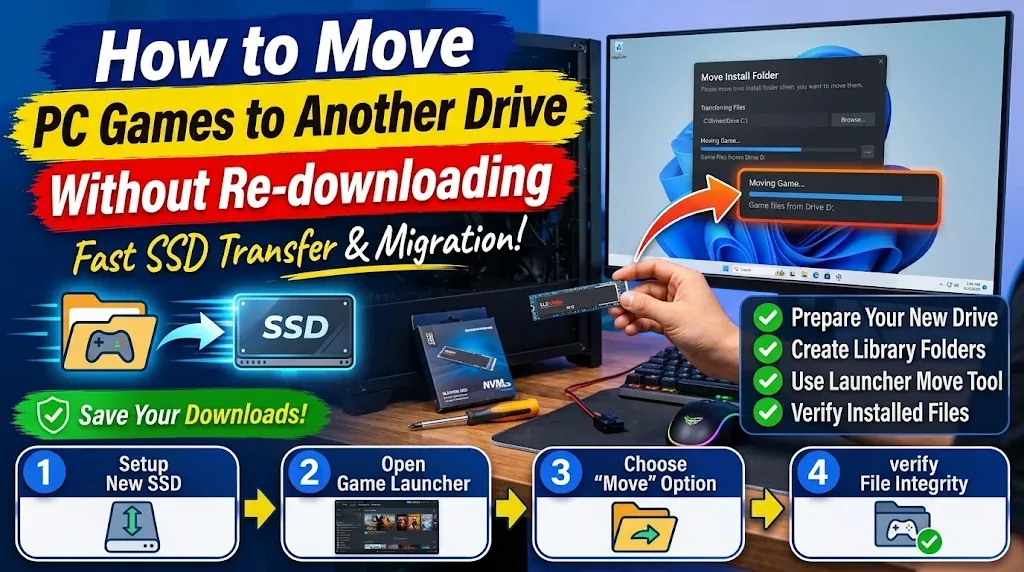
Moving games from a crowded system drive to another SSD can free space and may shorten loading times. The safest method is the game launcher's own move or install-location feature, because it keeps the launcher's library records matched to the files and avoids a full re-download. Menu names change between launcher versions, so this guide gives the usual paths and what to do when a launcher has no move button.
Before you move anything, make sure the destination drive is healthy, has enough free space and uses NTFS, which launchers such as Steam work best with (FAT32, exFAT and NTFS compared).
Step-by-step: move an installed game
Step 1: Prepare the destination drive
Open File Explorer and confirm the new drive appears with enough free space (the game's install size plus a margin for updates). If a new SSD is missing, initialise and format it first with this new-drive guide. To check its health, see how to check hard drive or SSD health. Create a clearly named folder, such as Games, on the new drive. Do not use a USB drive that you often unplug. If you are adding a new internal drive for your games, see adding a second drive for games.
Tip: if the drive letter changes between restarts, launchers lose the library. In Disk Management, right-click the volume and choose Change Drive Letter and Paths to set a fixed letter.
Step 2: Close the game and pause downloads
Exit the game completely, and pause downloads and updates in the launcher. Do not move a game while it is updating, and make sure the game's cloud saves have synced.
Step 3: Use the launcher's own move option
- Steam: open Steam > Settings > Storage, open the drive list, choose Add Drive and pick the new folder. Then right-click the game in your library, choose Properties > Installed Files > Move install folder and select the new drive.
- Xbox app and Microsoft Store games: in the Xbox app choose your profile > Settings > General and set the install location, or use Settings > Apps > Installed apps, open the app's three-dot menu and choose Move if it is offered. Do not move the WindowsApps folder by hand.
- EA app, Ubisoft Connect, Battle.net, GOG Galaxy and Epic Games Launcher: menus differ and some have no one-click move. Look in the launcher's settings for a download or install-location option and for a way to locate an existing install or scan for games. Epic has no built-in move: the usual method is to move the game folder yourself, start installing the same game to the new location and let the launcher verify the existing files instead of re-downloading them. Check the launcher's help page for your version.
You should see: a progress bar for the move. If the option is missing or greyed out, update the launcher, close the game and restart the launcher.
Step 4: Let the launcher finish the transfer
Keep the PC on and awake until the move finishes. The launcher may copy files, verify them and then remove the old copy. Avoid cut-and-paste of the game folder unless that launcher's own help says to. If the transfer crawls, see how to fix slow file copy speeds in Windows.
Step 5: Verify and launch the game
Check the game's install location in the launcher, then start it once. You should see: the game open with no download prompt. If the launcher asks to download the game or shows “Update required”, use Verify integrity of game files (in Steam, right-click the game > Properties > Installed Files > Verify integrity of game files) or the launcher's scan or locate option before you download it again. A security program that blocks the copy can also cause this, so check Windows Security's protection history.
Step 6: Remove leftovers only after testing
Do not delete the old library folder until the game launches and your saves are there. If you moved games because C: is full, the Windows 11 disk-space guide lists other safe cleanup options. If games still load slowly, see why an SSD slows down.
More help
If a game still will not start after the move, see how to fix a game crashing on startup and the other PC repair guides.
FAQ
Will moving a game delete my saves? Usually saves are in Documents, AppData or cloud sync, separate from the game folder. Confirm the game launches and its saves appear before deleting the old files. To see what the AppData and ProgramData folders hold, read our AppData guide.
Will a game load faster on an SSD? Often, especially when moving from a hard drive. The difference depends on the game and the rest of the PC.
Can I move games to an external drive? You can, but a slow or disconnected drive can cause errors. A permanently connected internal SSD is usually more reliable.
Can I just copy the folder in File Explorer? Only for launchers that can detect an existing install afterwards. Otherwise the launcher will not know the game moved.