Keyboard Not Working on a Desktop PC? How to Fix It
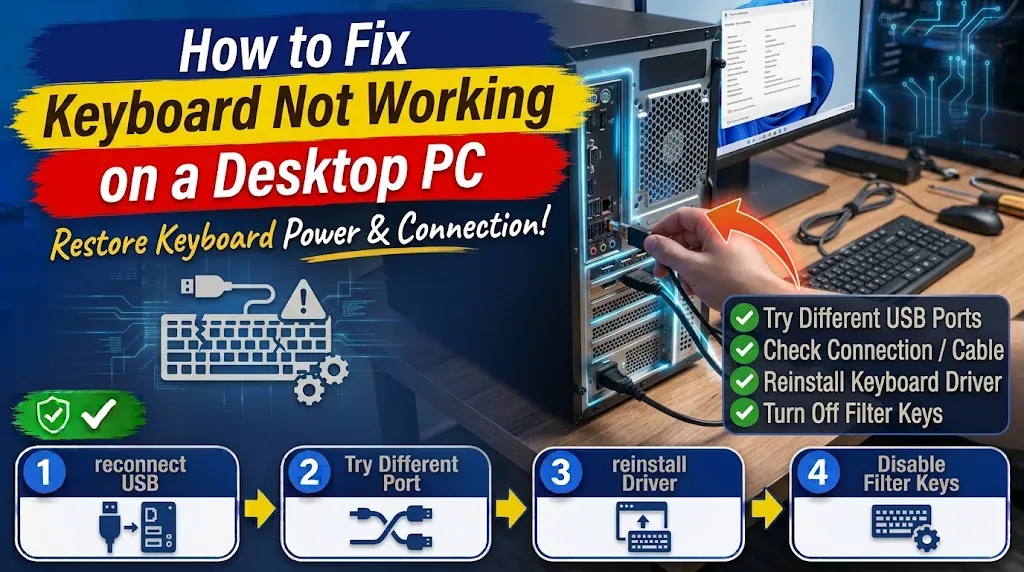
When a keyboard not working on a desktop PC is the problem, the cause is often the port, the batteries or the receiver, the connection, a Windows setting or a driver, although the keyboard itself can also fail. This guide runs the tests in order, tells you what each result means and shows how to keep working in the meantime. For a laptop keyboard, see how to fix a laptop keyboard that is not working.
If you cannot type right now
Press Windows + Ctrl + O to open the on-screen keyboard, or on the sign-in screen select the Accessibility icon at the bottom right and choose On-screen keyboard. You can use it with the mouse while you fix the problem.
Step-by-step: fix the keyboard
Step 1: Check the lights and the basics
Press Caps Lock or Num Lock and watch the light. A light that turns on and off means the keyboard has power and Windows is talking to it. No light at all means no power or no connection.
- Unplug the keyboard and plug it in again.
- Try a different USB port, preferably on the back of the PC, which connects straight to the motherboard. Avoid hubs and front-panel ports for this test.
- For a wireless keyboard, replace or recharge the batteries, switch it off and on, and move the receiver to a port close to the keyboard.
You should see: the keyboard lights up when you plug it in. If it never lights up on any port, try Step 4 next.
Step 2: Test it in the BIOS
Restart the PC and press the BIOS key as soon as it starts, often Del, F2 or F10. Use the arrow keys to move around.
You should see: the keys working in the BIOS. If they do, the keyboard and the port are fine and the problem is in Windows, so continue with Step 5. If they do not work there either, the keyboard, the port or a USB setting in the BIOS is the cause. Some BIOS versions have a Legacy USB support option, which should be on. Do not change other BIOS settings.
Step 3: Test the keyboard on another PC, and another keyboard on yours
Plug the keyboard into another computer. Then plug a different keyboard into yours.
You should see: a clear answer. If your keyboard fails on the other PC too, replace it. If a different keyboard works on yours, your keyboard is bad. If neither works on your PC, the port, a driver or a setting is the cause.
Step 4: Check the USB ports
Try every USB port on the back. Unplug other USB devices that you do not need, since a faulty device can disturb the others. For USB problems that affect more than the keyboard, see how to fix USB device not recognized and how to fix front USB ports.
Step 5: Check the Windows keyboard settings
Open Settings > Accessibility > Keyboard and turn off Sticky keys, Filter keys and Toggle keys. Filter keys can make the keyboard seem slow or dead, and holding the right Shift key for about 8 seconds can turn it on by accident. If the keys type the wrong characters, check the layout in Settings > Time & language > Language & region.
You should see: normal typing once the extra options are off. If copy and paste shortcuts still do nothing, see how to fix copy and paste not working in Windows.
Step 6: Reinstall the keyboard driver
Right-click Start, choose Device Manager and expand Keyboards. Look for a yellow warning mark. Right-click the keyboard, choose Uninstall device and restart the PC. Windows installs the driver again at start.
You should see: the keyboard back in the list without a warning mark after the restart. If you use only a USB keyboard, use the mouse and the on-screen keyboard for this step.
Step 7: Turn off Fast Startup and USB power saving
Open Control Panel > Power Options > Choose what the power buttons do > Change settings that are currently unavailable and untick Turn on fast startup. Then open Change plan settings > Change advanced power settings > USB settings > USB selective suspend setting and set it to Disabled. Restart with Restart, not Shut down.
You should see: the keyboard working after a cold start. If it works only after a restart and not after you shut down, these two settings were the cause.
Step 8: Check for software that interferes
Start the PC in Safe Mode (see how to boot into Safe Mode). If the keyboard works in Safe Mode, a program or driver is more likely the cause: remove any keyboard utility, remapping or macro software that you installed recently (see how to uninstall programs completely).
Step 9: Fix wireless and Bluetooth problems
For Bluetooth keyboards, remove the keyboard from Settings > Bluetooth & devices and pair it again (see how to fix Bluetooth not working). For receiver keyboards, keep the receiver away from USB 3 devices, metal cases and routers, and use the maker’s pairing button if it has one.
Step 10: Clean it, or replace it
Crumbs and liquid can stop keys from working. Unplug the keyboard, turn it upside down and shake it gently, then clean between the keys with a soft brush. If liquid was spilled, unplug it at once and let it dry fully before you use it again. Replace a keyboard that is damaged or that fails Step 3.
More help
For more hardware and peripheral fixes, search by symptom on the PC Repair Atlas homepage. If the mouse has trouble too, see how to fix mouse lag or a mouse not working.
FAQ
Why does the keyboard work in the BIOS but not in Windows? A Windows driver, a setting or a program is the cause. Work through Steps 5 to 8.
Why does my keyboard not work at the sign-in screen? Use the on-screen keyboard, and check the USB port and BIOS. If it works after you sign in, a power saving or Fast Startup setting is often the cause.
Can a bad USB port cause this? Yes. Test other ports, and plug other devices into the suspect port to check it.
Why do some keys type the wrong character? The layout or language setting is wrong, or Num Lock is changing the number pad. Check Step 5. The same checks apply to a laptop keyboard that types wrong letters; see laptop keyboard typing wrong letters in Windows 11.