Windows 11 Laptop Keyboard Typing Wrong Letters? 10 Fixes to Try
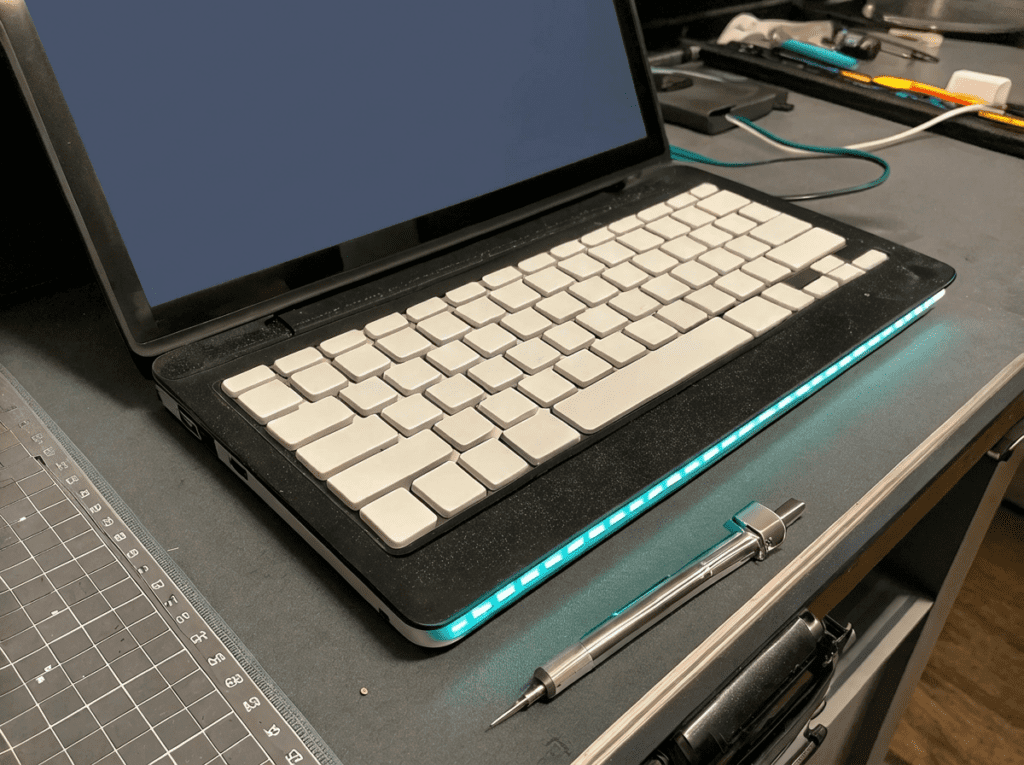
A Windows 11 laptop keyboard typing wrong letters is annoying, but it is rarely a sign that the laptop is dying. Keys may type numbers, repeat a letter twice, or produce symbols that you did not press. In most cases the cause is a setting, a lock key or a driver. This article gives ten safe fixes, in the order that saves the most time. For other faults, browse our PC repair guides.
If the whole keyboard is dead, see How to Fix a Laptop Keyboard That Is Not Working instead. This article is for a keyboard that works but types the wrong thing.
Safety first: none of these fixes needs a registry edit or opens the laptop. Save your work before you restart or change a driver. Turn the laptop off and unplug the charger before you clean it. If liquid was spilled on it, shut it down at once and do not turn it on again until a technician has looked at it.
What the Symptom Usually Means
| What you see | Likely cause | Start with |
|---|---|---|
| Letters type as numbers | Num Lock or an embedded number pad | Fix 2 |
| Symbols such as @ and " swap places | Wrong keyboard layout | Fix 4 |
| One letter appears twice | Repeat settings, Filter Keys or a worn key | Fixes 3, 5 and 10 |
| Keys are missed or lag behind | Filter Keys or a driver problem | Fixes 3 and 8 |
| It started after an update | Driver or update change | Fixes 8 and 9 |
| Only a few keys misbehave | Dirt or a worn key | Fix 10 |
Fix 1: Restart and Test in Notepad
Save your work. Choose Start > Power > Restart. Do not use Shut down for this test, because Fast Startup can keep a faulty state in memory.
When Windows is back, open Notepad and type a short sentence slowly. Notepad has no autocorrect, so it shows what the keyboard really sends. You should see the letters you pressed. If they are right in Notepad, the fault is inside the other app. If they are still wrong, carry on with Fix 2.
Fix 2: Check Fn Lock, Num Lock and Caps Lock
Many laptops hide a number pad inside the letter keys. When Num Lock is on, keys such as U, I, O, J, K and L may type numbers. Press Num Lock (or Fn with the Num Lock key) once and test again.
Also look for an Fn Lock key, often Fn + Esc. It swaps the top row between F1 to F12 and the media keys. Press Caps Lock once to rule out capital letters.
You should see the lock light change when you press the key. If there is no light or nothing changes, go to Fix 3.
Fix 3: Turn Off Filter Keys, Sticky Keys and Toggle Keys
These accessibility features change how presses count. Filter Keys, for example, tells the keyboard to ignore brief or repeated keystrokes, which can make typing feel as if keys are missed or doubled. Microsoft lists them on its page about making your mouse, keyboard and other input devices easier to use.
- Open Settings > Accessibility > Keyboard.
- Switch Sticky keys, Filter keys and Toggle keys to Off.
- Open each one and turn off its keyboard shortcut, so that holding Right Shift for eight seconds or pressing Shift five times does not switch it on again by accident.
You should see all three switches show Off. Test in Notepad. If typing is still wrong, go to Fix 4.
Fix 4: Check the Keyboard Layout and Language
A layout that does not match your physical keyboard moves symbols around. A US layout on a UK keyboard, for example, swaps @ and ".
- Look at the right end of the taskbar for a language code such as ENG. Select it to see the layouts that are installed.
- Press Windows + Space to switch between them.
- To remove one, open Settings > Time & language > Language & region, select the three dots beside your language, choose Language options and remove the extra layout under Keyboards.
You should see only the layout that matches your keyboard. If the symbols are right now, you are done. If not, go to Fix 5.
Fix 5: Adjust the Repeat Delay and Repeat Rate
If a key repeats a letter when you press it normally, the repeat delay may be too short.
- Open Control Panel and switch View by to Large icons.
- Select Keyboard and open the Speed tab.
- Move Repeat delay towards Long and Repeat rate towards Slow, then select OK.
Use the test box on that tab. You should see a letter appear once when you tap the key. If it still doubles, the key may be worn: see Fix 10.
Fix 6: Compare With the On-Screen Keyboard
This test tells you whether the fault is in Windows or in the keyboard itself. Press Windows + Ctrl + O to open the on-screen keyboard. Click the keys with the mouse or touchpad and type in Notepad.
- The on-screen keys type correctly: Windows and your layout are fine. The physical keyboard or its driver is the problem. Go on to Fix 7.
- The on-screen keys type the same wrong letters: the fault is in Windows or a program. Go to Fixes 8 and 9.
You can keep using the on-screen keyboard to type while you work through the rest. If the touchpad is also misbehaving, see our guides to fixing a laptop touchpad that is not working and touchpad gestures, scrolling and taps in Windows 11.
Fix 7: Test an External Keyboard
Plug in a USB keyboard, or pair a Bluetooth one, and type in Notepad.
- The external keyboard types correctly: Windows is fine and the laptop's own keyboard is at fault. Use the external one while you try Fixes 8 and 10.
- The external keyboard also types wrong letters: the problem is in Windows. Go to Fix 8 and Fix 9.
If an external keyboard is also unreliable, our guide to the desktop keyboard not working has extra tests for ports and cables.
Fix 8: Reinstall, Update or Roll Back the Keyboard Driver
Keep an external keyboard or the on-screen keyboard ready before you start.
- Right-click Start and open Device Manager.
- Expand Keyboards, right-click Standard PS/2 Keyboard (or HID Keyboard Device) and choose Uninstall device.
- Restart the laptop. Windows installs the driver again by itself.
You should see the entry return in Device Manager and the keys behave. If it does not return, choose Action > Scan for hardware changes.
If the fault started after a recent driver change, double-click the keyboard entry, open the Driver tab and choose Roll Back Driver. If that button is grey, there is no earlier driver. Our guide to updating drivers in Windows 11 safely covers maker drivers and chipset updates.
Fix 9: Check Windows Updates and Recent Changes
Open Settings > Windows Update and select Check for updates. Install what is offered and restart. If an update is stuck, see How to Fix Windows Update Stuck or Failing.
If the problem began right after an update, open Settings > Windows Update > Update history > Uninstall updates and remove the newest one. Our guide to uninstalling a Windows update explains the limits. System Restore can also go back to an earlier date.
A key-remapping or keyboard utility can also change what keys type. To test for that, start in Safe Mode. If the keys type correctly there, remove the utility that you installed most recently. If file damage is suspected, SFC and DISM check Windows files.
Fix 10: Clean the Keys and Check for Hardware Failure
If only a few keys misbehave, or the on-screen and external keyboards both work, suspect dirt or wear.
- Shut the laptop down and unplug the charger.
- Tilt it and use short bursts of compressed air around the keys. Brush the surface gently with a soft brush.
- Wipe with a slightly damp lint-free cloth. Never spray liquid on the keyboard.
You should see sticky keys move freely and type once. Our guides on cleaning a laptop safely and laptop cleaning mistakes show what to avoid.
If keys still double or type wrong after cleaning, the keyboard is probably worn or damaged. Do not pry off keys or open the laptop unless you know how, because clips and ribbon cables break easily and the warranty may end. Check your warranty first or ask a technician. Stop using the laptop if the case bulges, the touchpad lifts or keys are pushed up: that can mean a swollen battery.
FAQ
Why does my laptop keyboard type numbers instead of letters? Num Lock is probably on, and your laptop has a number pad built into the letter keys. Press Num Lock, or Fn with Num Lock, to turn it off.
Why does one key type twice? Filter Keys, a short repeat delay, dirt or a worn key can cause it. Fixes 3, 5 and 10 cover those causes in turn.
Is it worth replacing a laptop keyboard? Often yes, if the rest of the laptop works well. Compare the repair price with an external keyboard, which you can buy for much less.