How to Enable Virtualization in the BIOS (VT-x, AMD-V)
Virtual machines, Windows Sandbox, Windows Subsystem for Linux and many Android emulators need a processor feature called virtualization. On many PCs it ships turned off in the BIOS. This guide shows how to enable virtualization in the BIOS on Intel and AMD PCs. It also shows how to check that it worked.
Step-by-step: enable virtualization in the BIOS
Step 1: Check whether it is already on
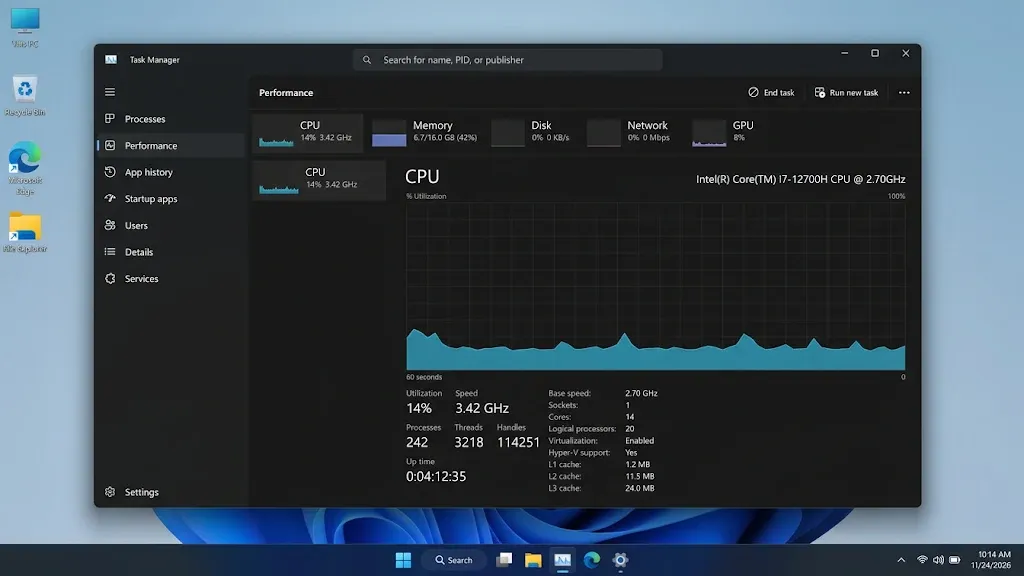
Press Ctrl + Shift + Esc, open Performance > CPU and look for Virtualization at the bottom right. It says Enabled or Disabled. You can also open Command Prompt and run systeminfo. In the Hyper-V Requirements section, look for Virtualization Enabled In Firmware.
If Task Manager does not show the line, or systeminfo says a hypervisor has been detected, a Windows feature is already using virtualization, so it is on. Check Turn Windows features on or off for Hyper-V and related features.
You should see: Enabled or Disabled. If it already says Enabled, stop here. The problem is in the program or in a Windows feature, not in the BIOS (see "If programs still say virtualization is off" below).
Step 2: If you use BitLocker, prepare first
Changing BIOS settings can trigger the BitLocker recovery screen. Make sure you have your key, or suspend BitLocker first (see how to find your BitLocker recovery key).
Step 3: Enter the BIOS
Restart and press the BIOS key as the PC starts (often Del, F2 or F10). Use Advanced mode if the BIOS has an easy mode. If the PC keeps returning to the BIOS screen on its own, see fixing a PC that keeps booting into BIOS.
Step 4: Find the virtualization option
Look in Advanced, CPU Configuration or Processor pages. On some motherboards it sits under an overclocking page, such as OC > Advanced CPU Configuration or Tweaker > Advanced CPU Settings. The exact page differs by maker and BIOS version, so use the BIOS search if it has one.
- Intel PCs: Intel Virtualization Technology (VT-x). You may also see VT-d, which is for direct device access and not needed for most uses.
- AMD PCs: SVM Mode (also called AMD-V).
Some laptops list it under Security or System Configuration as Virtualization Technology.
Step 5: Enable it and save
Set the option to Enabled, then save and exit (often F10). Change nothing else on the page. If you are unsure about a change, choose Exit without saving and start again.
Step 6: Confirm in Windows
Open Task Manager again and check that Virtualization says Enabled.
You should see: Virtualization: Enabled under Performance > CPU. If it still says Disabled, the setting was not saved or sits on another BIOS page. Go back to Step 4.
Step 7: Turn on the Windows features you need
Open Turn Windows features on or off and tick what you need. Examples are Virtual Machine Platform, Windows Hypervisor Platform, Windows Sandbox (see use Windows Sandbox), Hyper-V or Windows Subsystem for Linux. Hyper-V and Windows Sandbox are only available on Windows Pro, Enterprise and Education, not on Home. Virtual Machine Platform and Windows Subsystem for Linux are available on Home too. Restart afterwards.
If the option is missing
- Your processor may not support it. Check its specification page (see check your PC specs).
- Update the BIOS (see update BIOS safely), since newer versions sometimes add the option.
- Some prebuilt and work PCs hide or lock the option. Check with the maker or your IT team.
If programs still say virtualization is off
If Task Manager says Enabled but a virtual machine program or emulator still complains, another hypervisor is probably using the feature. Windows features such as Hyper-V, Virtual Machine Platform, Windows Hypervisor Platform and Windows Sandbox all use it. Some virtual machine programs conflict with them or need a specific mode. Check the program's documentation for its requirements before you turn Windows features off, because Sandbox and WSL then stop working. If Windows shows high memory use while these features run, see Vmmem high memory usage.
Common mistakes
- Turning on only VT-d. Most programs need VT-x (Intel) or SVM Mode (AMD), not VT-d.
- Not saving. The setting only counts if you save and exit from the BIOS.
- Changing other CPU options on the same page (such as overclocking or voltage settings) while you are there. Leave them as they are.
- Looking in the wrong place. Easy mode often hides it: switch to Advanced mode first.
Sources
Microsoft's page Enable Virtualization on Windows describes the Task Manager check and the BIOS setting. BIOS menu names differ by maker and are given here as common examples, so follow your own motherboard or laptop manual for the exact page.
More help
For more hardware and BIOS guides, search by symptom on the PC Repair Atlas homepage.
FAQ
Is it safe to turn virtualization on? Yes. It does not harm your PC, and it can be turned off again.
Does it slow my PC down? Not noticeably when no virtual machine is running.
What is the difference between VT-x and VT-d? VT-x lets the processor run virtual machines. VT-d lets virtual machines use devices directly, which most people do not need.