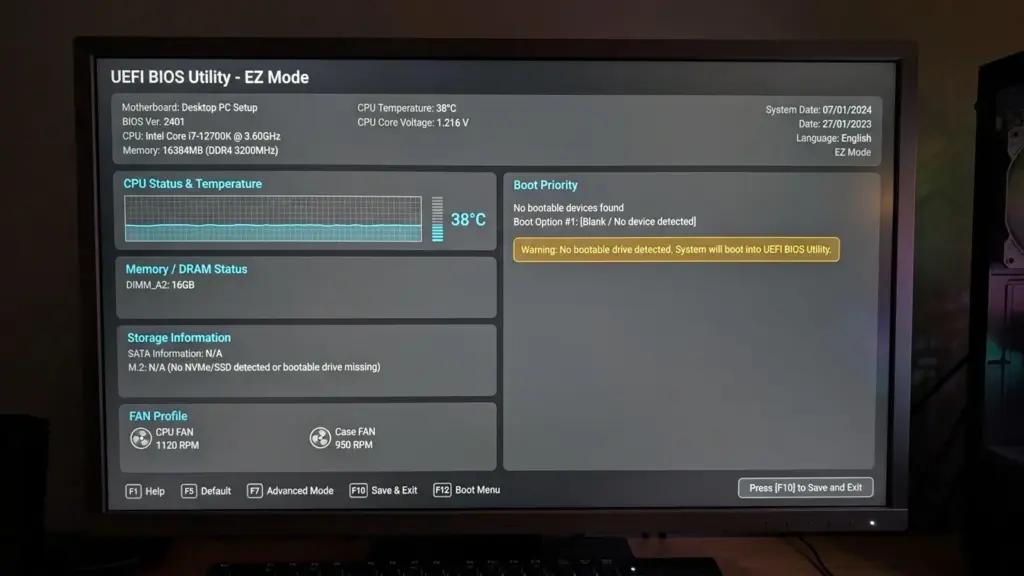
If your PC keeps booting into BIOS or UEFI setup every time you turn it on, instead of loading Windows, the firmware cannot find a way to start, or something is telling it to enter setup. The cause is usually a boot order change, a missing drive, a stuck key or damaged boot files.
Step-by-step: get back into Windows
Step 1: Look at what the BIOS shows
Read any message shown before setup opens (for example a boot device or CMOS checksum error) and write it down. Then open the boot or storage page. Is your Windows drive listed? Is Windows Boot Manager in the boot list? Write down what you see.
You should see: your Windows drive, by its model name, on the storage or boot page. If it is missing, go to Step 3 first.
Step 2: Check the boot order
Set Windows Boot Manager (or the drive that holds Windows) as the first boot option, then save and exit (often F10). If Windows starts, you are done.
To test before you change anything, restart and press the boot menu key (often F12, F11 or Esc, shown on the first screen), then choose Windows Boot Manager once. If Windows starts from the menu, the drive and boot files are fine and only the boot order or a setting is wrong.
Step 3: Check that the drive is detected
If the drive is missing, shut down, unplug the PC and reseat the data and power cables or the M.2 drive. Touch a bare metal part of the case first to discharge static, and hold the drive by its edges. Try another SATA port. See new SSD or hard drive not showing up and install a second SSD or hard drive for the connections. Do not format or initialize the drive to make it appear: that erases it.
You should see: the drive listed in the BIOS after the restart. If it is still missing with a different cable or port, the drive or the slot may be faulty: do not reinstall Windows yet (see Step 10). If the port itself seems dead, see the signs that a motherboard is failing.
Step 4: Check for a stuck key
A stuck Del or F2 key (or a keyboard that sends a key signal at startup) can send the PC into setup every time. Unplug the keyboard, or try another one.
Step 5: Load the default settings
In the BIOS, choose Load optimized defaults, then set the boot order again and save. A recent change or a failed overclock may have caused the problem. Before you do this:
Take a photo of the current settings pages, so you can restore any custom settings (fan curves, memory profile, overclock).
Note the SATA mode (AHCI or RAID). Defaults can switch it, and Windows may then fail to start. If that happens, set it back to what it was.
If the drive is encrypted with BitLocker, have your recovery key ready, because a settings reset can ask for it (see how to find your BitLocker recovery key).
Step 6: Check the CMOS battery
If the BIOS settings reset every time, or the date is wrong, the CMOS battery is probably dead. See replace a CMOS battery.
Step 7: Check the boot mode
Windows installed in UEFI mode needs the BIOS to use UEFI. If the two do not match, the firmware can skip Windows and open setup. On the BIOS boot page, look for a setting called Boot Mode, UEFI/Legacy Boot or CSM (Compatibility Support Module). The name depends on the maker.
If Windows used to start on this PC and you never changed the mode, leave it as it is.
If the mode changed after a BIOS reset or update, set it back to what it was before. Windows 11 requires UEFI firmware.
If Windows starts from the boot menu (Step 2), you can confirm the mode: press Windows + R, run msinfo32 and read BIOS Mode, which says UEFI or Legacy.
Keep Secure Boot as it was too. Change one setting at a time, save, restart and test, and write down what you changed.
You should see:Windows Boot Manager in the boot list when the mode matches how Windows was installed. If it disappears from the list after you change the mode, change the mode back.
Step 8: Repair the Windows boot files
If the BIOS sees the drive but Windows Boot Manager is missing from the boot menu and nothing starts, the boot files may be damaged. The boot entries Windows Boot Manager reads are stored in the boot configuration data store. You need a Windows installer USB made on another PC.
Boot from the USB, choose your language, then select Repair your computer > Troubleshoot > Advanced options > Startup Repair. Pick your Windows installation and wait for it to finish.
If Startup Repair fails, go back to Advanced options and open Command Prompt. Run these two commands:
bootrec /scanos
bootrec /rebuildbcd
If it asks Add installation to boot list?, type Y and press Enter. Close the window, remove the USB drive and restart.
You should see:Total identified Windows installations: 1 after the first command, and Windows starting after the restart. If it says 0, the repair tools cannot read the Windows drive: it may be locked by BitLocker (it then asks for the recovery key) or failing, so go to Step 10 and do not run any more repair commands. For error messages from these tools, follow fix No bootable device, or fix the Windows Automatic Repair loop if Windows starts the repair screens. If Windows hangs on the loading screen after the repair, see our guide to troubleshooting a Windows 11 PC stuck on the loading screen.
Step 9: Remove other devices
Shut down and unplug every USB drive, memory card, printer and other extra device, except the keyboard and mouse. Start the PC. Then plug the devices back in one at a time, restarting after each one, until the problem returns. A USB drive or card reader that sits high in the boot order can confuse the startup.
You should see: Windows starting normally with the extras unplugged. If it does, the last device you plugged in is the cause: leave it unplugged at startup, or move it lower in the boot order.
Loading defaults without noting the SATA mode. A switch from AHCI to RAID (or the reverse) can stop Windows from starting.
Changing several settings at once. You then cannot tell which one fixed or caused the problem.
Formatting or initializing a drive that does not show up. It erases the data on it.
Working inside the case with the power cord plugged in. Shut down and unplug first.
Sources
Windows startup issues troubleshooting (Microsoft Learn): Microsoft's list of the bootrec switches for boot code, boot sector and BCD problems. Settings names in the BIOS depend on the maker, so check your motherboard or PC manual for the exact wording.
Why does my PC go to the BIOS after a power cut? The BIOS settings may have reset, or the drive was not detected.
Will I lose my files? None of the steps on this page delete files. The repair guides it links to carry their own warnings, so read those before you run their commands.
Do I need to reinstall Windows? Only if the boot files cannot be repaired and the drive is healthy.