Find Your PC’s Serial Number and Check Its Warranty
Your PC serial number tells the maker exactly which PC you have. You need it to check the warranty, find the right drivers and BIOS and contact support. This guide shows four places to find it, what to do when it is missing and how to use it.
Know the terms
Serial number (or service tag): unique to your PC.
Model name or number: the same for all PCs of that model.
Product number or SKU: identifies the exact configuration (some makers use it together with the serial number).
Step-by-step: find the number
Step 1: Look at the label
On a laptop, check the underside. Some laptops also print it in the battery bay, but only open that bay if the laptop has a battery you can remove: shut the laptop down and unplug it first, and do not pry off any panel. On a desktop, check the back or the side panel. Some PCs also have a sticker in the box or on the manual. Take a photo of the label and keep it.
You should see: a label with a line marked S/N, Serial Number or Service Tag (Dell service tags are usually seven letters and numbers). If the label has worn off, go on to Step 3.
Step 2: Use System Information (model and SKU)
Press Windows + R, type msinfo32 and press Enter. Look at System Manufacturer, System Model and System SKU. System Information does not show the serial number, so use it to confirm the model and SKU, then read the serial number in Step 3 or from the label.
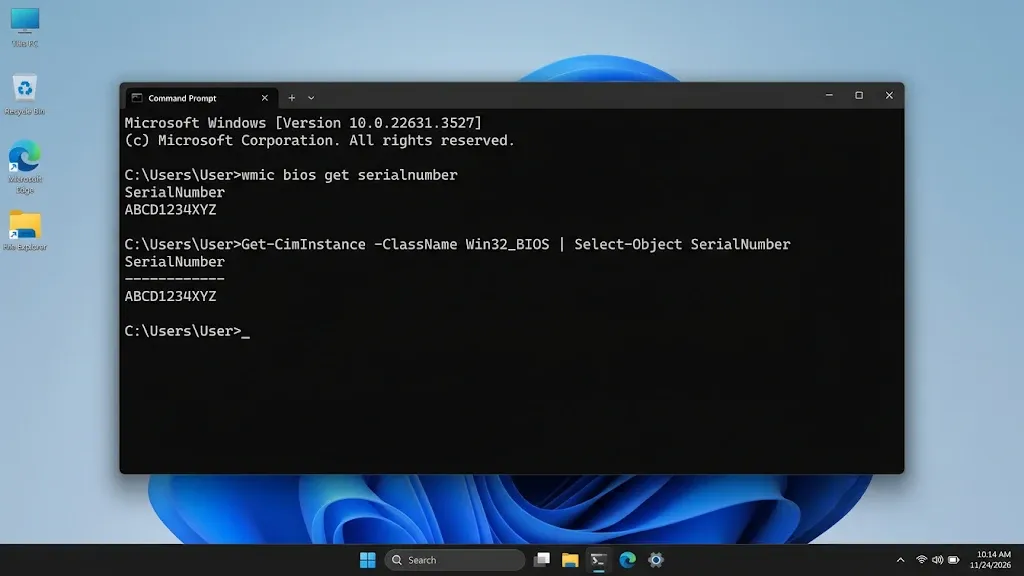
The first shows the serial number from the firmware, and the second shows the maker and the model. For a custom-built desktop, you can look at the motherboard with Get-CimInstance Win32_BaseBoard | Select Manufacturer, Product, SerialNumber.
You should see: a short table with a serial number. If it shows To be filled by O.E.M., Default string or System Serial Number, the maker never stored one: see Step 5.
You may find older guides that use wmic bios get serialnumber. Dell still lists it, but the WMIC tool is being removed from recent Windows 11 versions, so if the command is not recognised, use the PowerShell command above.
Step 4: Check the BIOS
Restart and enter the BIOS (the start-up key is usually shown on the first screen: often F2, Del or F10, depending on the maker). Many BIOS pages show the serial number or service tag in a system information section. Only read it: do not change any setting, then exit without saving.
You should see: a field called Serial Number, Service Tag or Asset Tag on the first or the Main page. If there is none, the maker does not show it there.
Step 5: If you see 'To be filled by O.E.M.'
This message is common on custom-built PCs and some motherboards, because the maker did not store a serial number. Use the labels on the parts and your purchase receipts. Each part's own serial number, usually on a sticker on the motherboard, drive or graphics card, is the one its maker needs.
Step 6: Try the maker's own tool
Many makers offer a free support app that reads the serial number for you, for example Dell SupportAssist. Download it only from the maker's own support site, never from an ad or a search result that is not the maker's address.
Check the warranty and support
Open the support page of the PC maker.
Enter the serial number, service tag or product number.
The page usually shows your model, the warranty status, drivers and manuals.
For a custom PC, each part (motherboard, graphics card, drives, power supply) has its own warranty, and you need the receipt. Keep digital copies.
Common mistakes
Using the model number as the serial number. The maker's warranty page will say it cannot find the product.
Mixing up similar characters. The letter O and the number 0, or I and 1, look alike. Copy the number from PowerShell instead of retyping it from a worn label.
Using a third-party warranty checker. Check only on the maker's own support page, and do not enter your number or account details on sites that ask for payment.
Posting the number publicly. Share it only with the maker or a trusted repair shop.
Is the serial number the same as the model number? No. The model is shared by many PCs, while the serial number is unique.
Can I check the warranty without the label? Often yes, using PowerShell or the BIOS.
Is it safe to share my serial number? Share it with the maker and trusted repair shops, but avoid posting it publicly.