Blurry Text in Windows 11? Fix Scaling and Resolution
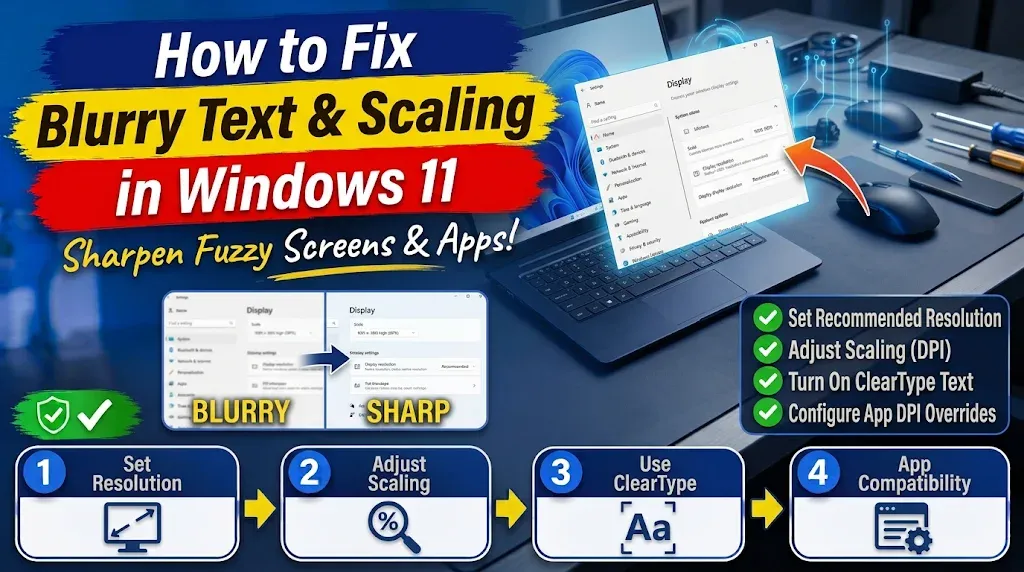
Blurry text or fuzzy apps usually come from a screen that is not using its native resolution, or from scaling that Windows cannot apply to older programs. This guide shows the settings in the order that fixes most cases, and says what you should see after each step.
First decide which kind of blur you have. If everything on the screen is soft (the taskbar, Settings and your browser), start at Step 1. If only one program is fuzzy, go to Step 3. If it only happens on an external monitor or after docking, read Windows 11 apps blurry on an external monitor as well. If the picture is broken (stripes, dots, shapes) rather than soft, see GPU artifacts and screen glitches.
Step-by-step: sharpen the screen
Step 1: Use the native resolution
Open Settings > System > Display. Under Display resolution, choose the value marked Recommended. A different resolution makes the monitor stretch the picture, which blurs it. Pick the monitor first if you have more than one.
You should see: the text become noticeably sharper right after you confirm the change. If the Recommended value is missing from the list, the graphics driver is probably generic (see Step 7).
Step 2: Choose the right scale
In the same settings, check Scale. Common values are 100%, 125%, 150%. A custom value that is not a standard step (for example 133%) can make some apps look blurry. Choose a standard value that makes the text comfortable, then sign out and sign in again if Windows asks you to.
You should see: sharper text in most apps after you sign back in. If text is only too small, do not raise the scale: use Step 9.
Step 3: Fix a single blurry app
Some older programs do not scale well.
- Right-click the program's shortcut or .exe file and choose Properties.
- Open the Compatibility tab and select Change high DPI settings.
- Tick Override high DPI scaling behavior and choose Application, System or System (Enhanced) from the list.
- Select OK, then OK again, and restart the program.
Try each option in turn, since the best one depends on the program. Application lets the program do its own scaling, and it is the one that often fixes a blurry old program. System (Enhanced) can sharpen text in some programs that scale by system rules.
You should see: the text in that program look sharp when it reopens. If the window gets too small or too large, choose another option or untick the box to go back.
Step 4: Try the scaling fix in Windows
Open Settings > System > Display and look for Fix scaling for apps. The setting has moved between Windows builds: on some it sits under Scale (select Scale to expand it), on others under Advanced scaling settings, where it reads Let Windows try to fix apps so they're not blurry. Turn it on, then close and reopen the affected app, or sign out and in. If you cannot find it on your build, skip this step.
Step 5: Adjust ClearType
Search the Start menu for Adjust ClearType text and run the wizard. Keep Turn on ClearType ticked and choose the sample text that looks clearest on each step. ClearType improves how letters look on LCD screens, and it does not change the resolution.
Step 6: Check the cable and the monitor
Use a digital connection (HDMI or DisplayPort) and avoid old VGA cables, which can look soft on a digital monitor. Check the monitor's own menu for a Sharpness setting, a scaling or aspect option, and reset the monitor to its default settings. See how to choose a PC monitor if your screen has a low resolution for its size. For colour problems rather than blur, see how to calibrate your monitor colors.
You should see: sharper text after a cable change if the cable was at fault. Test the same monitor with another PC to be sure.
Step 7: Update the graphics driver
Install the latest driver (see update or reinstall graphics drivers). A generic Microsoft Basic Display Adapter driver often offers only a few resolutions and gives a soft picture.
Step 8: Check multiple monitors
With two screens of different sizes or resolutions, apps can look blurry when you drag them across. Set the scale separately for each screen (see set up dual monitors). If the blur only shows with an external monitor or after docking, Windows 11 apps blurry on an external monitor goes deeper into that case.
Step 9: Make text bigger without scaling
If your problem is only that text is too small, open Settings > Accessibility > Text size and increase it, instead of raising the scale. This enlarges text in Windows and many apps without making the whole picture soft.
If nothing helps
- Test with another cable and another port, or another monitor. If the blur follows the monitor, the monitor is the cause.
- If the blur started after an update, see how to uninstall a Windows update.
- If the screen also flickers or goes black, see monitor flickering in Windows 11.
More help
For more display and Windows fixes, visit the PC Repair Atlas homepage.
FAQ
Why is only one app blurry? Usually the app does not scale well at your current setting. Use the high DPI override in Step 3.
Is 4K at 100% too small? On many screens, yes. A scale of 125% to 150% is common.
Can the refresh rate affect clarity? Not usually. See set your monitor's full refresh rate for that setting.