Monitor Flickering in Windows 11? How to Fix It
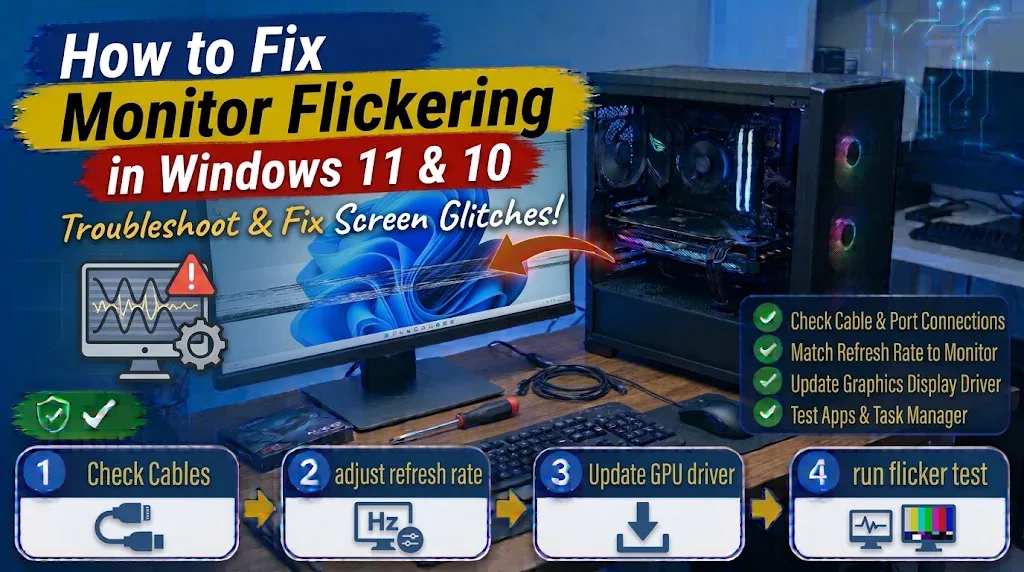
Monitor flickering on a desktop PC or an external screen can come from the cable, the refresh rate, a setting, a driver, one badly behaved app, the power or the monitor itself. This guide helps you find which, using tests that each give a clear result. It is for desktop and external monitors. For a laptop’s built-in screen, see how to fix a flickering or black laptop screen. If the picture goes fully black for a few seconds, read monitor keeps going black instead, and if the monitor says no signal, see monitor says no input signal.
Which kind of flicker do you have?
- The whole screen flashes or shimmers all the time: usually the refresh rate, the cable, the driver or the monitor.
- It flickers only when you move or touch the cable: a bad cable or a loose port.
- Only one app or game flickers: that app, its hardware acceleration or its graphics settings.
- Colored dots, stripes or blocks in games: a graphics card problem (see GPU artifacts and screen glitches).
- Brightness pulses at low brightness only: the monitor’s own backlight control. Raise the brightness and see whether it stops.
Step-by-step: stop the flicker
Step 1: Do the Task Manager test
Press Ctrl + Shift + Esc to open Task Manager and watch it while the screen flickers.
You should see: one of two results. If Task Manager flickers along with everything else, the display driver, the cable or the monitor is the cause, so continue with Step 2. If Task Manager stays steady and only one app flickers, that app is the cause, so go to Step 8.
Step 2: Test the cable, the port and the monitor
Switch off the monitor and the PC. Reseat the cable at both ends, then try a different cable (use the type your monitor supports: DisplayPort or HDMI) and a different port on the graphics card. Do not use the motherboard port if you have a graphics card. If you have an adapter, take it out as a test.
You should see: a steady picture after a cable or port swap. If so, replace the cable. If the flicker follows the monitor to another PC, or stays with the PC when you connect another monitor, you now know which device is at fault.
Step 3: Set the right refresh rate
Open Settings > System > Display > Advanced display, choose the monitor if you have more than one and open Choose a refresh rate. Select the monitor’s recommended rate. If the flicker appears at a high rate, try one step lower, because an older cable or an adapter may not carry the higher rate reliably. See how to set your monitor’s refresh rate.
You should see: a steady picture at the lower rate if the cable or port was the limit.
Step 4: Turn off HDR and variable refresh rate as a test
Open Settings > System > Display > HDR and turn off Use HDR and Auto HDR. Then turn off adaptive sync (G-Sync or FreeSync) in the graphics driver software and in the monitor’s own menu. In Settings > System > Display > Graphics, check the variable refresh rate option too. If colors look washed out while HDR is on, see washed-out colors when HDR is on.
You should see: if the flicker stops, one of these settings is the cause. Some monitors flicker with adaptive sync at low frame rates, so you can leave it off or set a frame limit in the game.
Step 5: Check the monitor’s own menu
Use the monitor’s buttons to open its menu. Reset it to factory settings, and turn off Overdrive (response time), Dynamic contrast, Eco mode and any motion blur reduction as a test. Try a different input on the monitor too.
Step 6: Reinstall or roll back the graphics driver
If Task Manager flickered in Step 1, install the latest driver as a clean installation, or roll back to the previous one if the flicker began after an update (see how to update or reinstall graphics drivers). Restart afterwards.
Step 7: Check the power and interference
Plug the monitor into a different wall socket or a different power cable. Move speakers, power adapters, phone chargers and extension leads away from the monitor and its cable. A failing monitor power supply or a loose power plug can cause flicker.
Step 8: Fix the app that flickers
If only one app flickers, update it and turn off hardware acceleration in its settings (common in browsers and chat apps). If it flickers only in a game, lower the graphics settings, cap the frame rate and check the game’s files. Close overlay tools, since they can interfere with drawing.
Step 9: Decide whether the monitor is failing
If the monitor flickers on another PC with a different cable, it may have a failing backlight or power board. Flicker that worsens as it warms up, a buzzing sound or a dim picture also point to the monitor. If it is under warranty, ask the maker for a repair or a replacement. Do not open a monitor yourself, since it holds high voltage even when switched off.
More help
For more display fixes, search by symptom on the PC Repair Atlas homepage. If you set up more than one monitor, see how to set up dual monitors.
FAQ
Can a refresh rate cause flicker? Yes, if the cable or port cannot carry the rate, or the monitor does not handle it well.
Is flicker harmful to my eyes? It can cause strain and headaches. Fix it, or lower the brightness while you wait.
Is the graphics card dying? Flicker is more often a cable, a setting or a driver than a failing card. Colored dots or stripes in games are a stronger sign of a card problem.
Why does the flicker happen only at night? Low brightness can make a monitor’s backlight control visible. Try a higher brightness with a lower contrast.