How to Fix a Flickering or Black Laptop Screen
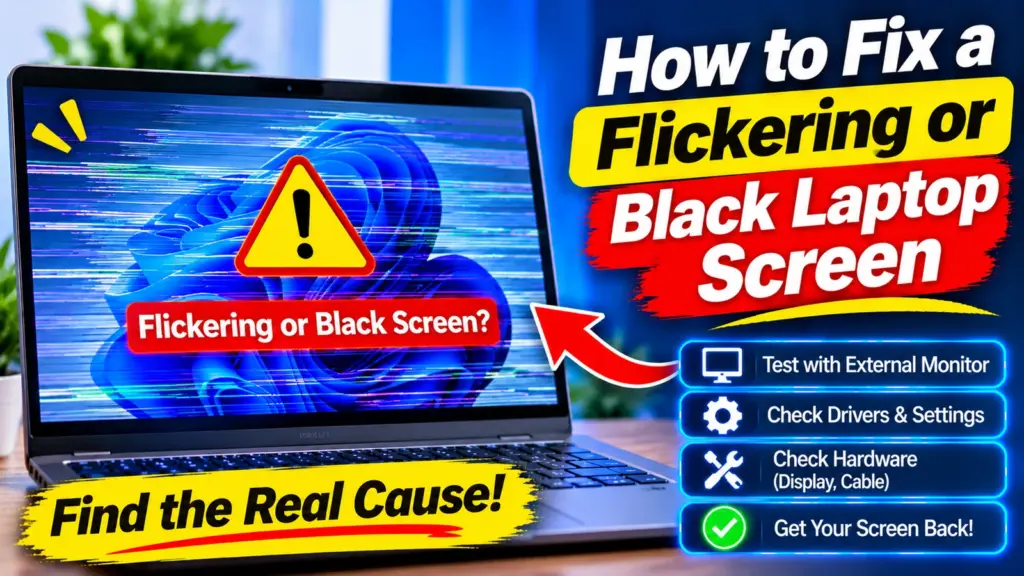
A laptop screen that flickers, shows lines or stays black can be caused by software (a display driver or a setting) or hardware (the backlight, the screen cable or the panel). A few quick tests show which one it is, so you know if you can fix it yourself.
Step-by-step: find and fix the cause
Step 1: Test with an external monitor
Connect the laptop to a monitor or TV with HDMI or USB-C and choose Windows + P to switch the display. If apps look blurry on the external screen, see how to fix blurry Windows 11 apps on an external monitor.
- The external screen is fine: the laptop's graphics chip is working, so the cause is the laptop screen, its cable or its settings.
- The external screen flickers or fails too: the cause is the graphics driver or the graphics hardware.
Step 2: Do the flashlight test (black screen)
If the screen is black but the laptop is on, shine a flashlight at the screen at an angle. If you can faintly see the Windows desktop, the backlight has likely failed, and the screen or its inverter needs repair.
Step 3: Restart the graphics driver
Press Windows + Ctrl + Shift + B. The screen may blink and you may hear a beep.
Step 4: Use the Task Manager test (flickering)
Press Ctrl + Shift + Esc.
- If Task Manager flickers too: the problem is the display driver or the hardware.
- If Task Manager stays steady and only an app flickers: that app is the cause. Update or reinstall it.
- If only an external monitor flickers: the laptop screen is fine, so see how to fix a flickering external monitor in Windows 11.
Step 5: Check brightness and display settings
- Open Settings > System > Display and move the brightness slider. If the slider is missing, does nothing or the brightness keys are dead, see our article on Windows 11 brightness not working.
- Turn off options such as Change brightness based on content and adaptive brightness as a test.
- Set the refresh rate to 60 Hz in Advanced display.
Step 6: Update or reinstall the display driver
Follow our guide on updating or reinstalling graphics drivers. On laptops with two graphics chips, update both. If the problem began after an update, use Roll Back Driver in Device Manager.
Step 7: Update the BIOS and Windows
Install Windows updates and the laptop maker's BIOS and chipset updates. See update BIOS safely. Before a BIOS update, back up your files and keep the laptop plugged in, because a power cut during the update can stop the laptop from starting.
Step 8: Check the BIOS screen
Restart and enter the BIOS. If the screen also flickers or fails in the BIOS, Windows and the driver are not the cause, and the problem is most likely hardware.
Step 9: Check for a loose display cable
If the screen flickers when you move the lid, open or close it, or press near the hinge, the display cable may be loose or damaged. This is a hardware repair, and many laptops need to be opened to fix it. Check your warranty first.
Step 10: Know when to get a repair
Vertical or horizontal lines that stay in the BIOS, cracks, dark patches or a screen that is black with no faint image usually point to a damaged panel or cable. A repair shop can test and replace the screen or cable. For other display symptoms, browse the PC repair guides.
Sources
- Troubleshoot screen flickering in Windows (Microsoft Support): the Task Manager test and the driver update, roll back and reset steps.
- Troubleshooting blank screens in Windows (Microsoft Support): the Windows + Ctrl + Shift + B shortcut and the Windows + P display modes.
FAQ
Can a bad driver make the screen flicker? Yes, and it is one of the most common causes.
Why does the screen go black when I close the lid halfway? The lid sensor may be stuck. Check the power and lid settings in Windows.
Is it worth replacing a laptop screen? Often yes for a newer laptop, but compare the repair cost with the value of the laptop.